Getting Started
Travelio — Travel Agency ERP & Booking System with Customer and Agent Apps
Developed By: BugBuild Labs
Welcome to Travelio
Travelio is a complete Travel Agency ERP — tour packages, bookings, visa processing, Hajj & Umrah, hotels, flights, transport, CRM, double-entry accounting, suppliers, HR, support and a full public website, all from one Laravel backend and one database.
This package ships four products sharing one backend:
- Admin Panel (Web) — this documentation. The control centre for every module.
- Public Website (Web) — the customer-facing travel site, covered in the Website section.
- Customer, Agent, Staff & Vendor Portals (Web) — self-service panels, see Customer Portal, Agent Portal, Staff Portal and (optional) Vendor Portal.
- Mobile App (Flutter) — one app, two roles: the customer role and the agent role (see Travelio App).
Everything talks to the same Laravel backend over a REST API (/api/v1), so a booking made in the app is instantly visible in the admin panel.
Use only what you sell. Every service is a module you can switch off under Settings → Modules — e.g. a Hajj & Umrah + Visa agency. The website, portals, admin and app all follow the switch.
What Travelio is — and is not. It is an ERP and booking system for your agency's own inventory: packages, hotels, transport, visa services and Hajj/Umrah you enter, plus listings from vendors if you switch on the optional Multi-vendor Marketplace. It is not a live GDS or a Booking.com-style aggregator: there is no automatic supplier or availability sync. The optional flight APIs (Amadeus, Sabre, Travelport, Duffel, TBO Air, Kiwi.com) are used for live flight-offer search, Amadeus also for hotel search, and flight tickets are issued by entering the ticket details yourself.
New to the panel? Start with Statuses & Workflows — it explains every status and what each one triggers.
Server Requirements
Travelio runs on any standard LAMP/LEMP host — shared cPanel hosting, a VPS or a cloud instance. Confirm these before installing:
| Requirement | Minimum | Notes |
|---|---|---|
| PHP | 8.3 or higher | Required by Laravel 13 |
| MySQL / MariaDB | MySQL 8.0+ / MariaDB 10.4+ | One database |
| Web server | Apache 2.4+ / Nginx 1.18+ | Document root must point at /public |
| Composer | 2.x | On the server, or on your own computer for a cPanel install without a terminal |
| Node.js | 18+ (build only) | Needed if you recompile assets with Vite |
| Memory limit | 512 MB | 256 MB works, 512 MB is comfortable for large imports and System Update |
| Max execution time | 300 seconds | For seeding and System Update |
Required PHP extensions:
BCMathCtype cURLDOM FileinfoJSON MbstringOpenSSL PCREPDO PDO_MySQLTokenizer XMLGD Zip
Database Setup (cPanel)
Create the database before you upload anything.
- cPanel → MySQL Databases.
- Create New Database — e.g.
travelio_db. - Add New User with a strong password. Save the credentials.
- Add User To Database → tick ALL PRIVILEGES.
- Note the final names — cPanel prefixes them, e.g.
myaccount_travelio_db.
Use UTF-8 collation (utf8mb4_unicode_ci) so Bangla, Arabic and emoji store correctly.
Keep the database name, username and password to hand — you will paste them into .env in the next steps.
Package & Source Code
Your download from CodeCanyon contains Main_Files.zip. Inside it:
| Folder | What it is |
|---|---|
WebSourceCode/ | The Laravel 13 application — admin panel, public website, customer & agent portals, and the REST API for the mobile app. |
AppSourceCode/ | The Flutter app source — one project that serves customers, agents and tour guides based on the role returned at login. |
Documentation/ | This documentation, offline copy. |
One latest source for every buyer: new buyers use the full WebSourceCode for a fresh installation; existing buyers on 1.3.0 or later upload that same source through Settings → System Update (1.0.0 and 1.1.0 have no such screen, so their first jump is the manual copy described under Upgrading to 1.4.0). The full latest AppSourceCode is also shared by both: new buyers configure their first build, while existing buyers retain their API/Firebase/signing values, increase the Flutter version/build number, rebuild, and publish a normal Play Store/App Store update.
The customer and agent apps are the same Flutter codebase — the app routes a user to the customer or the agent experience based on the role returned at login. You can ship one app for both, or build two separately branded apps from the same source.
Inside WebSourceCode/ the important paths are:
app/                 Controllers, models, repositories, middleware
Modules/Installer/   The guided web installer
database/            Migrations and seeders (demo data)
resources/views/     Blade views: backend/, frontend/, portal/
routes/              web.php, api.php, auth.php, setting.php, user.php
lang/en, lang/bn     Translation files
public/              Web root — point your domain here
Upload & Environment
Upload the contents of WebSourceCode/ to your server and point the domain
at the public/ folder.
- Upload and extract the files into your hosting directory.
- Set the document root of your domain to
.../public. On shared hosting where you cannot change the root, follow Install on cPanel → Option B (movepublic/intopublic_html/and addtravelio-path.php;index.phpitself is never edited). - Copy
.env.exampleto.envand fill in your values:
APP_NAME="Travelio"
APP_ENV=production
APP_DEBUG=false
APP_URL=https://yourdomain.com

DB_CONNECTION=mysql
DB_HOST=127.0.0.1
DB_PORT=3306
DB_DATABASE=travelio_db
DB_USERNAME=your_db_user
DB_PASSWORD=your_db_password

MAIL_MAILER=smtp
MAIL_HOST=smtp.yourprovider.com
MAIL_PORT=587
[email protected]
MAIL_PASSWORD=your_mail_password
MAIL_ENCRYPTION=tls
[email protected]
MAIL_FROM_NAME="Travelio"
Permissions: storage/ and bootstrap/cache/ must be
writable (755, or 775 if PHP runs as a different user).
Never ship APP_DEBUG=true to production — it exposes environment values on error pages.
Installation
No terminal (shared cPanel)? Skip these commands and follow
Install on cPanel (no terminal) — the browser installer at /install
does the same work.
From the project root, run:
composer install --no-dev --optimize-autoloader
php artisan key:generate
php artisan migrate --seed
php artisan optimize
migrate --seed builds every table and loads demo data — roles, permissions,
settings, sample packages, bookings, customers and website content — so you can log in to a
working system immediately.
Starting clean instead: run the migrations, then seed only the rows the system needs to function:
php artisan migrate:fresh
php artisan db:seed --class=PermissionSeeder
php artisan db:seed --class=RoleSeeder
php artisan db:seed --class=SettingSeeder
php artisan db:seed --class=UserSeeder
migrate:fresh drops every table. Only use it on a fresh install or a system you are happy to wipe.
If you edit permissions or roles later, both seeders are idempotent and safe to re-run:
php artisan db:seed --class=PermissionSeeder --force
php artisan db:seed --class=RoleSeeder --force
Install on cPanel (no terminal)
Most shared cPanel accounts have no Terminal or SSH. Travelio installs without one: you prepare the
vendor/ folder once on your own computer, upload a single ZIP, and the browser installer does
the rest — it writes .env, generates the app key, creates every table, seeds the system data
and creates your administrator account. You never type an artisan command.
What you do not need on cPanel: a terminal, php artisan,
storage:link (Travelio saves public files in public/uploads), Node.js / npm
(the CSS and JavaScript ship compiled) or a queue worker.
Step 1 — Check PHP in cPanel
- Open (on some hosts: ) and choose PHP 8.3 or newer for your domain.
- On the Extensions tab make sure these are ticked:
pdo_mysql, mbstring, openssl, tokenizer,
                    xml, curl, fileinfo, bcmath, gd, zip
. - Under Options (or ) set
memory_limitto512Mandmax_execution_timeto300.
Step 2 — Create the database
Follow Database Setup (cPanel). Write down the full, prefixed names
(e.g. myaccount_travelio / myaccount_dbuser) and the password.
Step 3 — Prepare the files on your computer (one time)
The download has no vendor/ folder (the PHP libraries), and the site cannot start without it.
Create it on your own computer:
- Install PHP 8.3+ and Composer 2 locally — on Windows Laragon or XAMPP include both; on macOS use Laravel Herd or Homebrew.
- Extract
Main_Files.zip, open a terminal on your computer insideWebSourceCode/and run:
composer install --no-dev --optimize-autoloaderThis creates vendor/ (about 70 MB). The exact versions come from composer.lock,
so the result is the same on every computer.
- Zip the contents of
WebSourceCode/(not the folder itself),vendor/included, e.g.travelio.zip.
Hidden files must be in the ZIP. public/.htaccess and
.env.example start with a dot. macOS Finder hides them — press Cmd+Shift+.
before selecting, or zip from the terminal with zip -r ../travelio.zip .. Without
.htaccess every page except the home page returns 404.
Step 4 — Upload and extract
- Open , click Settings (top right) and tick Show Hidden Files (dotfiles).
- Go to your home folder (
/home/YOUR-USER, shown as Home Directory on the cPanel front page), create a foldertravelio, open it, Uploadtravelio.zip, then right-click it → Extract. Delete the ZIP afterwards. - You should now see
app/,vendor/,public/,.env.exampleand the rest directly inside/home/YOUR-USER/travelio.
The application stays outside public_html, so .env, storage/ and
vendor/ can never be opened from a browser.
Step 5 — Point the domain at the app
Option A — recommended: change the document root.
In , click Manage next to your domain and set the document root to
/home/YOUR-USER/travelio/public. This works for addon domains and subdomains; if cPanel does not let you
edit the root (usually the account's main domain), use Option B.
Option B — when the document root cannot be changed (usually the main domain on older cPanel,
which is fixed to public_html):
- In File Manager open
/home/YOUR-USER/travelio/public, select everything (including.htaccess) and Move it to/home/YOUR-USER/public_html. Emptypublic_htmlfirst if it holds a default page. - In
public_htmlcreate a new file namedtravelio-path.phpcontaining exactly (with your own user name):
<?php return '/home/YOUR-USER/travelio';index.php reads this file to find the application, and Travelio then saves uploads into
public_html/uploads. Do not edit index.php —
System Update replaces it, but never touches
travelio-path.php, so updates keep working.
Step 6 — Run the web installer
- Open
https://yourdomain.com— it redirects to/install. - System check: every line must be green. A red PHP or extension line → Step 1; a red
Writable line → in File Manager right-click
storageandbootstrap/cache→ Change Permissions →755(775on some hosts). - Configuration: site name, the site URL with
https://, your time zone, the database details from Step 2 (hostlocalhoston most cPanel servers — try127.0.0.1if it is refused) and your administrator name, email and password. - Review → Run secure installation. Keep the tab open; it takes about a minute.
The installer only installs into an empty database, sets APP_ENV=production,
APP_DEBUG=false and APP_DEMO=false (no demo accounts or sample data), and locks itself
afterwards: /install redirects away from then on.
Step 7 — Add the cron job
Cron runs PHP for you, so it works without a terminal. In choose Once Per Minute and use this command:
/usr/local/bin/php /home/YOUR-USER/travelio/artisan schedule:run >> /dev/null 2>&1If your host runs several PHP versions, use that version's binary instead, e.g.
/opt/cpanel/ea-php83/root/usr/bin/php (your host's documentation or support lists the path).
See Queue & Scheduler for what it runs.
Step 8 — Finish
- Turn on HTTPS with .
- Sign in at
/admin/loginwith the administrator you created, then fill in , and your payment gateways. - To change a value in
.envlater, edit it in File Manager (Show Hidden Files on).
Troubleshooting
| You see | Cause and fix |
|---|---|
| Your Composer dependencies require a PHP version >= 8.3 | The domain still runs an older PHP — Step 1. |
Blank page / error 500 mentioning vendor/autoload.php | vendor/ was not uploaded (Step 3), or the path in travelio-path.php is wrong (Option B). |
| Home page works, every other page is 404 | .htaccess is missing from the web folder — upload it again with hidden files shown. |
| The installer cannot connect to the database | Use the full prefixed names, check the user was added with ALL PRIVILEGES, try localhost instead of 127.0.0.1. |
| Uploaded images do not show (Option B) | travelio-path.php must sit next to index.php in public_html, and public_html/uploads must be writable. |
| The installer stops part-way | Raise max_execution_time (Step 1), empty the database in and run /install again. |
Updating later: use Settings → System Update and
upload the new WebSourceCode ZIP — no terminal needed. It never replaces vendor/; if a
release ever needs a newer library it says so before changing anything, and you repeat Step 3 and upload the new
vendor/.
Queue Worker & Scheduler
No queue worker is needed. Mail, push, WhatsApp and payment calls run while the request
runs; nothing is put on a queue, so QUEUE_CONNECTION=sync is correct.
Add one cron entry for the scheduler (on cPanel: , see Install on cPanel → Step 7):
* * * * * cd /home/youruser/yourapp && php artisan schedule:run >> /dev/null 2>&1The scheduler runs the nightly housekeeping — it refreshes passport expiry statuses (passports:refresh-statuses, 02:10 daily)
and raises automatic vendor payout requests when that marketplace option is on (vendor:auto-payouts, 03:00 daily),
refreshes exchange rates when automatic rates are on (currencies:refresh-rates, 04:20 daily) and sends
webhook deliveries (webhooks:deliver, every minute).
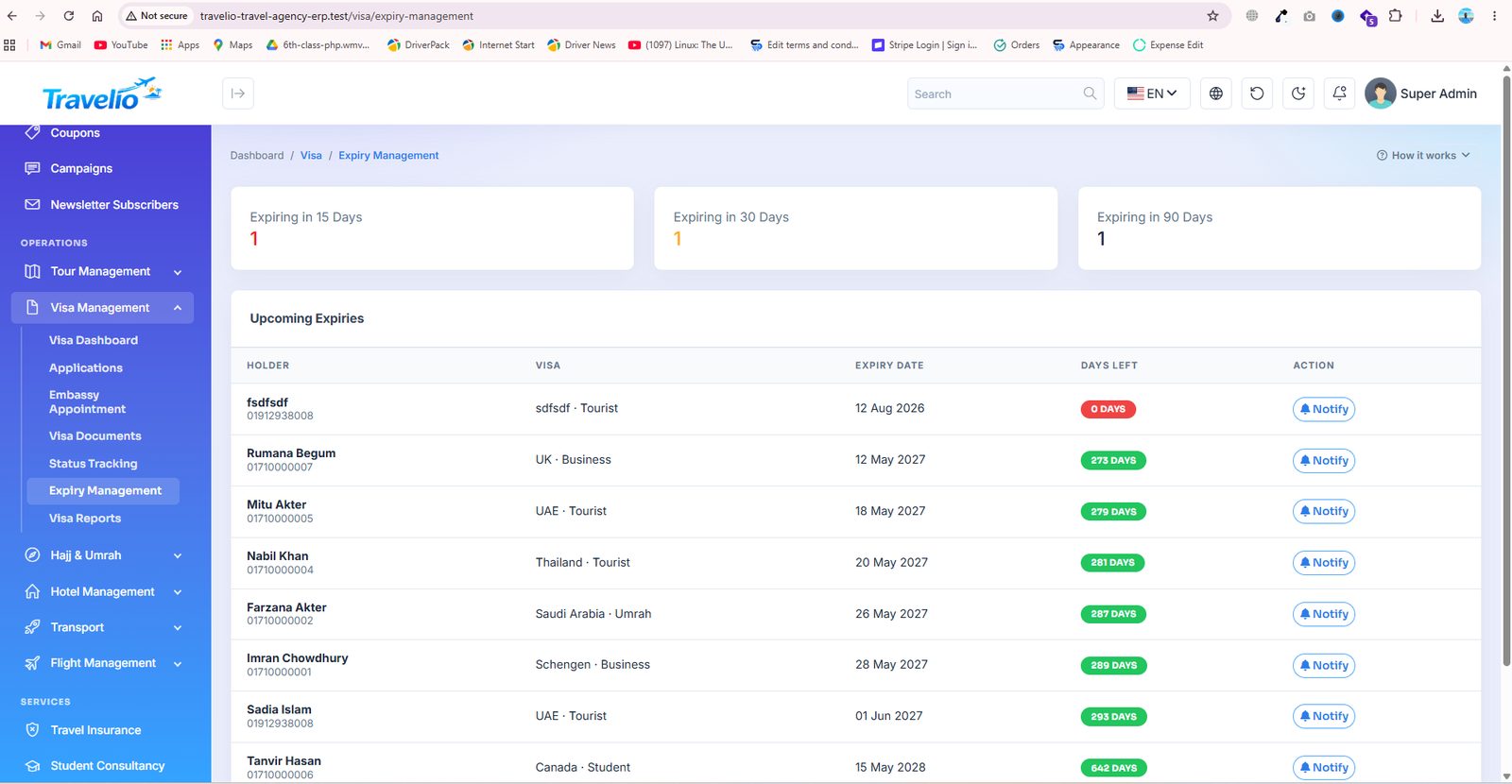
Without the cron entry those statuses go stale. Visa-expiry reminders are sent by you from Visa → Expiry Management with the Notify button, and there is no scheduled database backup — see Settings.
Login, Roles & Security
Open https://yourdomain.com/login and sign in. What you see depends on
your role — the sidebar only shows what your permissions allow.
Demo accounts seeded by the installer (password 12345678):
| Role | Lands on | |
|---|---|---|
| Super Admin | [email protected] | Admin dashboard — full control |
| Admin | [email protected] | Admin dashboard — the whole agency |
| Manager | [email protected] | Admin dashboard — sales, bookings, reports (no delete) |
| Operations Staff | [email protected] | Admin dashboard — day-to-day booking data entry |
| Accountant | [email protected] | Admin dashboard — finance modules |
| Support Agent | [email protected] | Admin dashboard — tickets + lookups |
| Travel Agent | [email protected] | Agent Portal |
| Customer | [email protected] | Customer Portal |
| Staff | [email protected] | Staff Portal |
Change every demo password before going live, and delete the accounts you do not need.
Permissions are fine-grained: each module can be read / created / updated / deleted independently. See Users & Roles.
- Two sign-in pages.
/loginis the portal login for everybody and sends each user to their own home: admin-panel users to the dashboard, then agents, vendors (only while the marketplace is on), customers and staff to their portals./admin/loginis a non-advertised staff entrance that only admits users with admin-panel access. - Customer registration creates an inactive Customer account and emails a 6-digit code (valid 10 minutes). Entering it activates the account and signs the customer in. Password reset uses the same email-code pattern. If emails never arrive, customers cannot activate — see Troubleshooting.
- Social sign-in (Google, Facebook) is optional, customers only, and requires a verified email. Administrator accounts always use a password. There is no two-factor authentication in this version.
- A Tour Guide account has no web panel; guides use the mobile app.
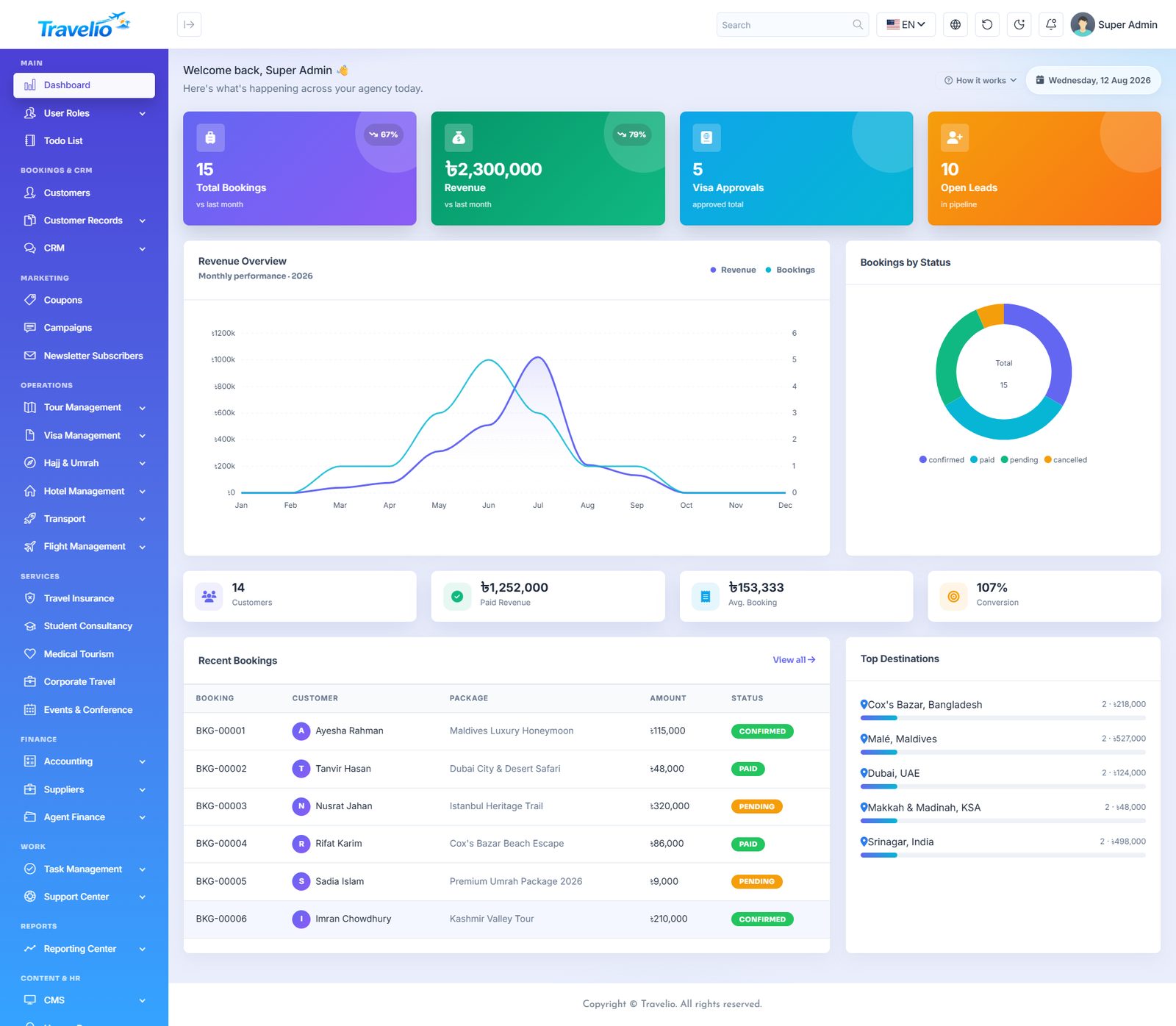
Dashboard
The first screen after login — the whole agency at a glance.
- KPI cards — total bookings, revenue, visa approvals and open leads, each with a month-on-month trend.
- Revenue Overview — monthly revenue plotted against booking count for the year.
- Bookings by Status — confirmed / paid / pending / cancelled split as a donut.
- Secondary tiles — customers, paid revenue, average booking value and conversion rate.
- Recent Bookings — the latest bookings with customer, package, amount and status.
- Top Destinations — best-selling destinations by revenue.
- Top bar — global search, language switcher, light/dark theme, cache refresh, notifications and your profile menu.
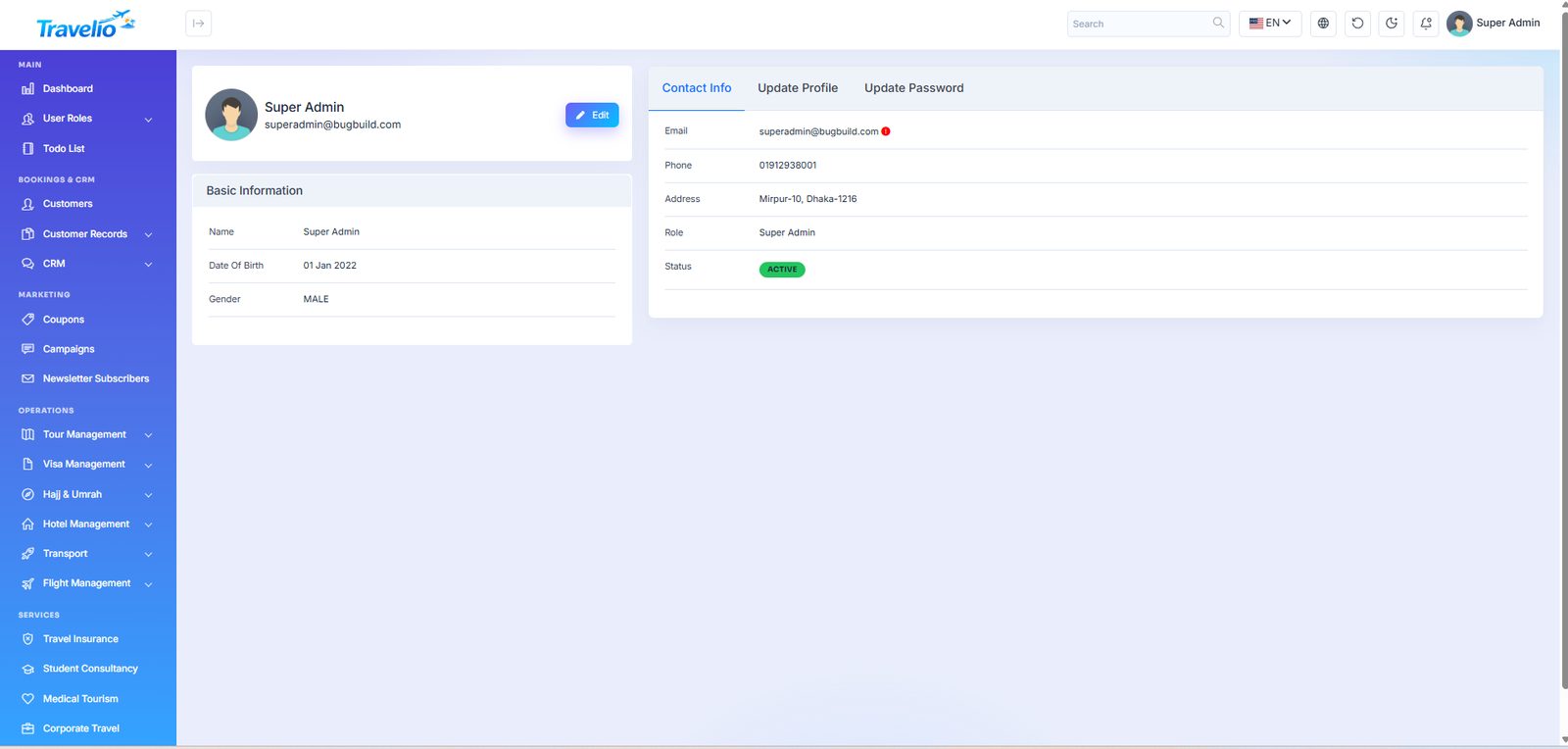
Your Profile
Open the avatar menu at the top right → Profile to update your own name, photo, contact details and password. This page is available to every signed-in user regardless of role.
Two-factor Sign-in 1.7.0
Every staff, agent or other user account can ask for a 6-digit code from an authenticator app (Google Authenticator, Microsoft Authenticator, 1Password, Authy…) after the password. A stolen password alone then no longer opens the account.
- Open Profile → Two-factor sign-in, enter your current password and click Turn on.
- Scan the QR code with the authenticator app (or type the key shown under it) and enter the code the app shows. Two-factor is on only after this step, so nobody locks themselves out half-way.
- Copy the eight recovery codes somewhere safe. Each one signs you in once if the phone is lost. They are shown only once; New recovery codes replaces them.
From then on the web sign-in, Google/Facebook sign-in and the mobile app all ask for the code after the password. A code works once; five wrong codes per minute are refused. Turning it off asks for the password again.
Lost both the phone and the recovery codes? A super admin can clear the three two_factor_* columns of that user in the database, after which the password alone signs in again.
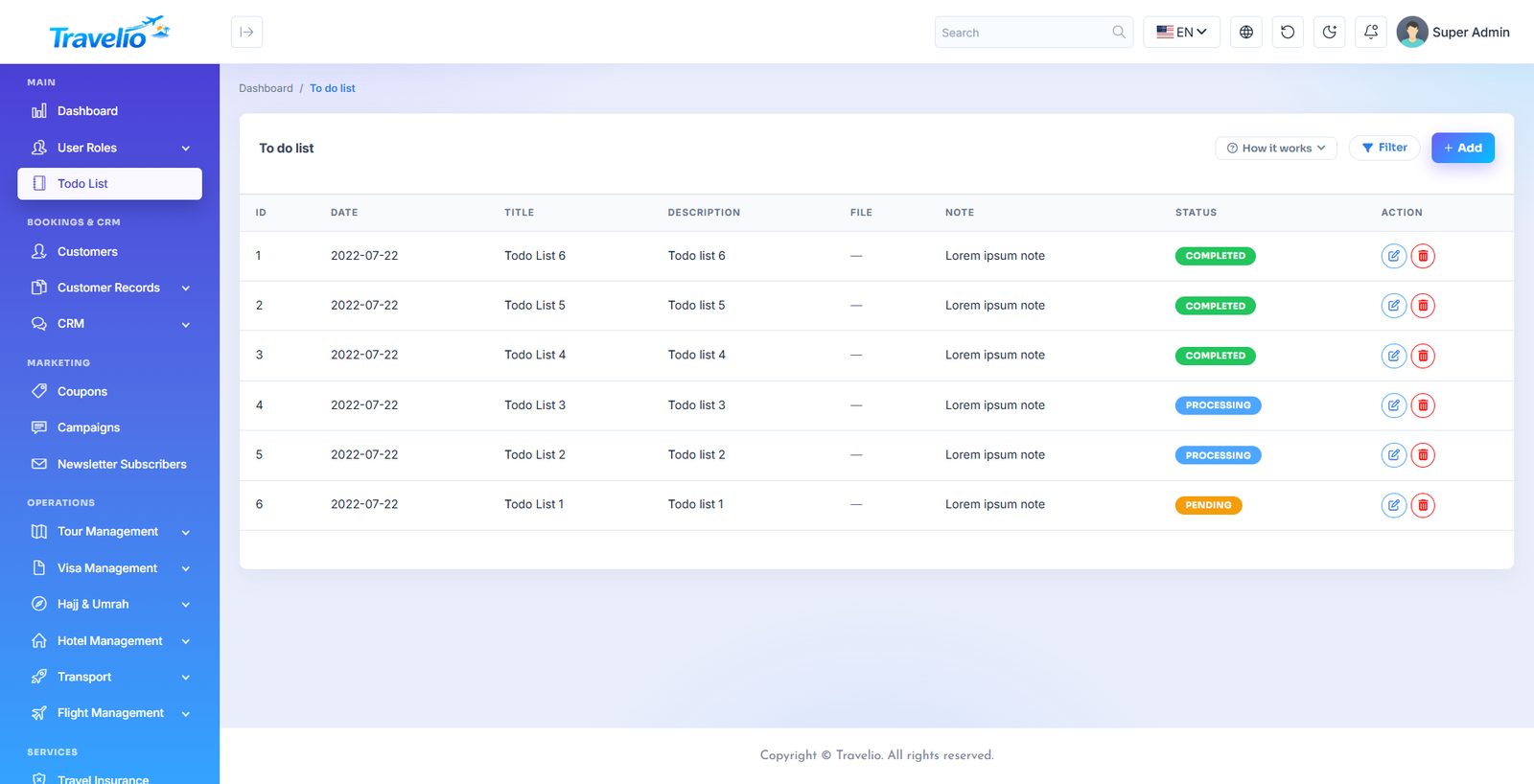
To-Do List
A private checklist for the signed-in user, separate from Task Management (which is for work assigned across the team). Add an item, tick it off, delete it when it is done. Nobody else sees your to-do list.
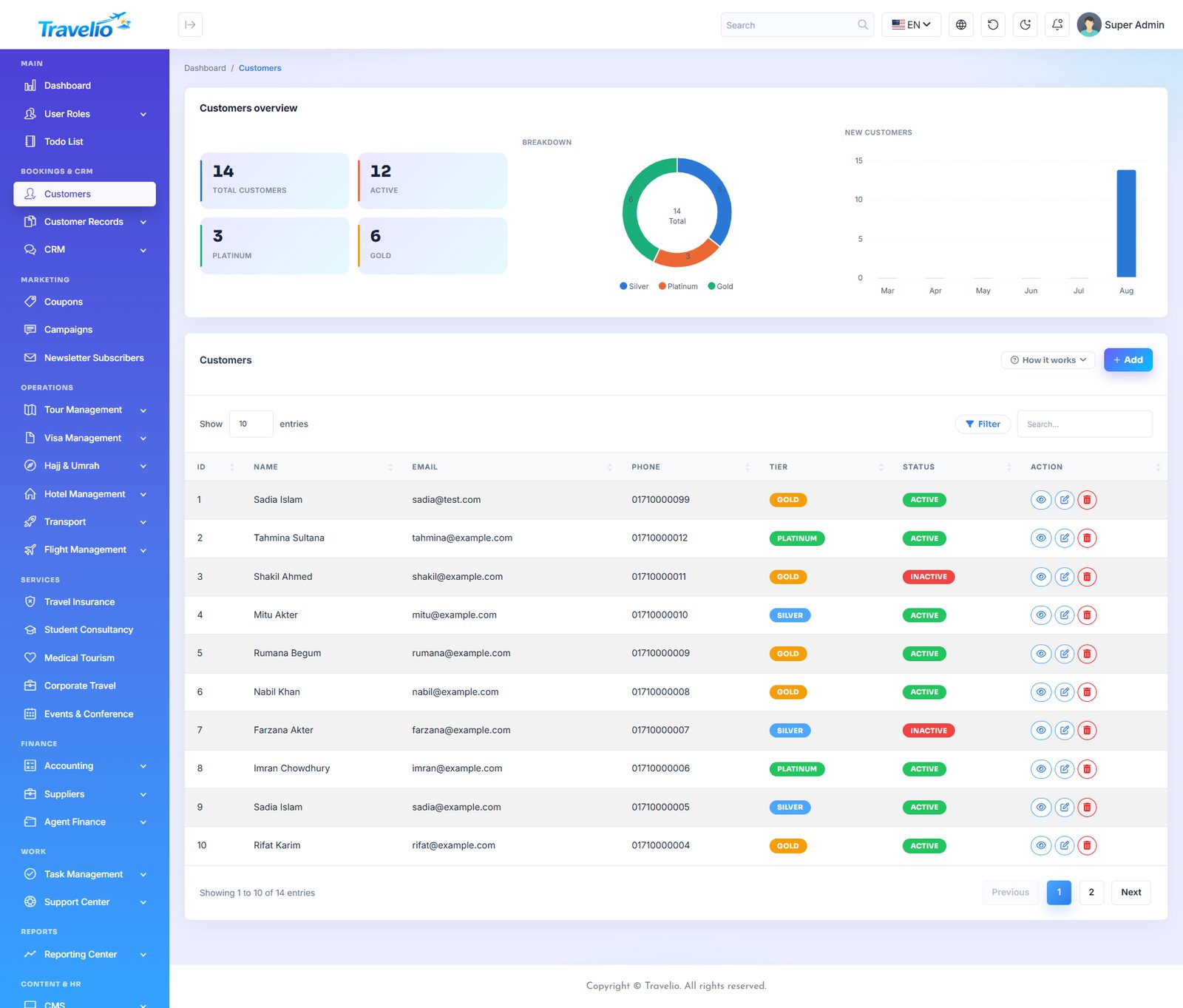
Customers
The central customer database. Every booking, invoice, visa application and support ticket links back to a record here.
- Full contact details — name, email, phone, address, nationality.
- Tier and status for segmenting regular from occasional travellers.
- Booking history and outstanding balance visible from the customer record.
- Search, sort and page through the list; export where a report exists for it.
Other fields: Avatar, Tier (Silver, Gold, Platinum — set by you) and Status (active / inactive). The customer's profile page shows their services and service revenue, and a Wallet card with a statement. Wallet adjustment lets staff credit or debit the wallet with a method and description (a debit cannot exceed the balance); customers cannot top up themselves. Wishlist has no admin screen — customers save packages with the heart icon on the website and manage them in the portal. Points and referrals are shown to the customer in their portal and configured in Settings → Loyalty. There is no import or export of customers.
A customer with a login can also use the Customer Portal to see their own bookings, documents and invoices.
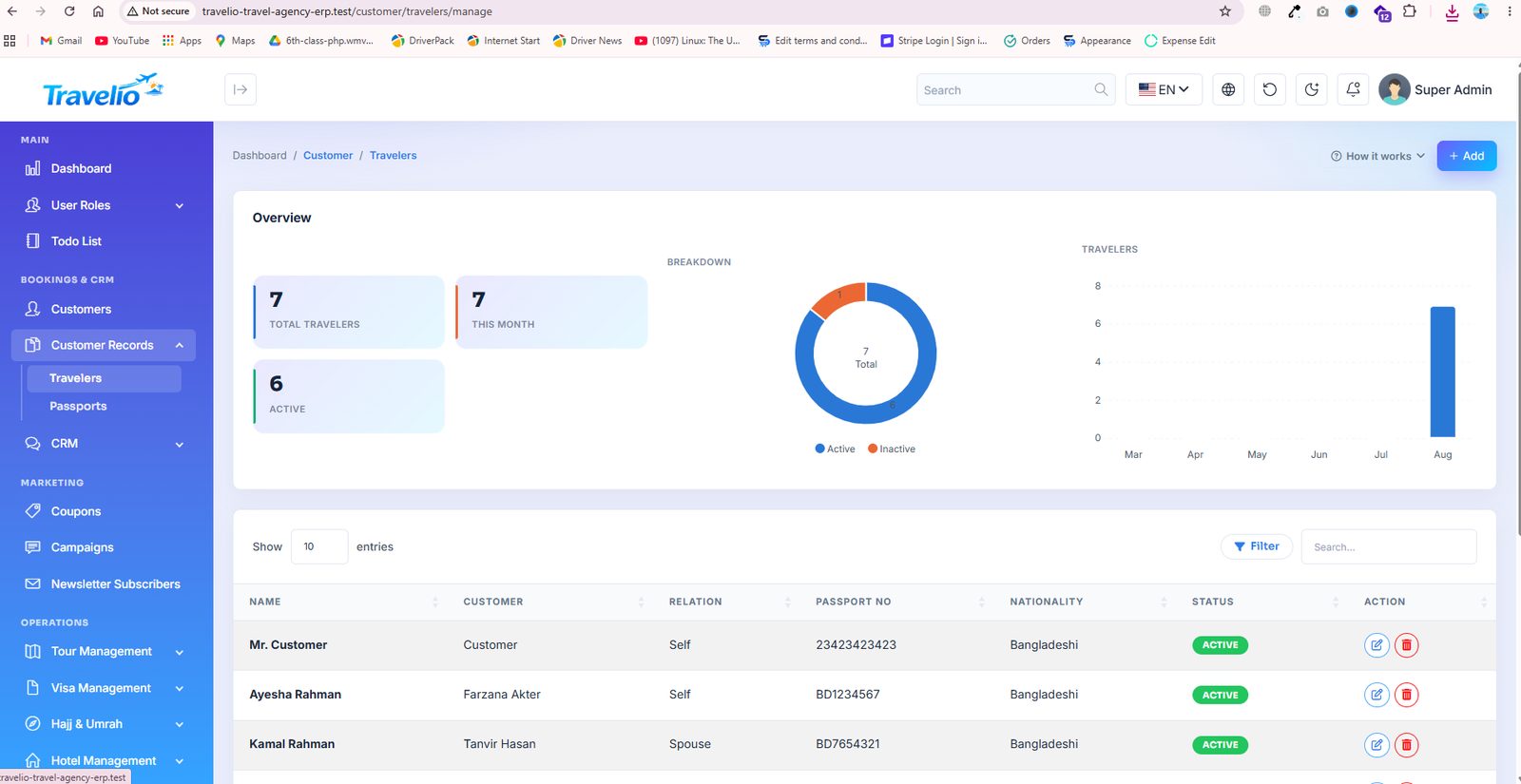
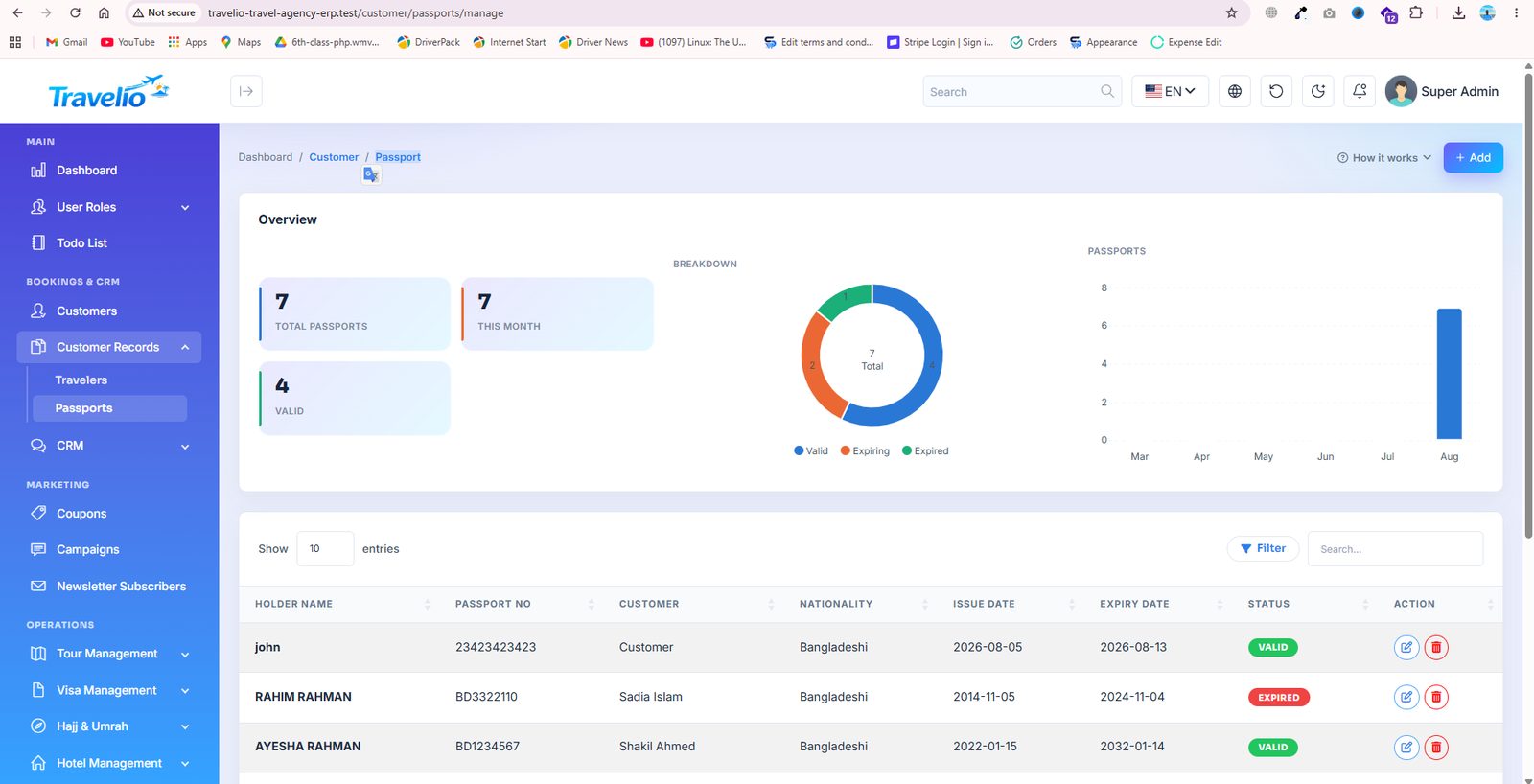
Travelers & Passports
Travel documents for the people who actually fly — a customer often books for a family or a group, so travellers are stored separately from the paying customer.
- Travelers — each passenger tied to a customer, with date of birth, gender and relationship.
- Passports — passport number, issuing country, issue and expiry dates, scanned copy.
- Expiry dates feed the visa and Hajj modules so you can catch an expiring passport before it blocks a departure.
Customers can maintain their own travellers and passports from the Customer Portal — you do not have to key them in.
CRM — Leads & Activities
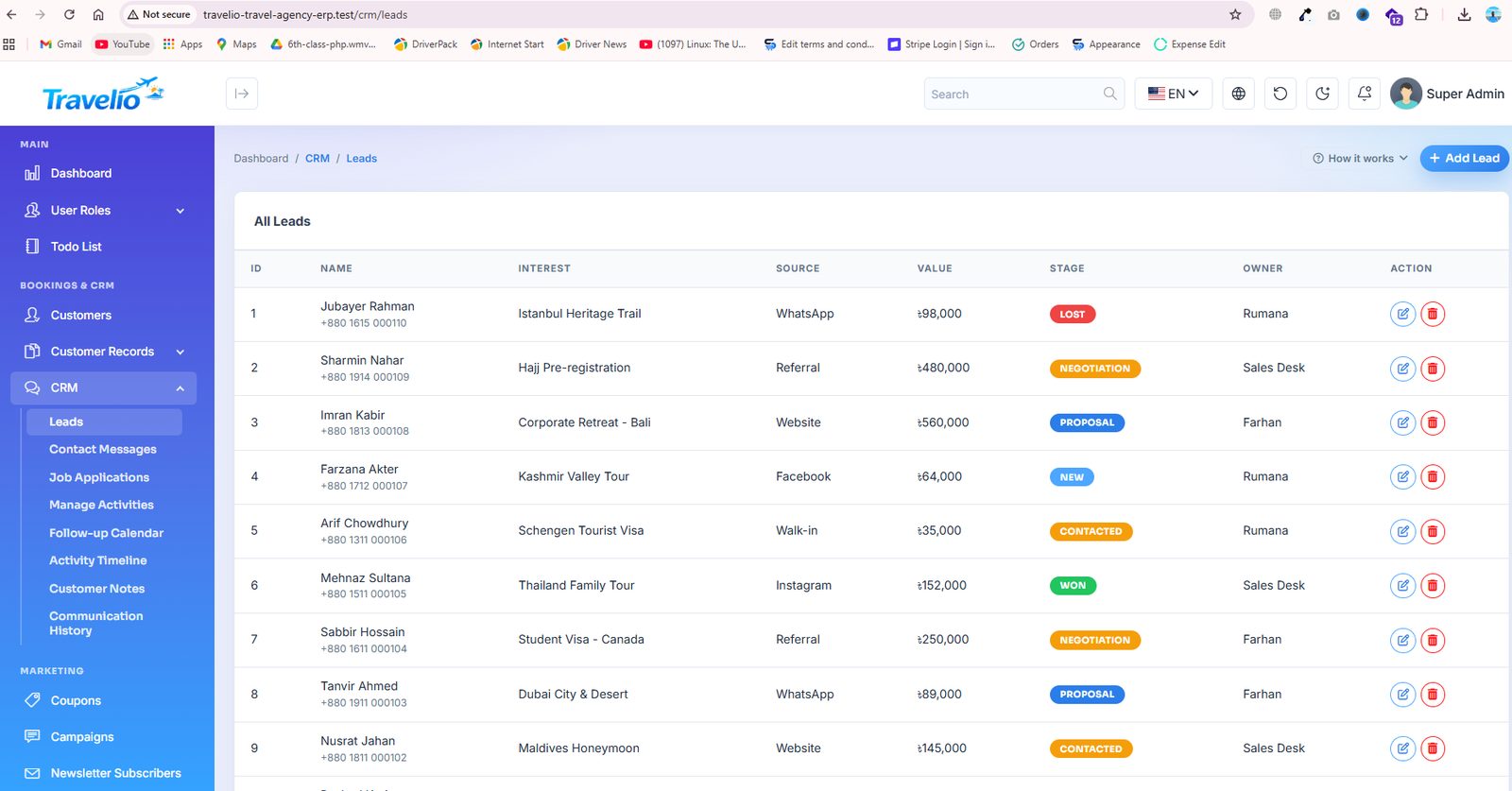
Everything before the booking: enquiries, follow-ups and the conversation history that turns a lead into a sale.
- Leads — source, destination interest, budget, assigned staff member and pipeline stage through to conversion.
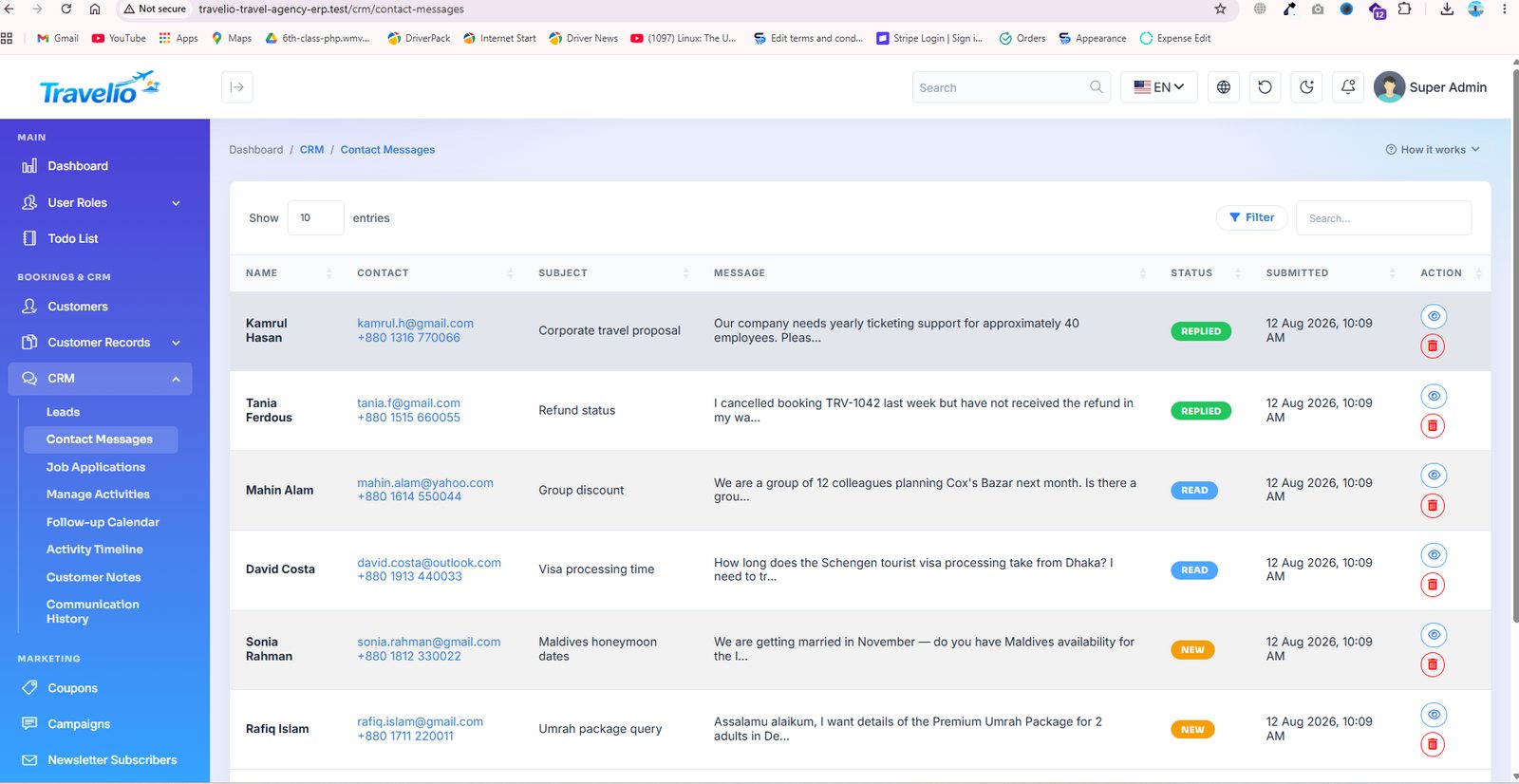
- Contact Messages — enquiries submitted from the website contact form, answered from inside the panel.
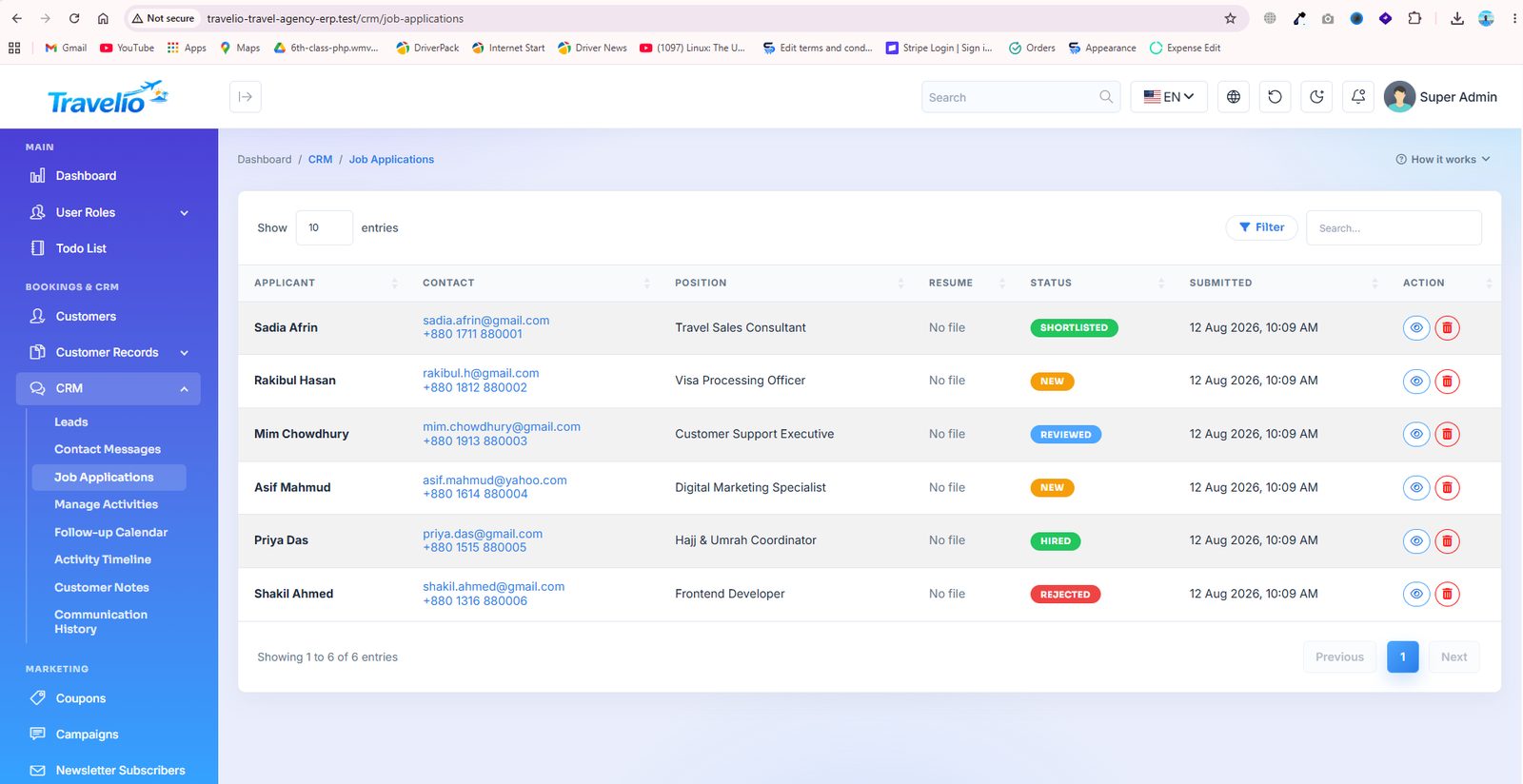
- Job Applications — applications received against the vacancies you publish under CMS → Job Openings.
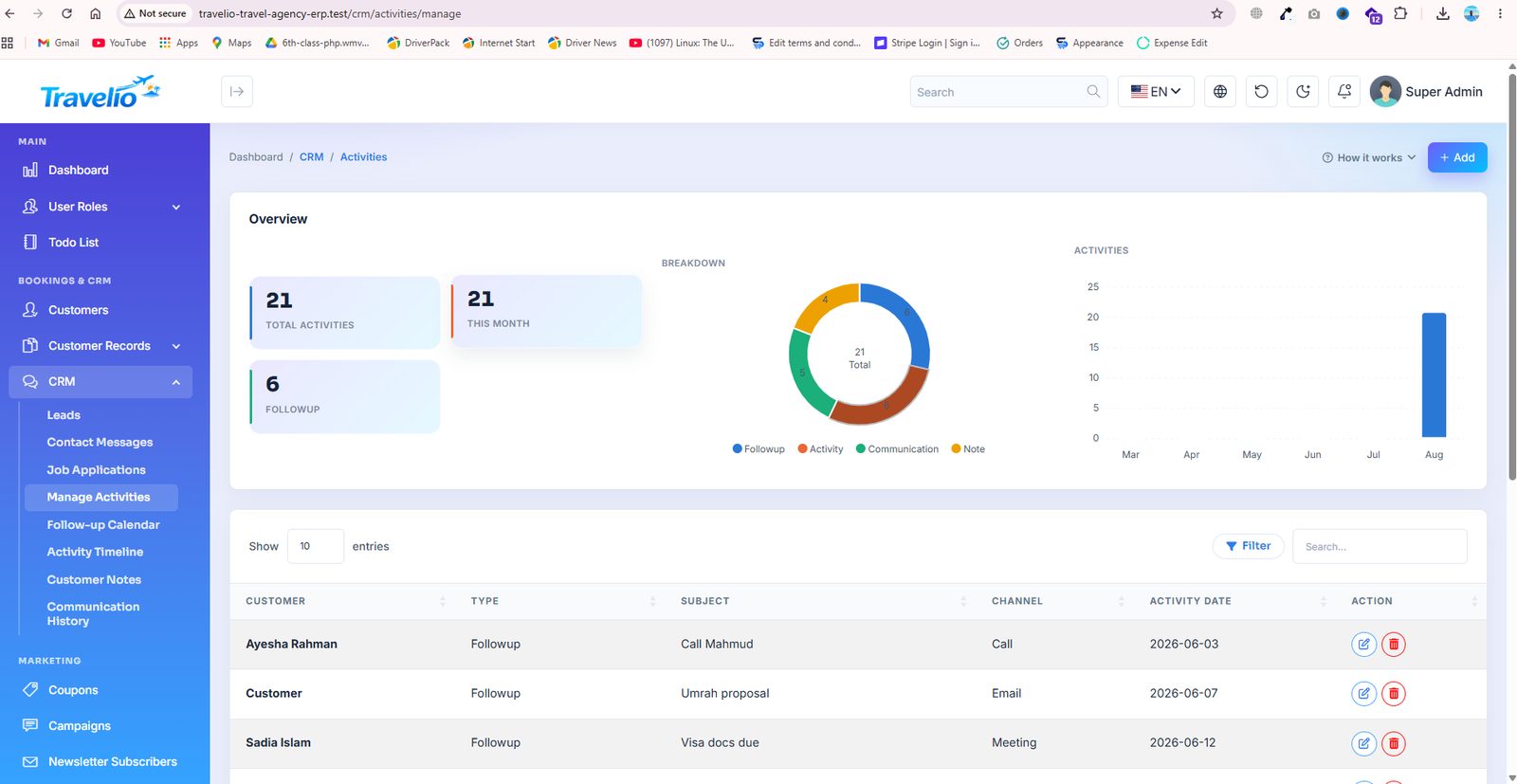
- Manage Activities — calls, meetings, emails and site visits logged against a lead or customer.
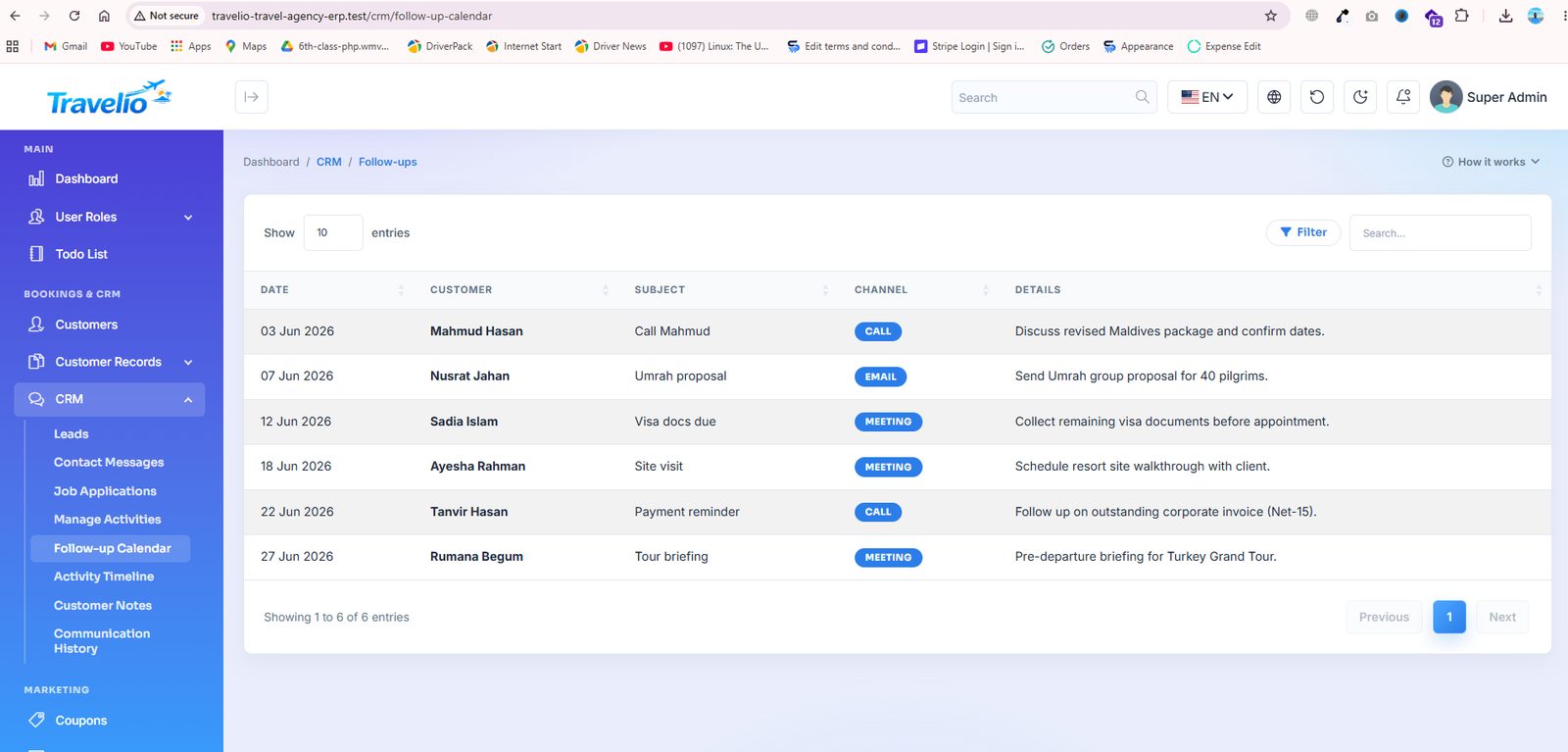
- Follow-up Calendar — every scheduled follow-up on a calendar so nothing is missed.
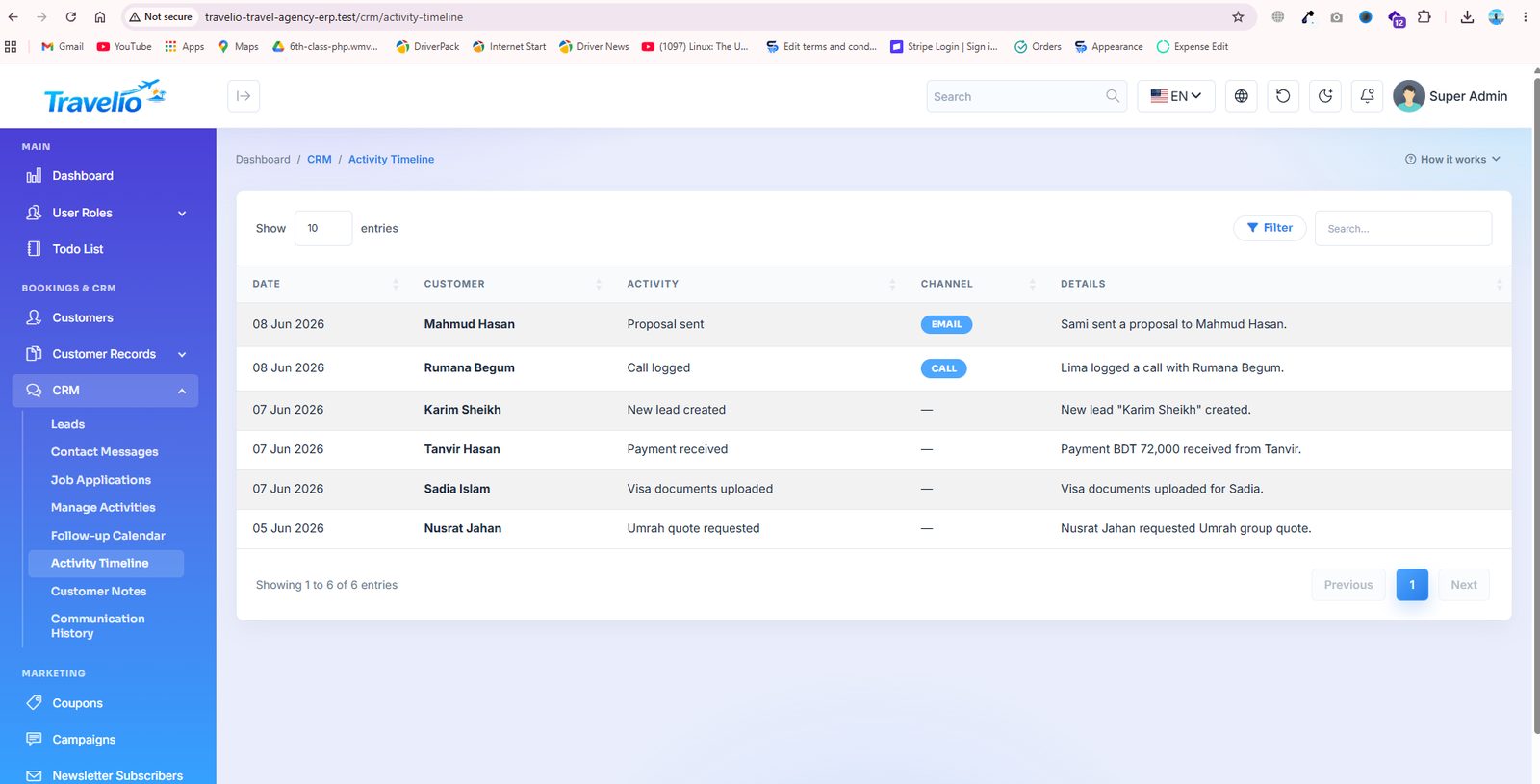
- Activity Timeline — one chronological feed of everything that happened with a customer.
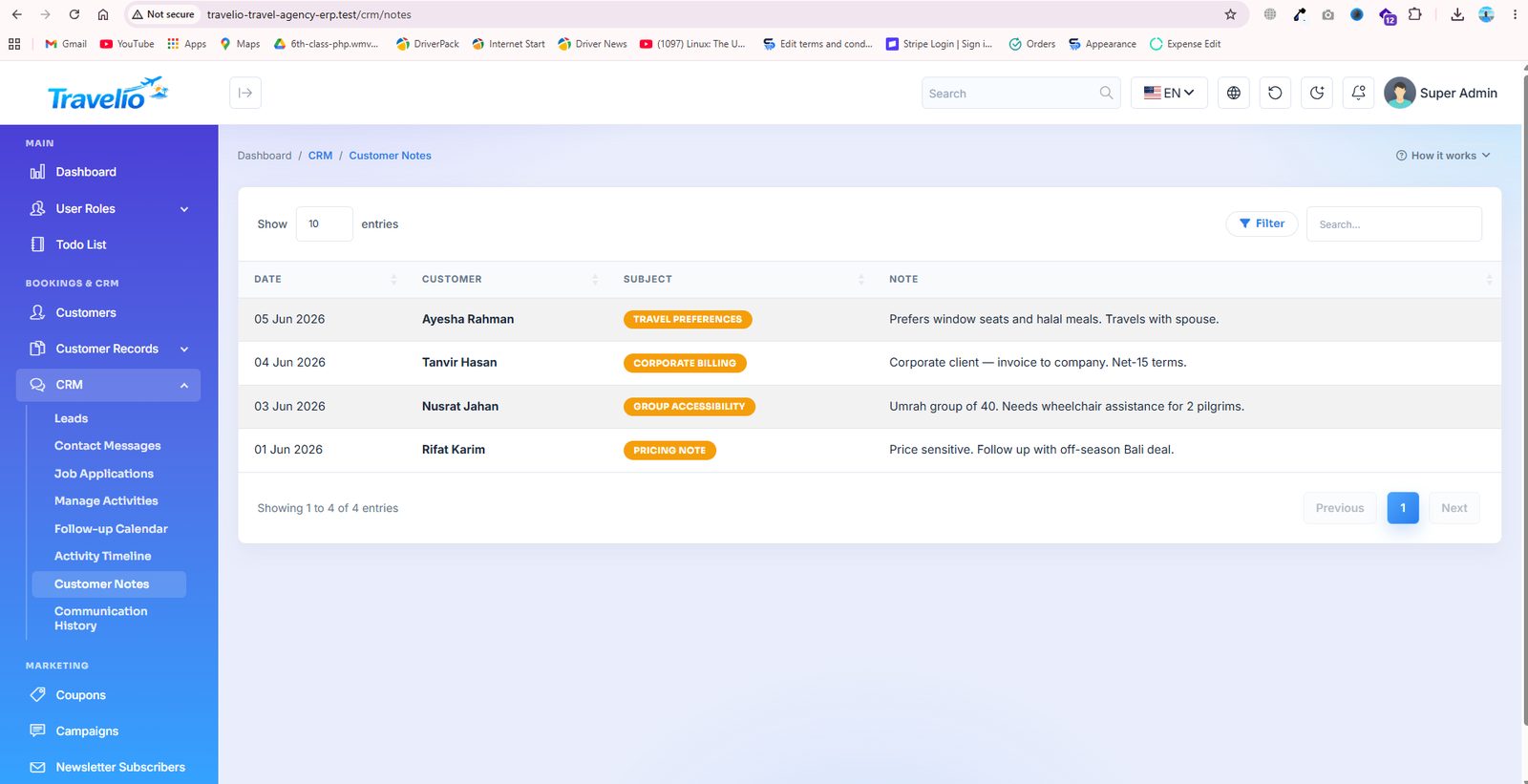
- Customer Notes — free-form internal notes on a customer record.
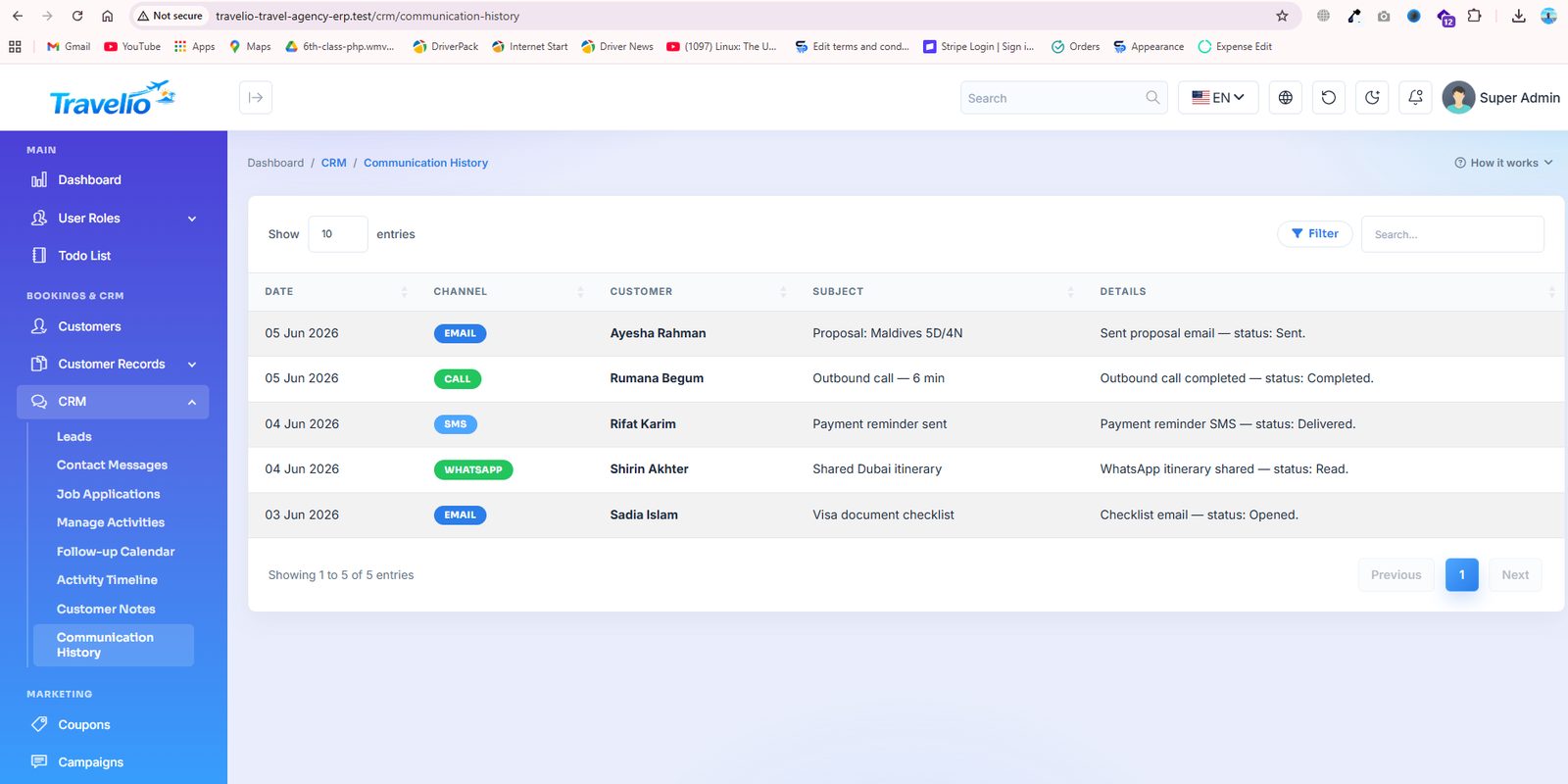
- Communication History — the log of emails and messages sent to the customer.
Leads have Name, phone, email, interested in, Source (Facebook, Website, Referral, WhatsApp, Instagram, Walk-in), estimated value, Stage (New, Contacted, Proposal, Negotiation, Won, Lost), owner and notes. Website contact, visa, agent, tour, transport and Hajj enquiries create leads automatically (source Website, stage New). On a lead whose interest mentions flight or hotel, Convert to Booking opens a pre-filled booking form; saving it marks the lead Won and logs a CRM activity. There is no one-click “lead to customer” conversion and no lead import or export. Manage Activities records a type (follow-up, activity, note, communication), subject, body, date and channel (Call, Email, WhatsApp, Meeting, SMS) against a customer or a lead; the calendar, timeline, notes and communication pages are filtered views of the same records.
Marketing
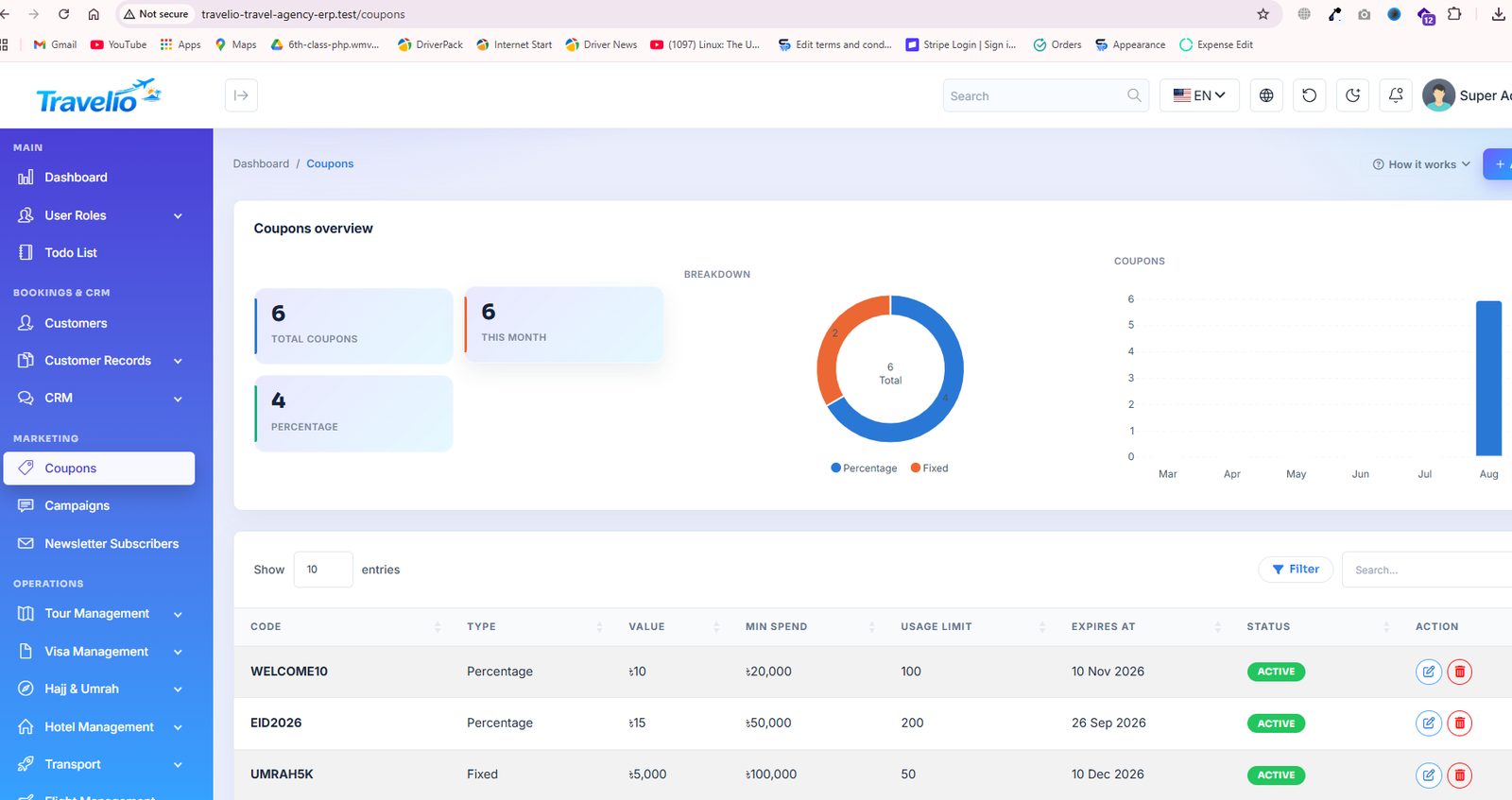
- Coupons — discount codes with a fixed or percentage value, usage limit, validity window and minimum spend. A customer enters the code when booking on the website, in the customer portal or in the app, and your staff can type one on the back-office booking form. The list shows a live Used counter against the limit, and flags a code that has expired or run out.
- Reviews — traveller reviews awaiting your decision. Approve, reject, or write a public reply. Only approved reviews appear on the website and count towards a tour's star rating.
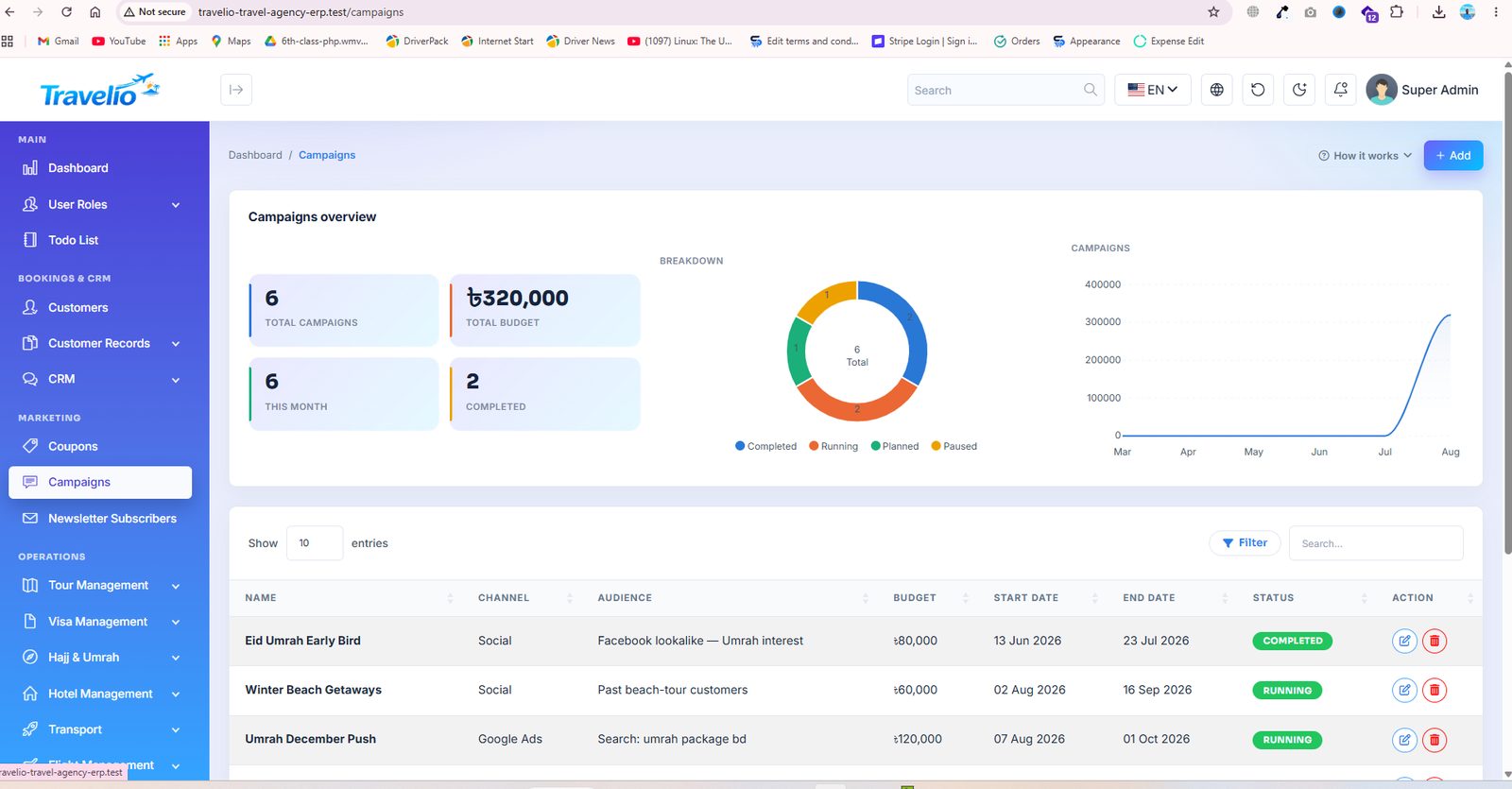
- Campaigns — promotional campaigns with a target audience, channel and running period, so you can measure what each push actually sold.
- Promotions — scheduled promo banners for the website and the app, each linking to a package, Hajj/Umrah package, visa service, hotel or any link. See Promotions & Featured Listings.
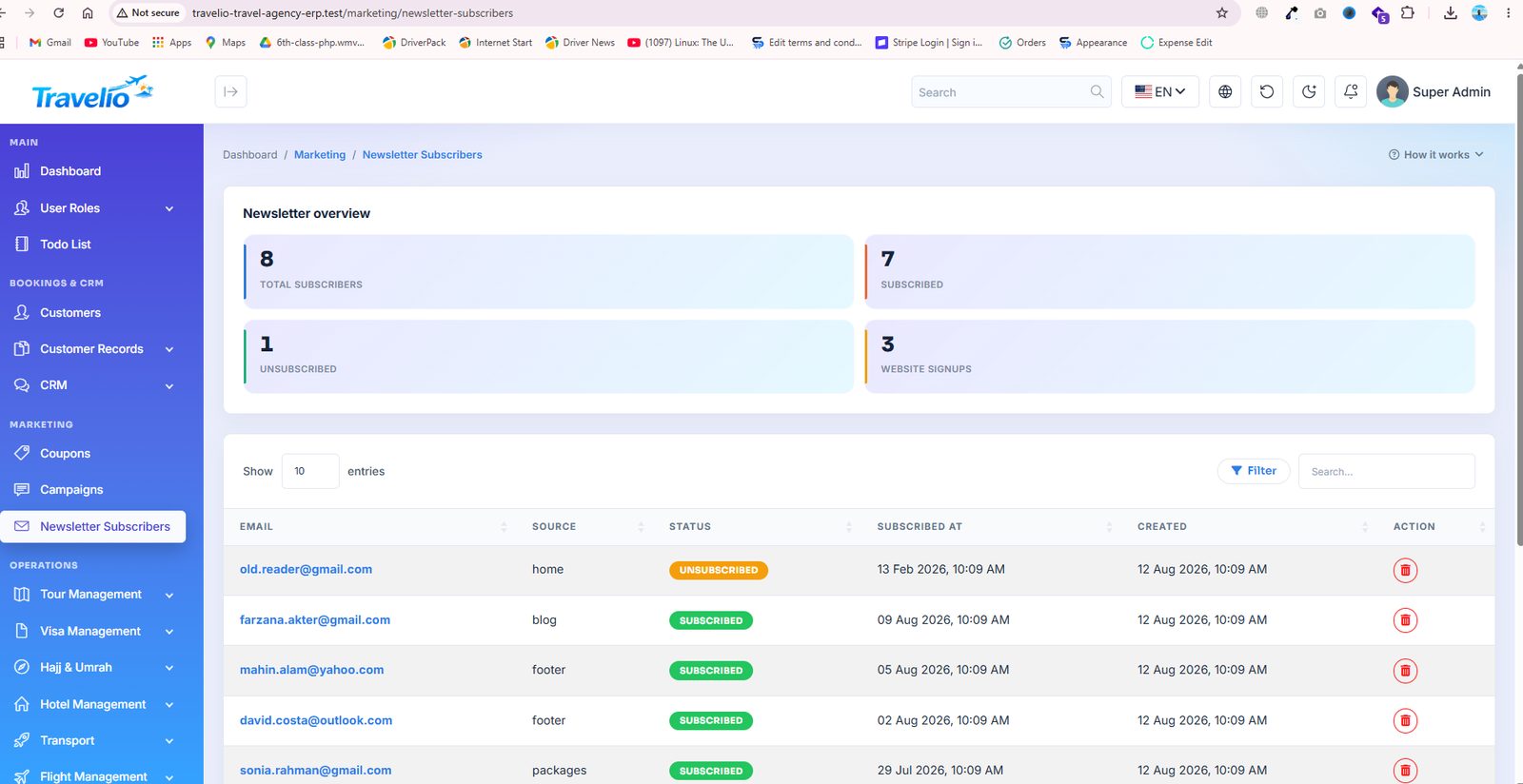
- Newsletter Subscribers — everyone who subscribed from the website footer, exportable for your mailing tool.
Why reviews can be trusted. A review can only be written against a booking that is paid and whose travel date has passed, by the customer who made it, once. That is enforced in the backend, so the “Verified booking” badge on the website is a fact about the record rather than a label anyone can apply. You can moderate a review or reply to it — you cannot edit what the customer wrote, which is what keeps the badge worth anything.
New reviews are held for moderation by default. To publish them straight away, set to Yes.
Coupon fields
Code (case-insensitive), Type (Percentage / Fixed), Value, Min spend, Usage limit (blank = unlimited), Expires at (valid through the end of that day), description and status. A coupon comes off the list price first and loyalty points come off what remains; a fixed coupon never takes the price below zero. The list flags Limit reached and Expired. An unusable code never fails a booking — it is priced without the discount and the customer is told why.
Reviews have three states — pending, approved, rejected — and you can filter by them. Edit lets you change the status and write a public reply (up to 2,000 characters); rating and text stay as the customer wrote them. Campaigns have a name, channel (Email, SMS, Social, Google Ads, Print), audience, budget, dates and a status (Planned, Running, Paused, Completed); they are records for tracking, nothing is sent from the screen. See Statuses & Workflows.
Promotions & Featured Listings
and the Featured switch on and
Three ways to put what you want to sell in front of customers — on the website and in the app.
Featured packages
- Switch on Featured on a tour package or a Hajj/Umrah package (a star appears next to it in the admin list).
- Featured tours lead the home page package rail and the app's Featured Tours, show a Featured badge, and come first in the tour list (
GET /api/v1/tours;?featured=1returns only featured ones). - Featured Hajj/Umrah packages come first on the Hajj and Umrah pages, are highlighted as Most popular, lead the home page's Hajj & Umrah rail and the app's Hajj rail.
- Hotels, visa services and flight fare deals already had a featured flag; they keep it.
- Vendors cannot set Featured — it is your decision.
Promotions (promo banners)
A promotion is a banner with a title, subtitle, image, badge (“-15%”, “Limited seats”) and button text that links to:
- a tour package, a Hajj / Umrah package, a visa service or a hotel — on the website it opens that page; in the app it opens the item itself; or
- any link (a page of your site such as
/umrah, or a full URL).
- Show on: website & app, website only, or app only.
- Schedule: optional start and end. It appears and disappears by itself; leave the end empty to run until you switch it off. The website card shows “Ends <date>”.
- Sort order and status. The list shows Live when a promotion is actually being shown.
- A promotion whose item is no longer active, or whose module is switched off, is hidden automatically and flagged in the list.
- Permissions are the Campaign ones (
campaign_read / create / update / delete).
Where they appear
- Website — the Promotions home section (“Special offers”), placed under the promo carousel. Like every section you can retitle, move, or switch it off under CMS → Home Sections; its setting is how many promotions to show.
- App — a Special Offers carousel at the top of the home screen (
promotionsinGET /api/v1/home). - Banners in CMS → Manage Sliders continue to work as before (hero and promo carousel on the website, banner strip in the app).
Tour Management
Your sellable tour products and the departures behind them.
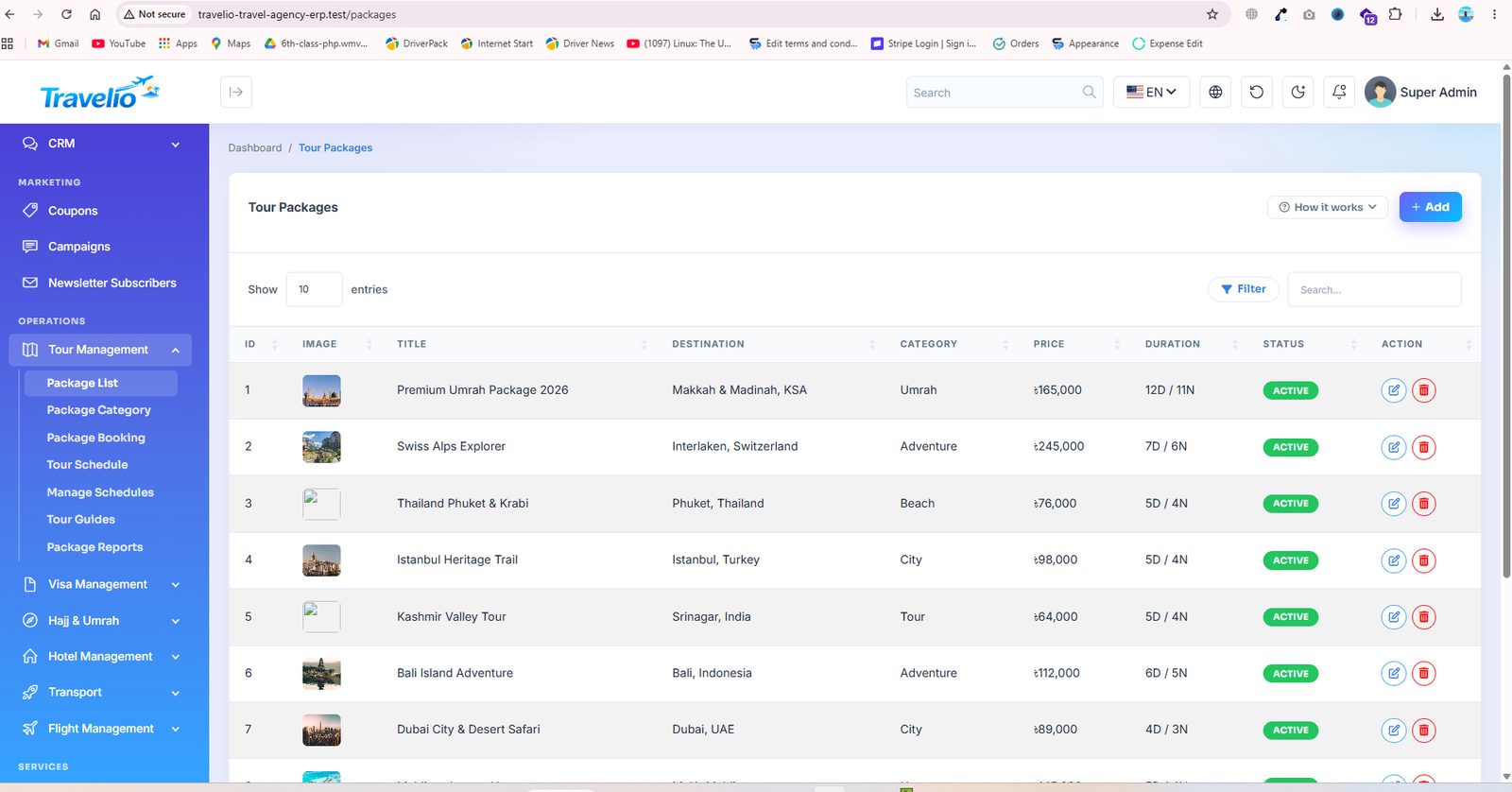
- Package List — Title, Destination, Category, Price per adult / child, Single supplement, Days, Nights, Status (active / inactive), image, description, What's included / Not included (one per line) and an itinerary of up to 60 day rows (Day, Title, Description). Only active packages appear on the website and in booking forms; with the marketplace on, a vendor package also needs approval. Featured puts the package first on the home rail, in the app and in the tour list, with a badge (see Promotions & Featured).
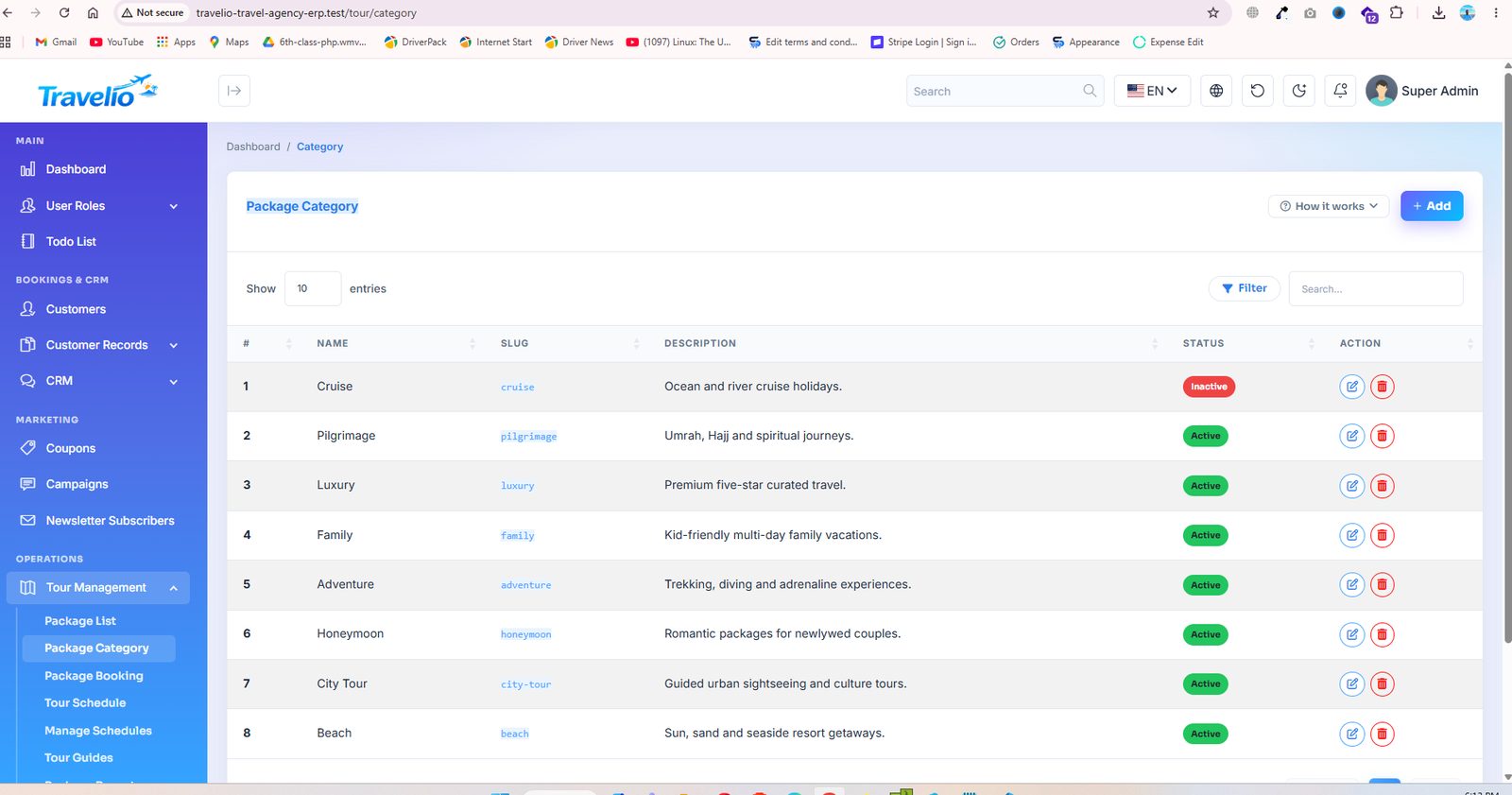
- Package Category — group packages (honeymoon, family, adventure, religious…) for the website filters.
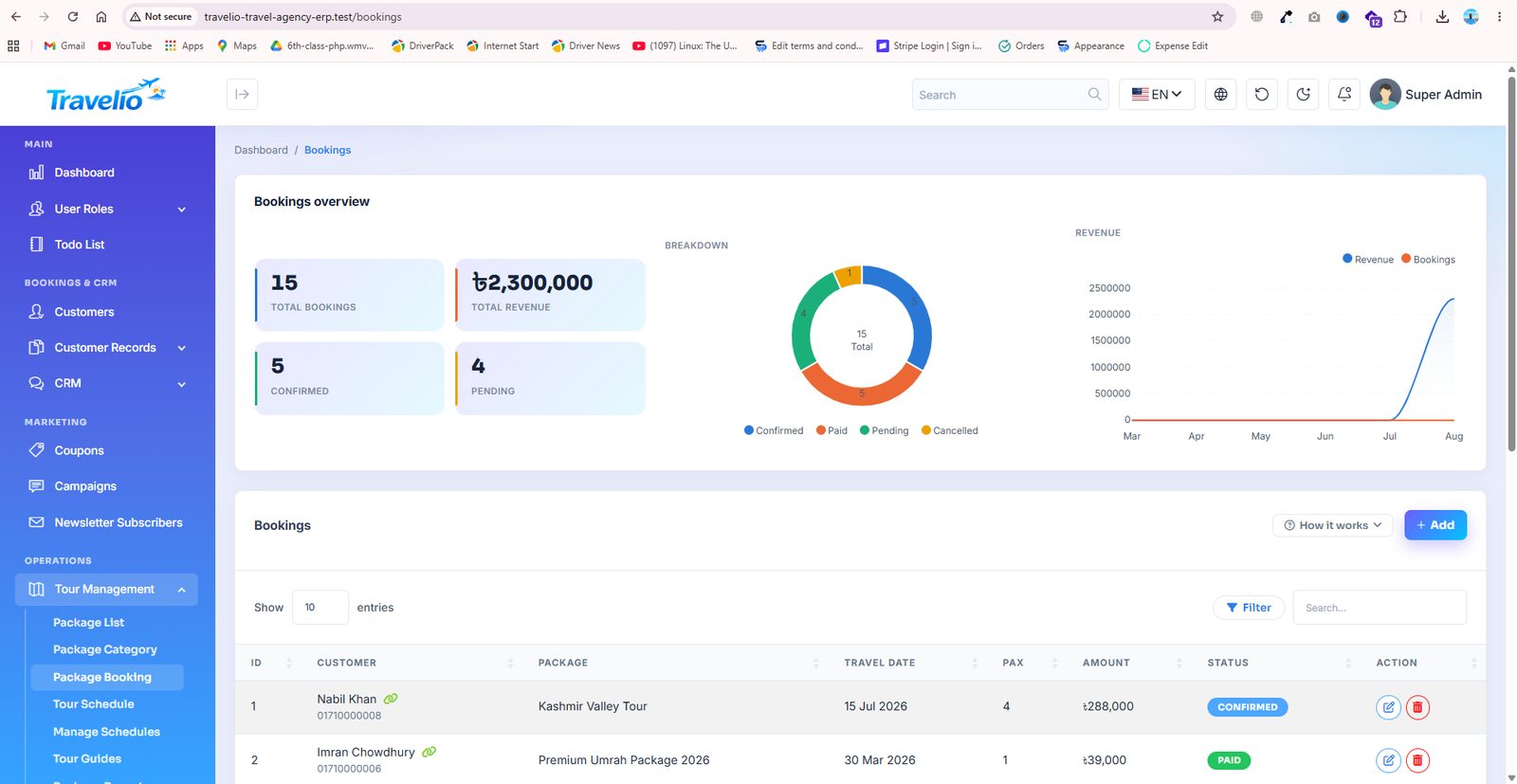
- Package Booking — Customer, Booked by agent (blank = direct), Package, contact details, Travel date, Travelers, Amount, Promo code, Payment method, Status, Payment status, Supplier status, Supplier, Supplier reference and Notes. See Booking, Payment & Supplier Status. Saving a booking creates its invoice, receipt, commission and loyalty points automatically (see Statuses & Workflows). Refunds are made from Accounting → Invoices.
- Payment Verification and Bank Accounts — see Payment Verification & Bank Accounts.
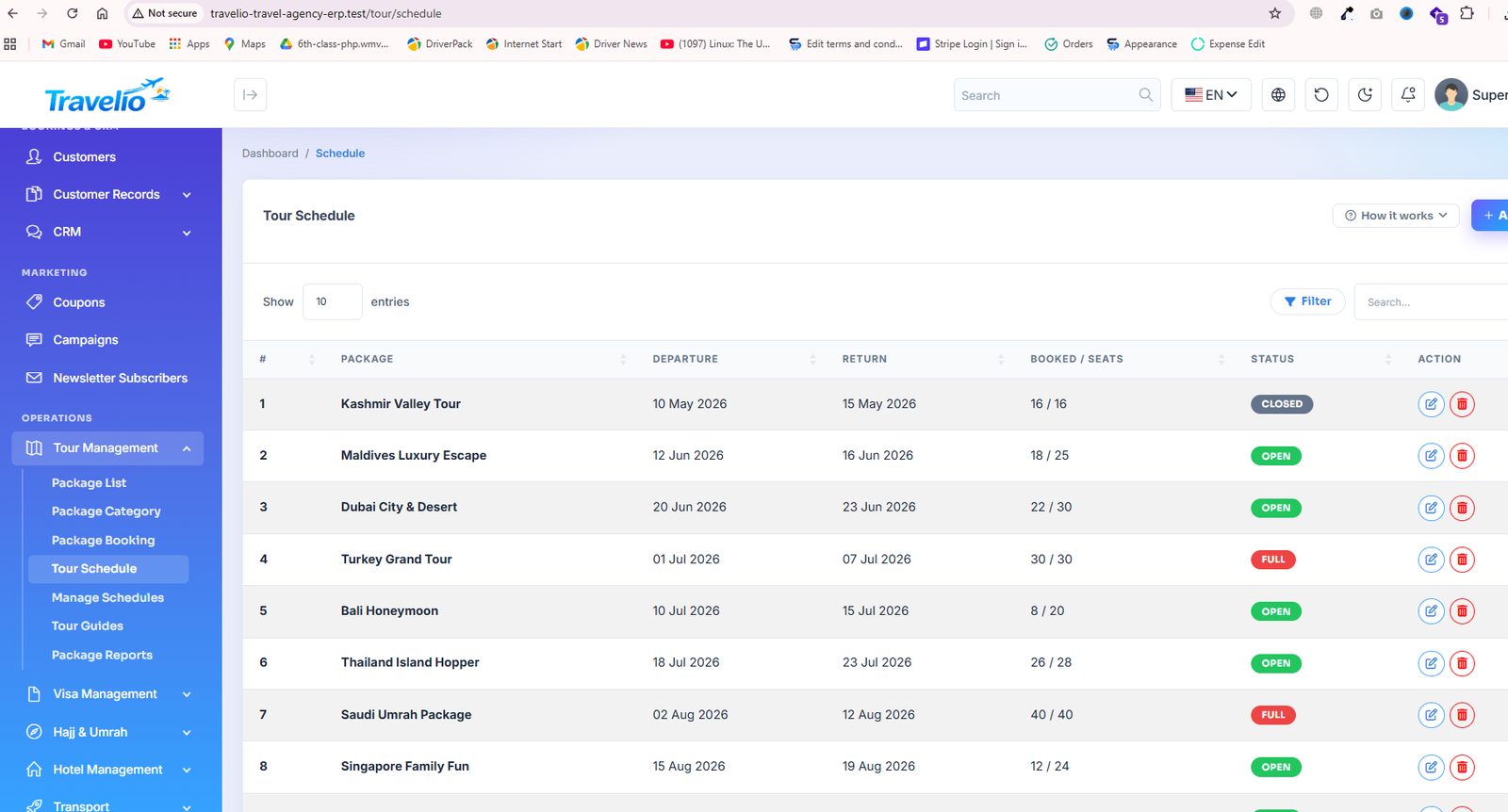
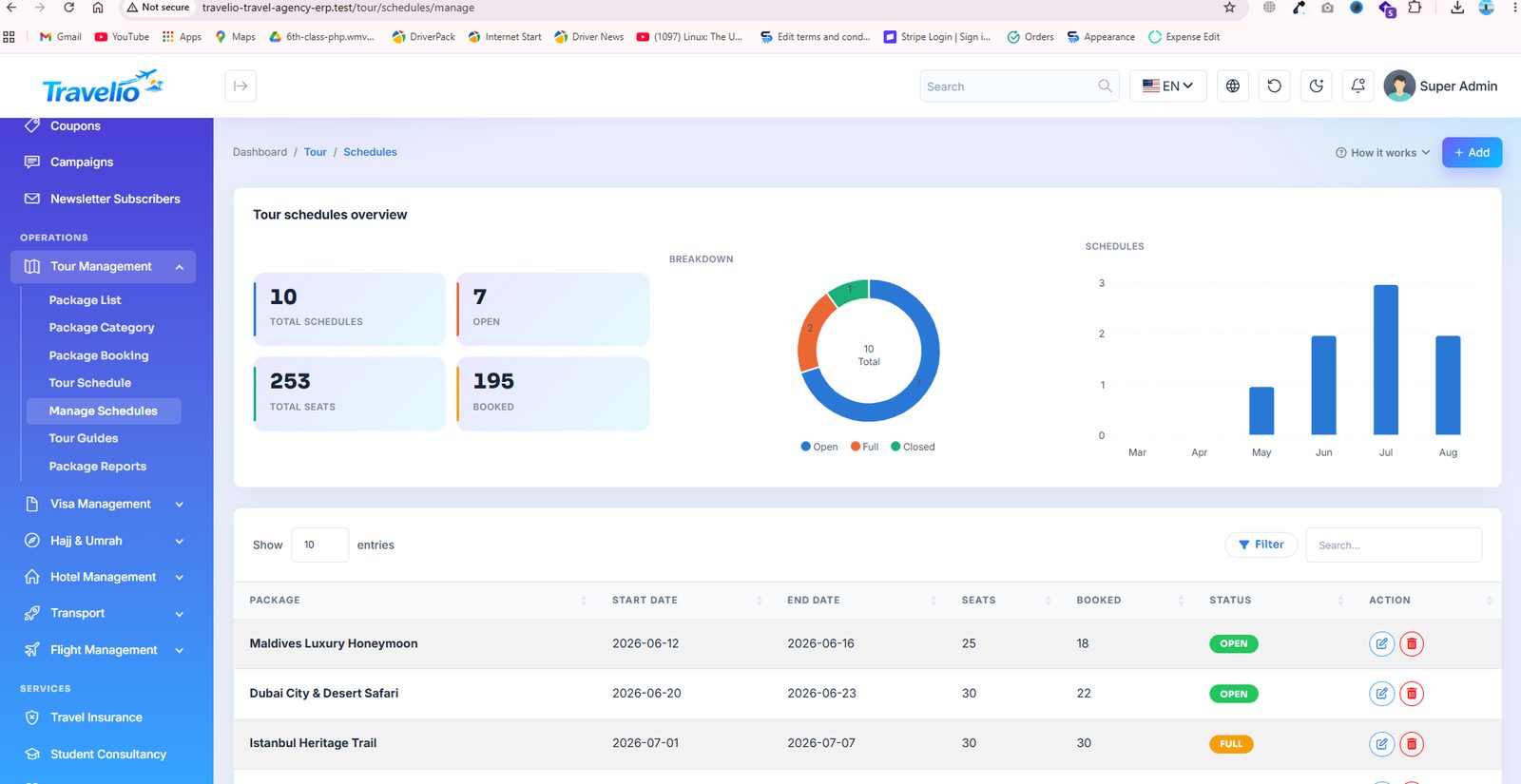
- Tour Schedule / Manage Schedules — dated departures: Package, Start, End, Seats, Booked and Status (open / full / closed). A departure displays as closed once its start date passes and full when booked reaches seats. Booked seats are entered by hand; bookings are not linked to a schedule.
- Tour Guides — Name, phone, languages, years of experience, bio, photo, Status (active / inactive / on_tour) and an App login user so the guide can sign in to the app. Average rating comes from customer ratings.
- Guide Assignments — assign a guide to a tour for a date range (scheduled → in progress → completed, or cancelled). A guide cannot be assigned to overlapping dates. Customers can rate their guide in the app after the tour.
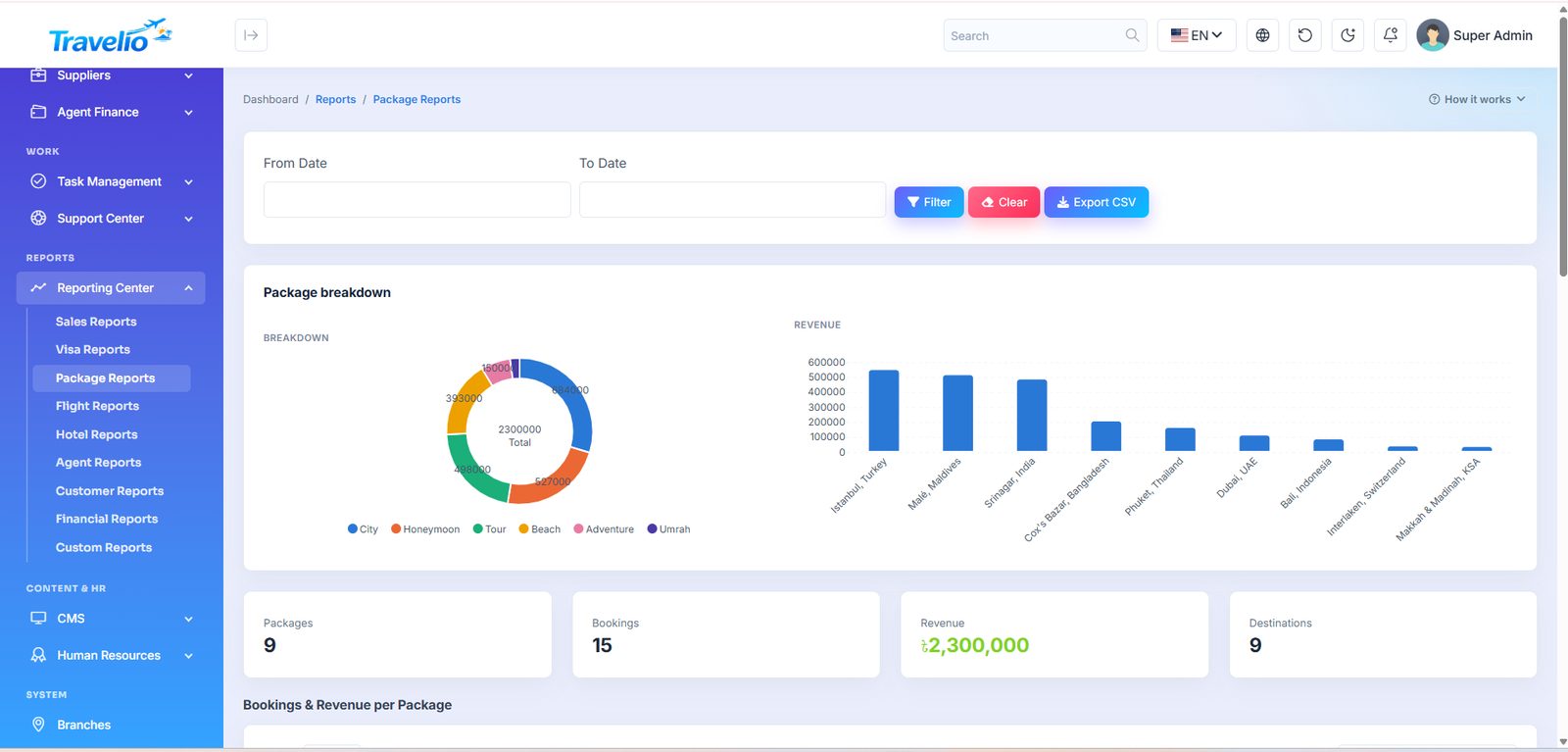
- Package Reports — seats, booked and occupancy by category and schedule; the Reporting Center has the date-filtered CSV version.
Payment Verification & Bank Accounts
and New in 1.4.0
Customers can pay by bank transfer and upload proof. Nothing is marked paid on their word — a member of your team checks that the money really reached the bank, then approves or rejects the proof.
Step 1 — Publish your bank accounts
- Open Bank Accounts and click Add.
- Fill Bank Name, Account Title and Account Number (required); add IBAN, Branch, SWIFT Code and Currency if useful.
- Display order sets the order customers see; Status active / inactive is the on/off switch. Only active accounts are shown.
- Instructions shown to the customer — e.g. “Write your booking number in the transfer remarks.”
Active accounts appear to a customer who chooses Bank in the Customer Portal and in the mobile app. Needs accounting_read to view and accounting_create / update / delete to change.
Step 2 — What the customer submits
From a booking's Pay button (package, hotel, transport and visa payments; also over the mobile API): the account they paid into, the transaction reference, the payment date (not in the future) and a receipt (JPG, PNG, WEBP or PDF, up to 4 MB). The booking's payment status becomes Pending verification. Only one proof per booking can wait at a time. Receipts are kept on private storage and only staff can open them.
Step 3 — Review it
- Open Payment Verification. Filter by Pending (default), Approved, Rejected or All; each filter shows a count. The list shows submitted time, booking reference, customer, method, amount, reference, bank and status.
- Click Review. The left card shows what the customer submitted, with the receipt image or PDF link.
- Check your bank statement, then either Approve or Reject.
| Action | Fields | What happens |
|---|---|---|
| Approve & mark paid | Bank account received in, Transaction / reference no., Amount received, Payment date, optional internal note | The invoice is settled and a receipt is issued carrying the bank reference; the booking becomes Paid; for an agent sale the agent's commission is created as pending; the customer is notified (and pushed, if push is on). Amount received must be at least the amount due — a part payment cannot be approved. |
| Reject | Reason (required, sent to the customer) | The booking's payment status becomes Rejected, the customer is told why and can submit a new proof. |
Permissions. Viewing the queue needs booking_read; Approve and Reject need booking_update. The menu entry sits inside Tour Management, so the role also needs tour_read. With the seeded roles, Super Admin, Admin, Manager and Operations Staff can approve; the Accountant has no booking_update and cannot. No new permission was added for Payment Verification.
Approving a proof changes only the payment status. It does not confirm the booking with the supplier — that is tracked separately, see Booking, Payment & Supplier Status.
Booking, Payment & Supplier Status
New in 1.4.0
A package booking carries three independent statuses so a booking can be confirmed and paid while the supplier is still being arranged.
| Field | Values | Meaning |
|---|---|---|
| Status | Pending, Confirmed, Paid, Cancelled | Your own handling of the booking. |
| Payment status | Unpaid, Pending verification, Paid, Rejected | Where the money is. Set by gateway payments, bank-proof approval or by you. |
| Supplier status | Not required, Pending, Confirmed, Failed | Whether the hotel / airline / operator behind the sale has confirmed. Always set by hand. New bookings start at Pending; bookings that existed before the upgrade were set to Not required. |
Two more fields record who fulfils it: Supplier (picked from Suppliers) and Supplier confirmation / reference no.
How they stay in step. Setting Status to Paid also sets Payment status to Paid; moving Status away from Paid resets Payment status to Unpaid; setting Payment status to anything but Paid on a booking whose status is Paid drops the status to Confirmed. An online gateway payment sets Payment status and leaves Status alone. The customer portal and the app show payment and supplier badges on each booking.
Other fields on the same form: Customer, Booked by agent (blank = direct), Package, contact details, Travel date, Travelers, Amount (list price), Promo code, Payment method (Cash, Bank, Card, bKash, Nagad, JazzCash, Easypaisa, Wallet) and Notes.
These three fields exist on package bookings. Hotel, transport and flight records keep their own status; a visa application has its own payment status.
Visa Management
Visa processing end to end — from application intake to the stamped passport going back to the customer.
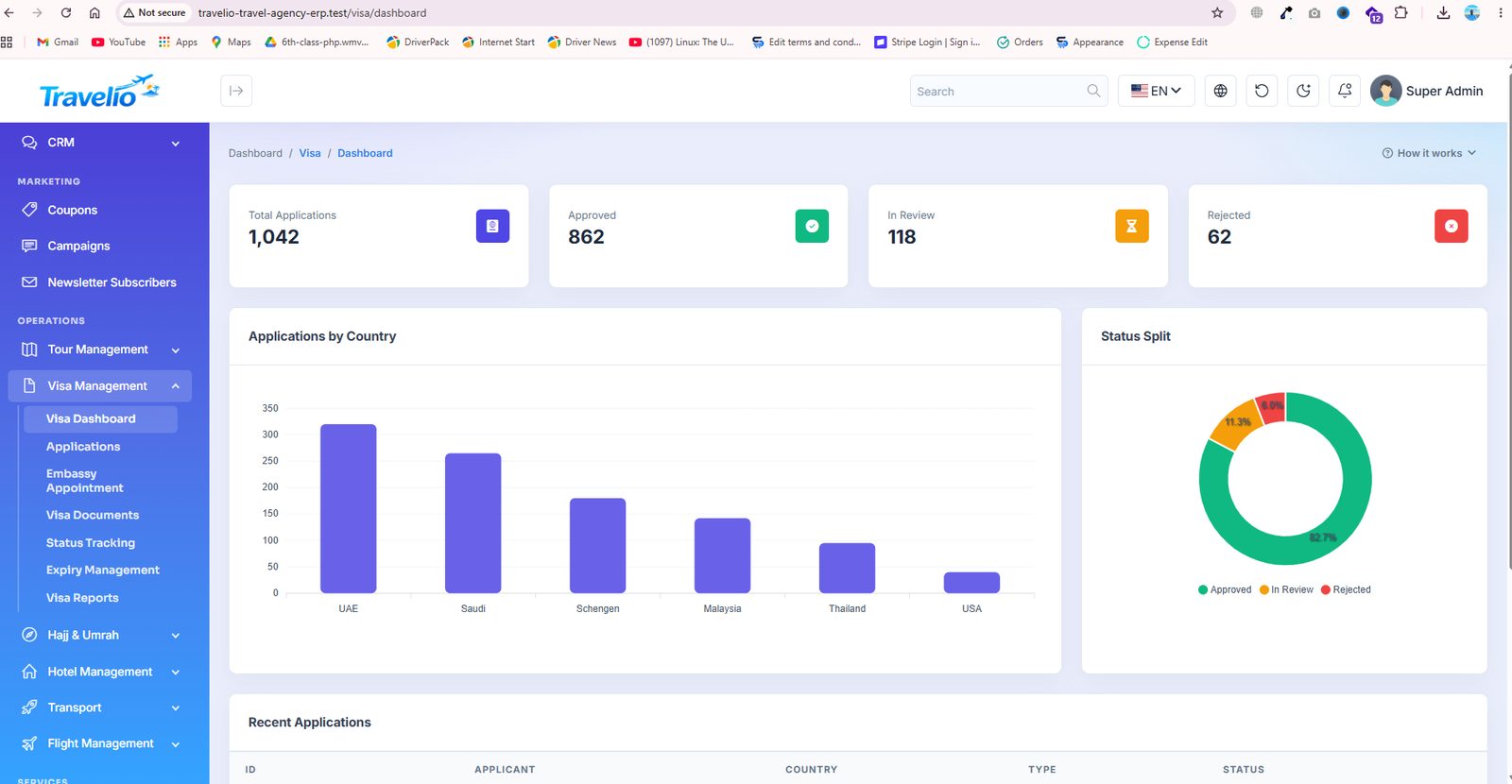
- Visa Dashboard — applications by status and country, upcoming appointments and expiries.
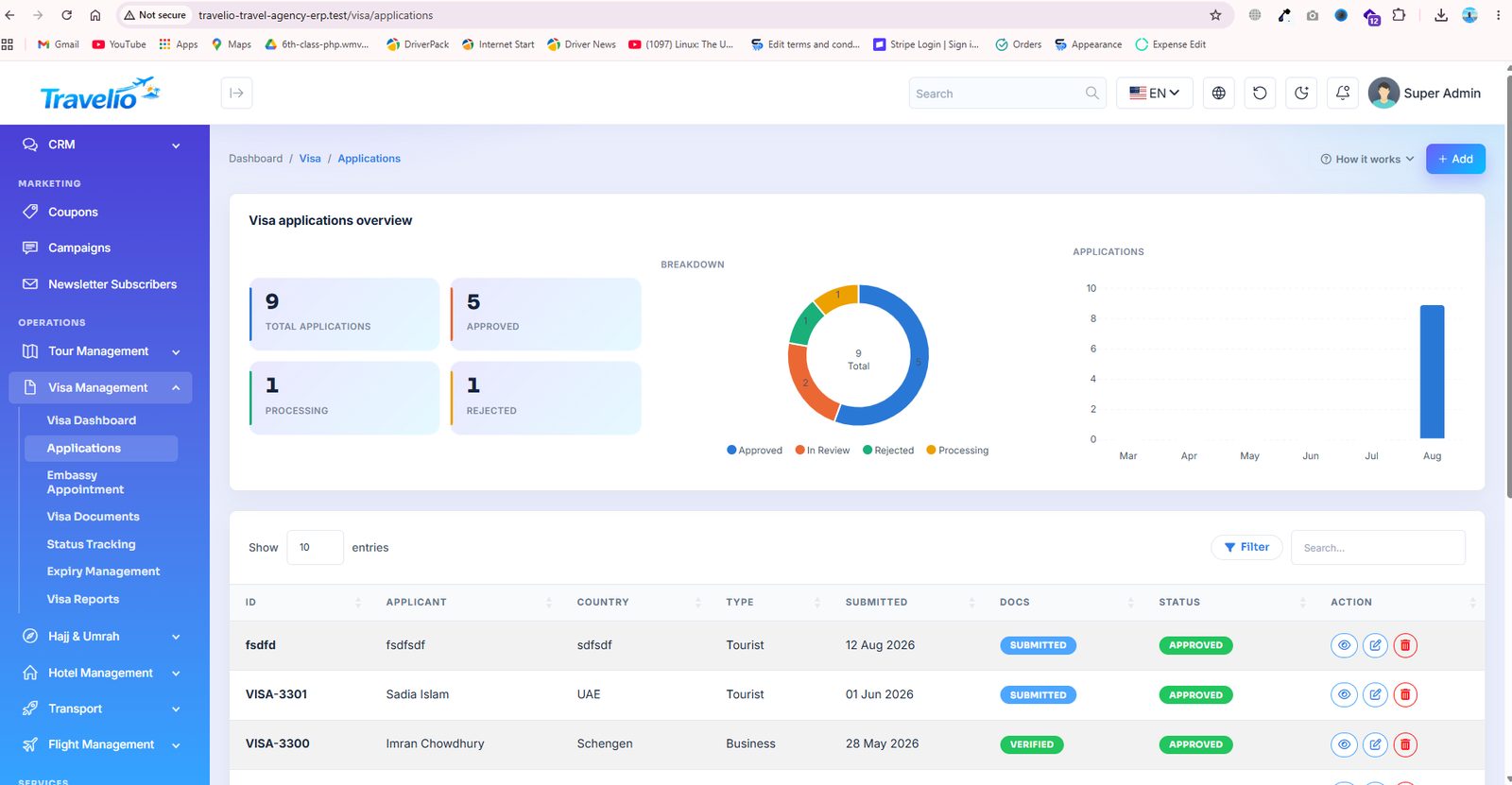
- Applications — applicant, destination country, visa type, submission date, fee and current status.
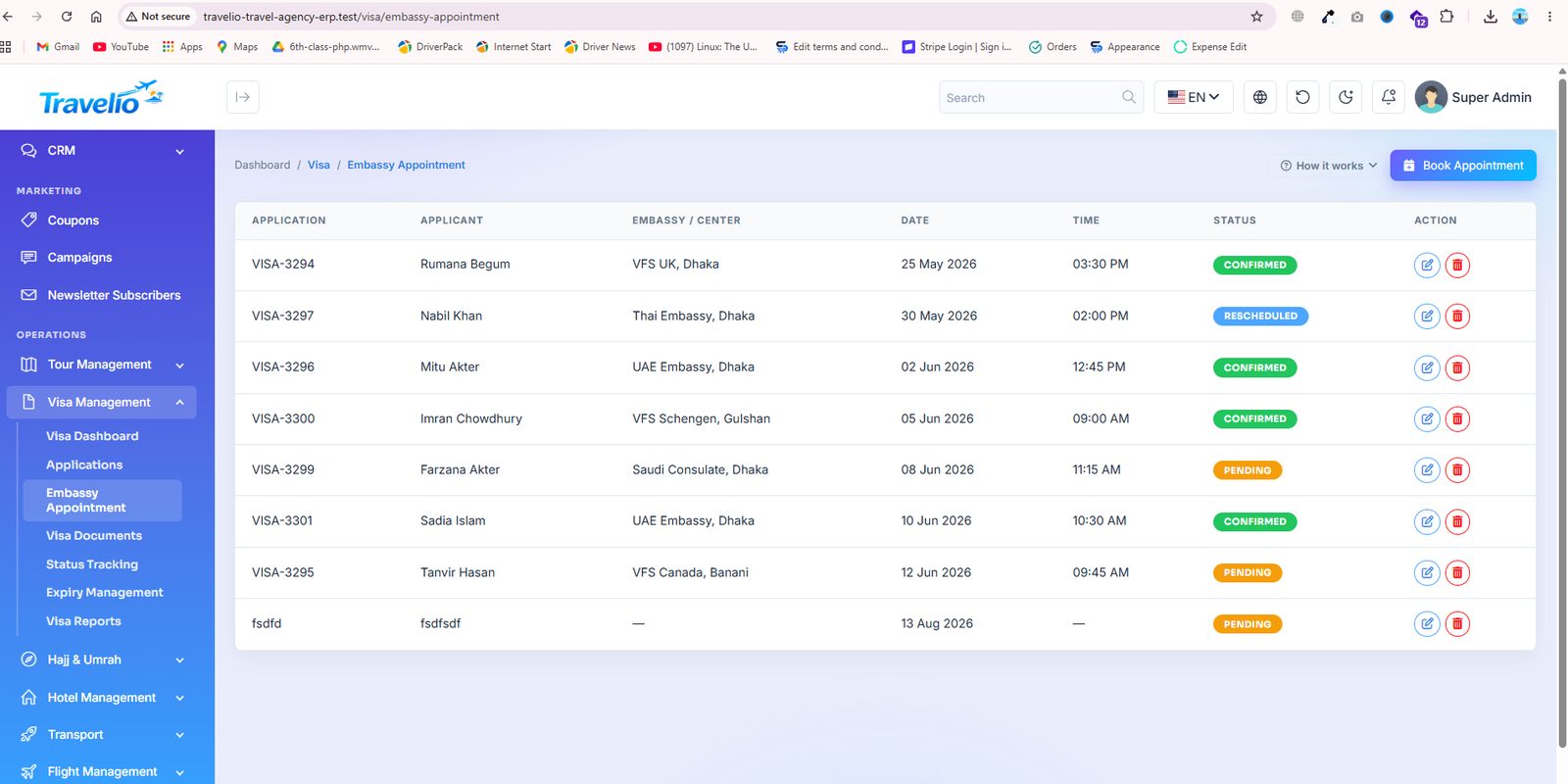
- Embassy Appointment — appointment date, time, embassy and the staff member escorting the applicant.
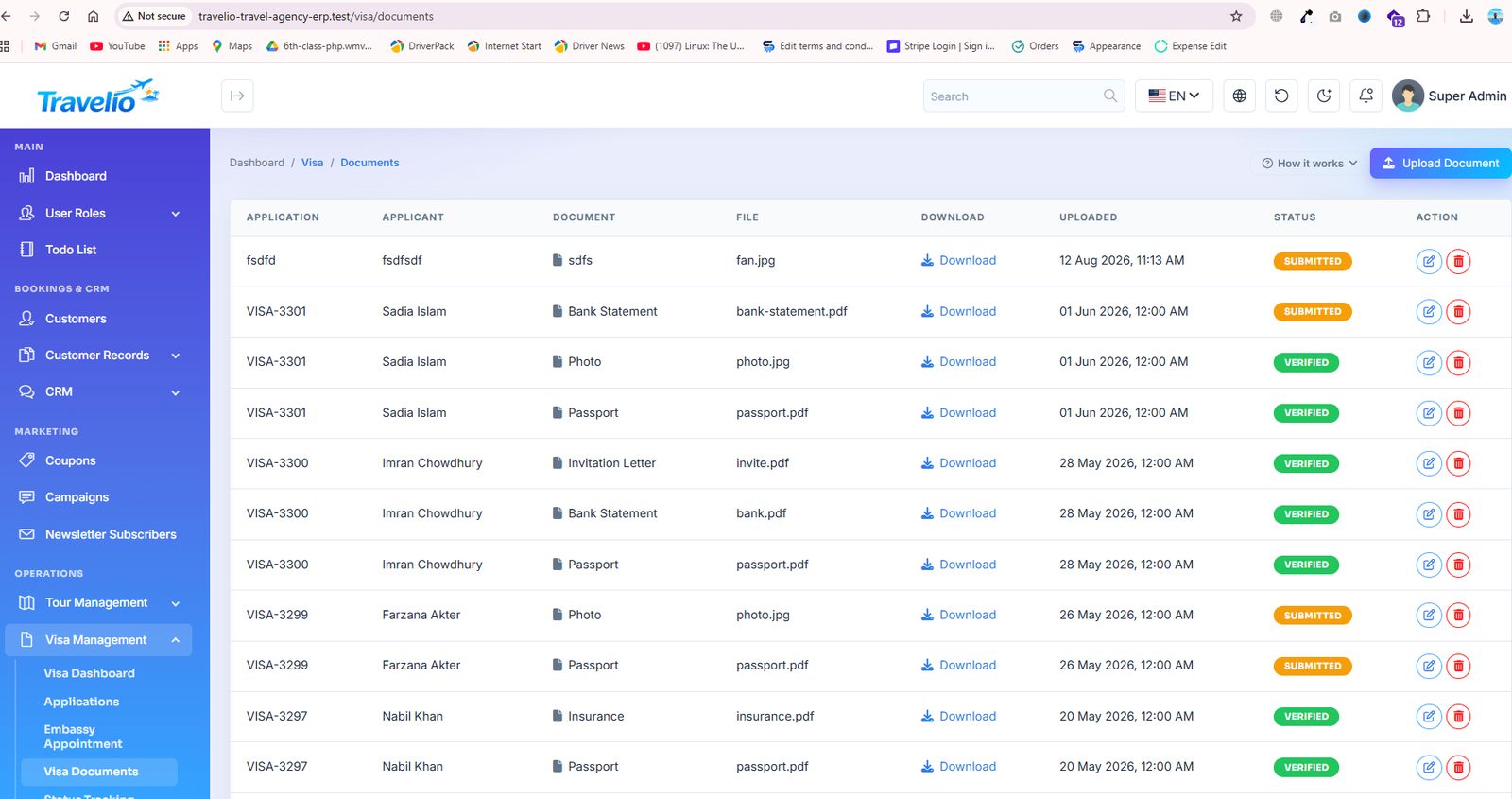
- Visa Documents — the checklist of documents per application, with uploads and a received/pending state.
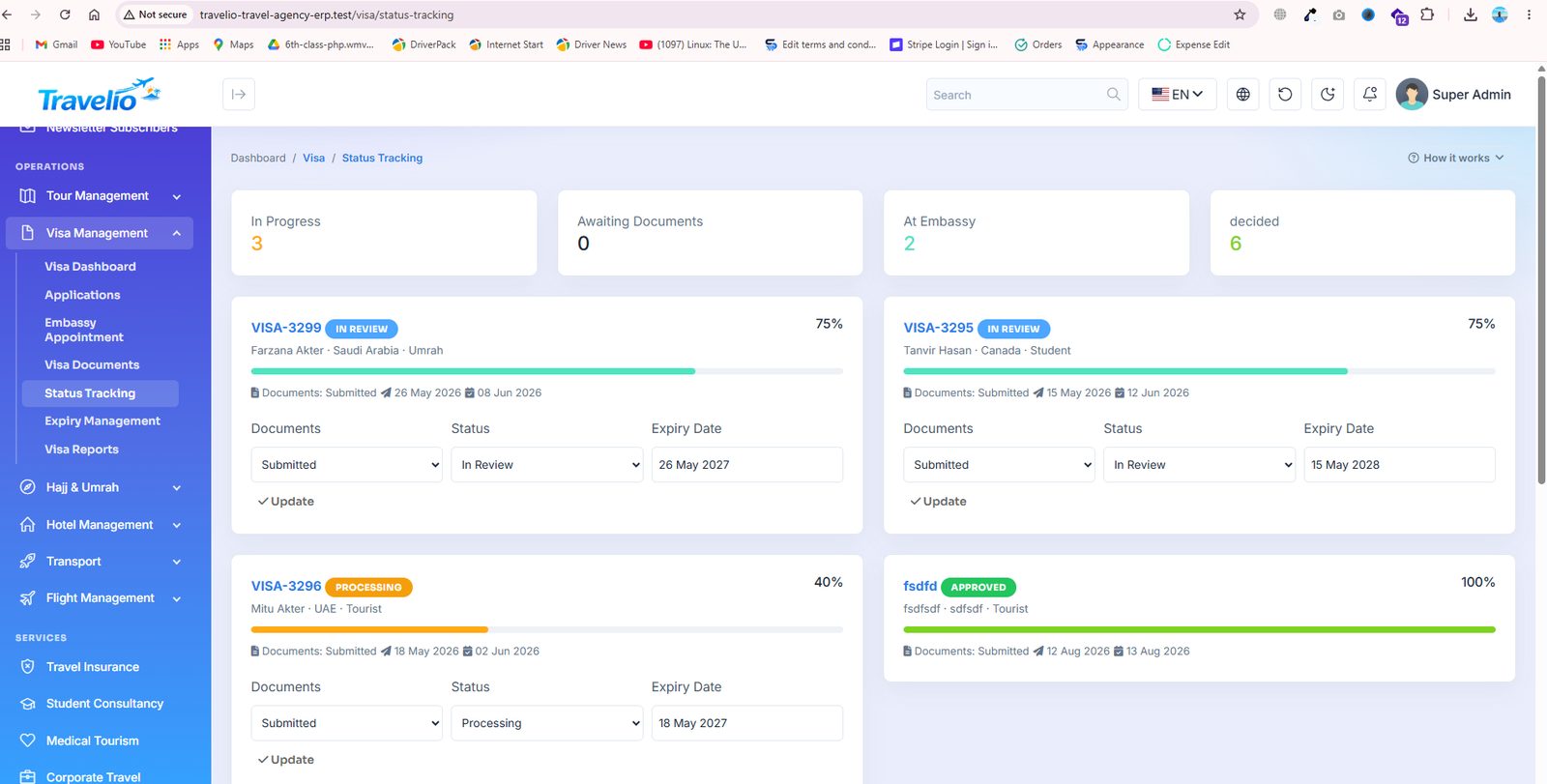
- Status Tracking — the visible progress trail; the same states are what the customer sees on the website's Track Your Visa page.
- Expiry Management — issued visas approaching expiry, so you can sell the renewal before it lapses.
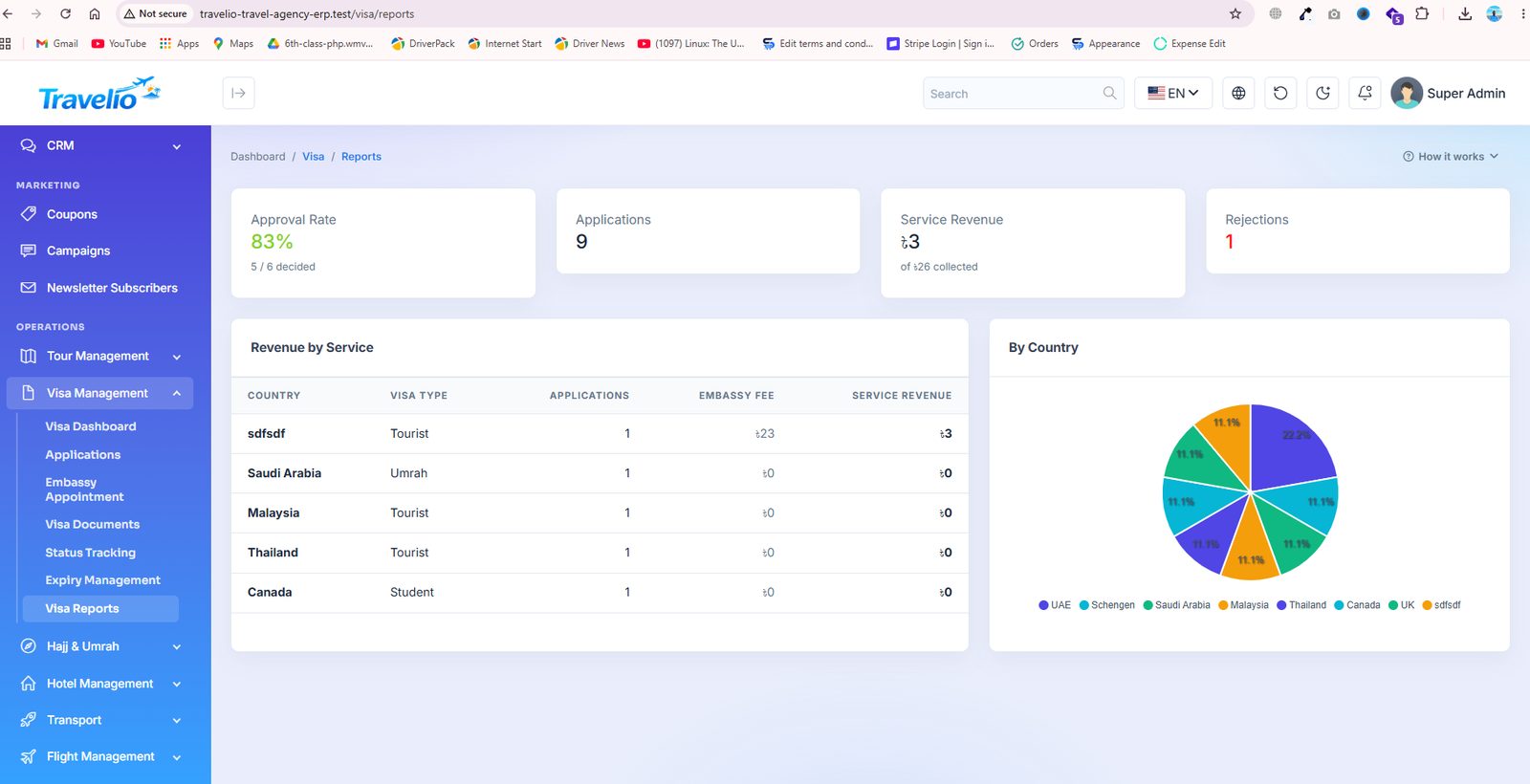
- Visa Reports — volume, approval rate and revenue by country over a date range.
Billing: a visa case has its own Payment track (Unpaid / Paid, with a method) because its Status is the embassy lifecycle. Once a case is In Review, Approved or paid, an invoice (INV-V…) is raised for the government fee plus your service fee; marking it Paid issues the receipt and the ledger entries. Customers pay from the portal (Pay now) or the app (gateway, bank-transfer proof or a payment claim you confirm), and a rejected unpaid case withdraws its invoice. If the visa service belongs to a marketplace vendor, only the service fee counts toward their earning.
Application form: Application No, Applicant, Country, Visa type (Tourist, Business, Umrah, Student), Customer, optional Visa Service (auto-fills fees from your catalogue), Government fee, Service fee (total = both), applied / appointment / expiry dates, Documents status, Status and — since the marketplace release — Payment (Unpaid / Paid) and method. Documents are uploaded per application (22 document types; PDF, JPG or PNG up to 5 MB) to private storage, downloadable only by permitted staff, the owning customer and their agent. Appointments (one per application) record embassy centre, date, time and status. Stages, transitions and side effects are in Statuses & Workflows.
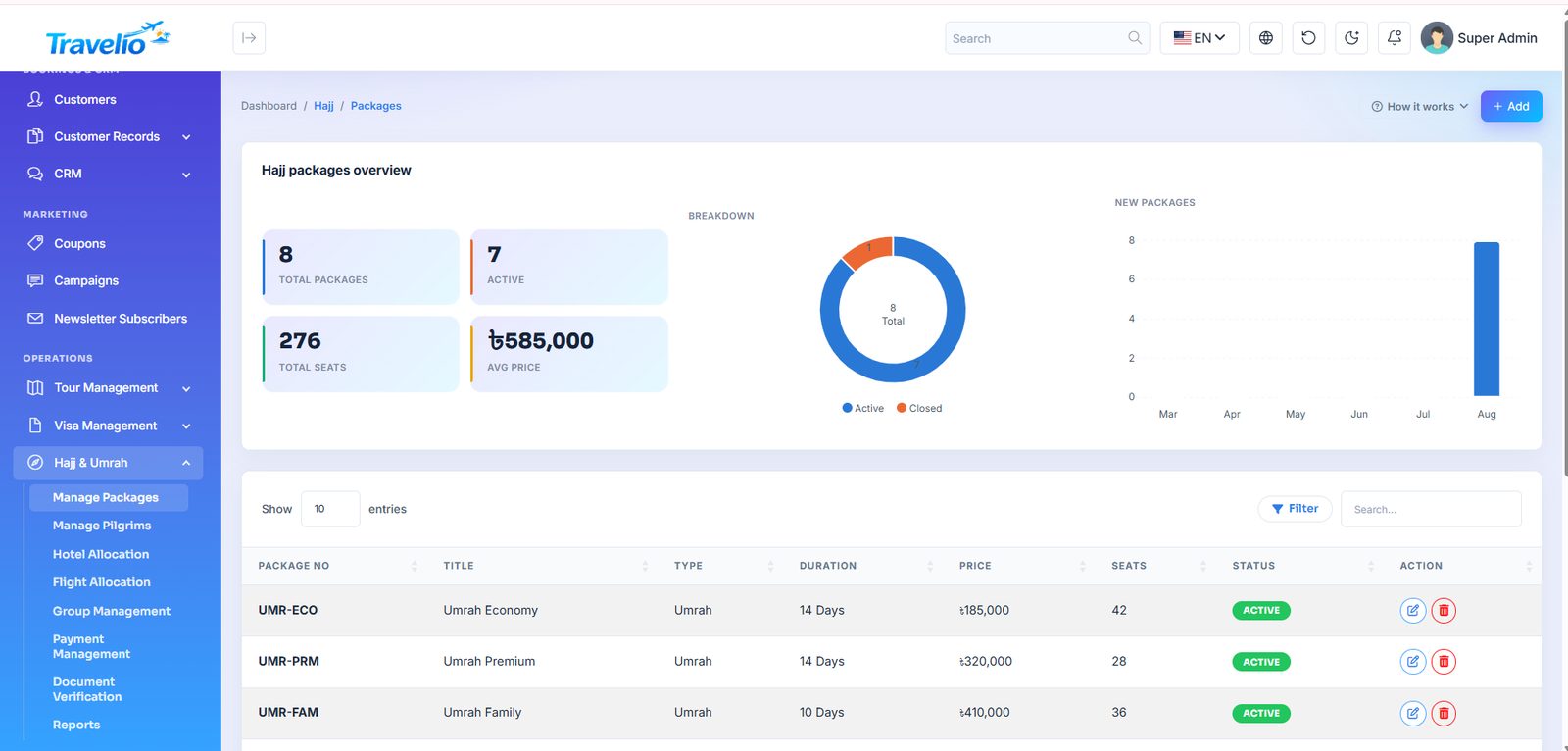
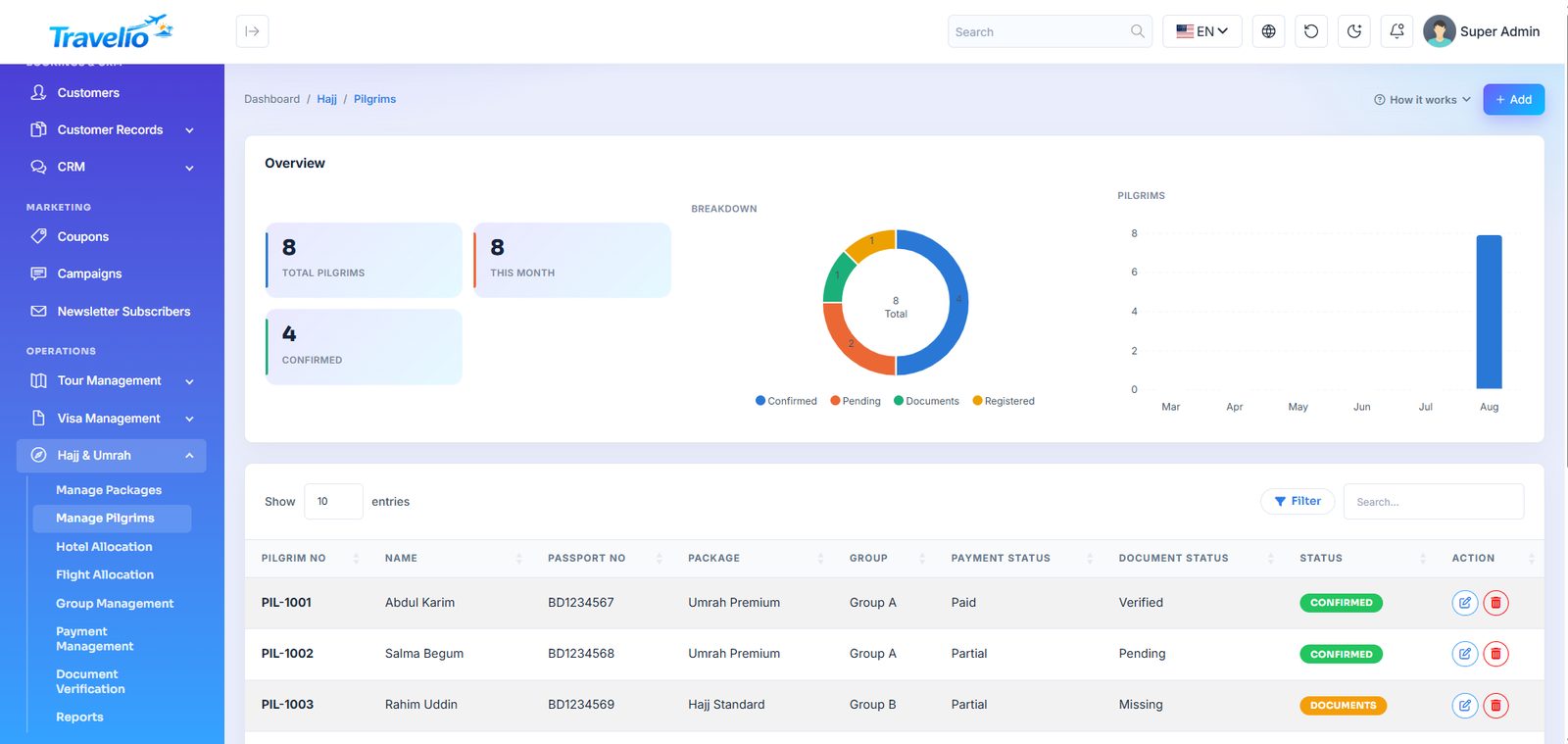
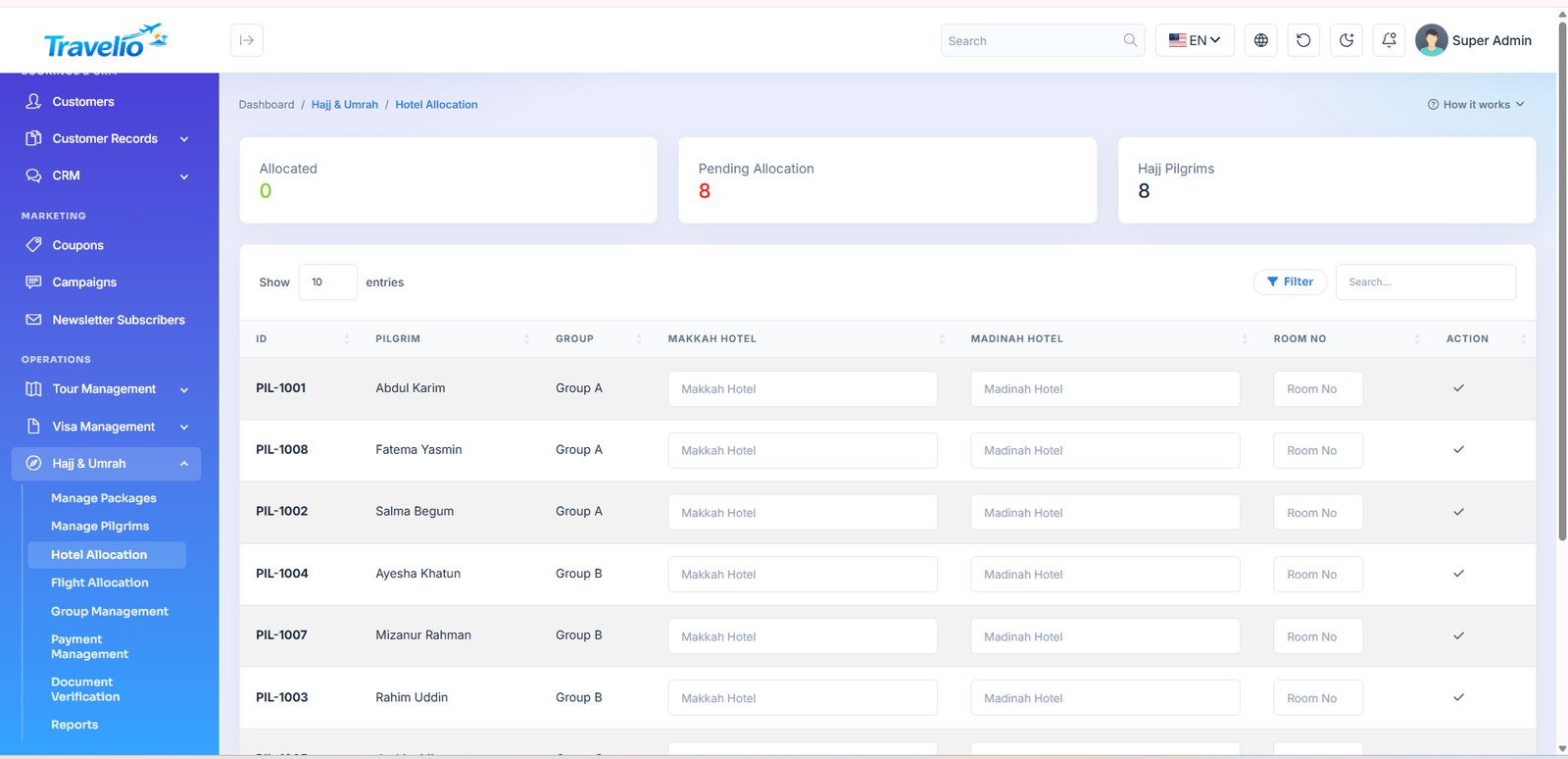
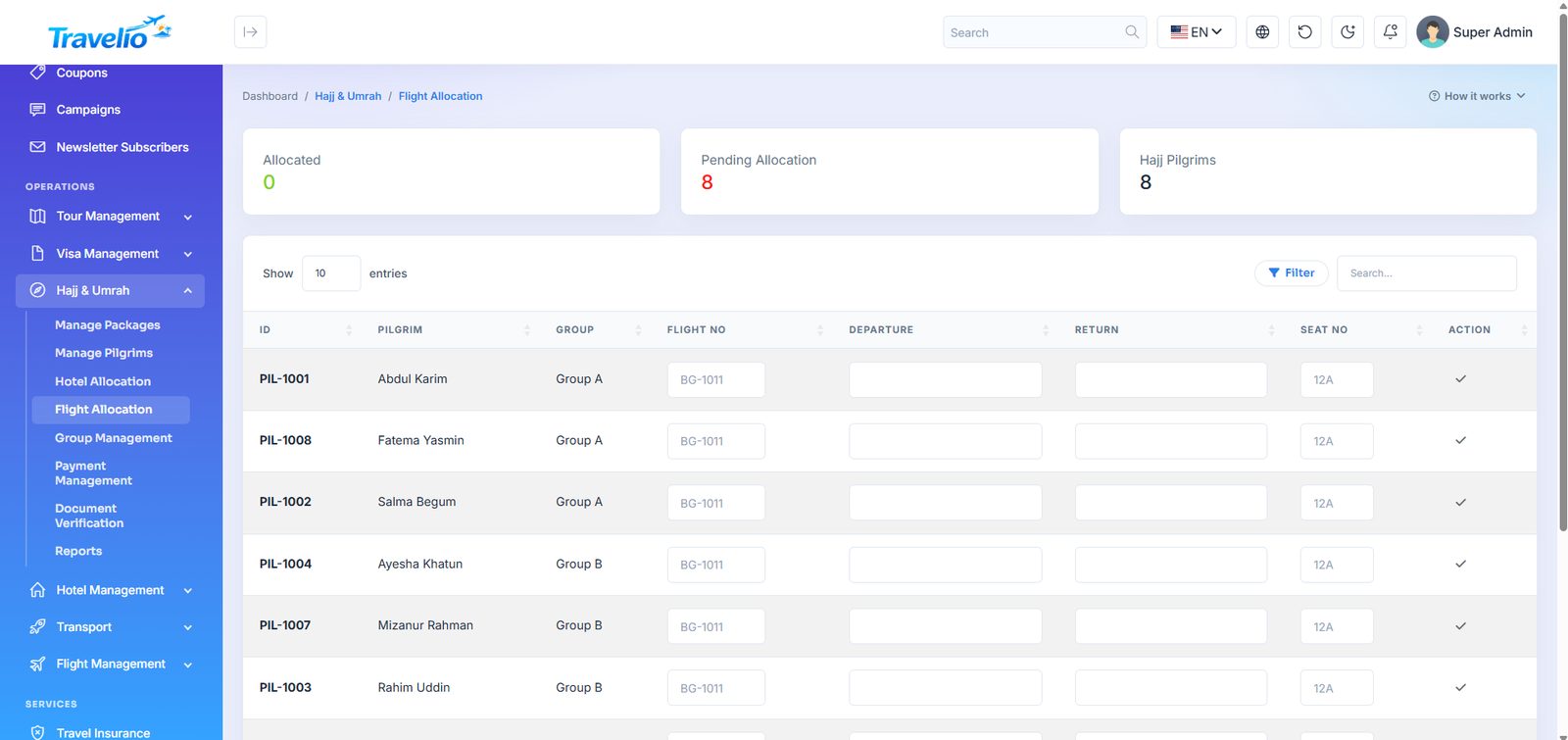
Hajj & Umrah
Pilgrimage groups are their own kind of operation — large parties, allocated hotel rooms and flight seats, staged payments and heavy document verification. Travelio handles all of it.
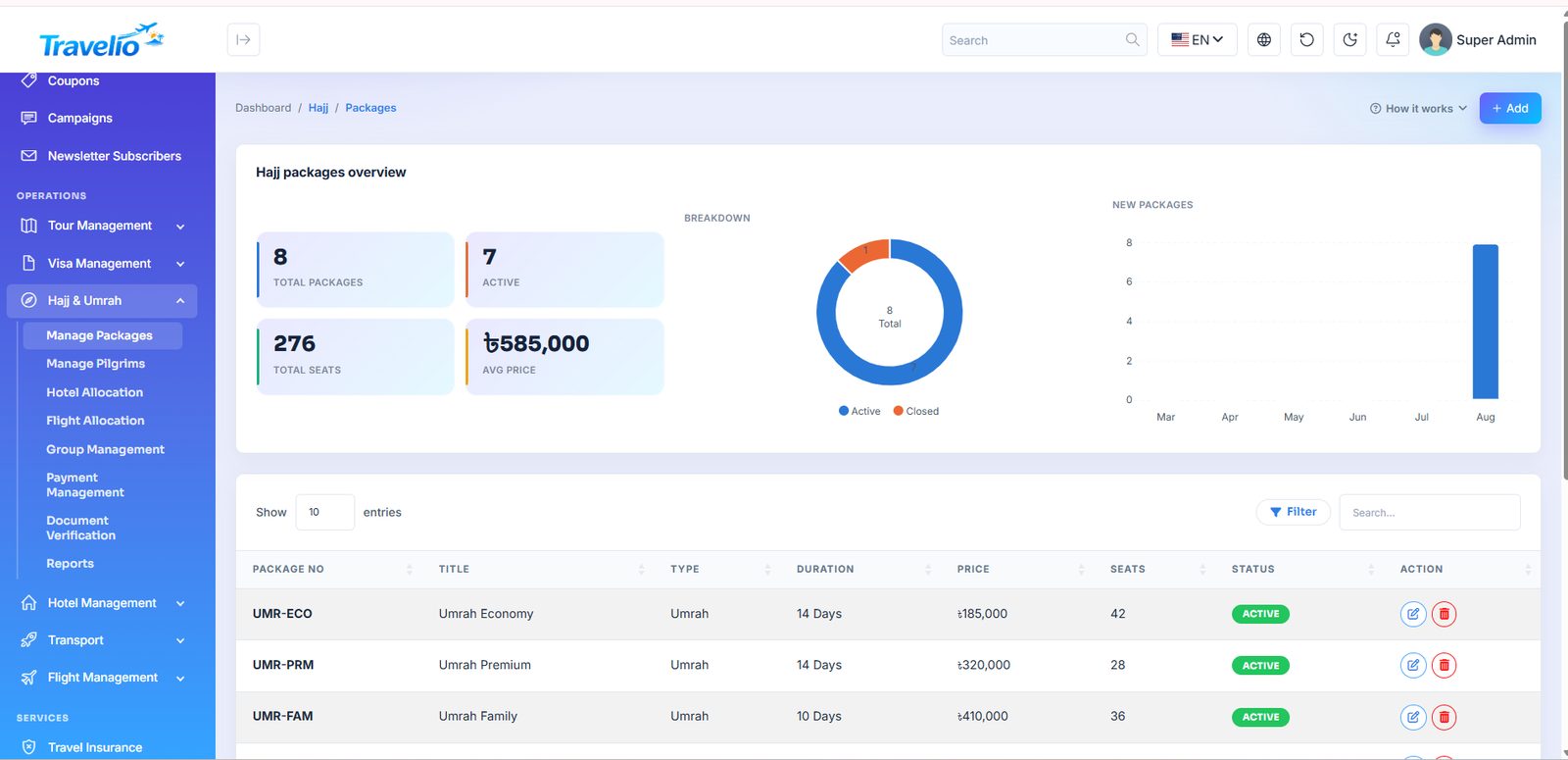
- Manage Packages — Hajj and Umrah packages with duration, hotel category, distance from Haram, transport and price tiers. Switch on Featured to list a package first on the Hajj/Umrah pages, the home page Hajj & Umrah rail and the app.
- Manage Pilgrims — each pilgrim with passport, mahram details, contact and package.
- Hotel Allocation — which pilgrim is in which hotel and room in Makkah and Madinah.
- Flight Allocation — pilgrims assigned to outbound and return flights.
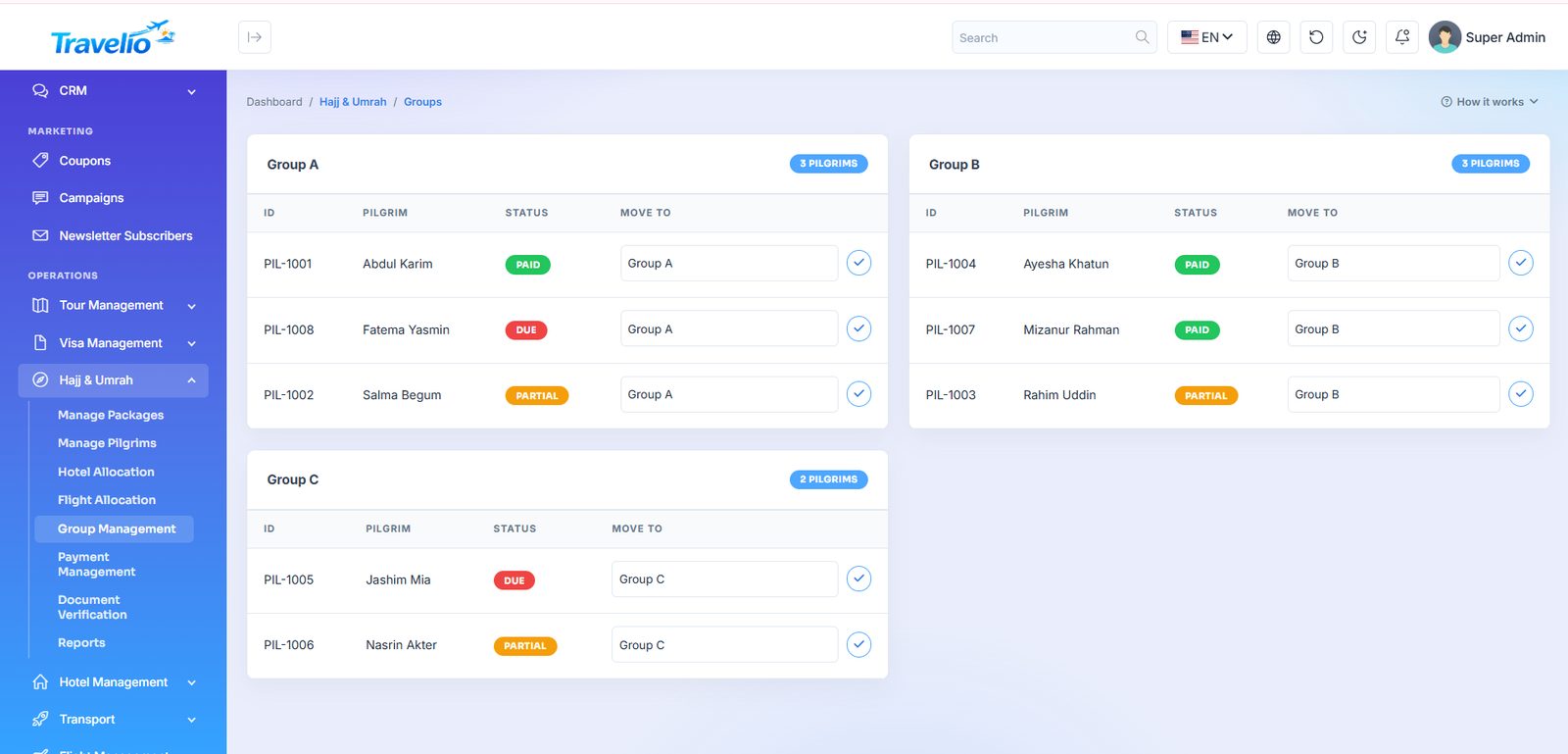
- Group Management — pilgrims organised into groups with a group leader.
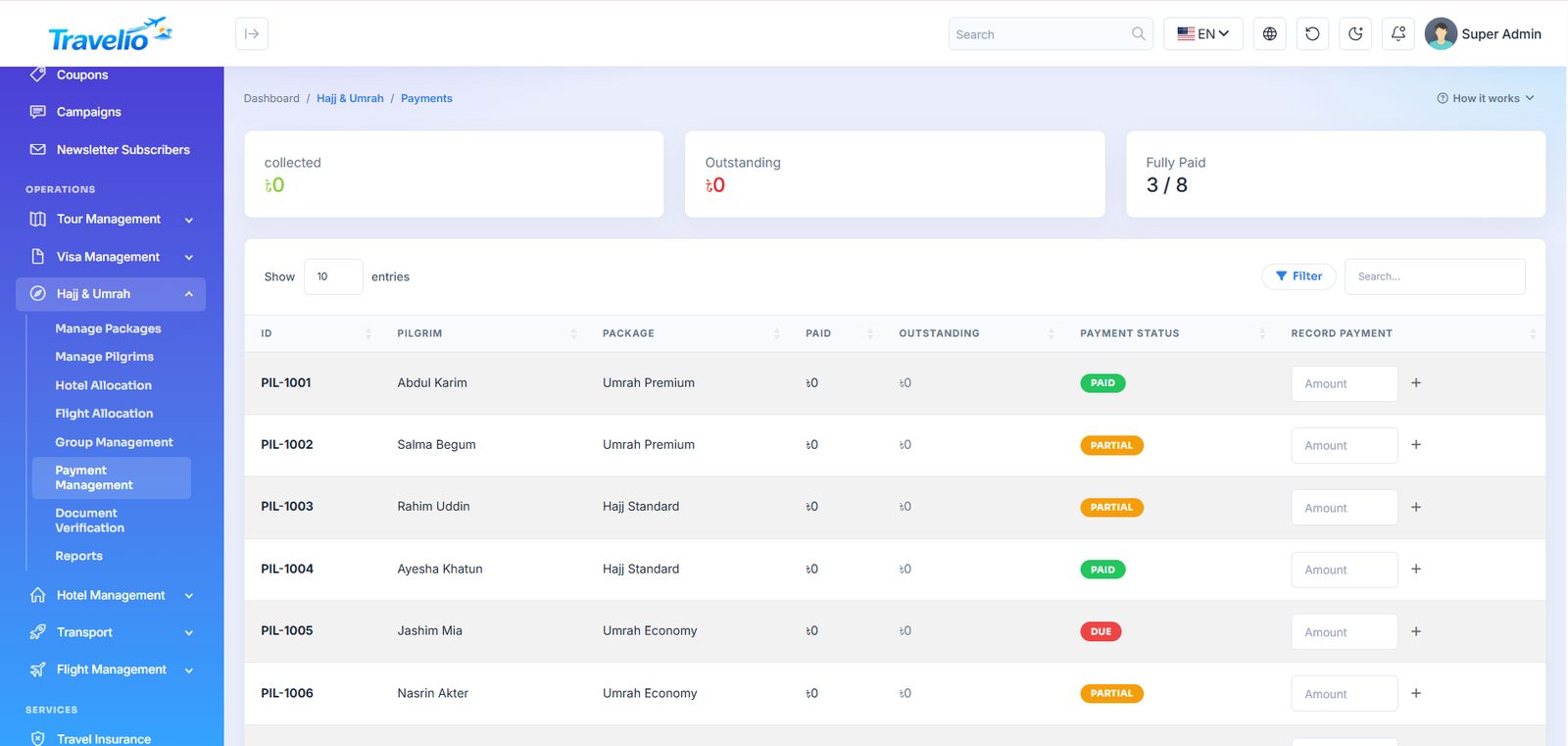
- Payment Management — instalments paid and outstanding per pilgrim.
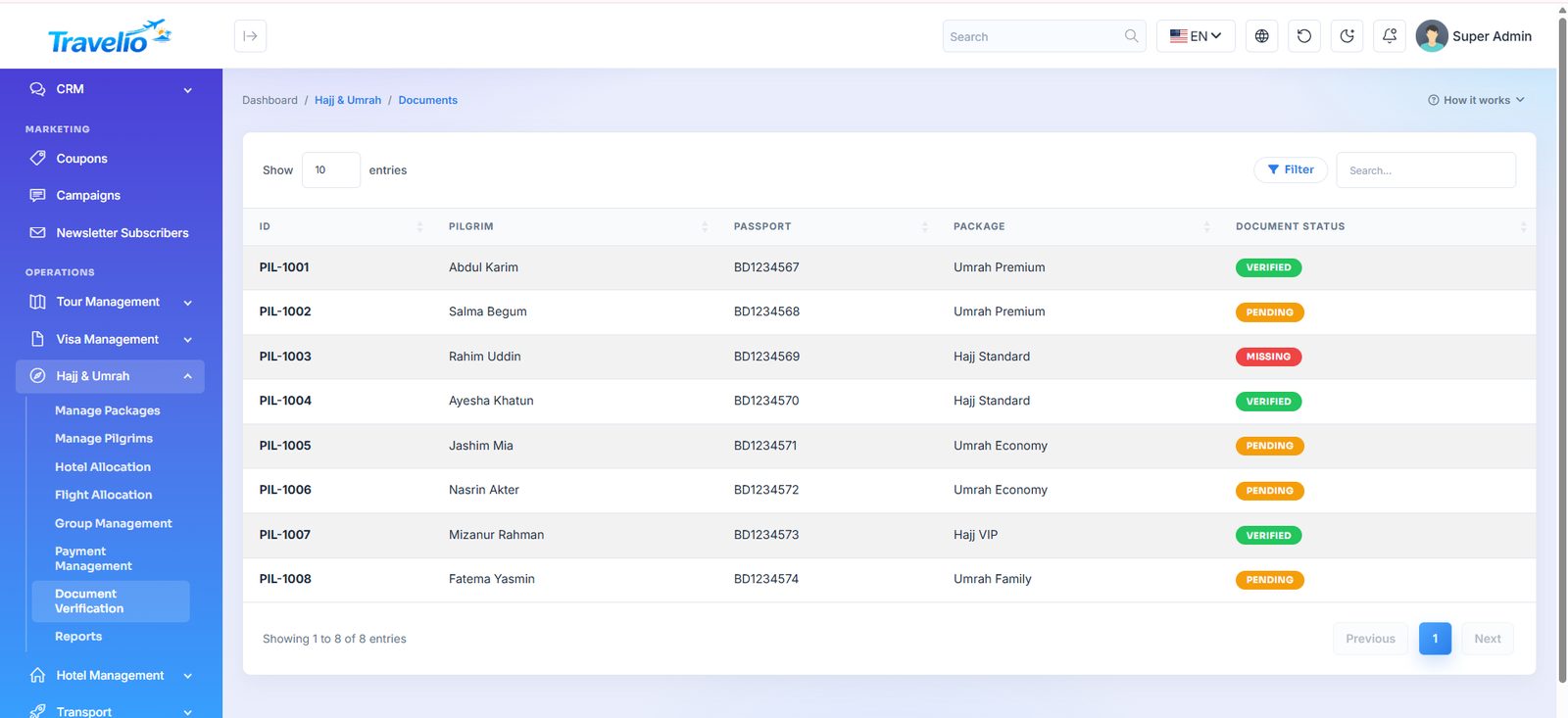
- Document Verification — passport, photo, vaccination and mahram documents checked off before submission.
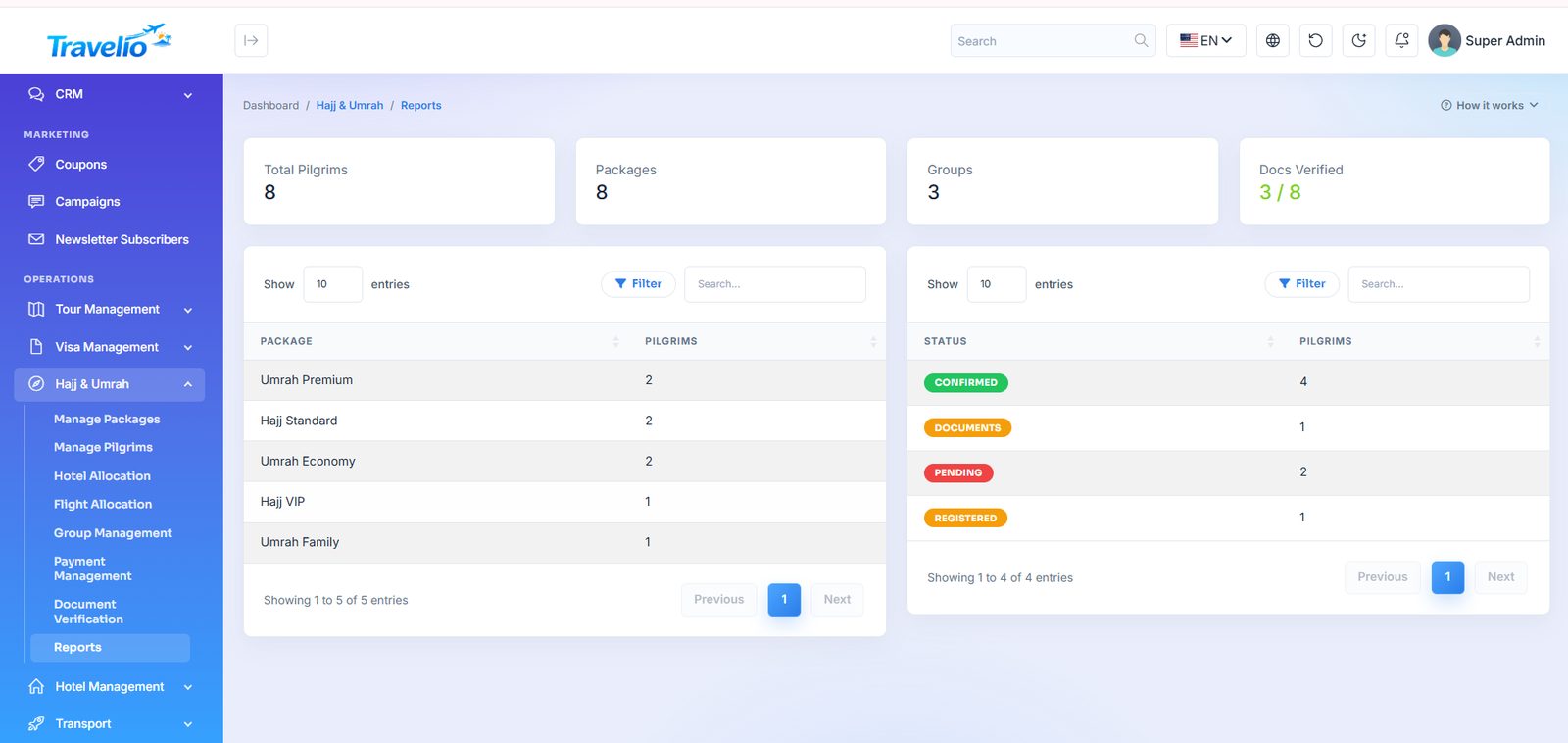
- Reports — group, payment and pilgrim reports for the season.
A Hajj package that already has pilgrims attached cannot be deleted — the system blocks it and tells you why.
Fields: a package has a Package no., Title, Type (Hajj / Umrah), Duration, Price, Seats and Status. A pilgrim has Package, Customer, Pilgrim no. (auto PIL-… if blank), Name, Passport no., Group, Documents status and Status. Hotel allocation picks a Makkah hotel, a Madinah hotel and a room number; flight allocation adds flights (number, airline, dates, seat grid) and assigns a seat per pilgrim, blocking a seat clash. Payments are entered as Payment received now, each producing a receipt. Groups with pilgrims, flights with pilgrims and packages with pilgrims cannot be deleted. Statuses are in Statuses & Workflows.
Hotel Management
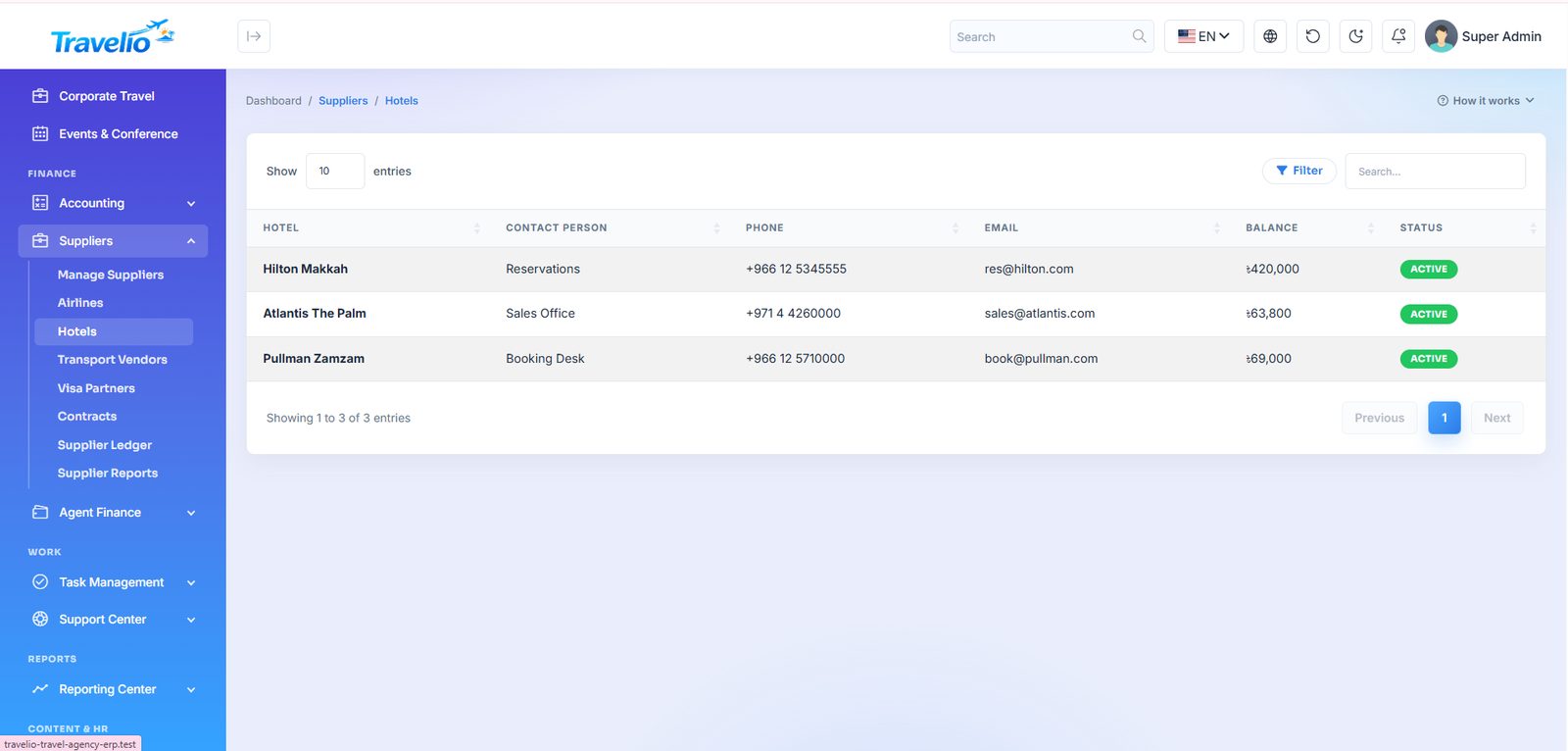
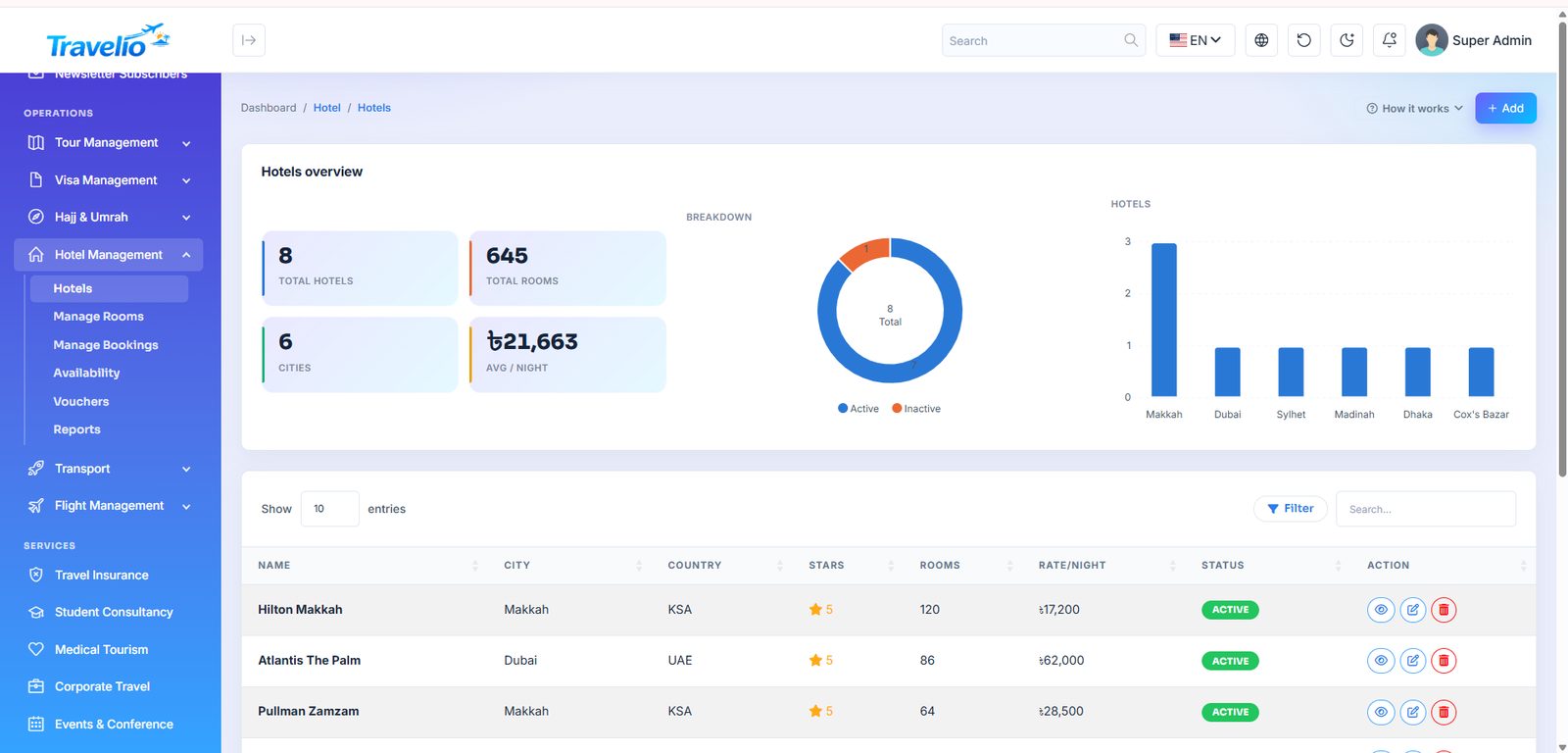
- Hotels — property list with city, star rating, contact and contract details.
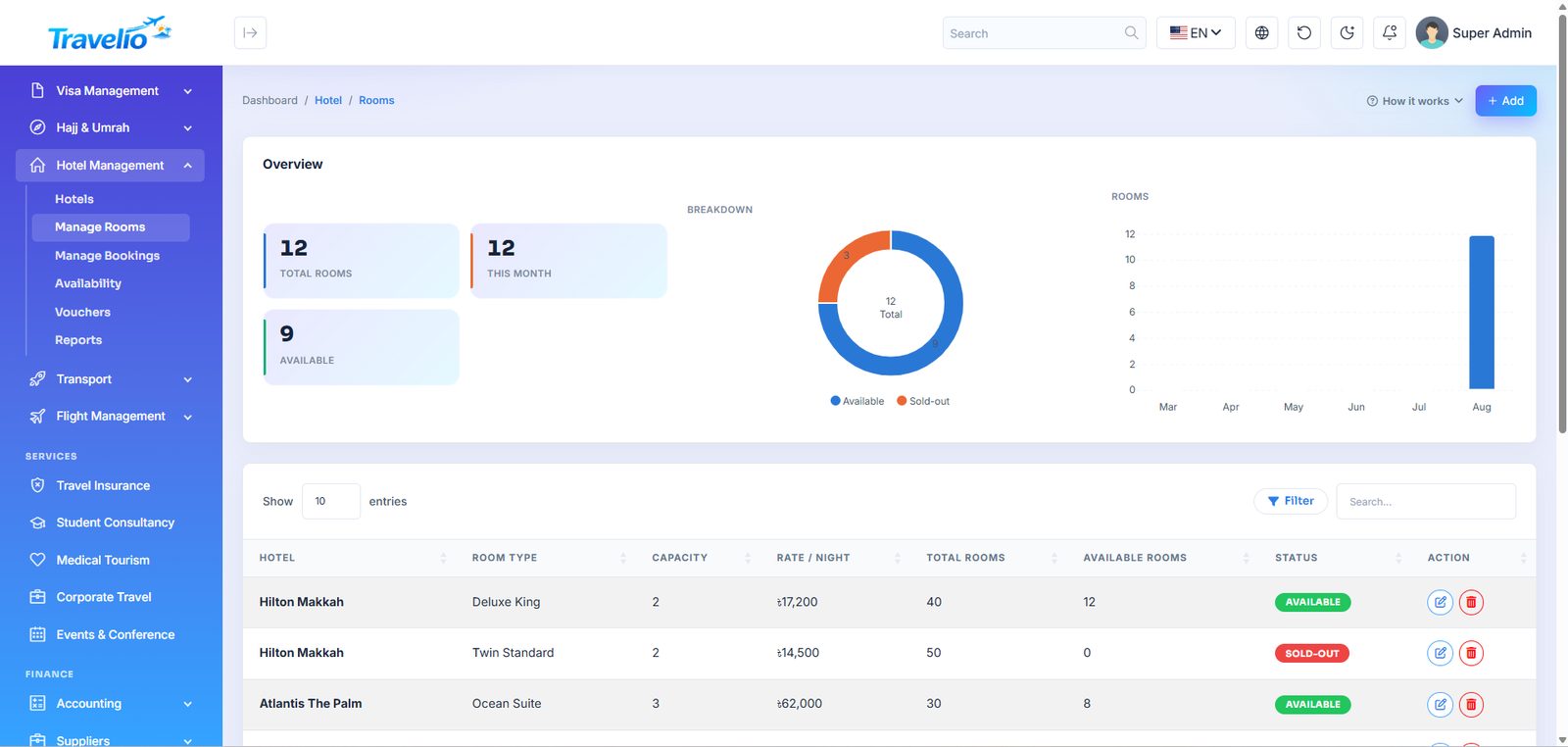
- Manage Rooms — room types per hotel with capacity, rate and inventory.
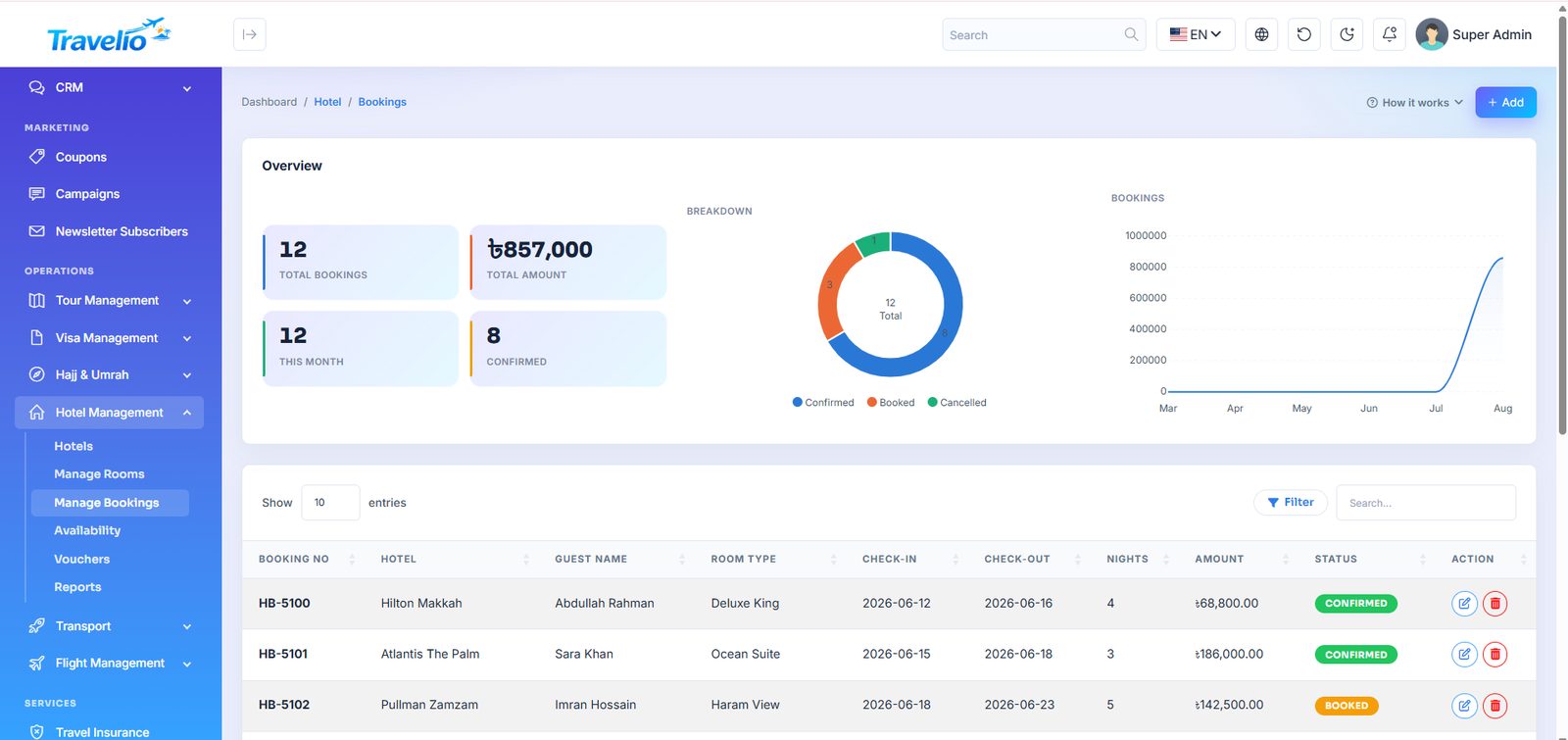
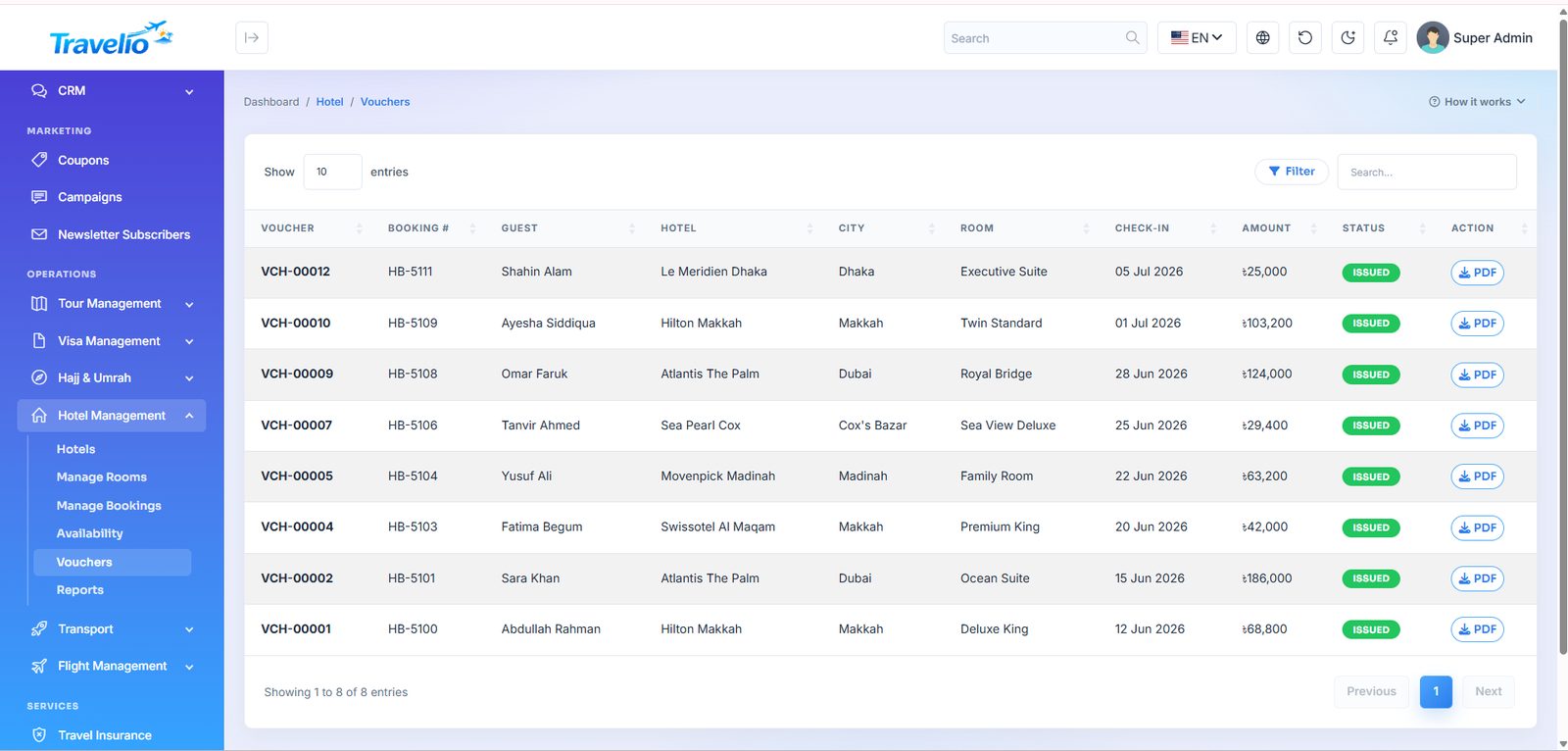
- Manage Bookings — hotel bookings: guest, room type, check-in/out, nights and amount.
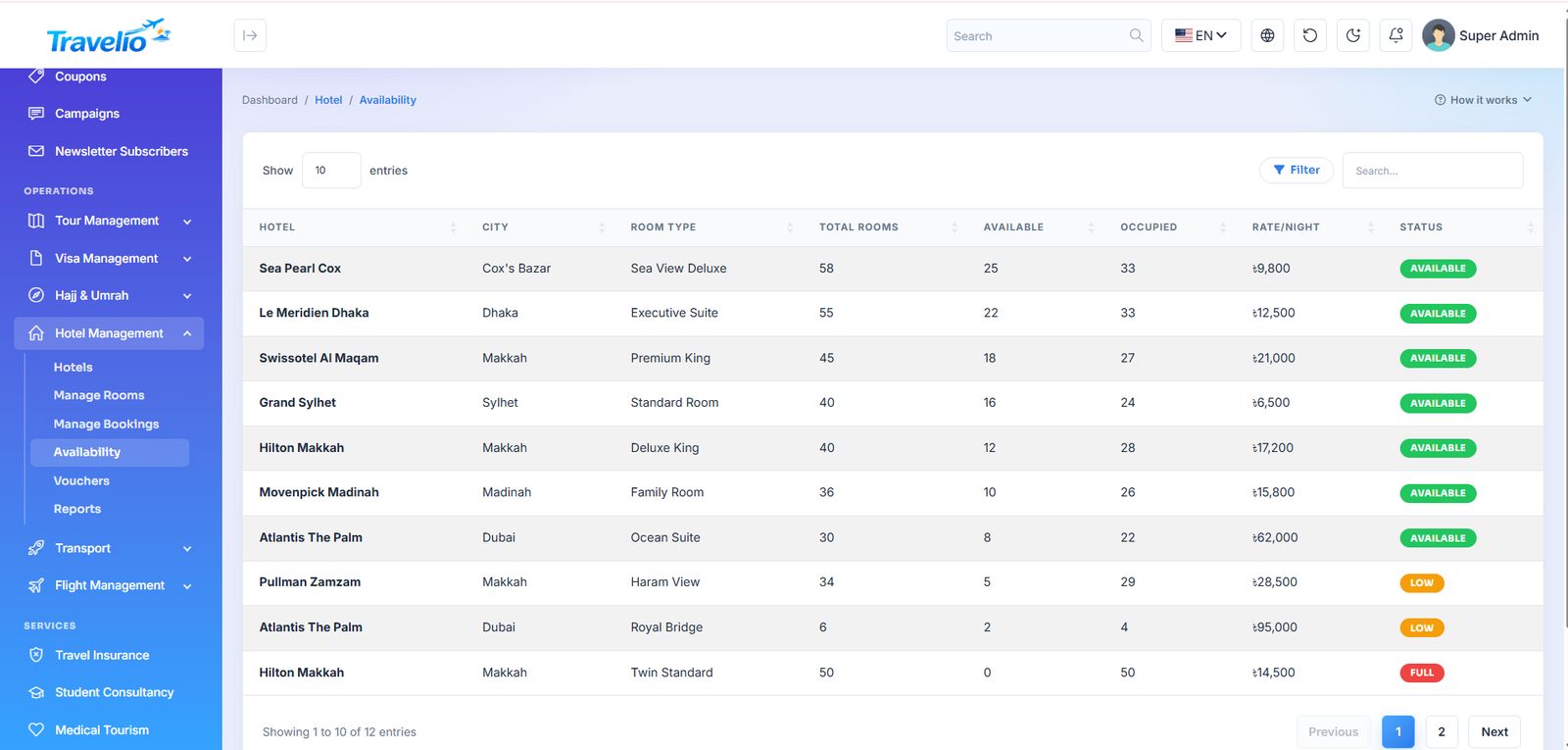
- Availability — room availability across dates before you confirm a booking.
- Vouchers — printable hotel vouchers to issue to the guest.
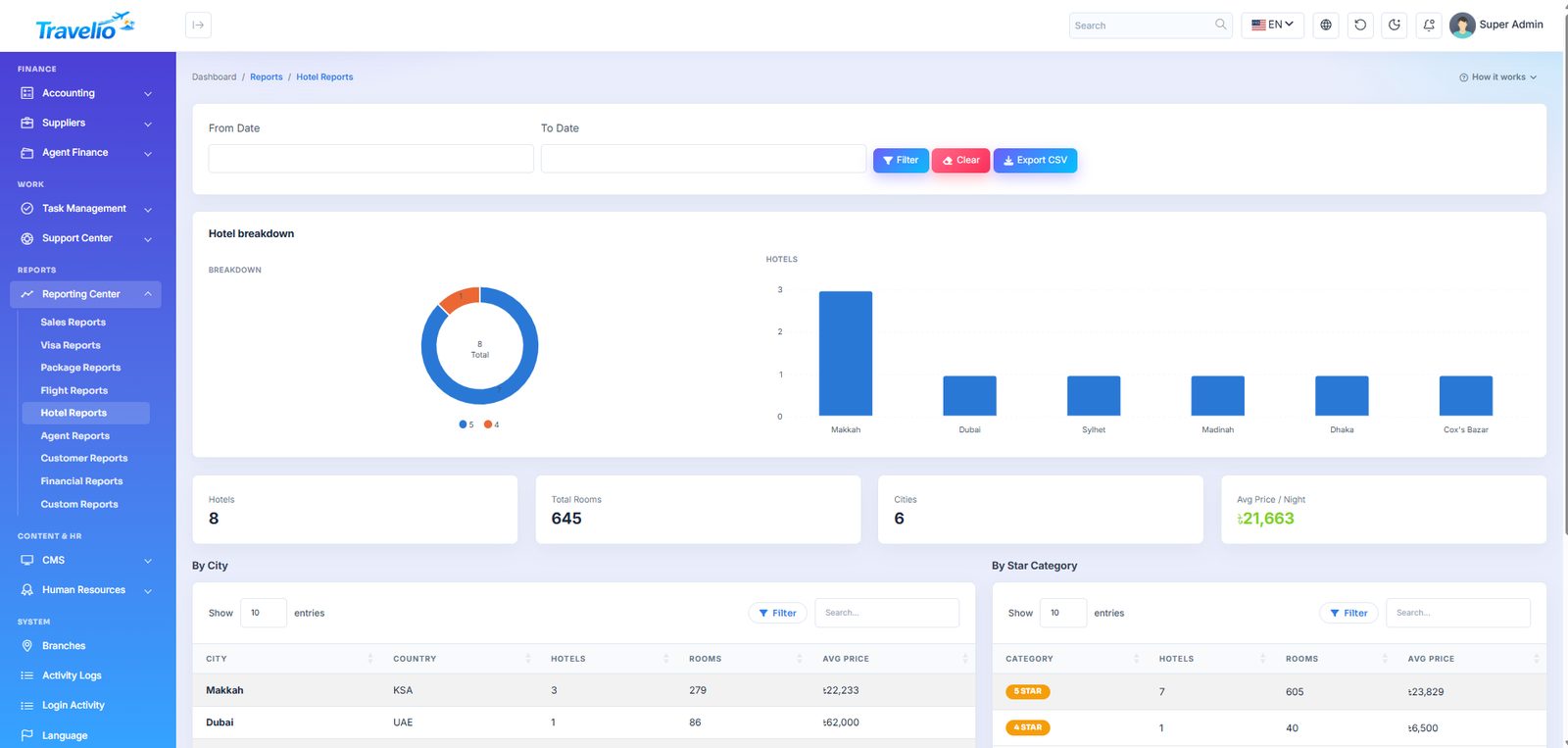
- Reports — hotel revenue and occupancy over a date range.
A hotel or room type with bookings against it is protected from deletion.
Availability is a manual figure. Available Rooms on each room type is typed by you and is not reduced when a booking is saved, so update it when rooms are sold. The Availability screen shows Total, Available, Occupied and a Full / Low (5 or fewer) / Available label.
Hotel booking form: Booking No, Hotel, Customer, Booked by agent, Room, Guest name, Check-in, Check-out, Nights, Amount, Status (Booked, Confirmed, Paid, Cancelled) and Payment method. Vouchers lists Confirmed bookings with a printable voucher. Stays booked through the live Amadeus hotel search in the mobile app are saved with Source Live and the provider's confirmation reference; the admin form itself creates manual bookings. Customers can also book and pay hotels from the Customer Portal.
Hotel Rates & Availability 1.7.0
A room type sells at its base rate per night unless a night has its own settings. Set a date range (optionally only on chosen weekdays) and save:
- Rate per night — that night's price (season, weekend, event).
- Allotment — how many of this room type can be booked that night; live bookings are counted.
- Min. stay — the shortest stay allowed for guests arriving that night.
- Stop sell — closes the night.
Website, customer portal, mobile app and agent bookings all price night by night from this calendar and refuse stop-sell, too-short or sold-out stays with the reason. Saving a range with empty fields resets those nights to the base settings. The table below the form shows the next 60 nights.
Transport
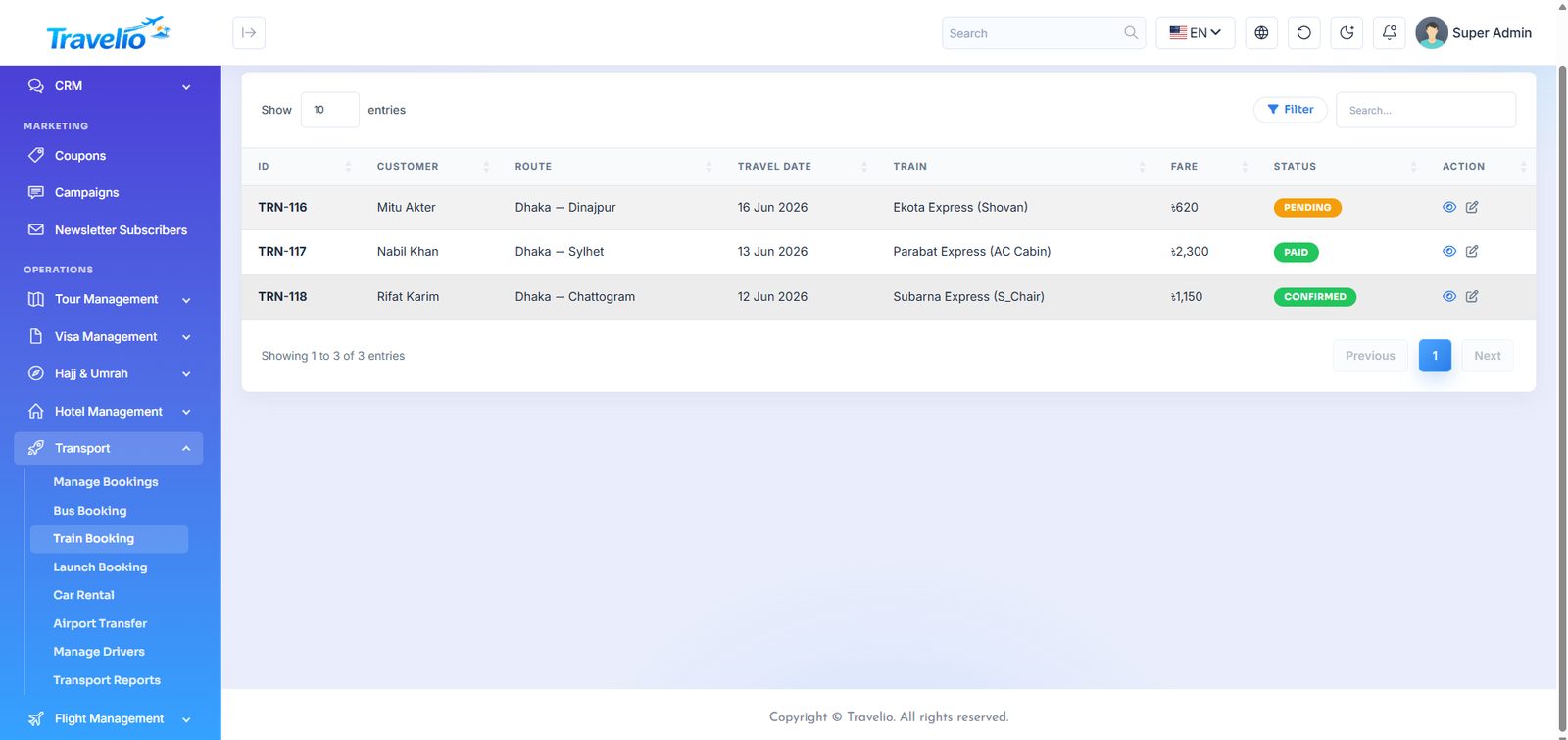
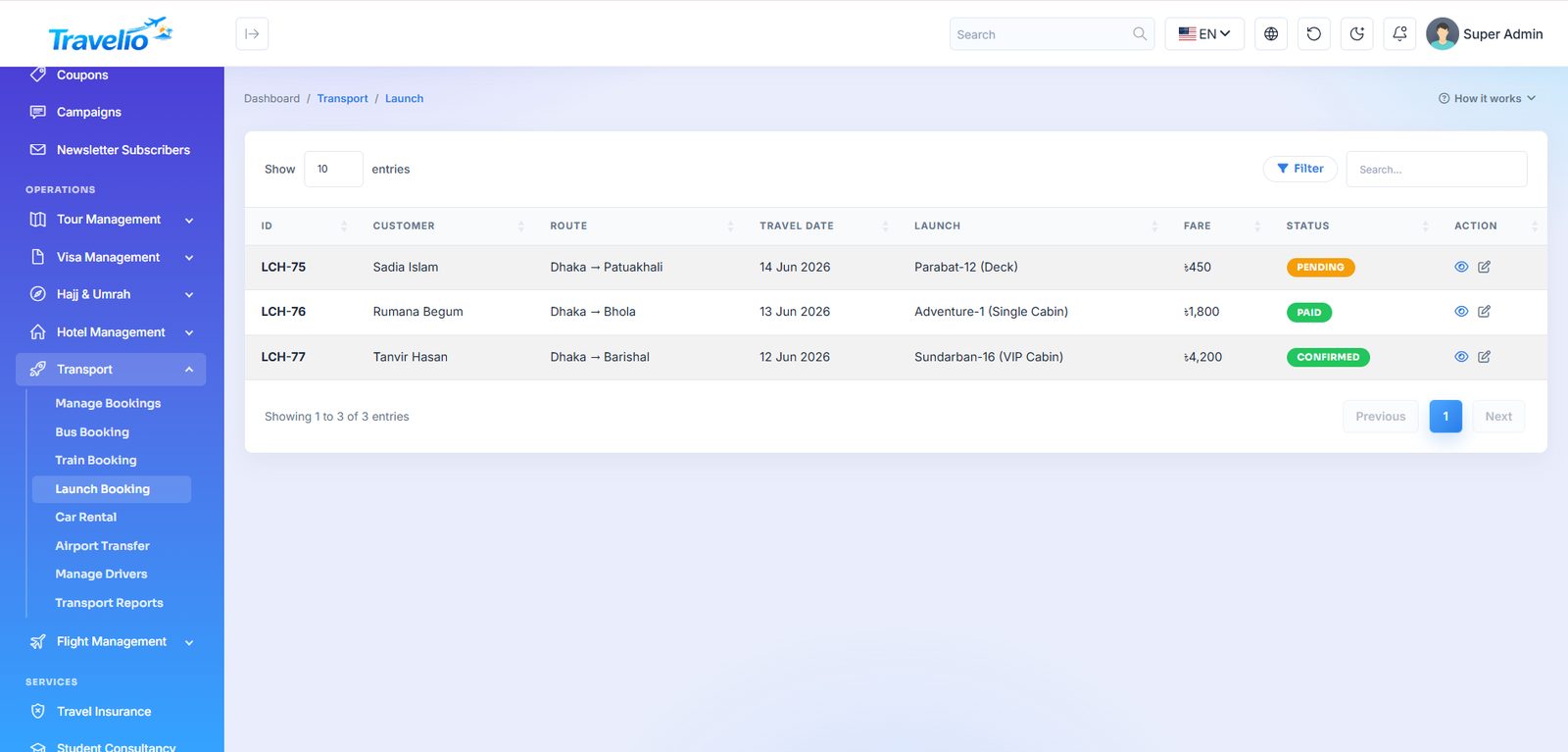
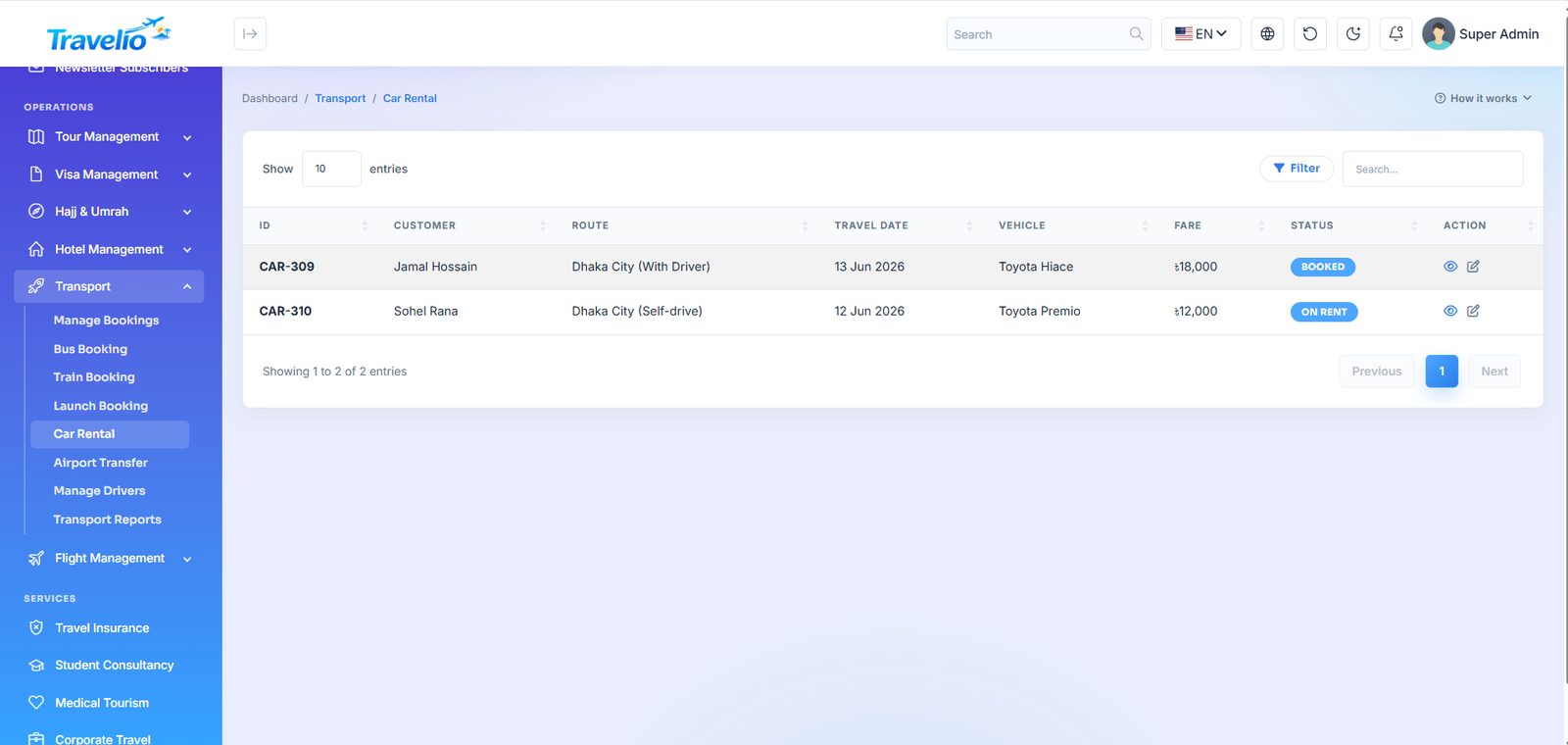
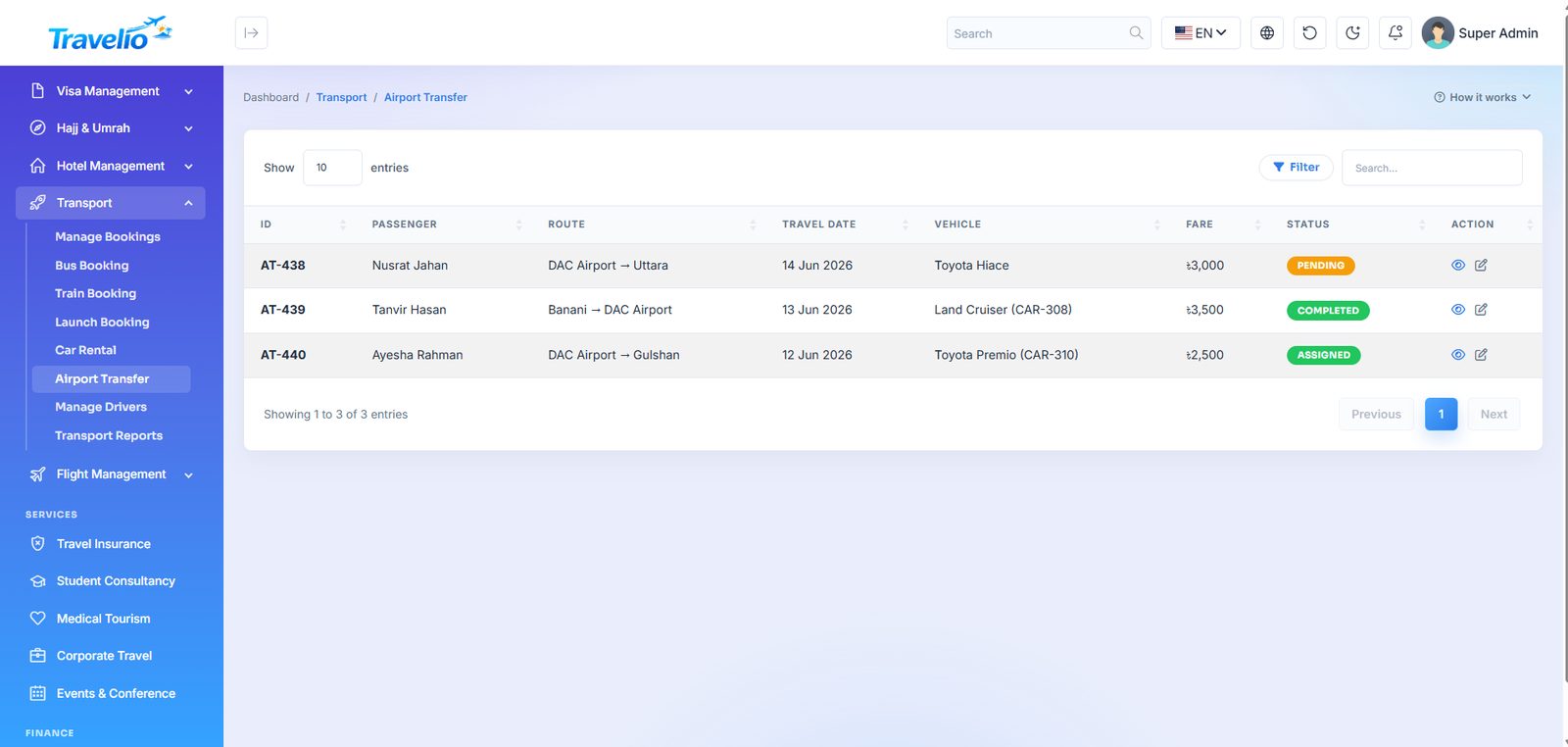
Every ground and water transfer you sell, each with its own booking screen because the fields genuinely differ.
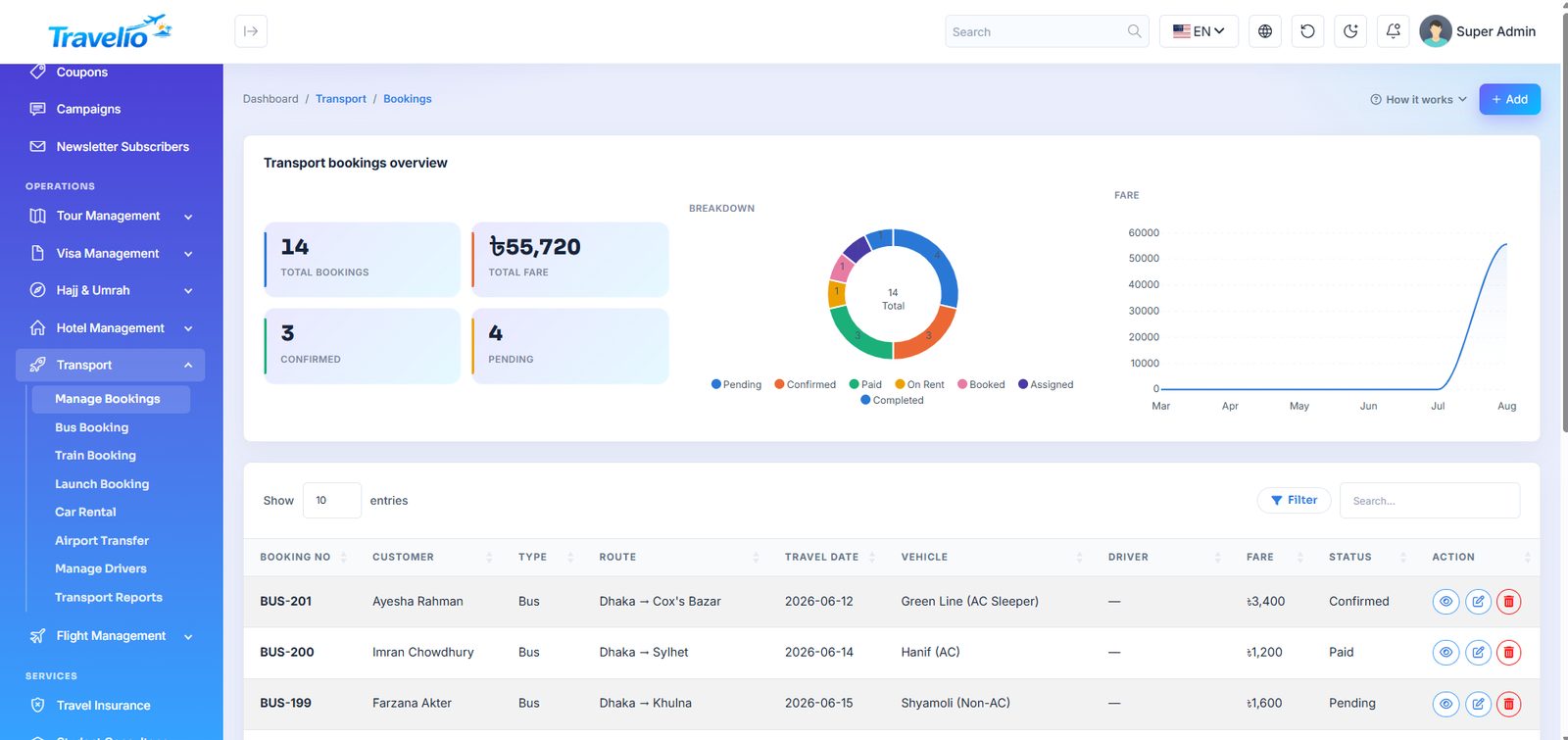
- Manage Bookings — the combined transport booking list.
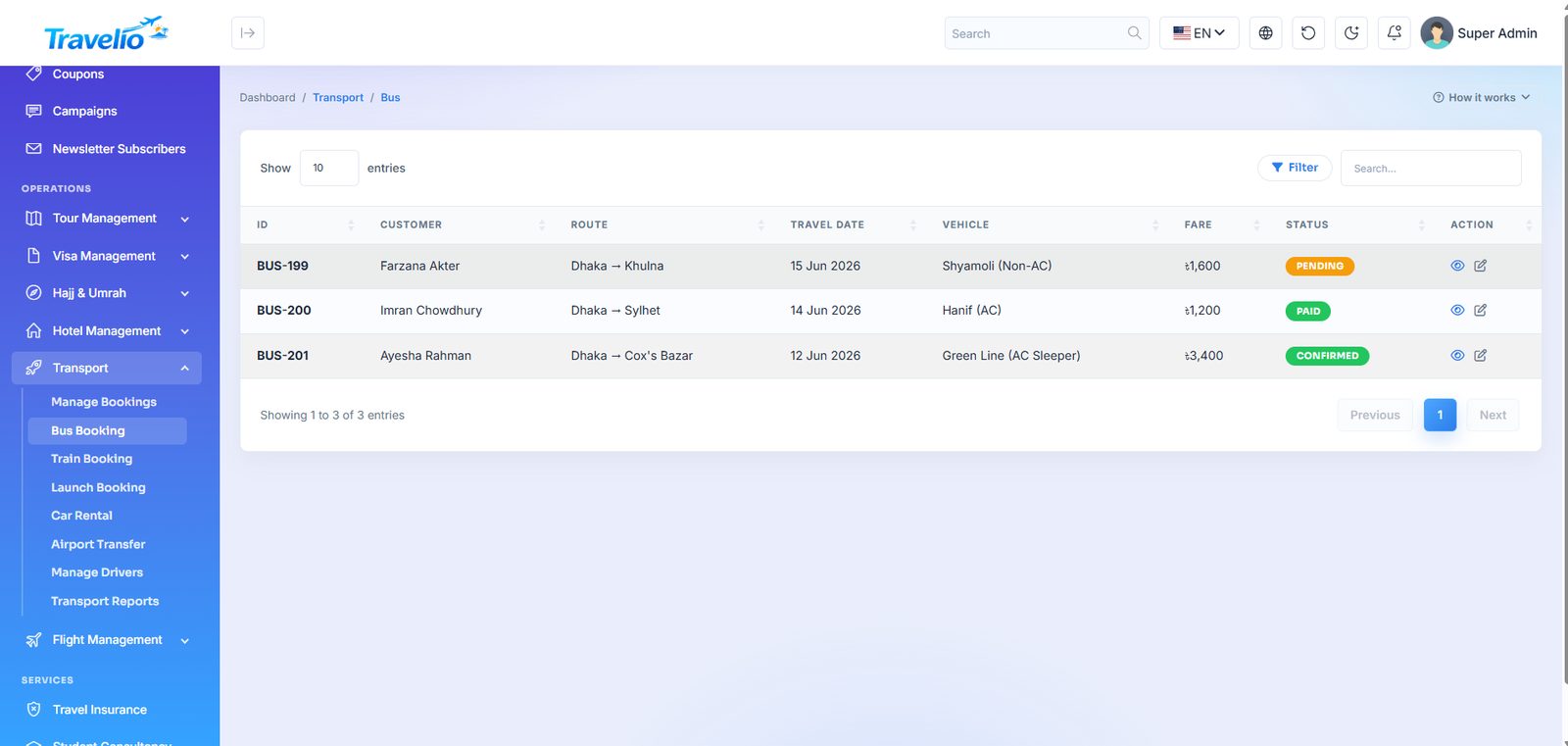
- Bus Booking — operator, route, coach type, seat and fare.
- Train Booking — train, class, coach and seat.
- Launch Booking — launch/ferry operator, cabin class and deck.
- Car Rental — vehicle, rental period, with or without driver.
- Airport Transfer — pickup and drop points, flight number and timing.
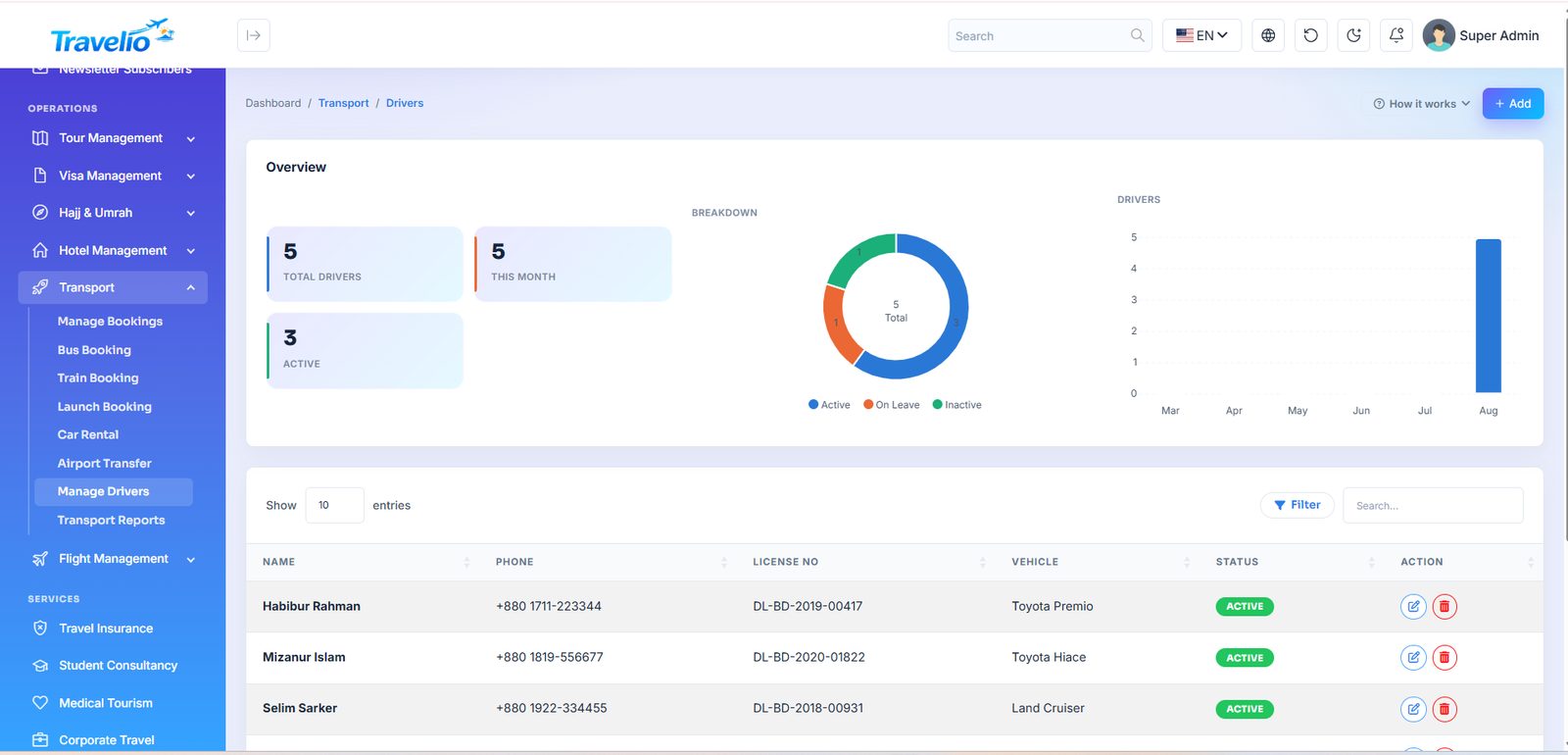
- Manage Drivers — driver roster with licence and contact details.
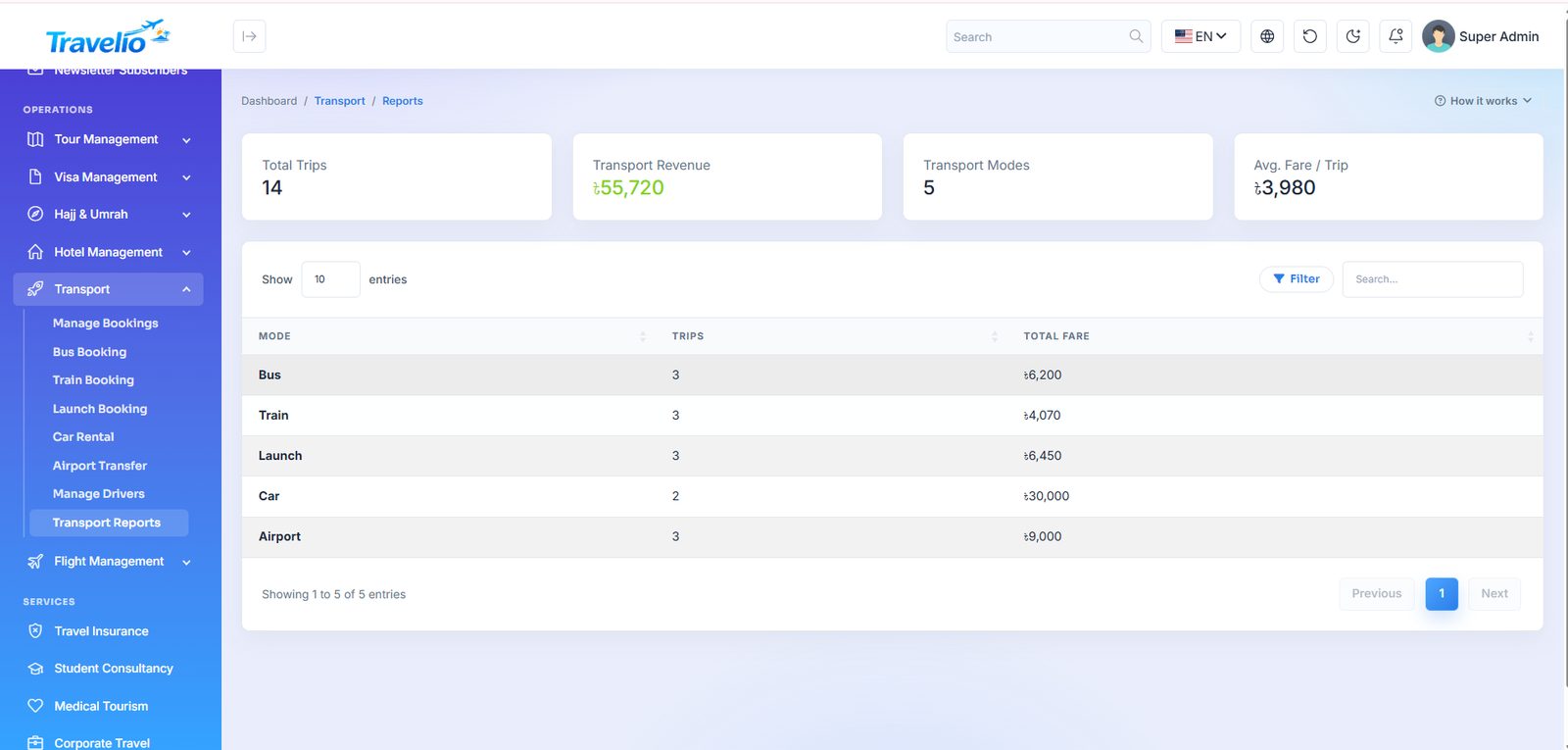
- Transport Reports — bookings and revenue by transport type.
Booking form: Booking No, Type (Bus, Train, Launch, Car, Airport), Direction (Pickup/Drop for airport), Booked by agent, Customer, From, To, Travel date, Vehicle (from Vehicle Categories), Driver, Marketplace vendor (only with the marketplace on), Fare and Status (Pending, Booked, Confirmed, Paid, Completed, Cancelled). A customer or website request arrives as Pending with no fare — set the fare, then Confirm. Vehicle Categories (menu item) manages the vehicle list shown in the form and on the website; Manage Drivers holds name, phone, licence number and status (Active, Inactive, On Leave).
Flight Management
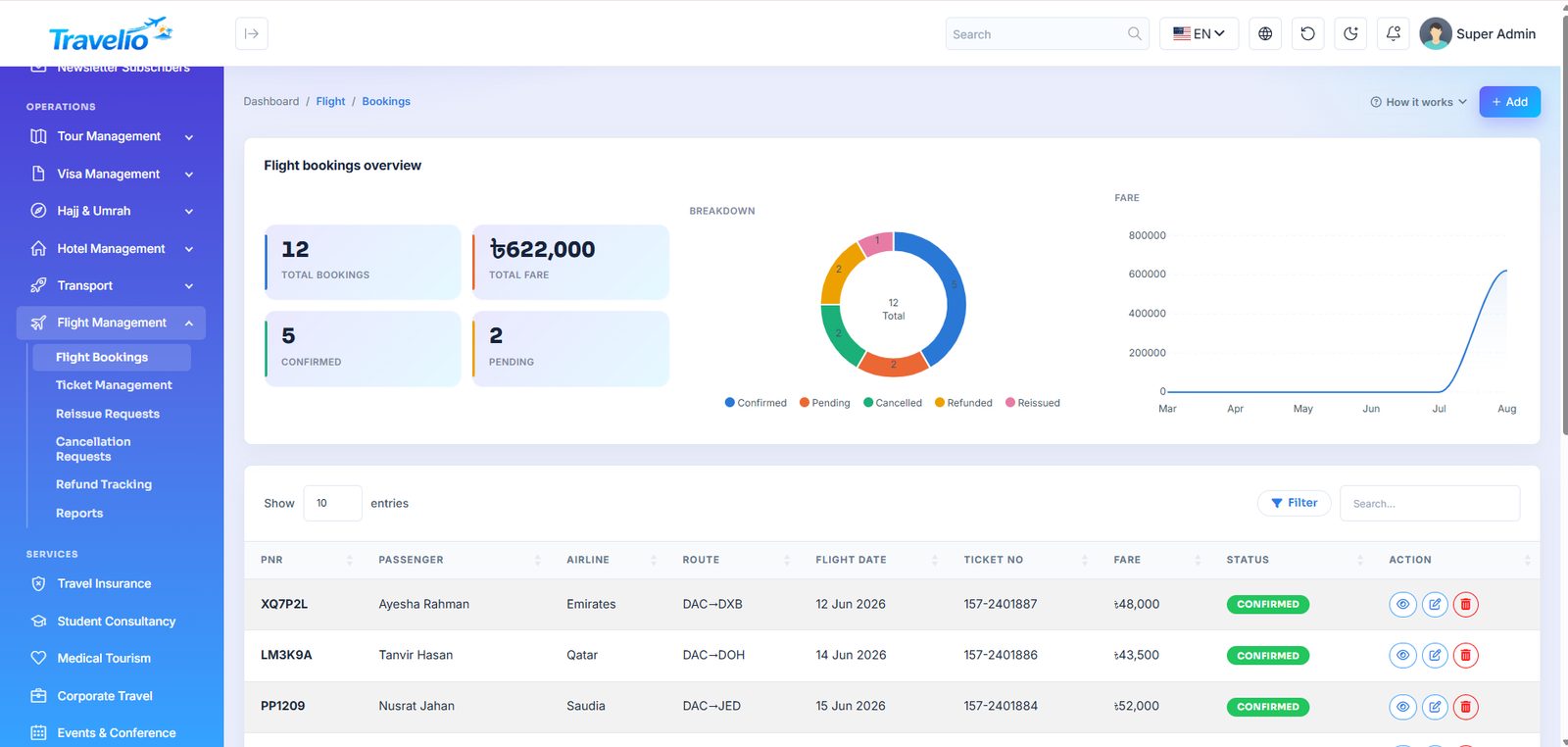
- Flight Bookings — Passenger, PNR, Airline, From / To (chosen from your Flight Fare Deals), Flight date, Ticket No, Fare and Status. Requests from the app or an agent arrive Pending with fare 0; open Edit, enter PNR, airline, ticket number and fare, then set Confirmed. Entering a ticket number with a fare raises the invoice. A detail page shows the whole booking and its e-ticket.
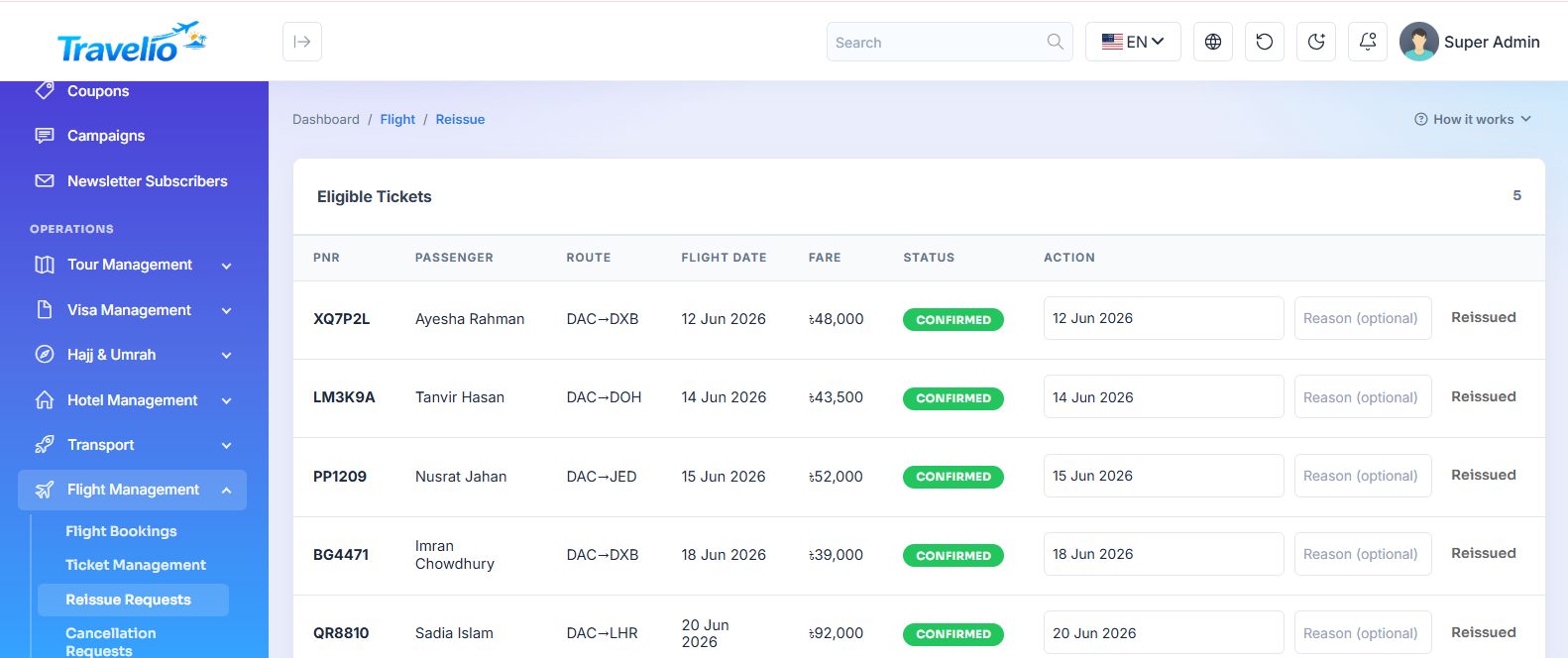
- Reissue Requests — pick a confirmed ticket, enter the new flight date and reason; the status becomes Reissued.
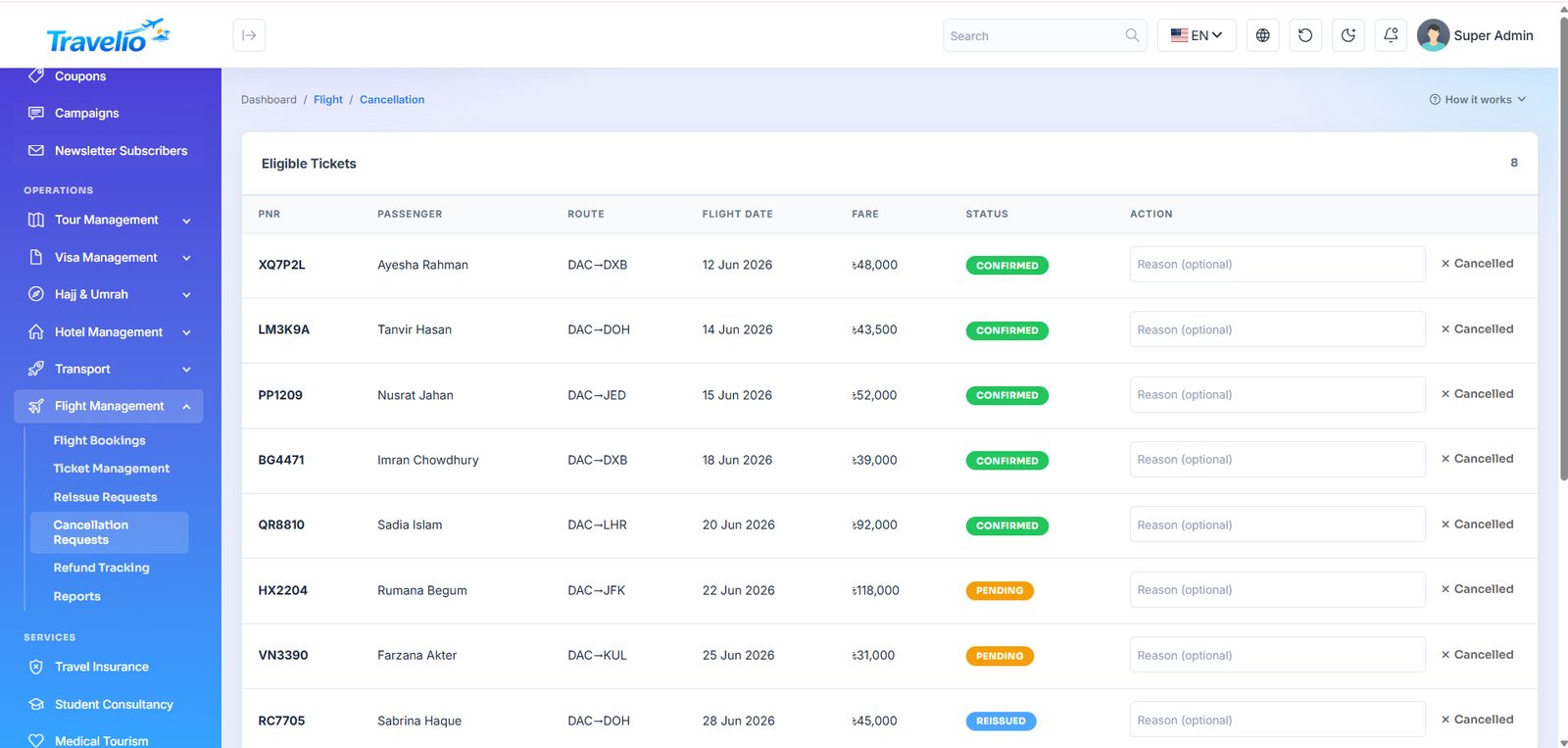
- Cancellation Requests — cancel a confirmed, pending or reissued ticket with a reason.
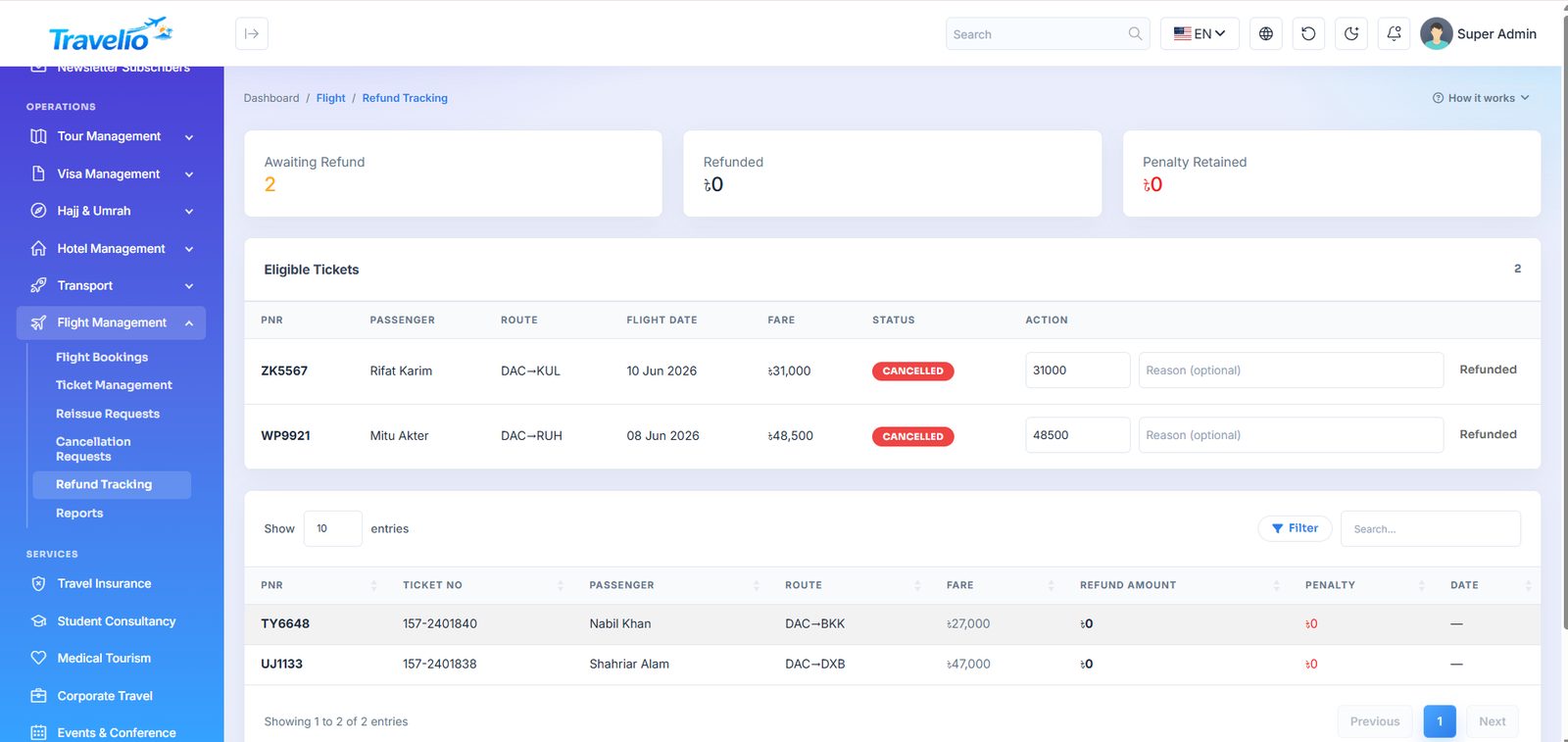
- Refund Tracking — refund a cancelled ticket: amount (up to the fare), method (Cash / Bank) and reason; the difference is stored as the penalty and the page totals Refunded and Retained.
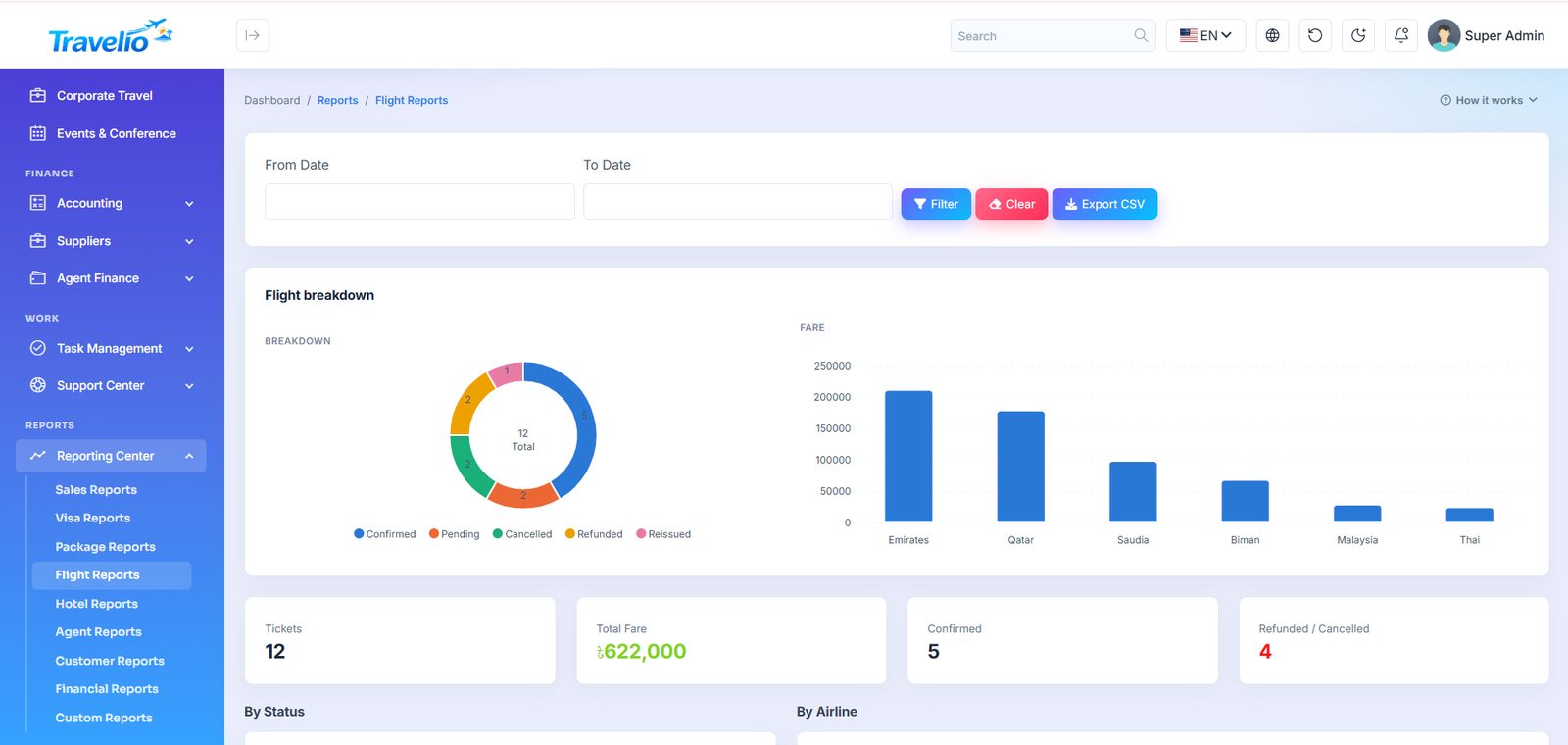
- Reports — flight sales and airline-wise performance.
Live flight search — six providers
Under switch on one or more providers and enter their credentials: Amadeus (Self-Service), Sabre (Bargain Finder Max), Travelport (JSON Air API / Travelport+), Duffel, TBO Air and Kiwi.com (Tequila). Each section shows Configured or Not configured.
- A search asks every enabled provider at once, merges the answers, removes duplicates (same flights and times — the cheapest copy is kept) and sorts by price, then duration. Each offer shows which provider it came from.
- If one provider fails or times out, the others still answer; travellers never see a supplier's error text.
- With no provider configured, the website and app fall back to the normal “request a fare” enquiry.
- Picking a live offer files it through the flight request flow with the fare details filled in, and your desk confirms and tickets it as usual.
Flights are ticketed manually. The flight APIs power live offer search and price display on the website and in the app; Travelio does not create PNRs or issue tickets through any airline or GDS, and does not sync them back. Each provider needs your own commercial agreement and credentials; Kiwi.com Tequila no longer accepts new partners, so it is only for agencies that already have a key. Round-trip return route/date are stored for app requests but are not on the admin form. Flight bookings have no supplier fields — supplier bills are entered in the supplier ledger.
Additional Services
The specialised lines a travel agency sells alongside tickets and packages. Each is a full record with its own fields, customer link and revenue.
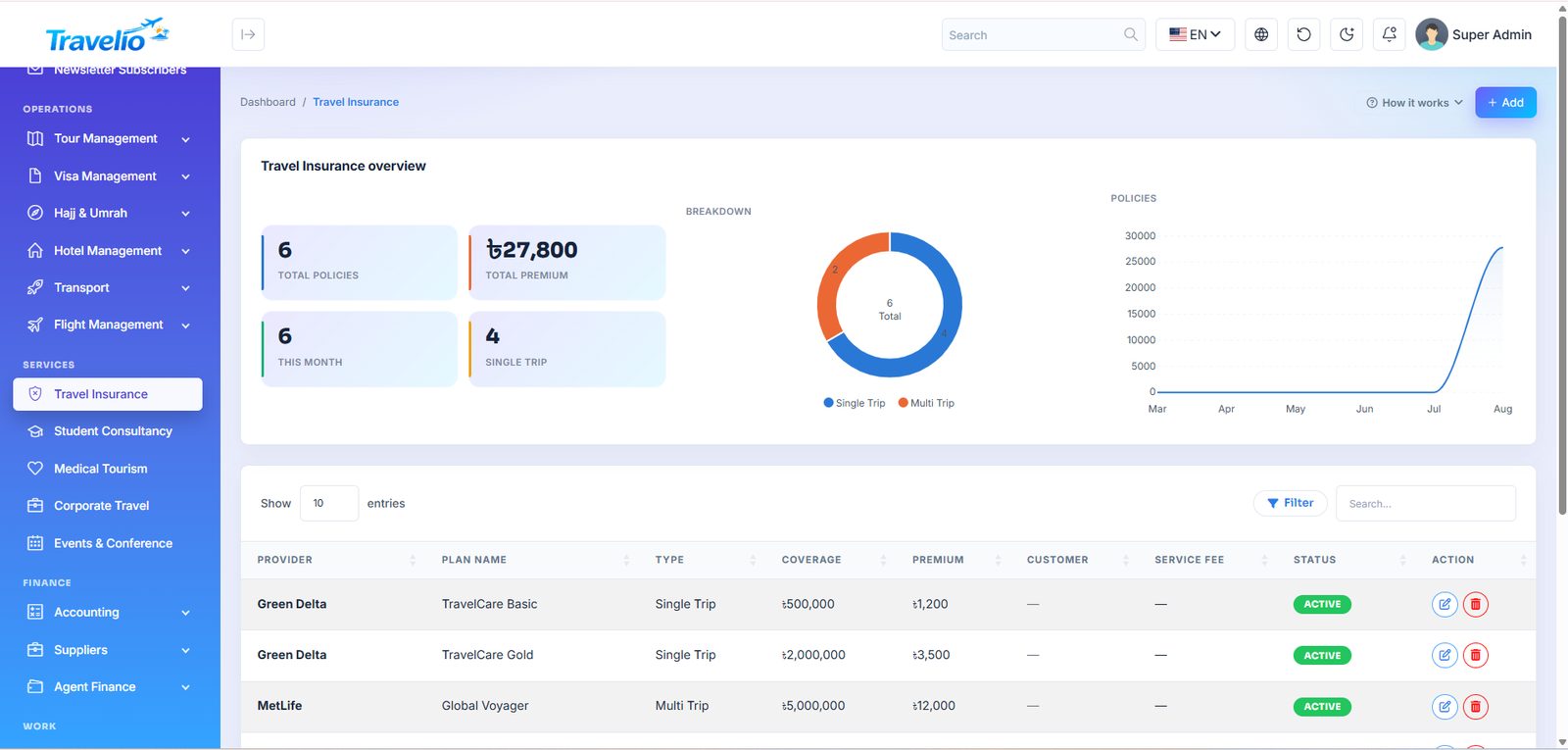
- Travel Insurance — Customer (optional), Provider, Plan name, Type (Single Trip / Multi Trip), Coverage, Premium, Status (active / inactive). A plan register: there is no policy number, claim or invoice.
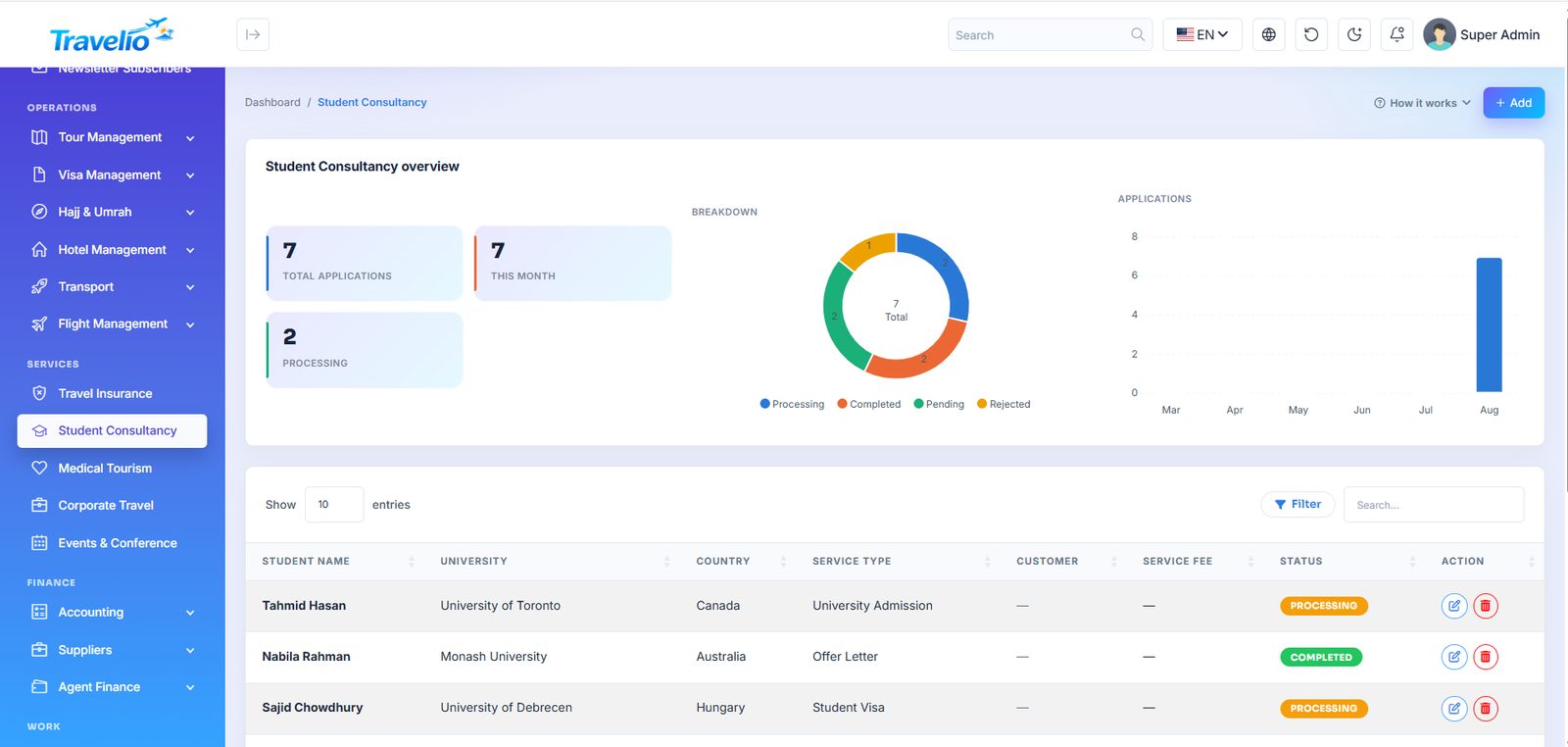
- Student Consultancy — Student name, University, Country, Service type (University Admission, Offer Letter, Student Visa, Accommodation), Status (Pending, Processing, Completed, Rejected).
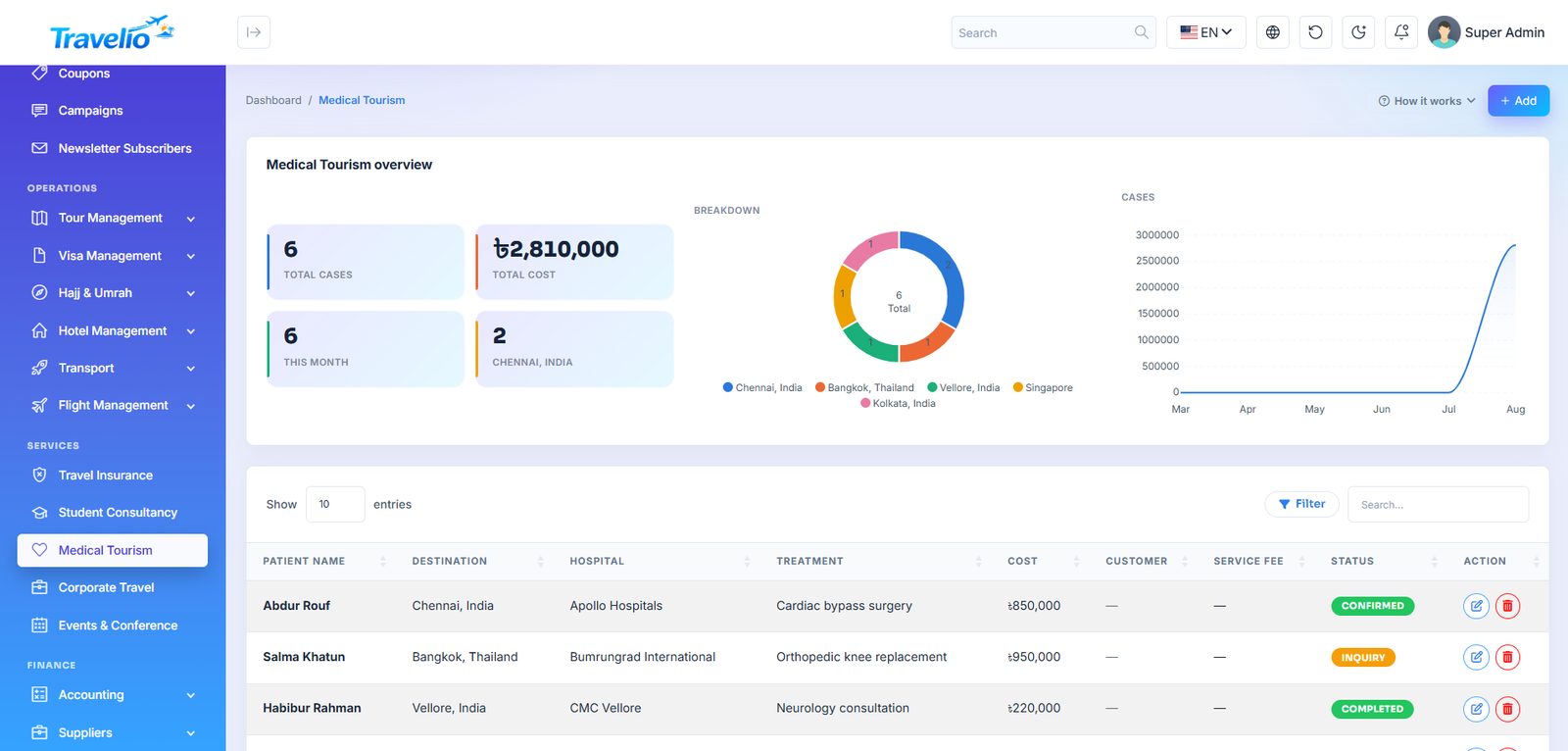
- Medical Tourism — Patient, Destination, Hospital, Treatment, Cost, Status (Inquiry, Confirmed, Completed, Cancelled).
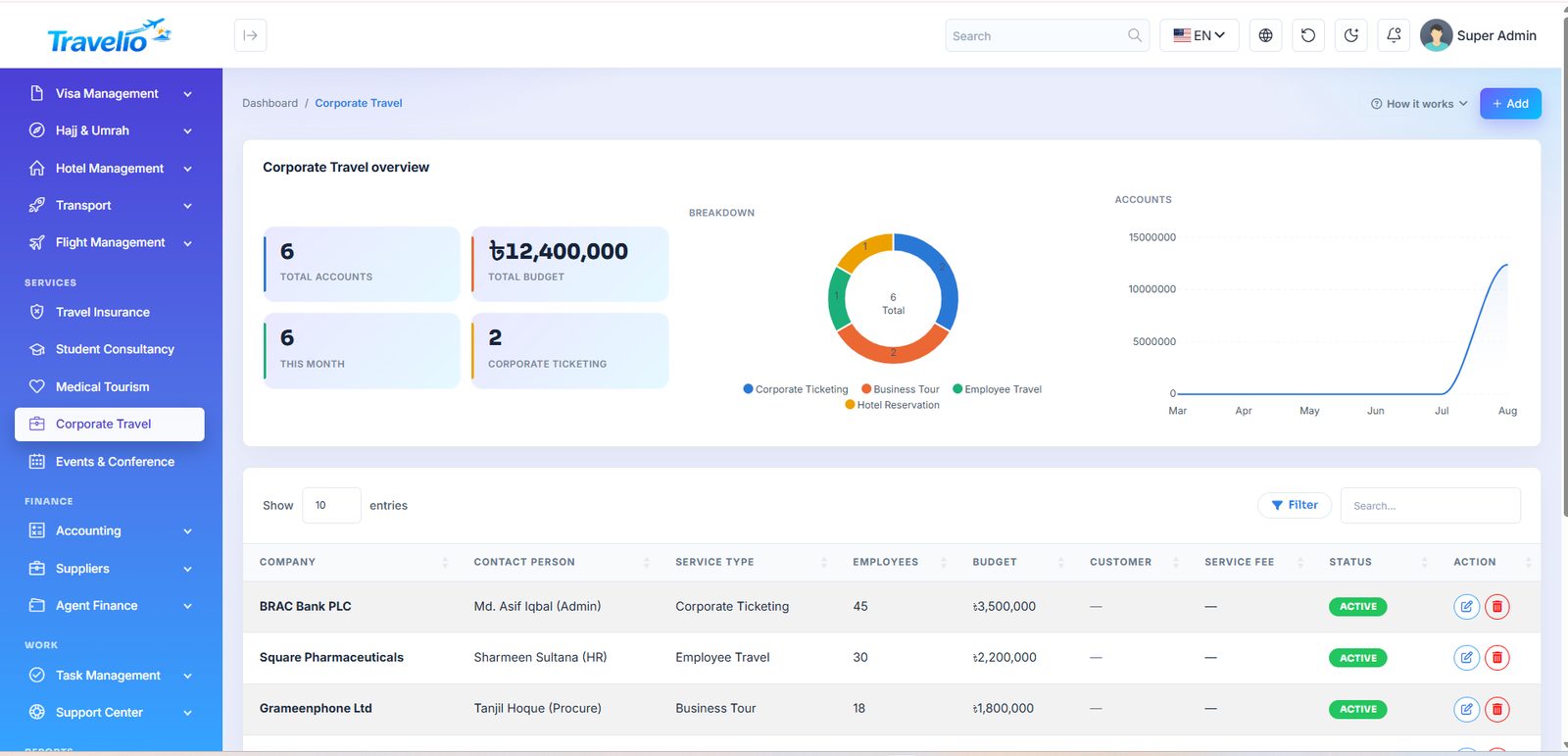
- Corporate Travel — Company, Contact person, Service type (Employee Travel, Corporate Ticketing, Hotel Reservation, Business Tour), Employees, Budget, Status (active / inactive).
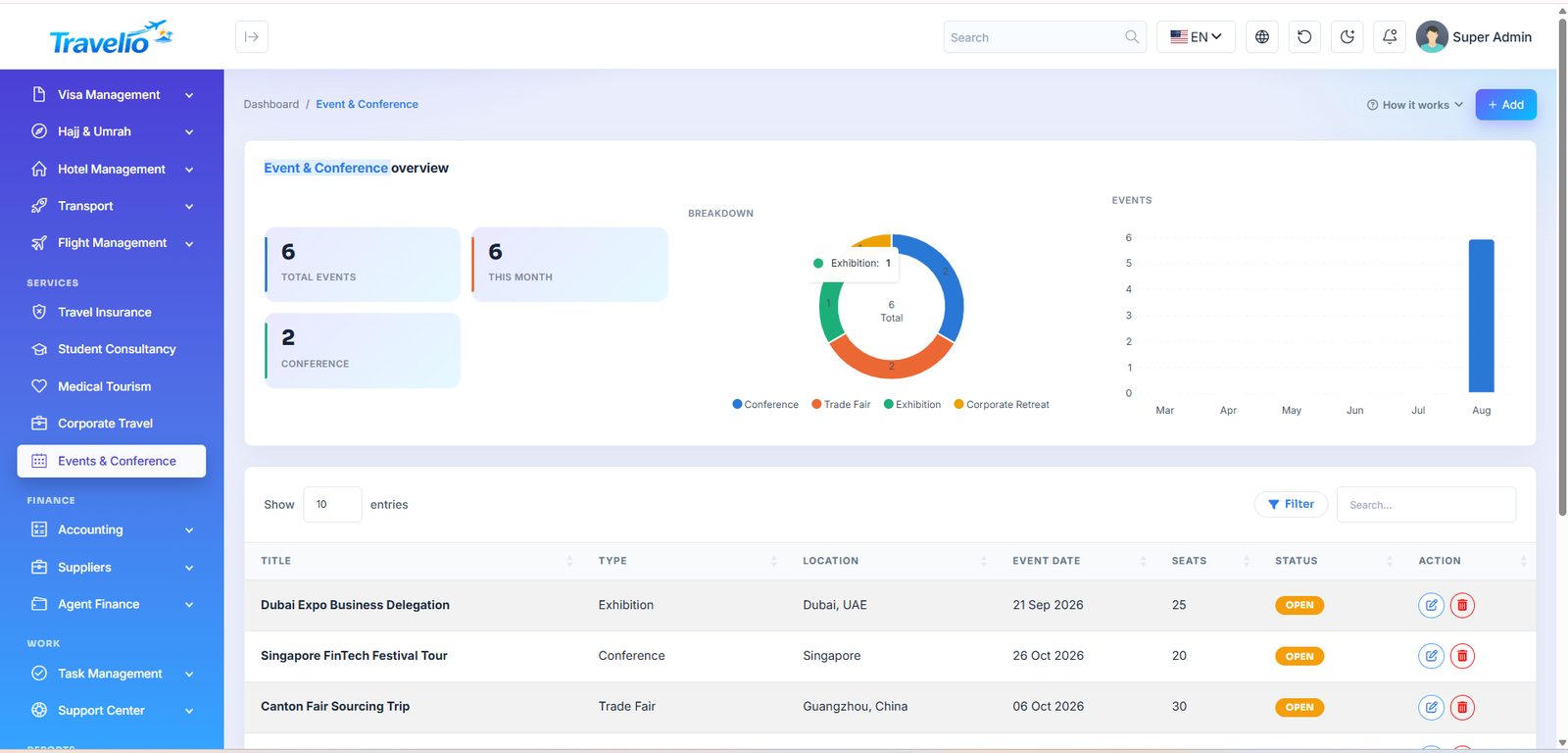
- Events & Conference — the event itself: Title, Type (Conference, Trade Fair, Exhibition, Corporate Retreat), Location, Event date, Seats and Status (Open / Full / Closed — Open and Full switch automatically from booked seats).
- Event Bookings — delegates booked on an event: Booking no., Event, Customer name / account, Seats (refused if the event has fewer seats left), Amount, Status (Pending, Confirmed, Paid, Cancelled) and Payment method. Confirmed or Paid raises an invoice; Paid issues the receipt.
Insurance, Student, Medical and Corporate records each carry an optional customer link and a Service fee (what the agency keeps), and appear in the customer's profile with a service-revenue total. They are registers — they do not raise invoices or ledger entries themselves; bill the customer from Accounting → Invoices if you want it on the books.
Activities & Excursions 1.7.0
Part of the Additional services module
Sell city tours, desert safaris, boat trips, theme-park tickets and other experiences by date and time, with live places left.
Set up an activity
- Activities → Add: title, location, duration, description, image, guide languages (comma separated), pickup points (one per line), free-cancellation hours, and whether bookings are confirmed instantly or by your desk.
- Save, then add options (e.g. Half day shared, Private car) with an adult price, an optional child price and an optional group price for up to N people (used while the party fits).
- Under each option, Create dates: a date range, optional weekdays, start times (e.g.
09:00, 14:00) and places per slot. Running it again updates capacity without losing bookings.
Bookings
Customers book on the website (/activities) or in the app: they choose a date, adults and children, language and pickup point. Places are taken under a database lock, so the last seats cannot be sold twice. An instant-confirm booking is confirmed at once and its voucher (with QR code) is emailed; otherwise it waits as pending.
Activity bookings lists every booking with filters; Confirm emails the voucher, Mark paid records payment, Cancel releases the places. Payment is collected by your desk (cash, bank or card at the counter).
Add /activities to your website menu under CMS → Menus. Webhook events are sent for activity bookings too (see Webhooks).
Accounting
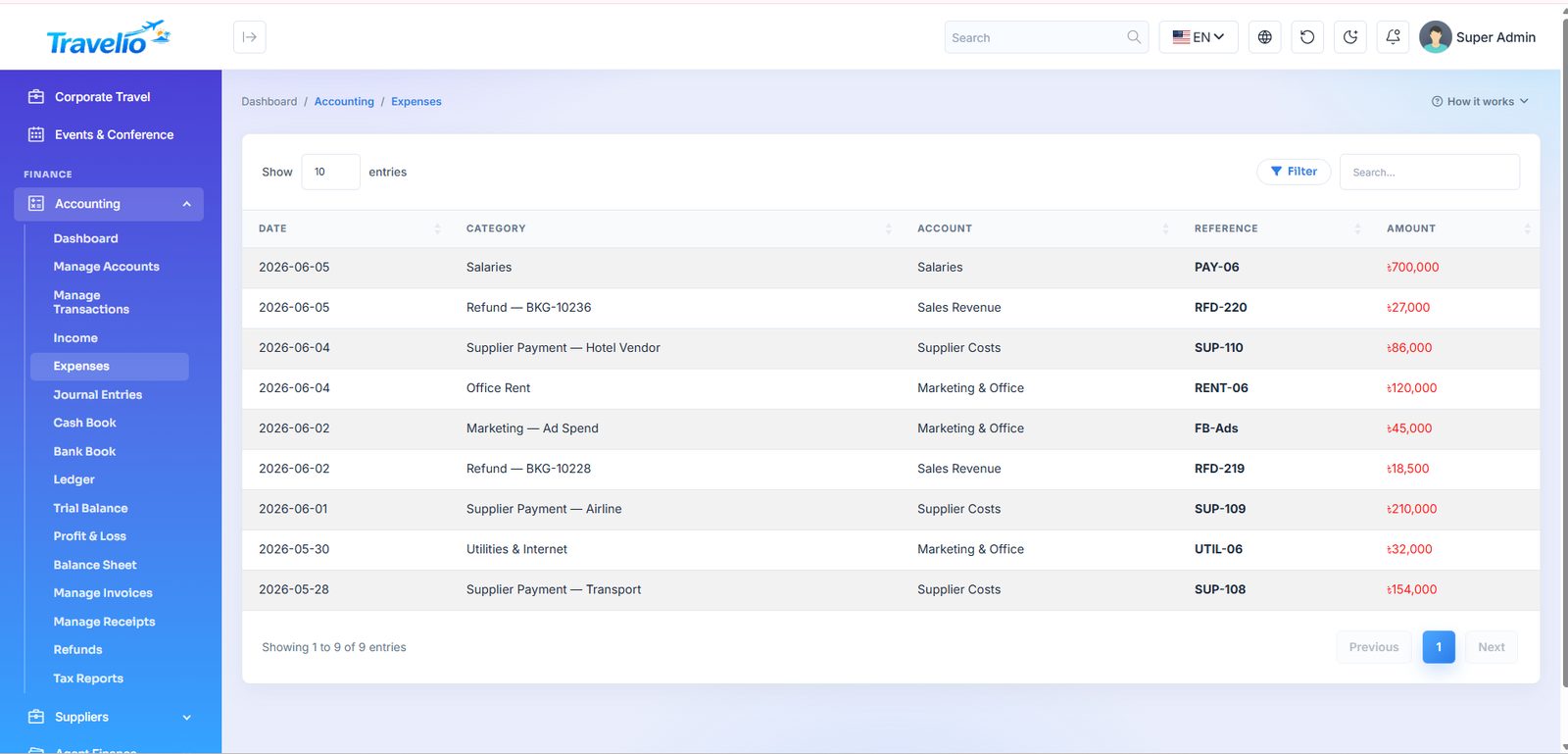
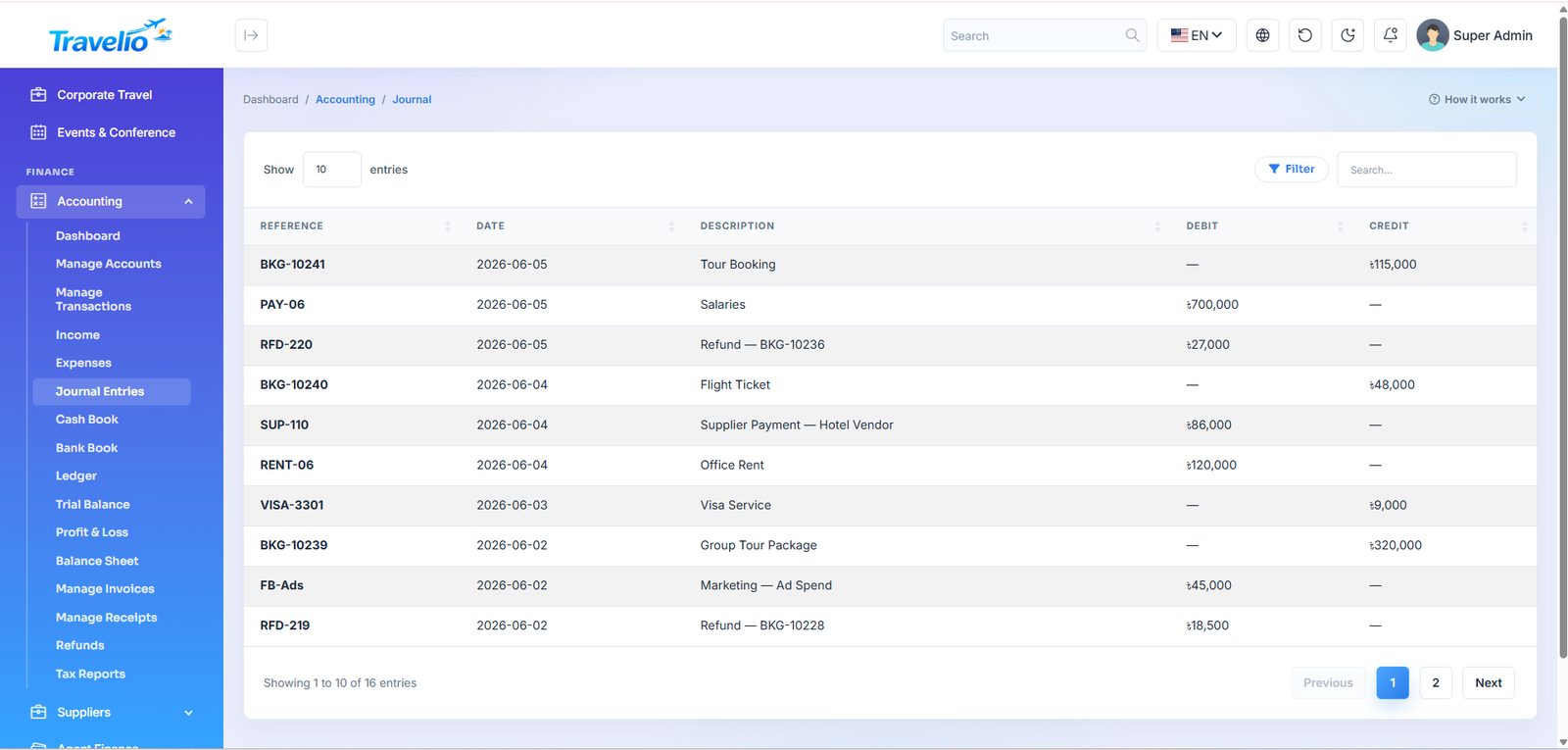
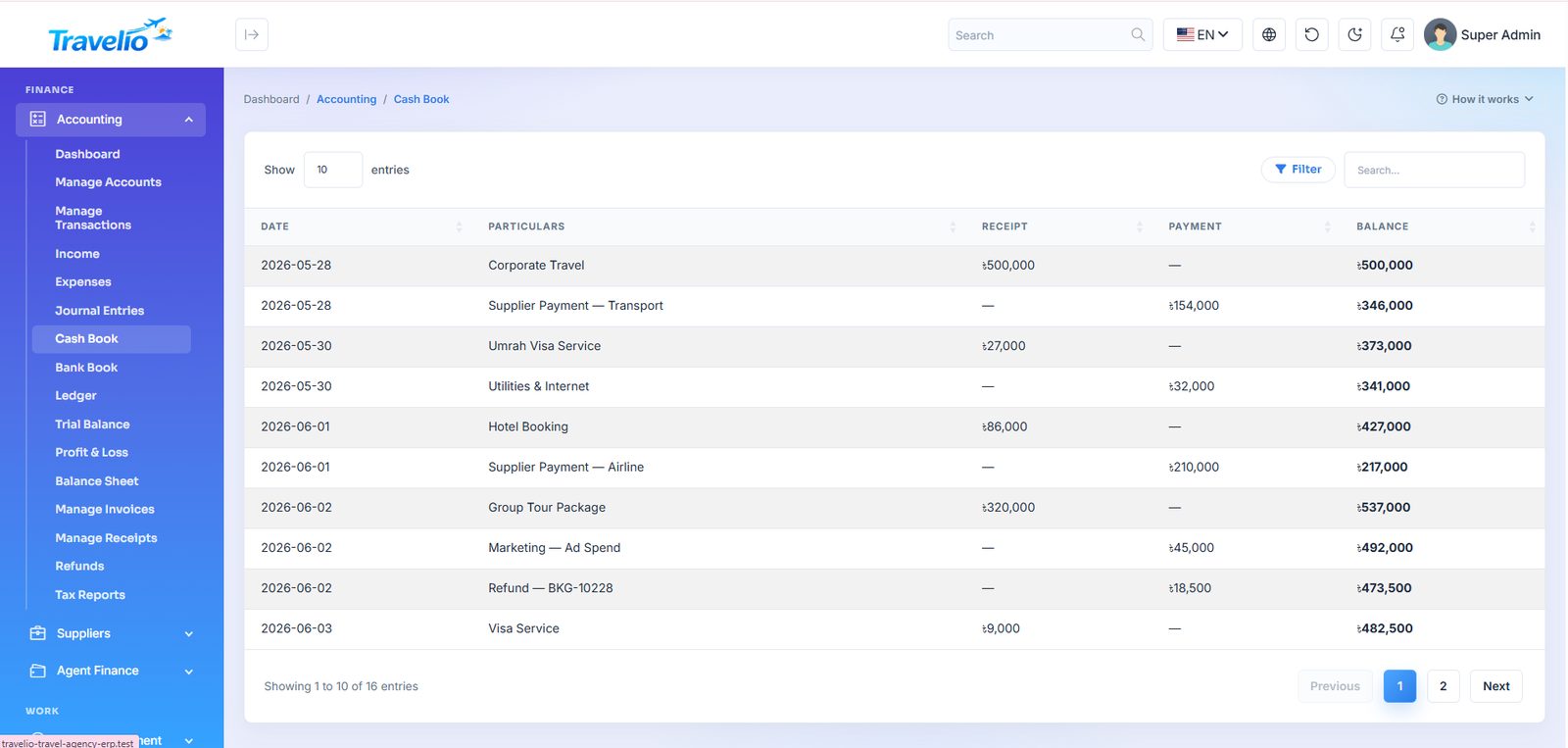
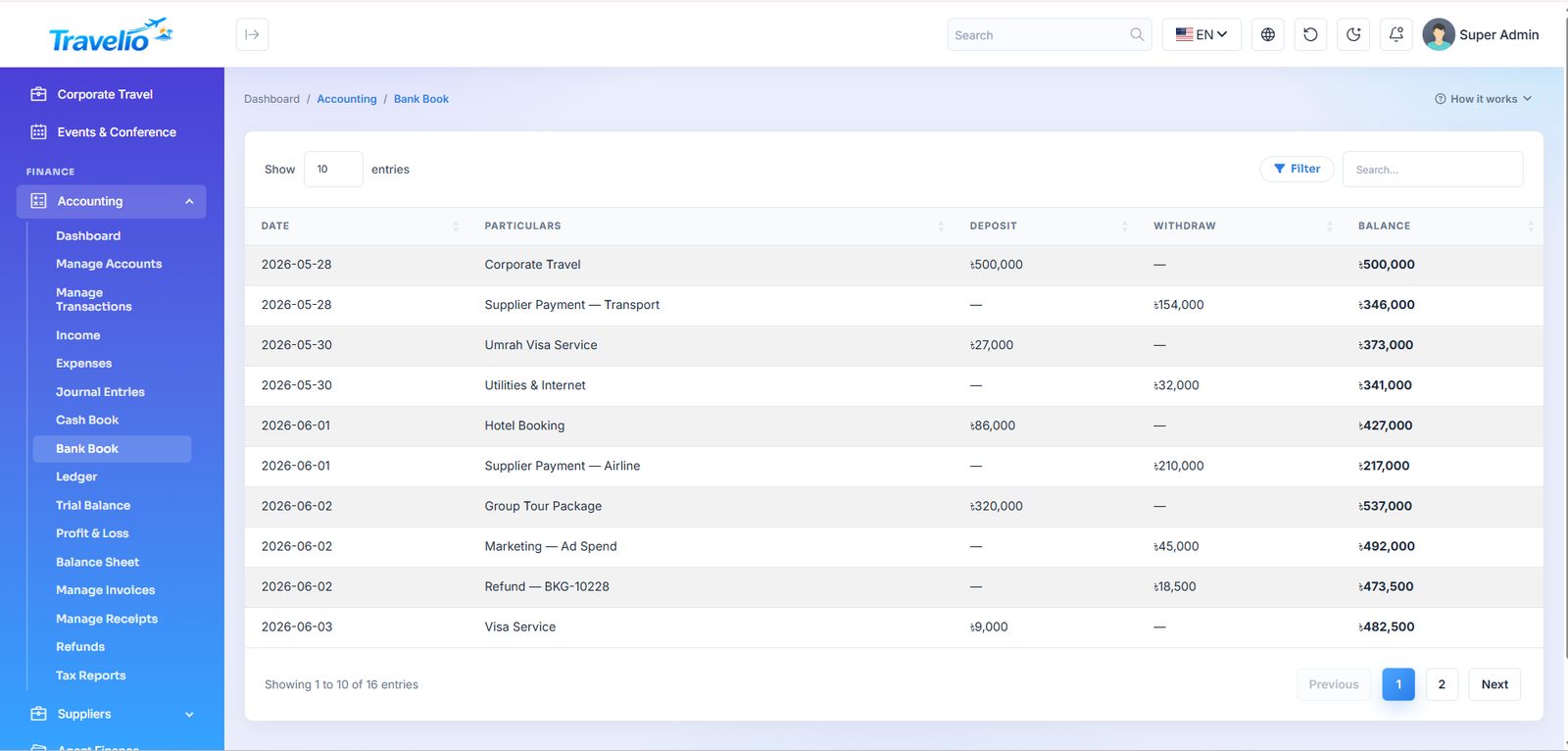
A full double-entry accounting system built in — you do not need separate books.
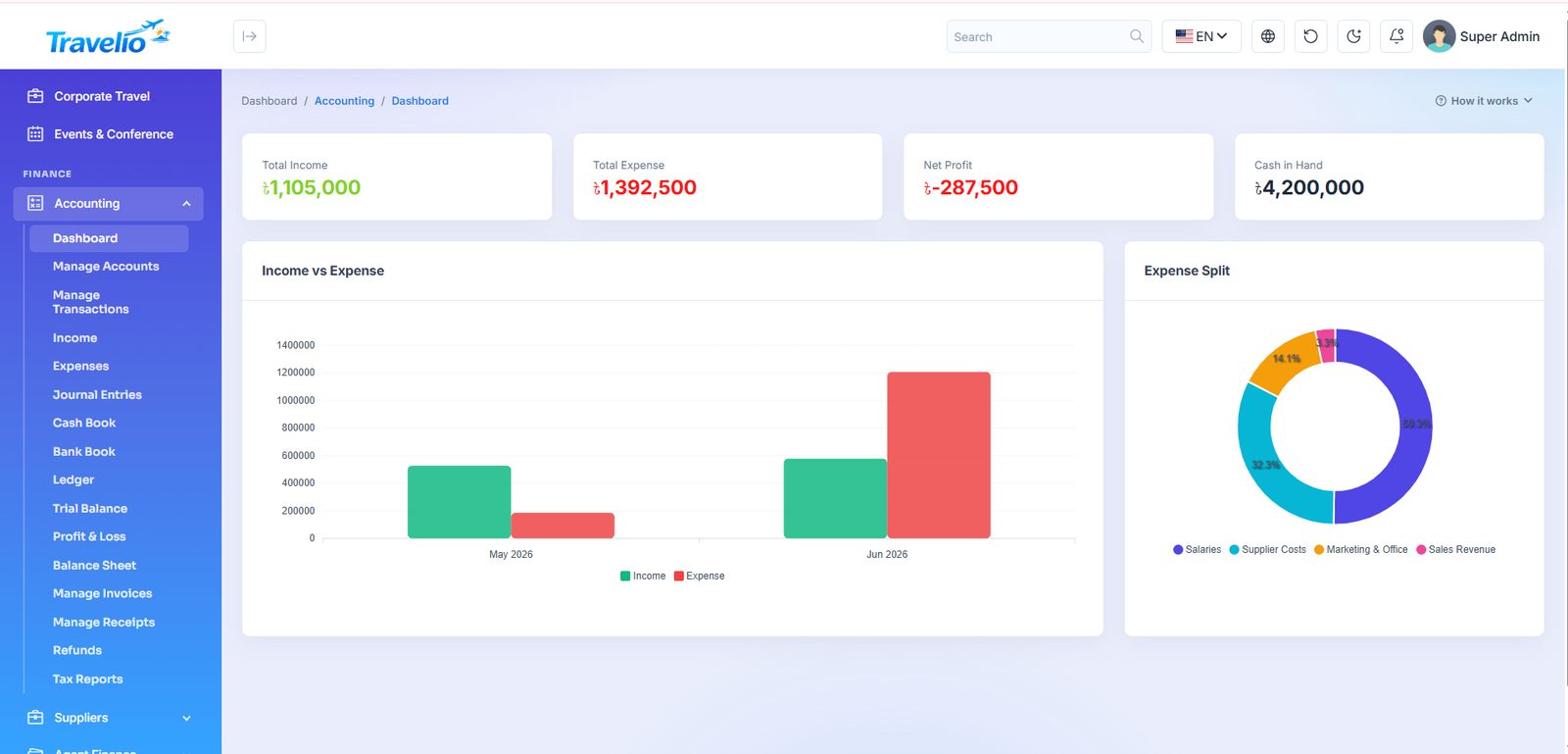
- Dashboard — income, expense, profit and cash position at a glance.
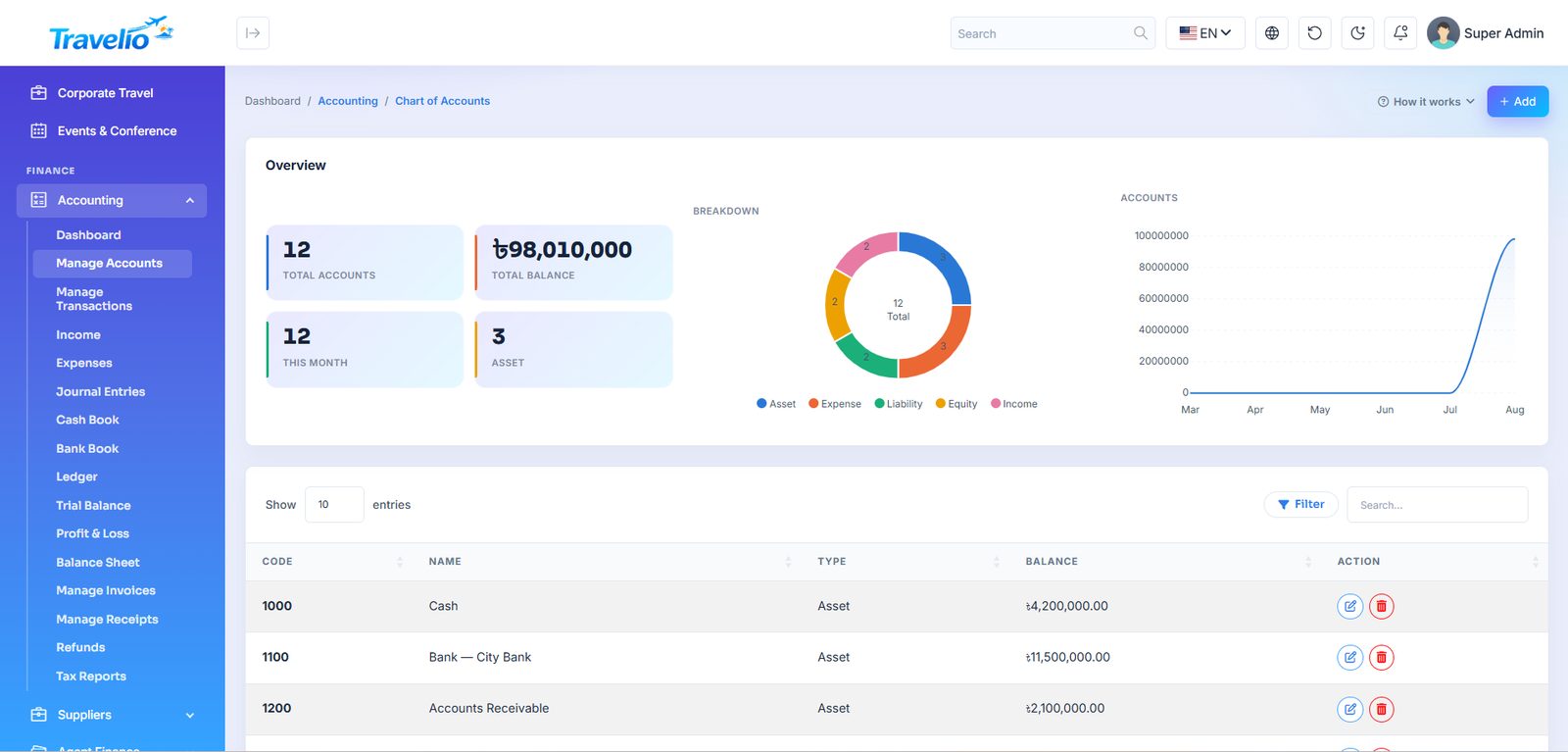
- Manage Accounts — the chart of accounts: asset, liability, equity, income and expense heads.
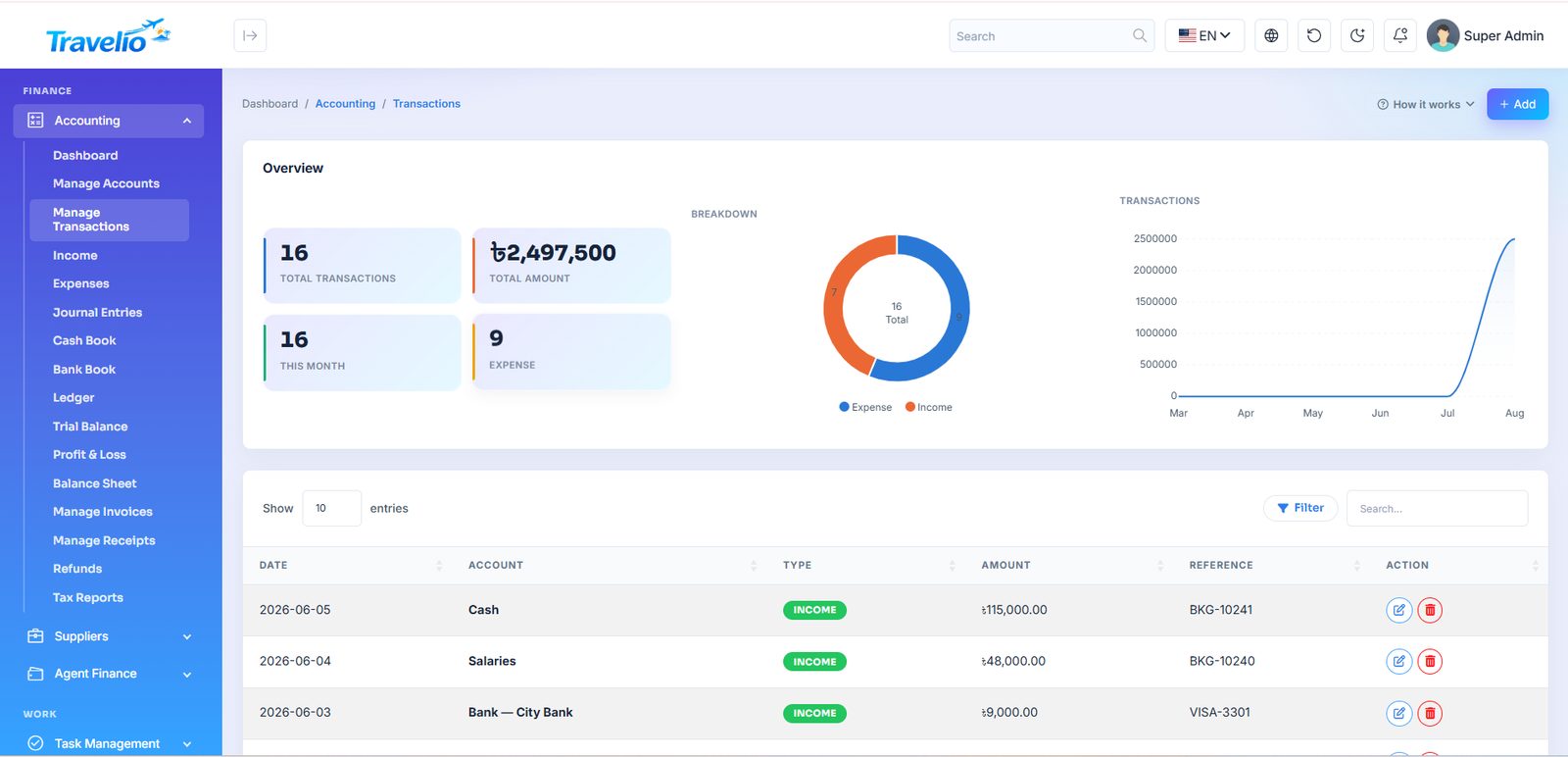
- Manage Transactions — every debit and credit, linked to its account and reference.
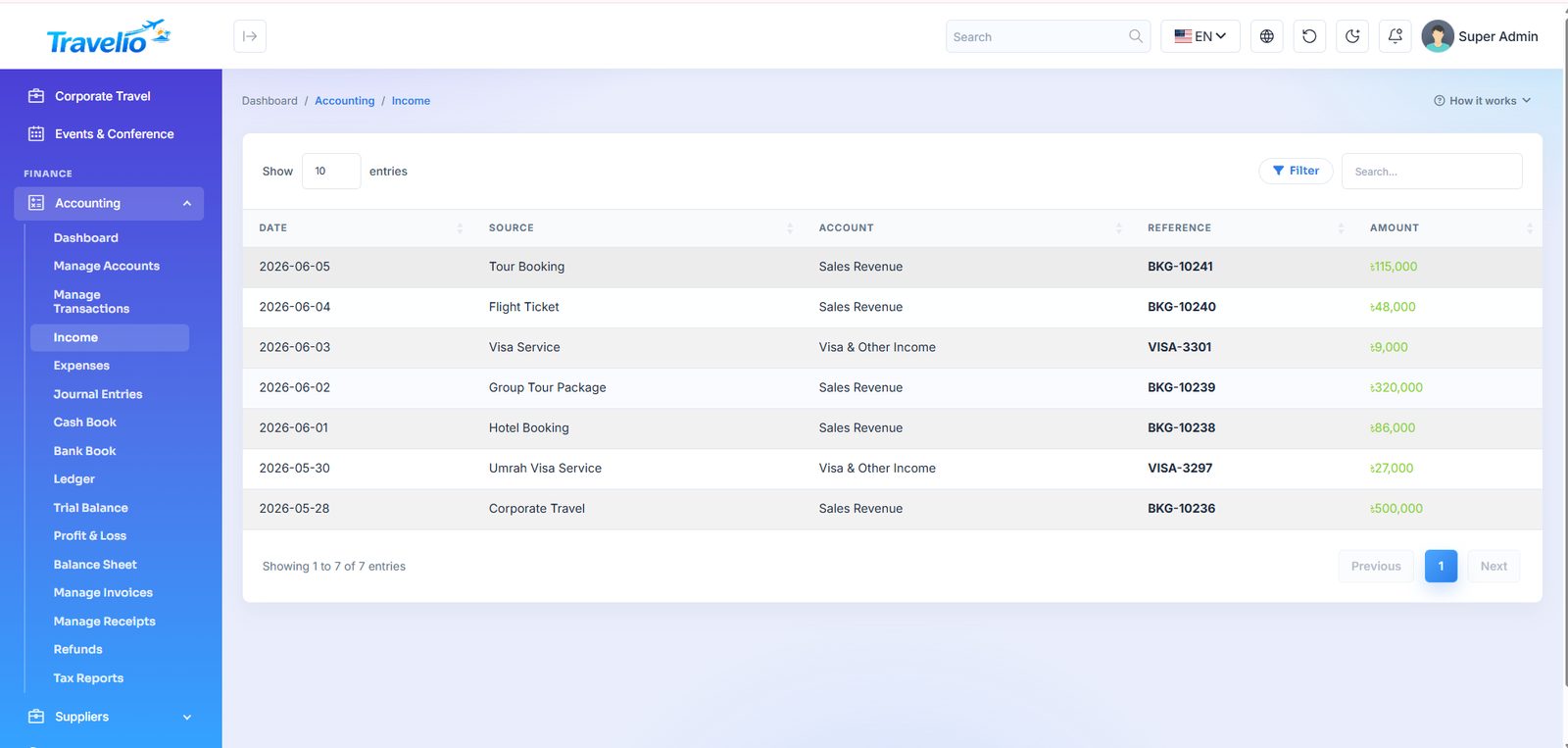
- Income and Expenses — quick entry screens for day-to-day money in and out.
- Journal Entries — manual double-entry postings for adjustments.
- Cash Book / Bank Book — cash and bank movement with running balance.
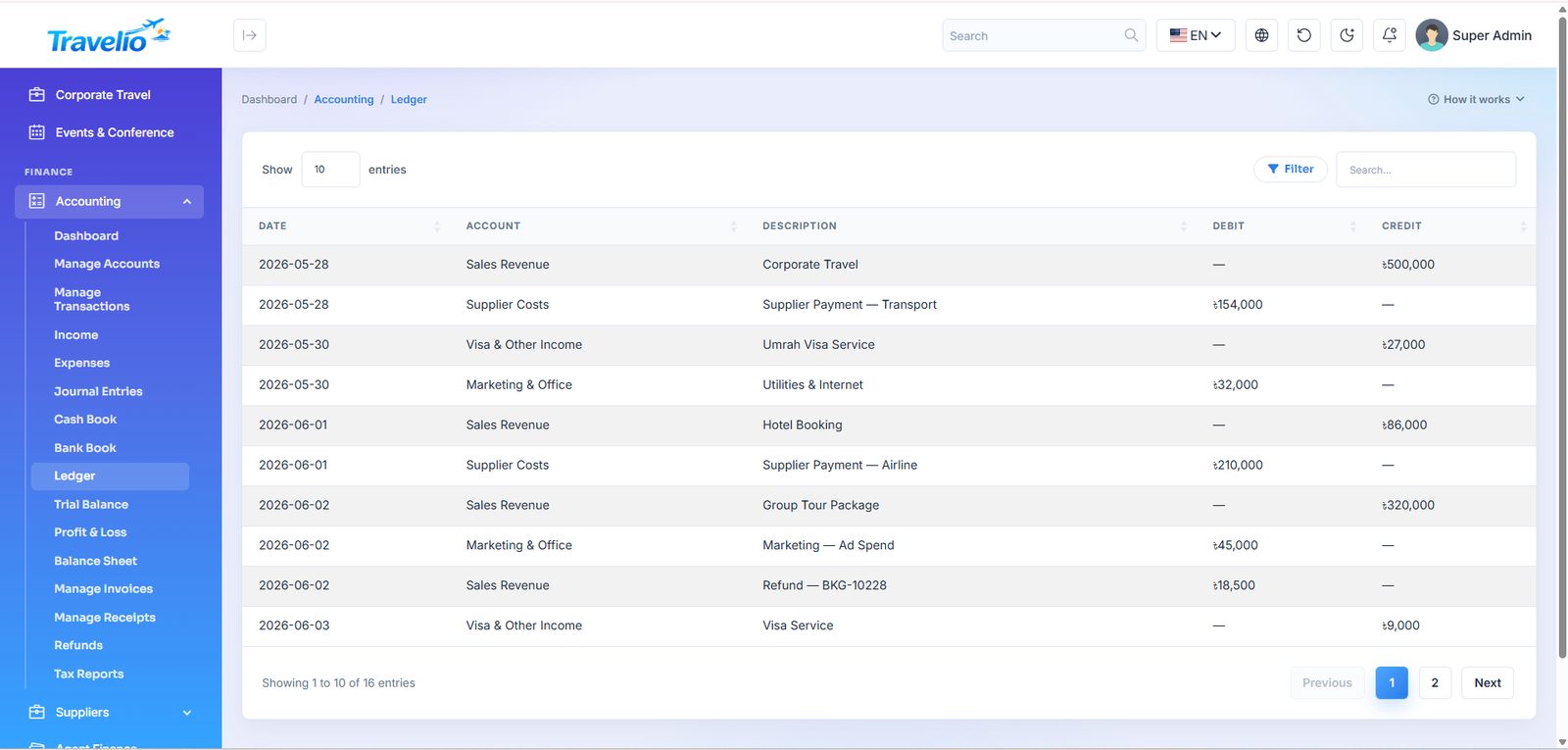
- Ledger — the account-wise ledger.
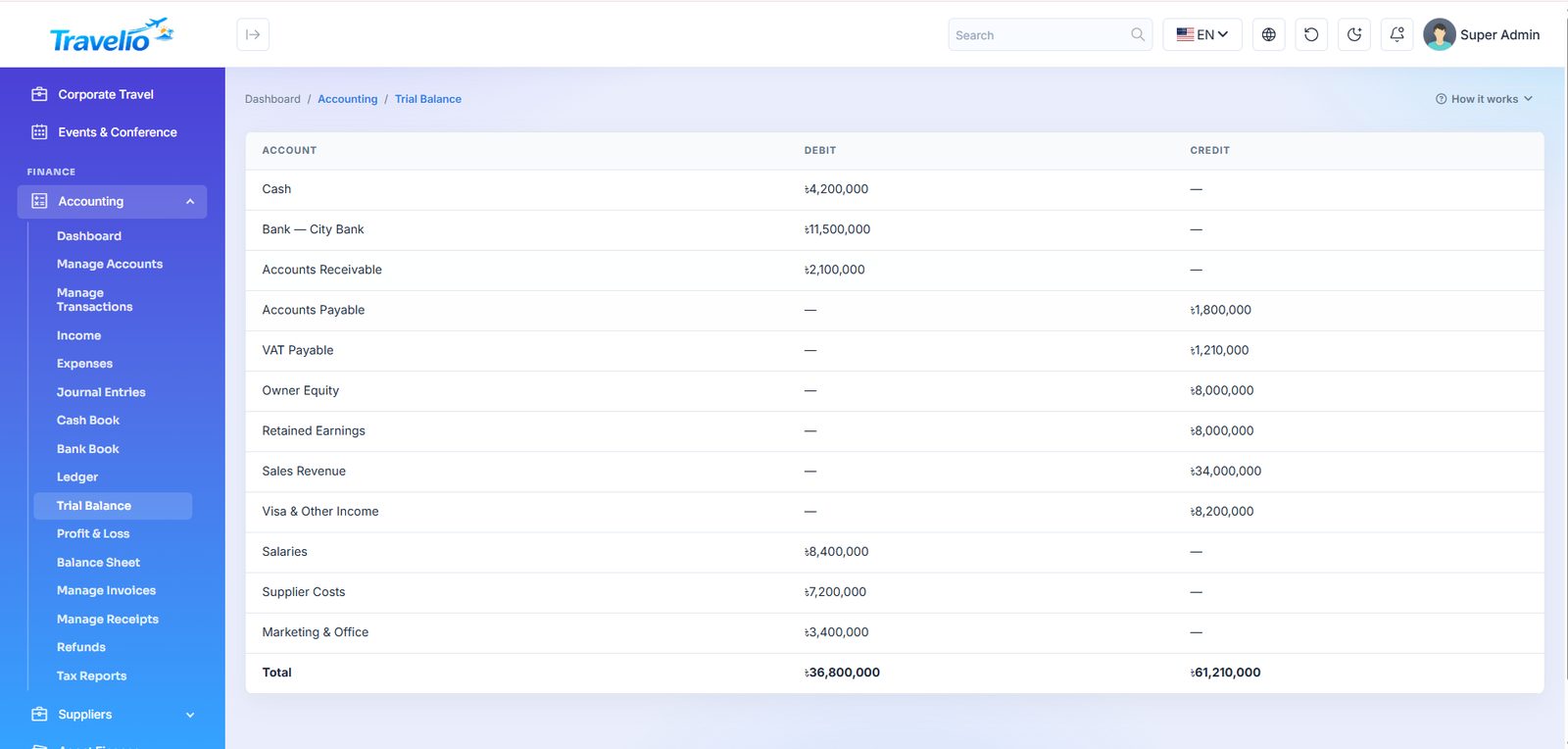
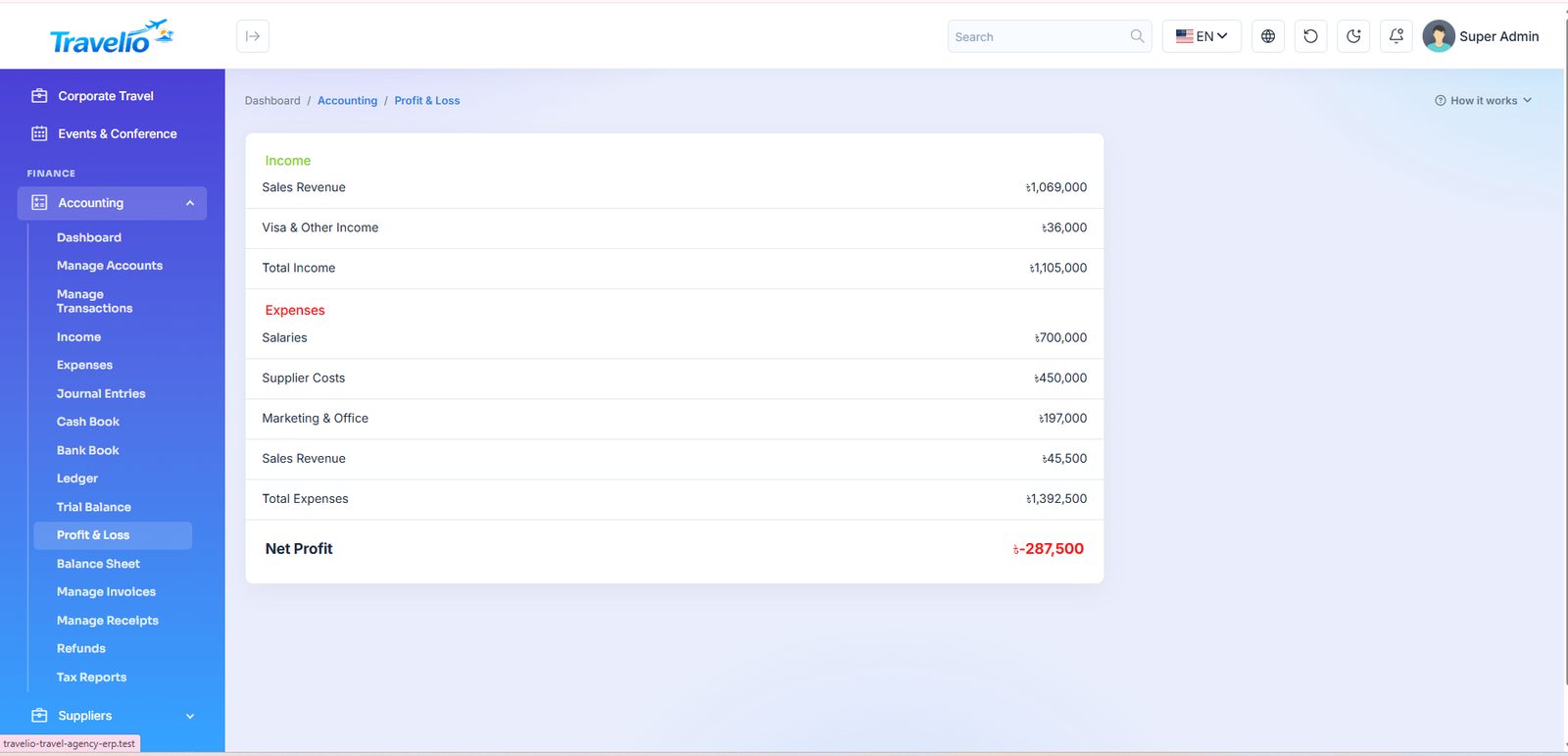
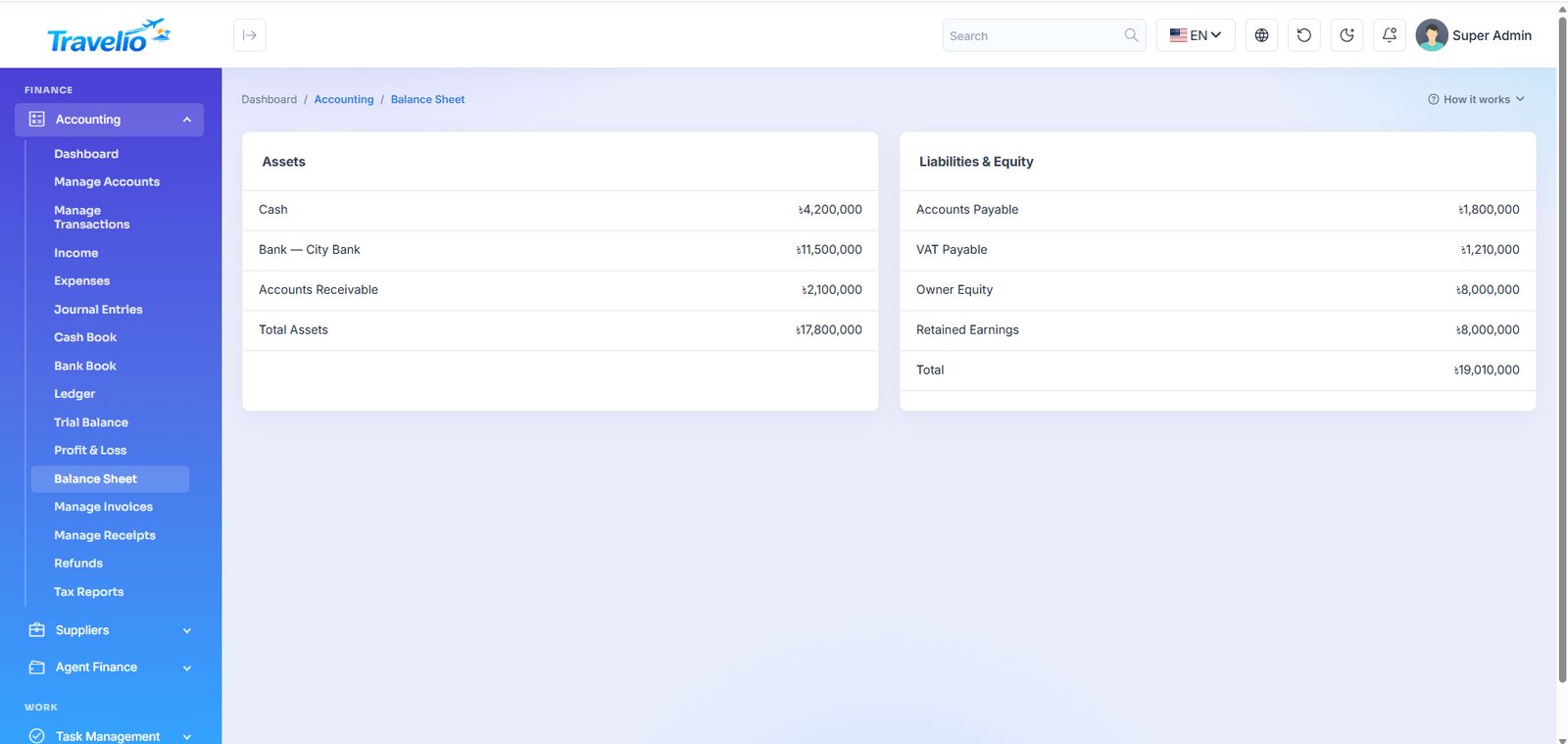
- Trial Balance, Profit & Loss, Balance Sheet — the standard statements, generated live.
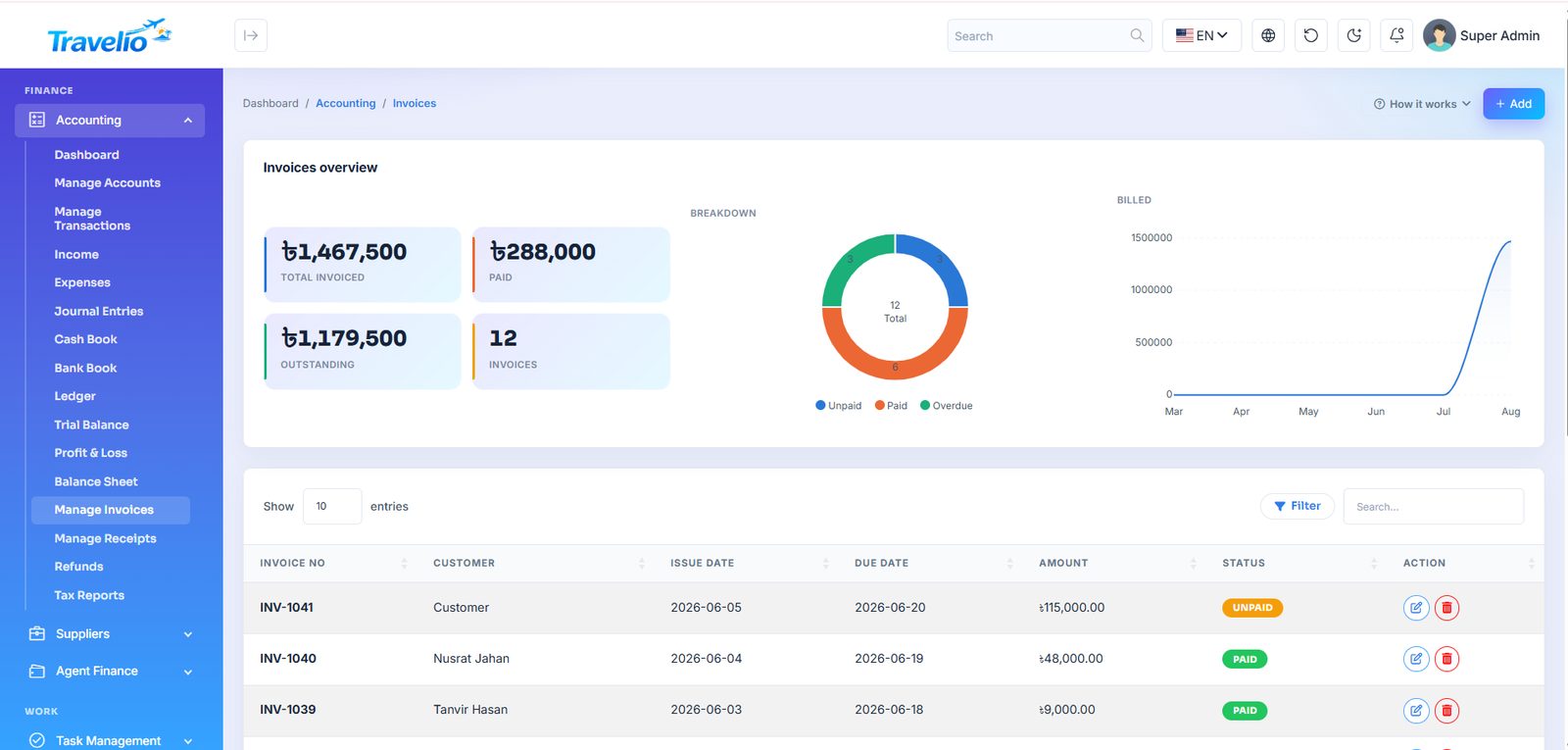
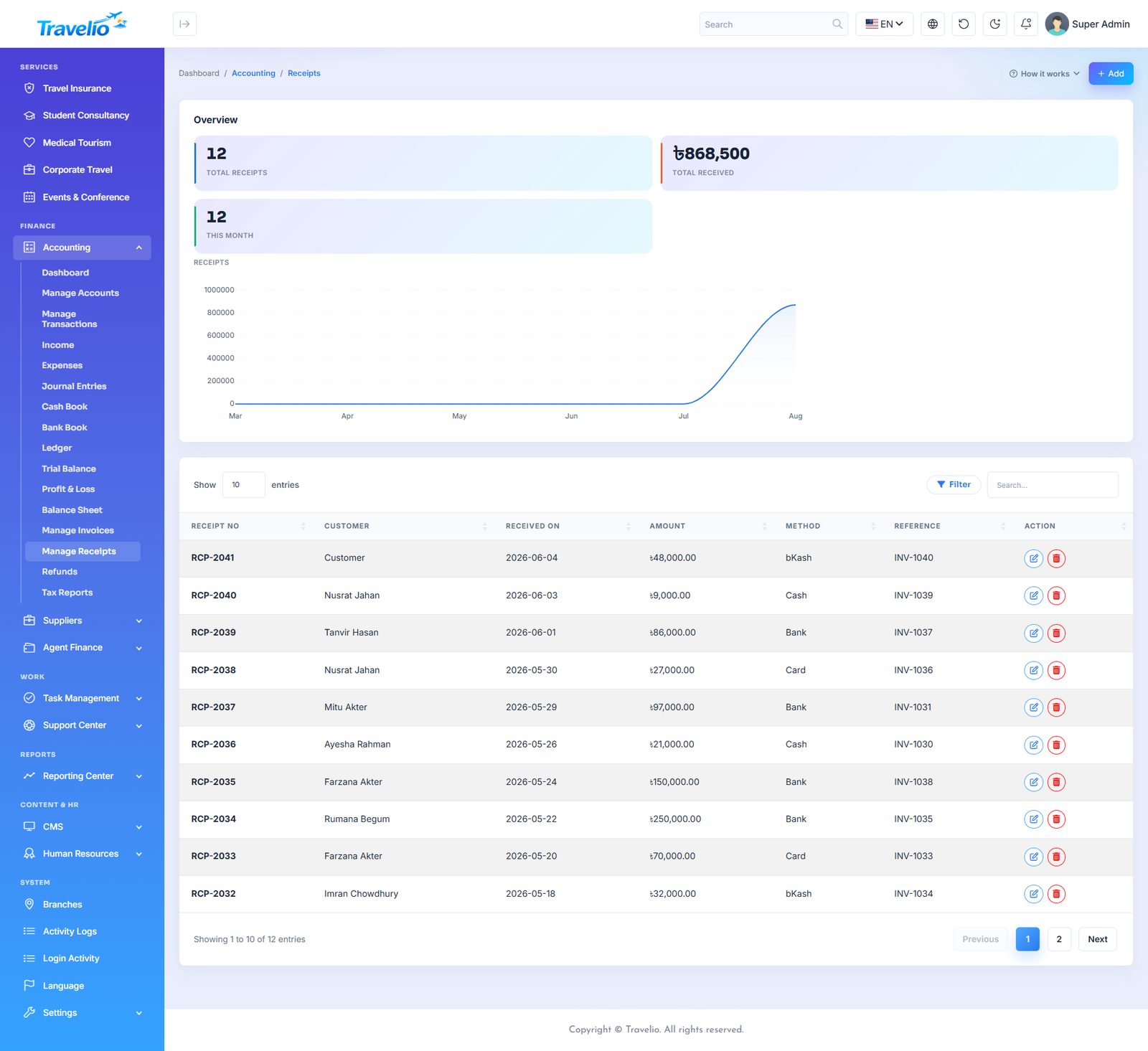
- Manage Invoices / Manage Receipts — customer invoices and the payments received against them.
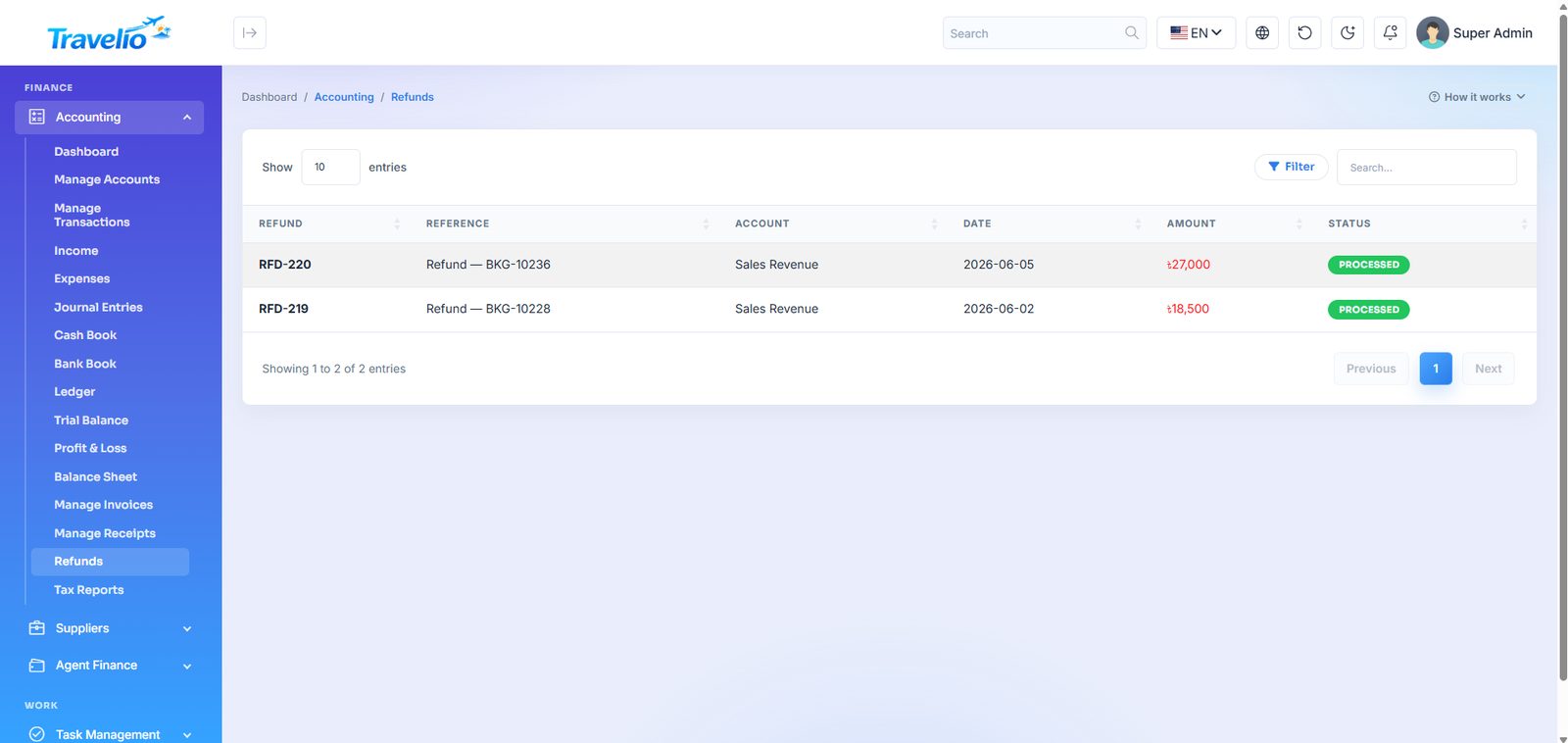
- Refunds — refunds issued to customers, posted back through the accounts.
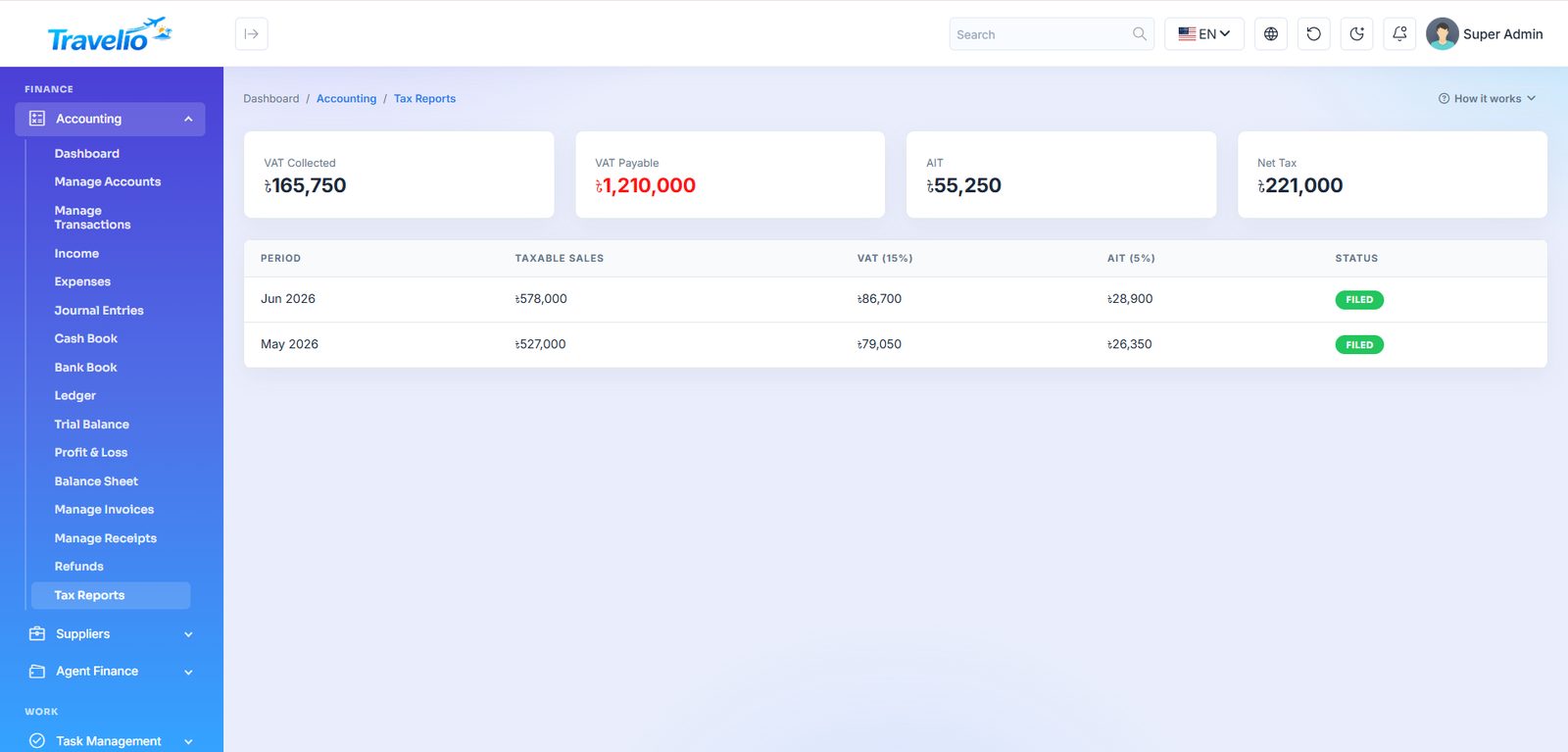
- Tax Reports — tax collected and payable over a period.
Ledgers, journal, trial balance, P&L and balance sheet are derived views — they are calculated from your transactions rather than edited directly. An account that already has transactions cannot be deleted.
How money reaches the books
- Automatic. Confirming or paying a booking raises an invoice (tour
INV-B, hotelINV-H, transportINV-T, eventINV-E, HajjINV-P, flightINV-F, visaINV-V) and a receipt when paid. Commissions, wallet movements, supplier bills, agent payouts, payslips, vendor payables and refunds post their own entries. - Invoice status is derived: unpaid, partial, paid, overdue or refunded. The amount billed is the price after any promo code and redeemed points.
- Receipts are the “record a payment” action: choose the invoice, enter amount (not more than owed), date, method (Cash, Bank, Card, bKash, Nagad, JazzCash, Easypaisa, Wallet) and reference. Cash goes to the cash account; the other methods to the bank account; Wallet draws on the customer wallet.
- Refunds have no separate form: use Refund on a paid invoice (amount up to received minus already refunded, to Cash, Bank or Wallet, with a reason).
- Manage Transactions are manual journal entries (account, contra account, type, amount); the Source column links automatic entries to their document.
- Tax Reports apply the VAT and AIT rates from General Settings to income — estimates, not filed returns.
- System accounts are seeded and cannot be deleted: Cash, Bank, Accounts Receivable and Payable, VAT Payable, Agent Payable, Customer Wallet, Vendor Payable, Sales Revenue, Supplier Costs, Refunds, Agent Commission, Vendor Cost of Sales and more.
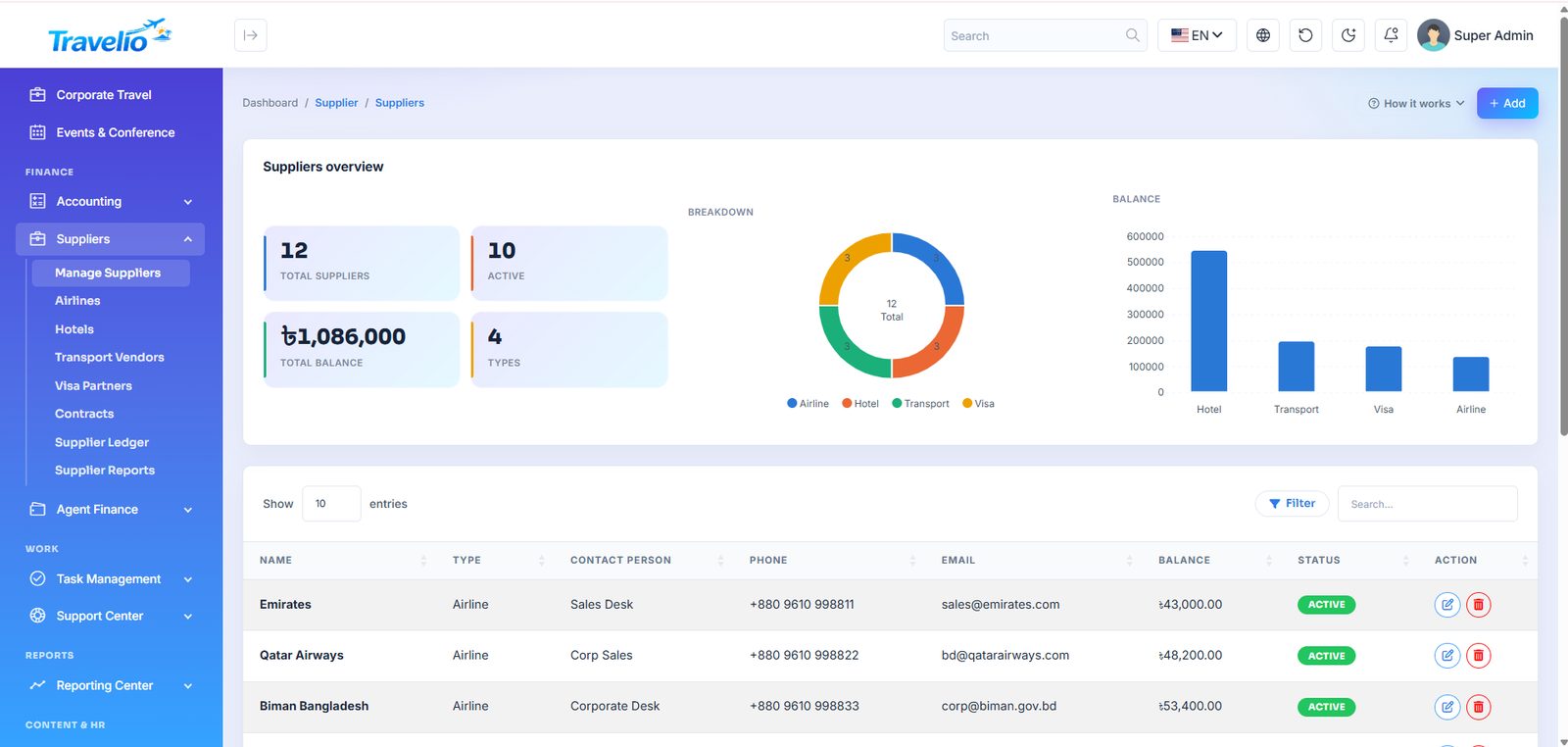
Suppliers
Who you buy from, what you owe them, and the contracts behind the rates.
- Manage Suppliers — the master supplier list with contact, type and running balance.
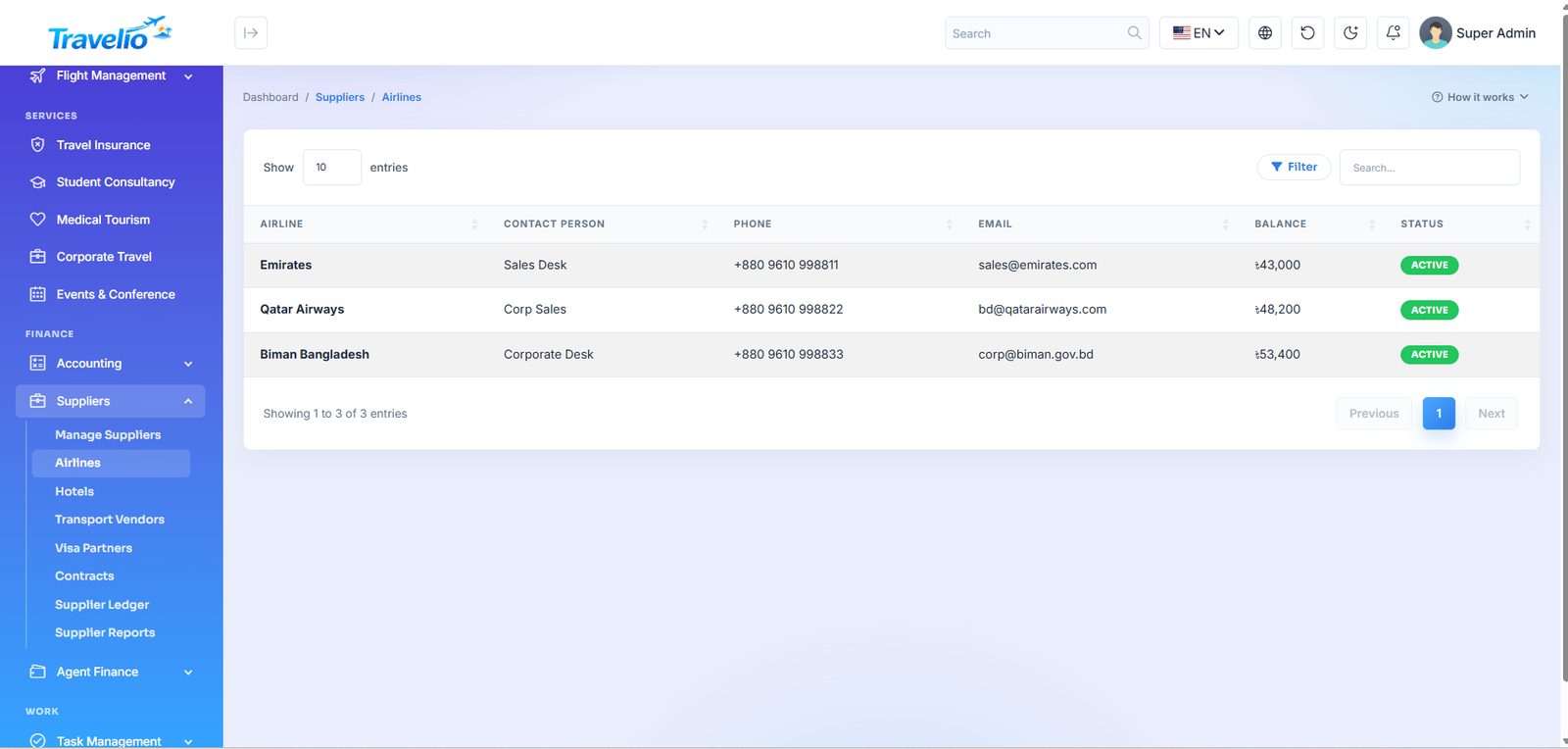
- Airlines — airline suppliers with code, contact and credit terms.
- Hotels — hotel suppliers and their contracted rates.
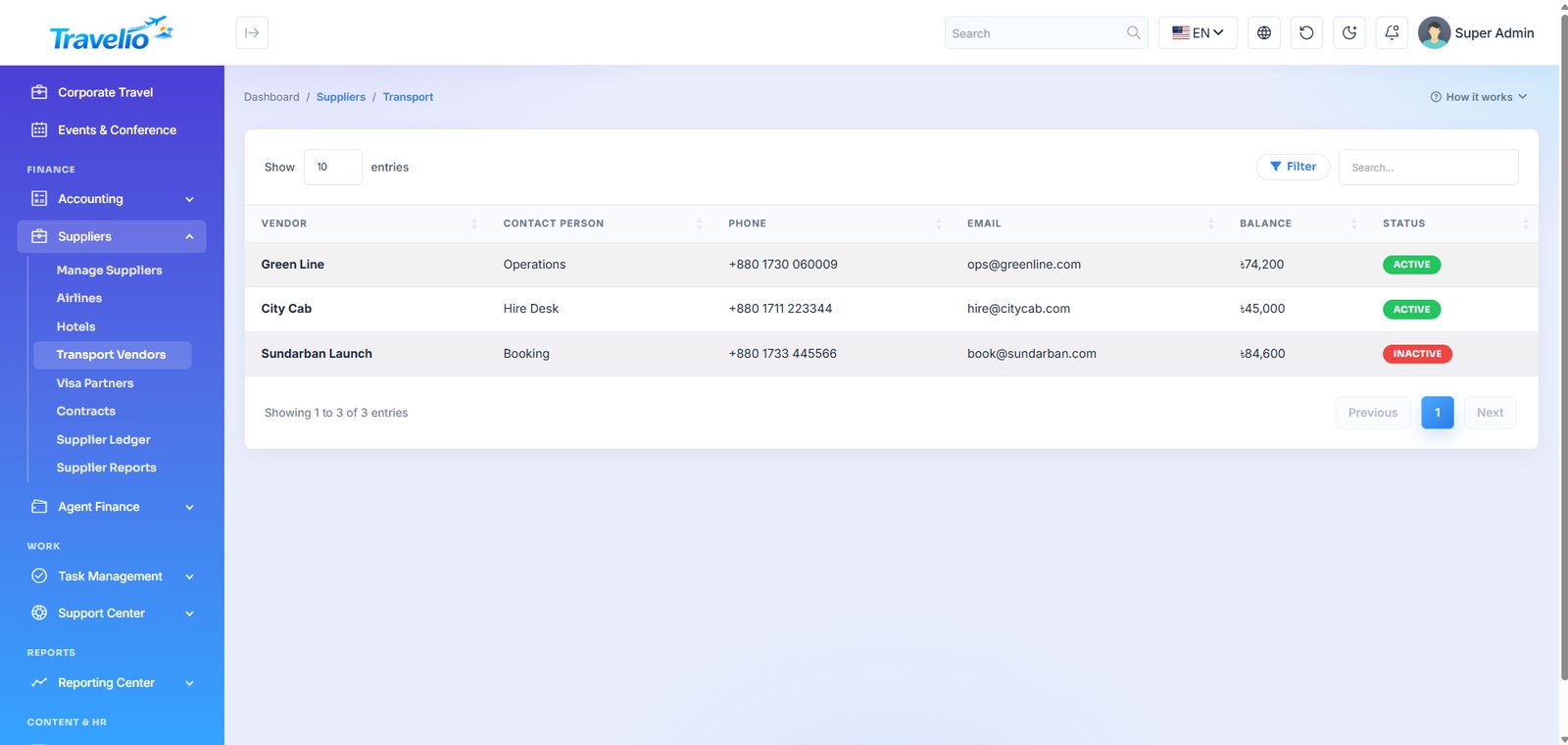
- Transport Vendors — bus, car and launch operators you buy from.
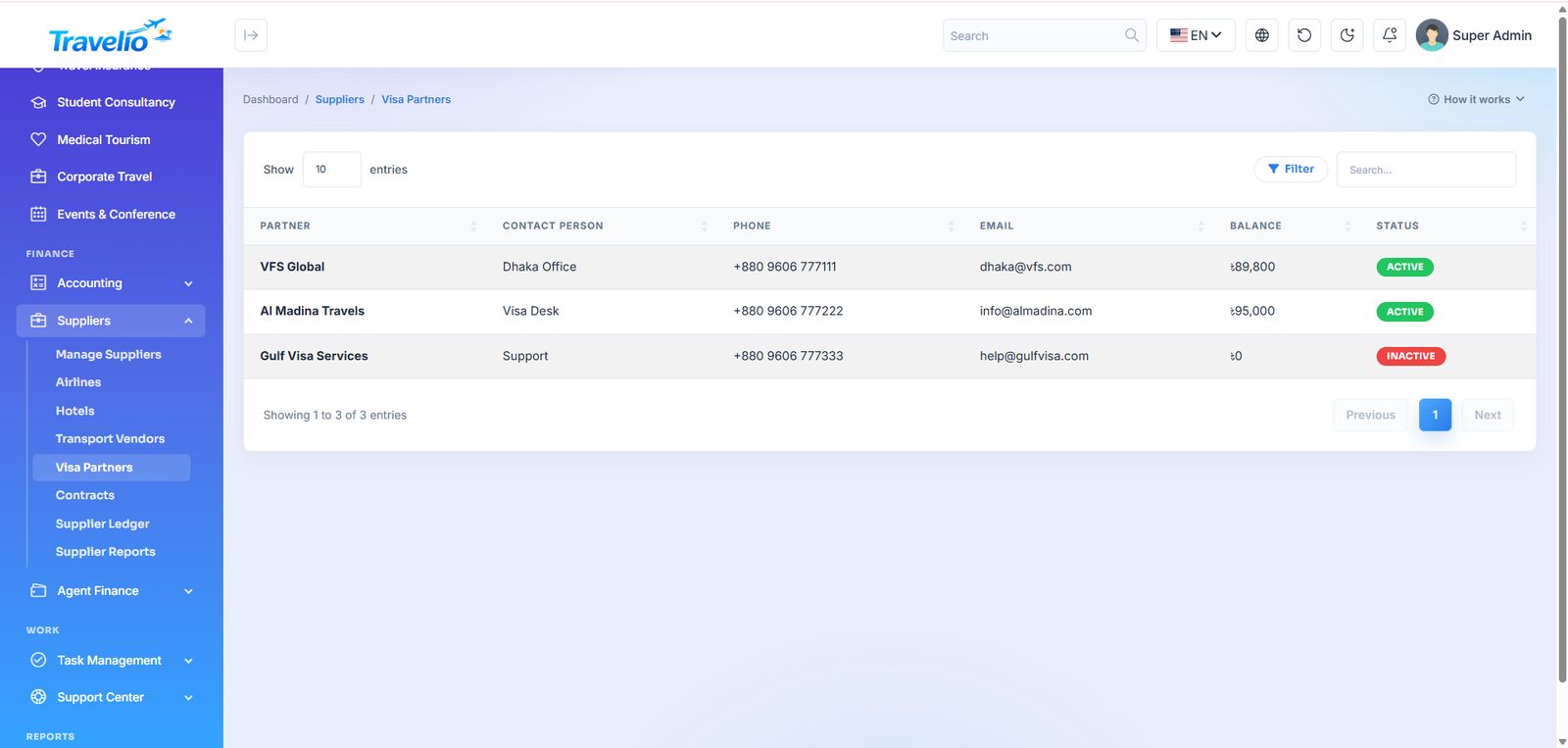
- Visa Partners — agencies and consultants handling visa files on your behalf.
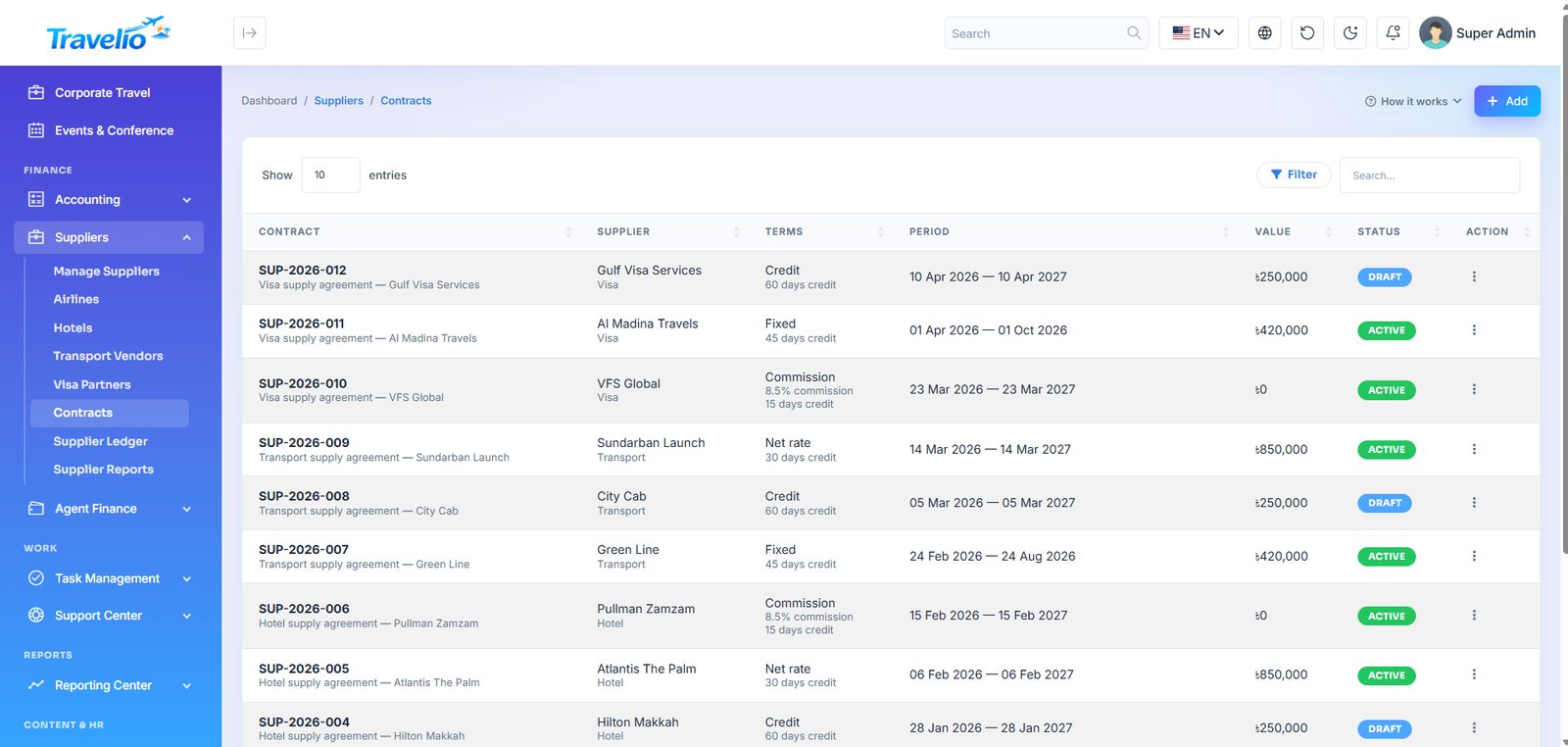
- Contracts — signed rate agreements with validity dates and terms.
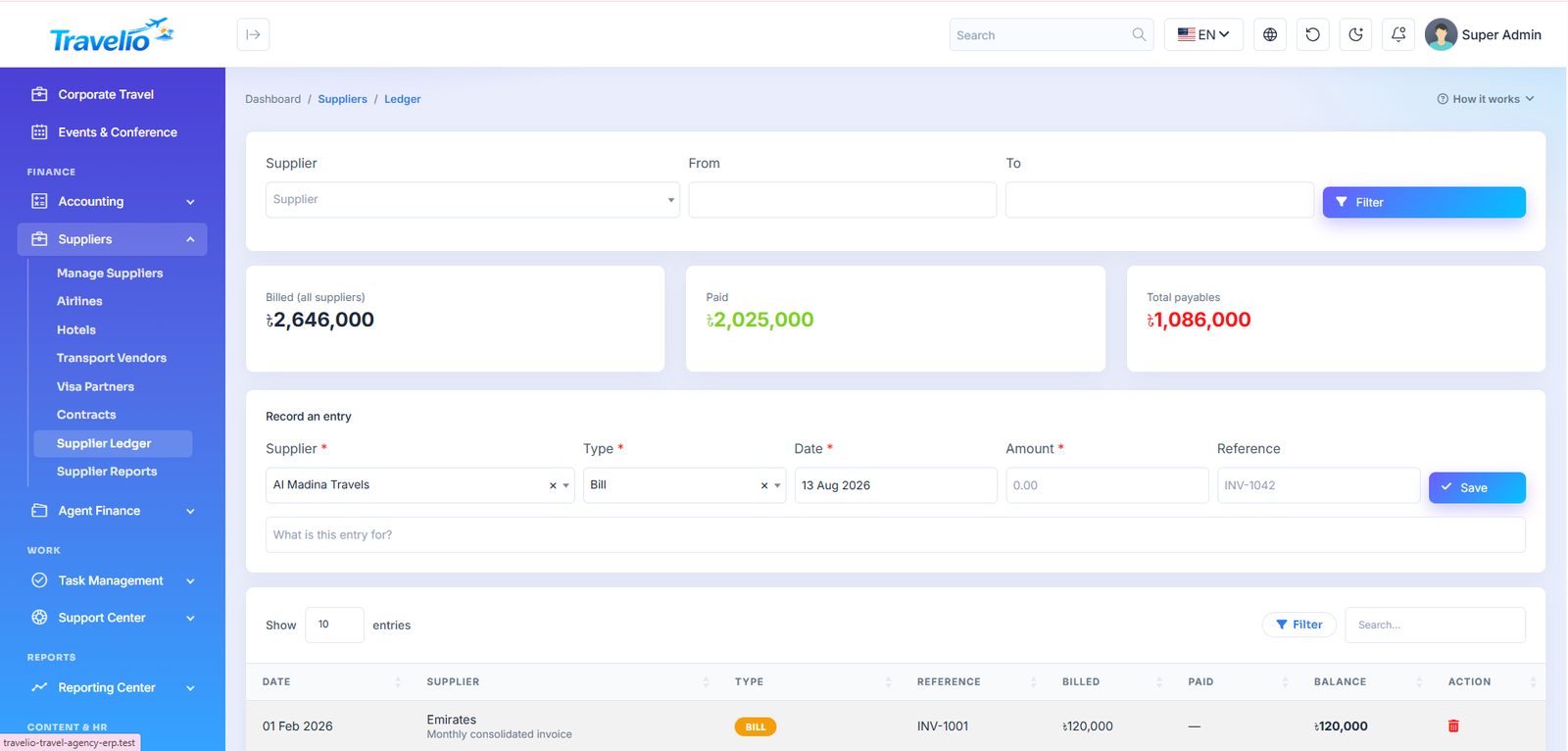
- Supplier Ledger — statement per supplier: billed, paid, outstanding.
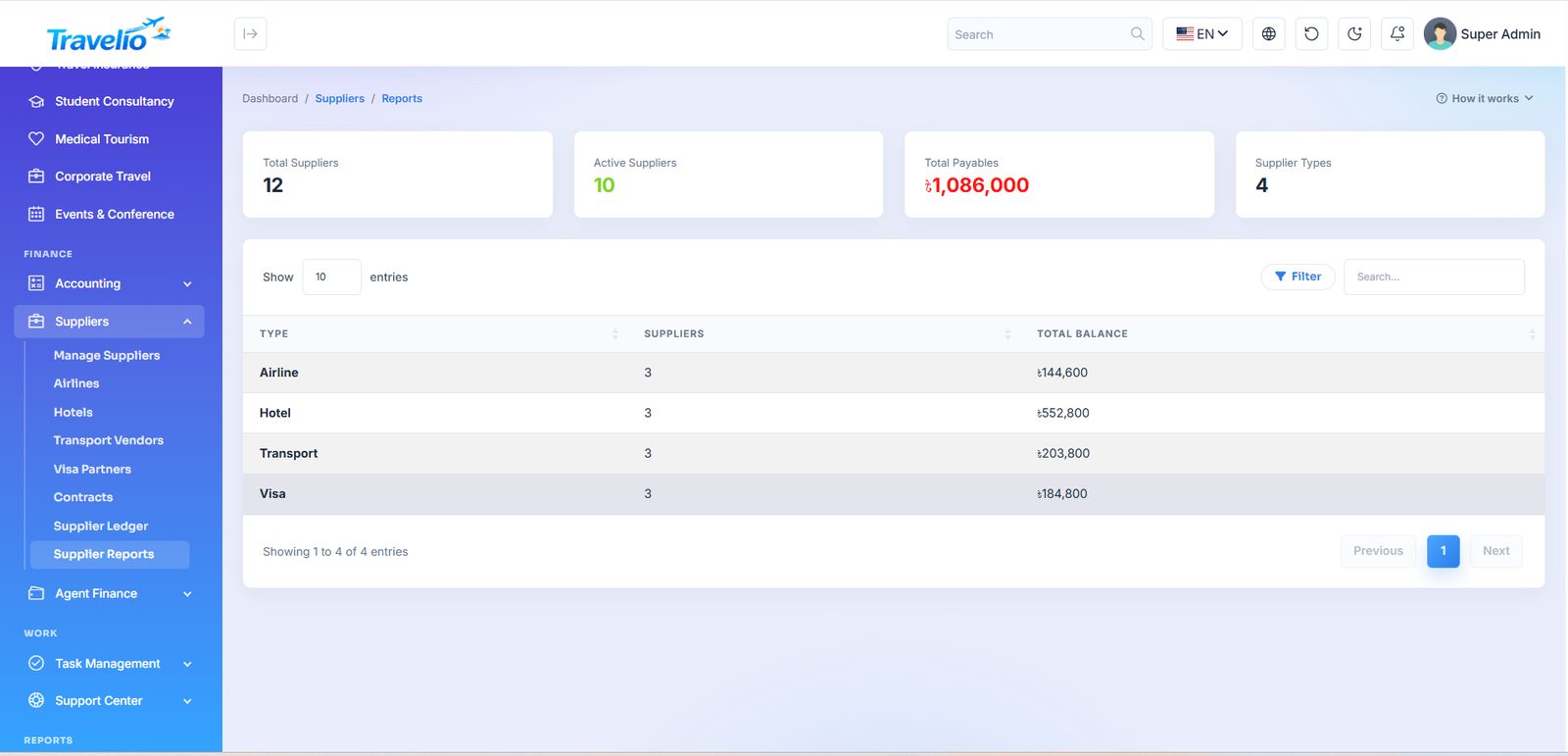
- Supplier Reports — purchase volume and payable position over a period.
Supplier — Name, Type (Airline, Hotel, Transport, Visa), contact person, phone, email, balance and status. Contract — Contract No, Title, Rate type (Fixed, Commission, Credit, Net rate), value, commission %, credit days, start / end, Status (Draft, Active, Expired, Terminated), terms. Supplier Ledger — filter by supplier and dates; add entries of type Bill, Payment (paid from Bank, Cash, bKash or Nagad), Credit Note or Adjustment. Bills and payments post to Accounts Payable and Cash/Bank automatically; entries can be deleted but not edited. Link a booking to its supplier with the Supplier and Supplier reference fields on package bookings; hotel, flight, transport and visa records are not linked, so enter those supplier bills in the ledger yourself.
Agent Finance
Travel agents sell on your behalf and earn commission. This is where that relationship is managed and settled.
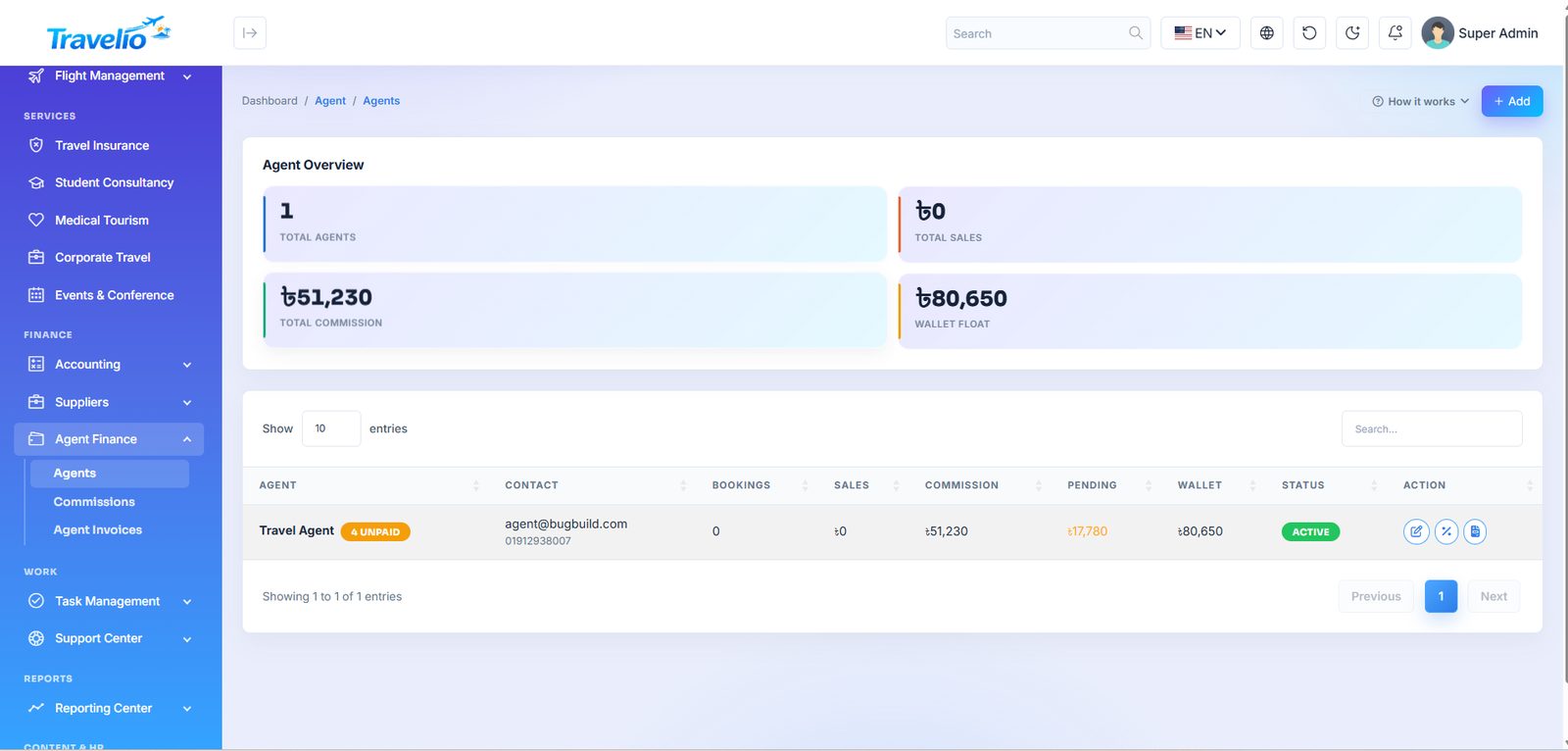
- Agents — the roster (users with the Agent role) with bookings, sales, commission earned and pending, wallet and status. An agent can apply on the website or in the app (see Partner Agencies), or you create the login under Users with the Agent role.
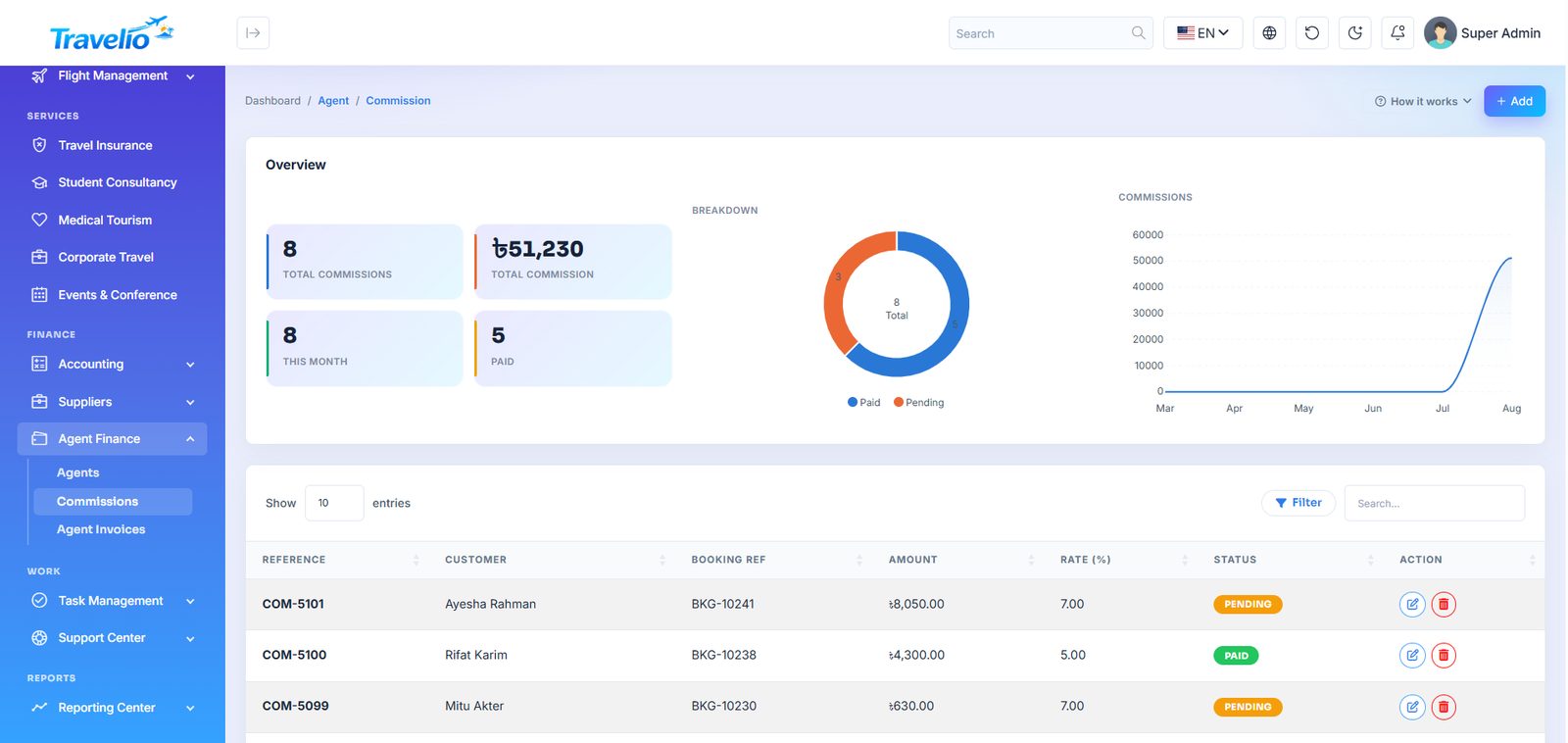
- Commissions — created automatically as pending when an agent's booking is paid, at the agent's rate: their own rate, else their group's rate for that service, else the default (7%). Approve marks it paid and credits the agent's wallet.
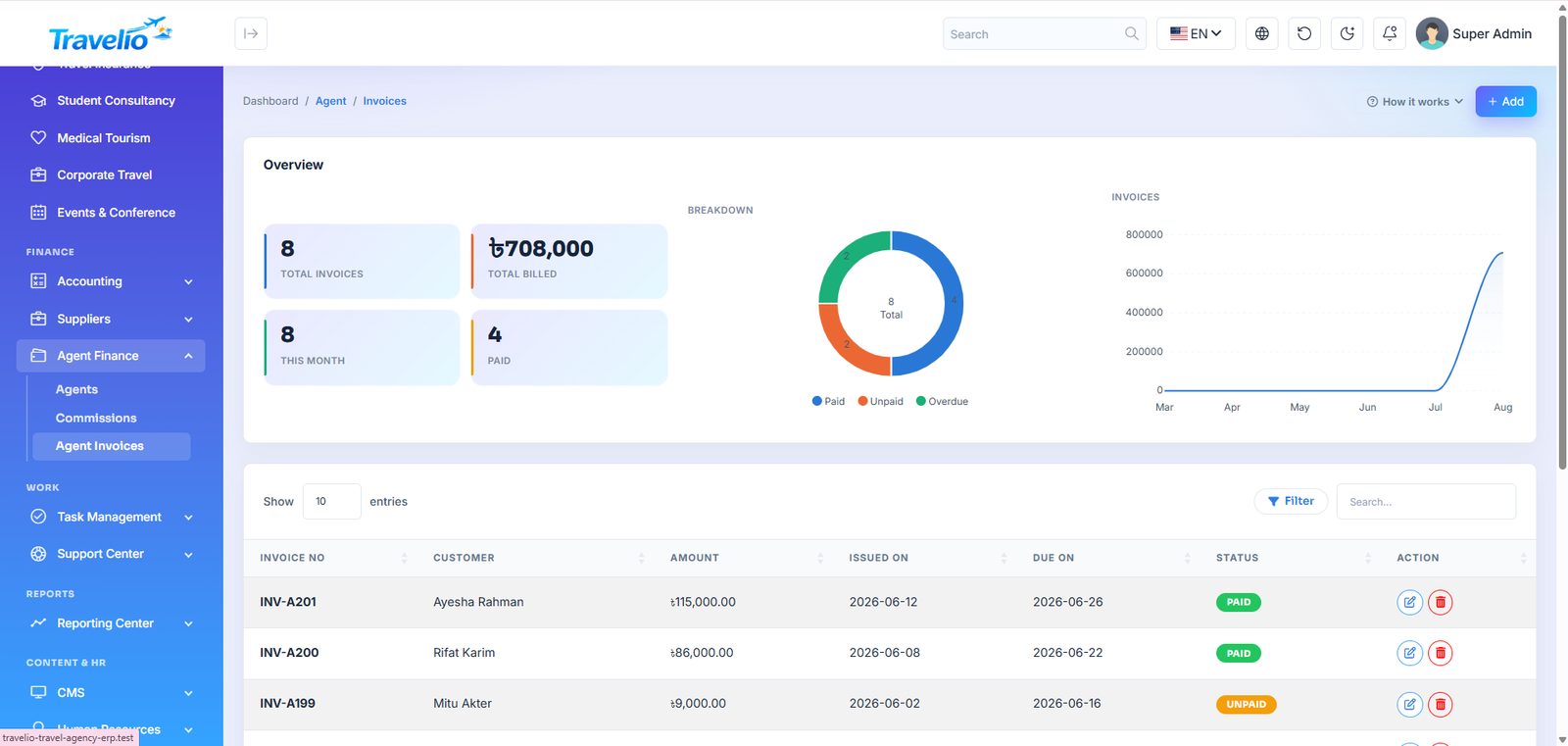
- Agent Invoices — what the agency bills an agent: Invoice No, customer, amount, issued / due dates, Status (paid, unpaid, overdue) and, when paid, the settlement method (Wallet, Cash, Bank, bKash, Nagad).
- Payouts — withdrawal requests from agents' wallets. Statuses: requested → approved → paid, or rejected. Mark paid checks the wallet, debits it and posts the cash or bank payment. Only approved commissions are withdrawable. You can also add a payout manually.
Agents see exactly the same figures from their own login — see Agent Portal and the Travelio App (agent role).
Partner Agencies (B2B) 1.7.0
Agent groups (tiers)
Create tiers such as Gold and Silver with a commission per service (tours, hotels, transport, flights), a general rate for anything else, and a default credit limit for members.
Partner terms
The handshake icon on the Agents list opens an agent's terms: company name, group, own commission rate (overrides the group) and own credit limit (overrides the group). The page also shows credit used and the agency's staff logins.
Credit limit. Agents' clients pay you; what an agent "owes" is the business they opened that nobody has paid yet. The credit limit caps those unpaid open bookings: past it, new bookings are refused in the portal and the app with the reason, until clients pay or bookings are cancelled. No limit on the agent or the group means no cap.
Team (staff logins)
An agency's main account adds staff in its portal (Team) or the app (More → Team). Staff sign in with their own email, book for the agency and see its bookings, commission and invoices; commission and the wallet stay with the main account, and only the main account can add staff or request withdrawals.
Agent applications
When the Become an Agent form (website or app) is sent with an email and a password, a partner account is created that cannot sign in until approved; an optional trade licence is stored privately. Review under Agent applications: Approve switches the account on and emails the agent; Reject deletes it. Without a password the form only creates a CRM lead, as before.
Payment Gateways & Payment Methods
Six online gateways ship with Travelio. All are optional and off by default; each is a hosted checkout, so the payer is redirected to the provider and Travelio re-verifies the result before marking anything paid.
| Gateway | Credentials you enter | Notes |
|---|---|---|
| bKash | App Key, App Secret, Username, Password | Tokenized Checkout, BDT. |
| SSLCOMMERZ | Store ID, Store Password | Cards, net banking and wallets; settles as Card. |
| JazzCash 1.4.0 | Merchant ID, Password, Integrity Salt | Pakistan, PKR. The return is trusted only if its signed hash matches. |
| Easypaisa 1.4.0 | Store ID, Hash Key, Account Number, Inquiry API Username and Password | Pakistan, PKR. Confirmed against the Inquire Transaction API. |
| Stripe 1.7.0 | Secret key (sk_live_… or sk_test_…), charge currency | Cards, Apple Pay, Google Pay. A test key takes test payments; there is no separate sandbox switch. |
| PayPal 1.7.0 | Client ID, Client secret, charge currency, Sandbox | PayPal balance, cards and Pay Later. Settles as PayPal. |
- Open the gateway's card, fill every credential, set Sandbox to Sandbox (testing) or Live, set Status to Active, and save that card.
- Copy the URLs from the Callback URLs card at the bottom into the provider's merchant portal.
- A green Active badge appears only when the gateway is switched on and every credential is filled.
Charge currency (Stripe, PayPal). When it differs from your agency currency, the amount is converted at the rate under Currencies; bookings, invoices and accounts stay in your currency and the payment keeps the amount, currency and rate it was charged at. Without a rate for that currency the checkout is refused with the reason. Stripe and PayPal charge their own fees.
Test JazzCash and Easypaisa with your own merchant sandbox before going live. A payment attempt expires after 60 minutes. While every gateway is off, customers are offered cash, bank and wallet only.
Payment methods you can record on a booking: Cash, Bank, Card, bKash, Nagad, JazzCash, Easypaisa, PayPal and Wallet. Nagad, Card and Cash have no gateway: the customer only declares the payment and your desk marks it paid. Choosing Bank opens the proof flow in Payment Verification.
Customer wallet. Staff adjust a wallet from the customer's record (credit or debit, with method and description; a debit cannot exceed the balance). Customers cannot top up themselves. A cancelled paid booking refunds the paid amount, less the cancellation penalty, to the wallet.
Currencies & Exchange Rates 1.7.0
Each currency can carry a rate: how many units of it equal 1 unit of your agency currency (Settings → General → Currency). The agency currency is always 1.
- Type rates by hand and save, or switch on Update rates automatically to refresh them daily from the free open.er-api.com feed (fetched once per server). Refresh rates now runs it immediately.
- Add a currency that is not in the list (name, code, symbol, rate).
- Stripe and PayPal use the rates to convert what they charge; the mobile app uses them so customers can show catalogue prices in their own currency (Settings → Currency in the app). What is charged and invoiced stays in your agency currency.
Feed rates are indicative; banks and gateways may use a different rate and charge fees. If you change your agency currency, refresh or re-enter the rates.
Multi-vendor Marketplace
Optional — on for a fresh install, switch off for single agency
Let outside hotels, tour operators, transport providers, Hajj/Umrah operators and visa consultants list their services on your site and earn the sale price less your commission. The inventory is your own plus whatever your vendors list; Travelio does not connect to external supplier systems or sync availability.
Turn it on
- Multi-vendor marketplace — Off — single agency or On — vendors can sell (a fresh install starts with it on; an upgraded site keeps its current setting).
- Default commission (%) — the share you keep from each vendor sale (0–100; 10 if left empty). Override it per vendor.
Switching it off returns the site to single-agency mode: vendor sign-up, vendor pages, the Vendor Portal, vendor listings and the mobile-app vendor endpoints all disappear (they return “not found”). Nothing is deleted; earnings and payouts are kept and come back when you switch it on again.
How a vendor joins
- The vendor opens
/become-a-vendorand fills the Vendor application: business name, contact person, email (their login), phone, city, country, what they will offer (Tours, Hotels, Transport, Hajj & Umrah, Visa), a description and a password. - A login with the Vendor role and a vendor record with status pending are created. They can sign in immediately and complete their profile, but cannot list or withdraw.
- You review them under Marketplace → Vendors and set the status to approved.
Where vendors sign up and sign in. Sign-up is /become-a-vendor; sign-in is the normal /login page, which sends a vendor to /portal/vendor/dashboard. While the marketplace is on, Become a Vendor appears in the footer and header menus and on the sign-in page, and a demo install shows a one-click Vendor login button; all of these disappear when you switch the marketplace off.
Adding a vendor yourself. Under click + Add vendor (needs the vendor_create permission). Fill the business and contact details, choose what they offer, set the status (default approved, so they skip the queue), an optional commission %, and an optional password. Leave the password blank and one is generated and shown once on the vendor page — pass it to the vendor. An email that already has a login is refused.
Notices (new application, approval or rejection, listing decision, payout) go to the in-app notification bell and the app, and are also emailed when Settings → Mail is filled in (nothing is sent if it is not). Per-sale “new paid sale” notices stay in-app only. Vendors can upload a trade licence or tax certificate under Business profile → Documents; you open them on the vendor’s page. Check the Vendors list (filter pending) regularly. While the marketplace is on, a Become a vendor link appears in the website's top bar, footer and login page; the /vendors directory is linked from the footer. To add either to the main menu, use CMS → Manage Menus.
Marketplace → Vendors
Filter by All, pending, approved, suspended, rejected (with counts). The table shows business and contact, number of tours / hotels / transport listings, commission (own rate or default) and status. Manage opens the vendor:
- Cards — Net earned, Owed to vendor (available balance) and Paid out, plus contact details and the services offered.
- Status — pending, approved, suspended or rejected. Only approved vendors can create or edit listings or request payouts.
- Commission % — blank uses the default. The rate is frozen on each earning when it is first credited, so changing it affects only future sales.
- Note to vendor — shown to the vendor on a banner while not approved.
Approving listings
Lower on the vendor page are tables for the vendor's Tour packages, Hotels, Transport, Hajj & Umrah and Visa services, each with an approval badge and Approve / Reject buttons. A new vendor listing starts pending; a listing is live on the site only when it is active, approved, and its vendor is approved. Any edit by the vendor sends the listing back to pending. There is no combined “awaiting approval” queue — open each vendor — and rejecting does not carry a reason.
For transport bookings the office can also pick a Marketplace vendor on the admin booking form; that vendor earns the fare less commission once the booking is paid.
How money flows
- A customer books a vendor's listing through the normal website, portal or app.
- When the sale is paid (tour: payment status paid; hotel: Paid; transport: Paid and a vendor assigned; Hajj: fully settled; visa: paid, counting the service fee only — the government fee is not the vendor's), an earning is created: gross, commission, net. It becomes available immediately — there is no holding period.
- If the sale is later cancelled or unpaid, the earning is marked reversed.
- The vendor requests a payout; the amount is reserved straight away.
- You process it under Marketplace → Vendor payouts.
| Payout status | Your action |
|---|---|
| requested | Approve, Mark paid or Reject. |
| approved | Mark paid or Reject. |
| paid / rejected | Final. Rejecting releases the reserved amount back to the vendor. |
Mark paid asks you to confirm — only do it after you have sent the money, because Travelio does not pay vendors itself. It stamps the date and your name.
Accounting. Each credited sale posts Vendor Cost of Sales (account 5500) against Vendor Payable (account 2400) for the vendor's net share; marking a payout paid clears the payable against your cash or bank account. Reversals remove the entry.
Permissions. vendor_read shows the menu, vendor pages and payouts; vendor_update changes status, commission, listing approvals and payouts. Super Admin and Admin hold both.
Task Management
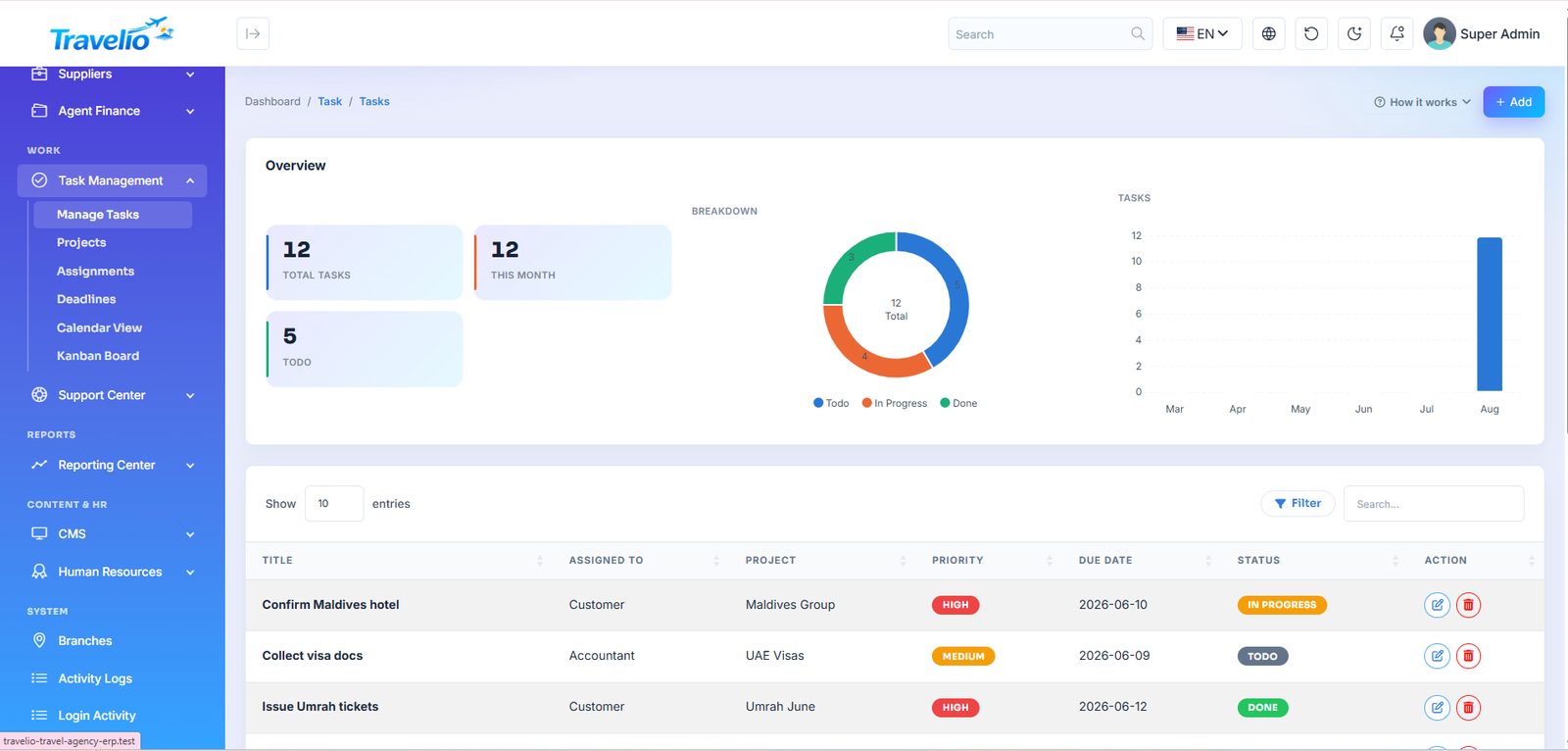
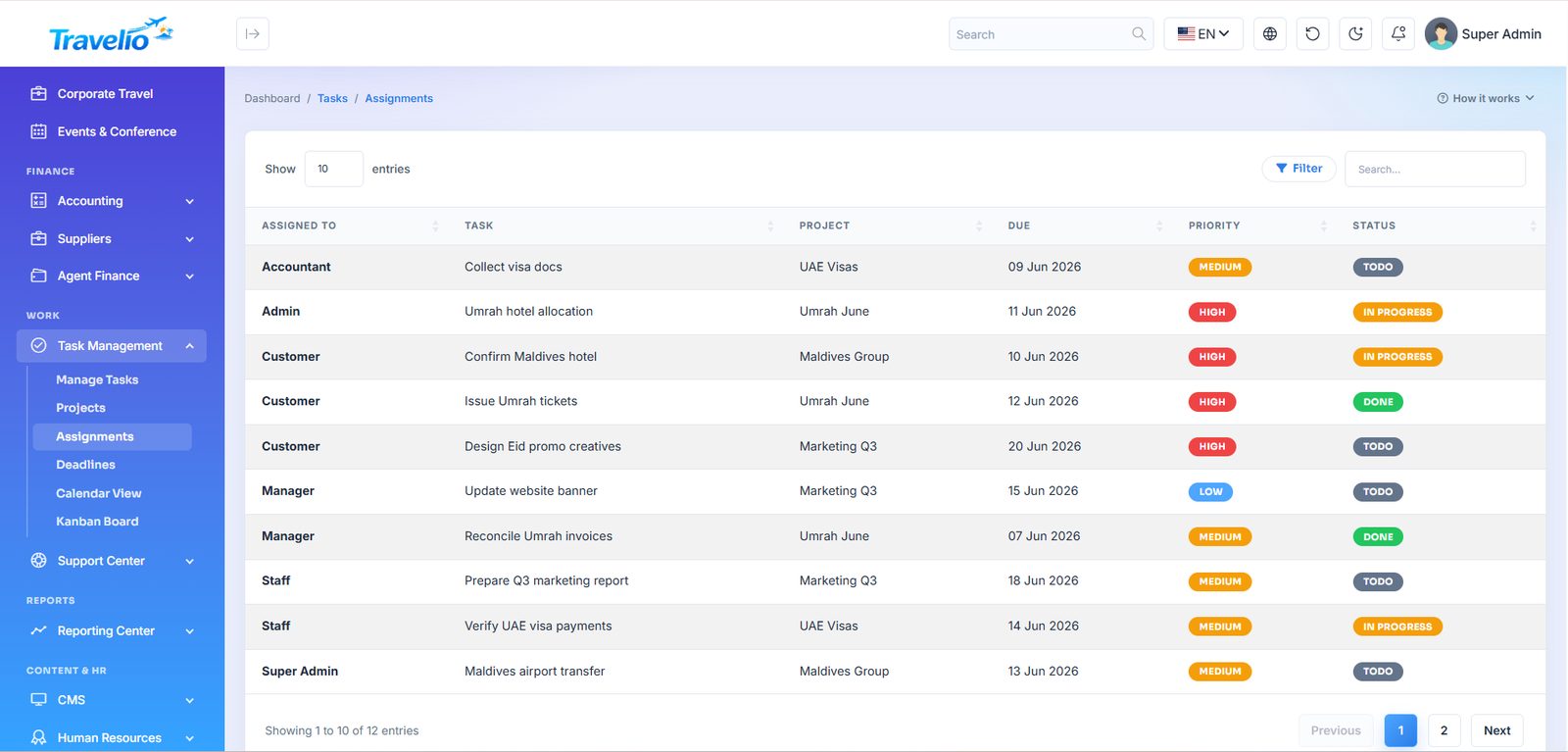
- Manage Tasks — Title, Assigned To, Project (a free-text label), Priority (Low / Medium / High), Due Date and Status (Todo / In Progress / Done).
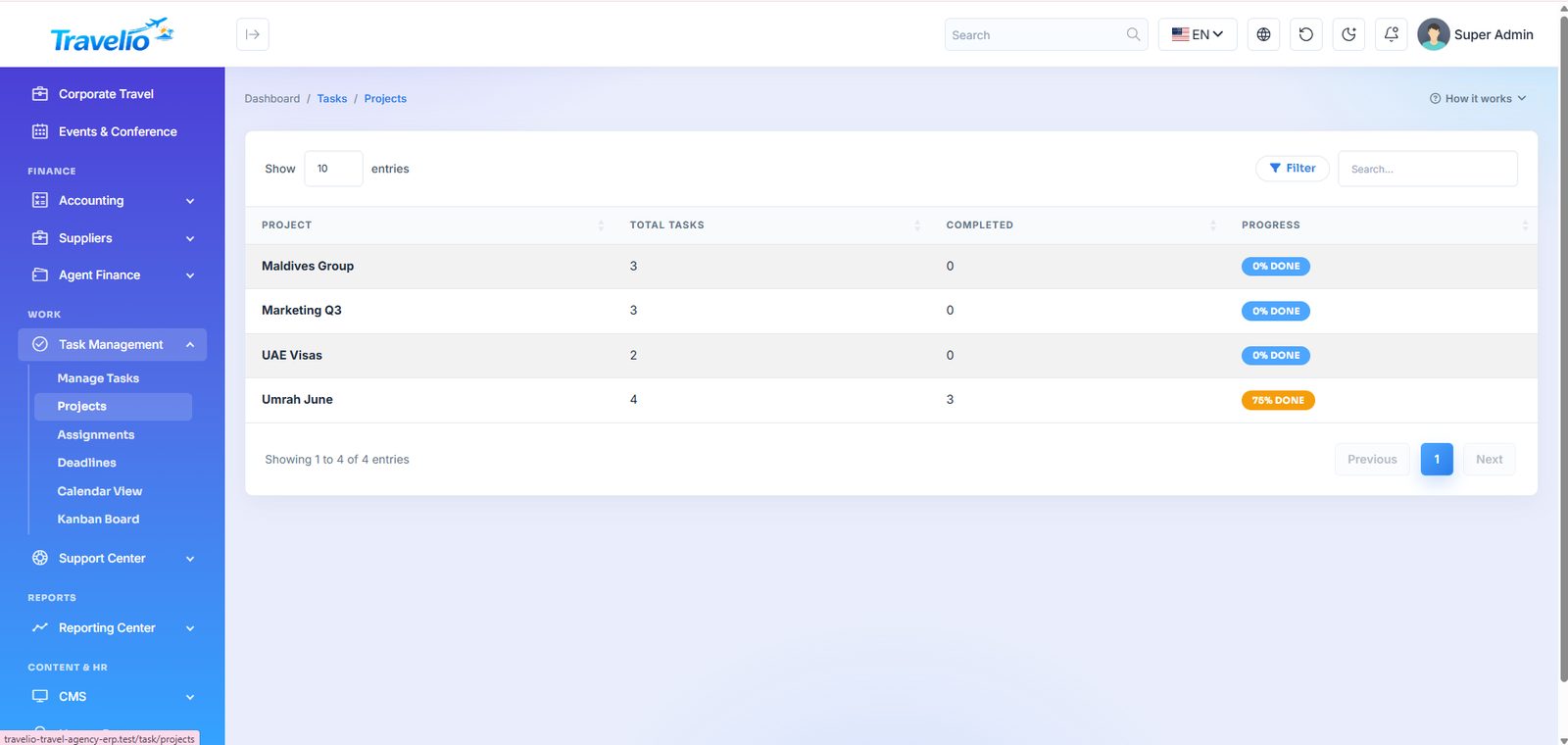
- Projects — tasks grouped by their project label (read-only view).
- Assignments — who is working on what right now.
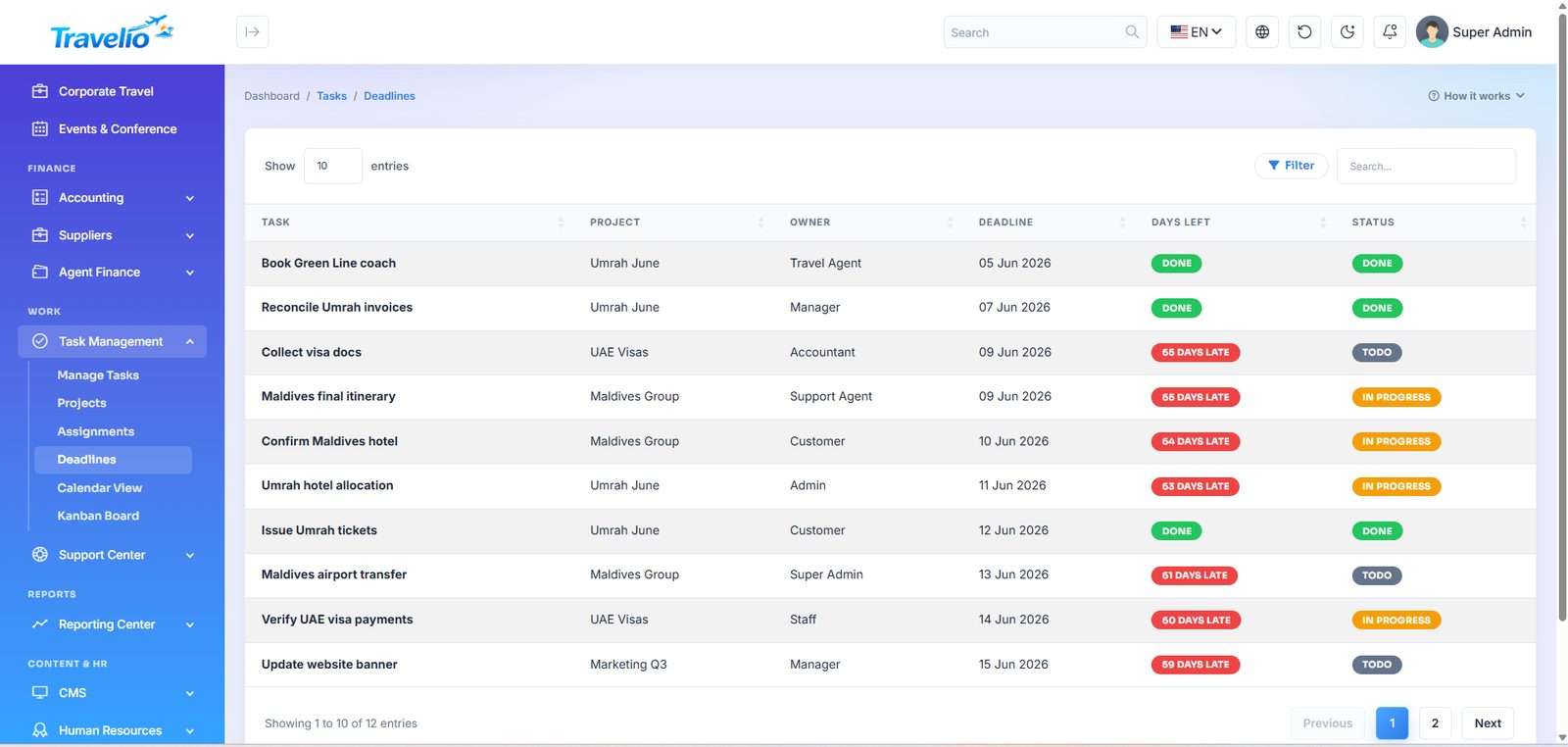
- Deadlines — everything due soon, sorted by urgency.
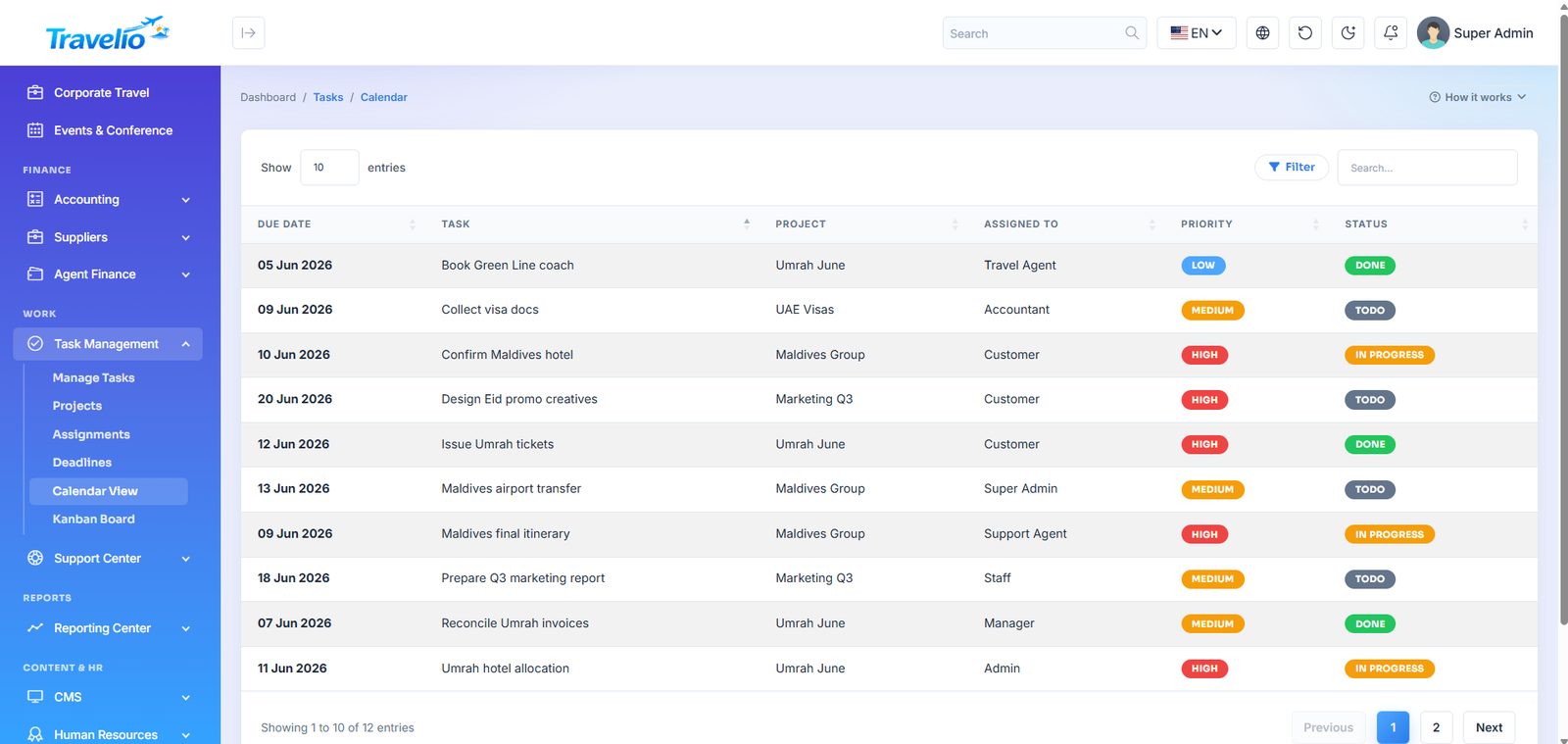
- Calendar View — tasks and deadlines listed by date.
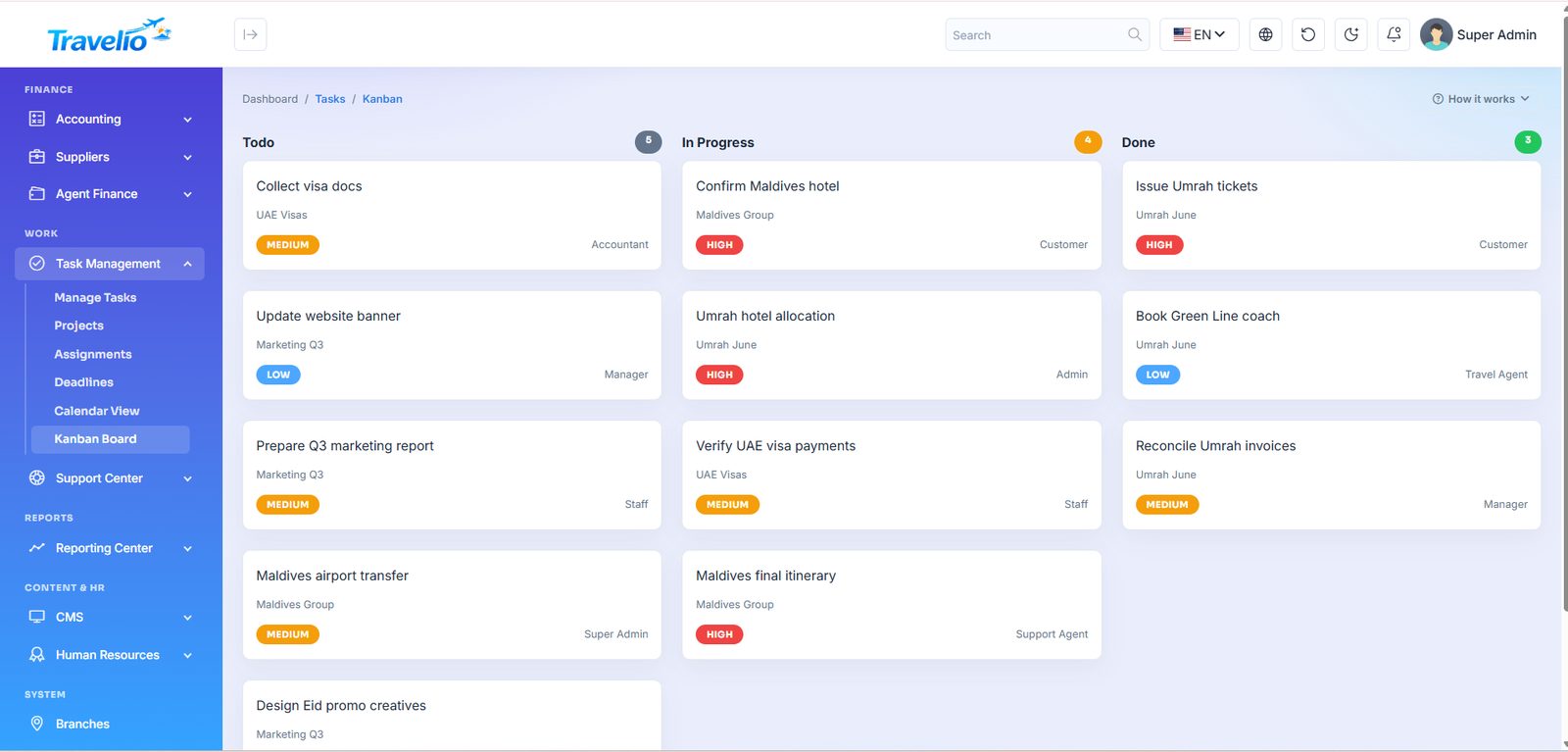
- Kanban Board — Todo / In Progress / Done columns; change a task's status with Edit (no drag and drop).
Support Center
- Live chat — the inbox for chats from the website and the app; see Live Chat below.
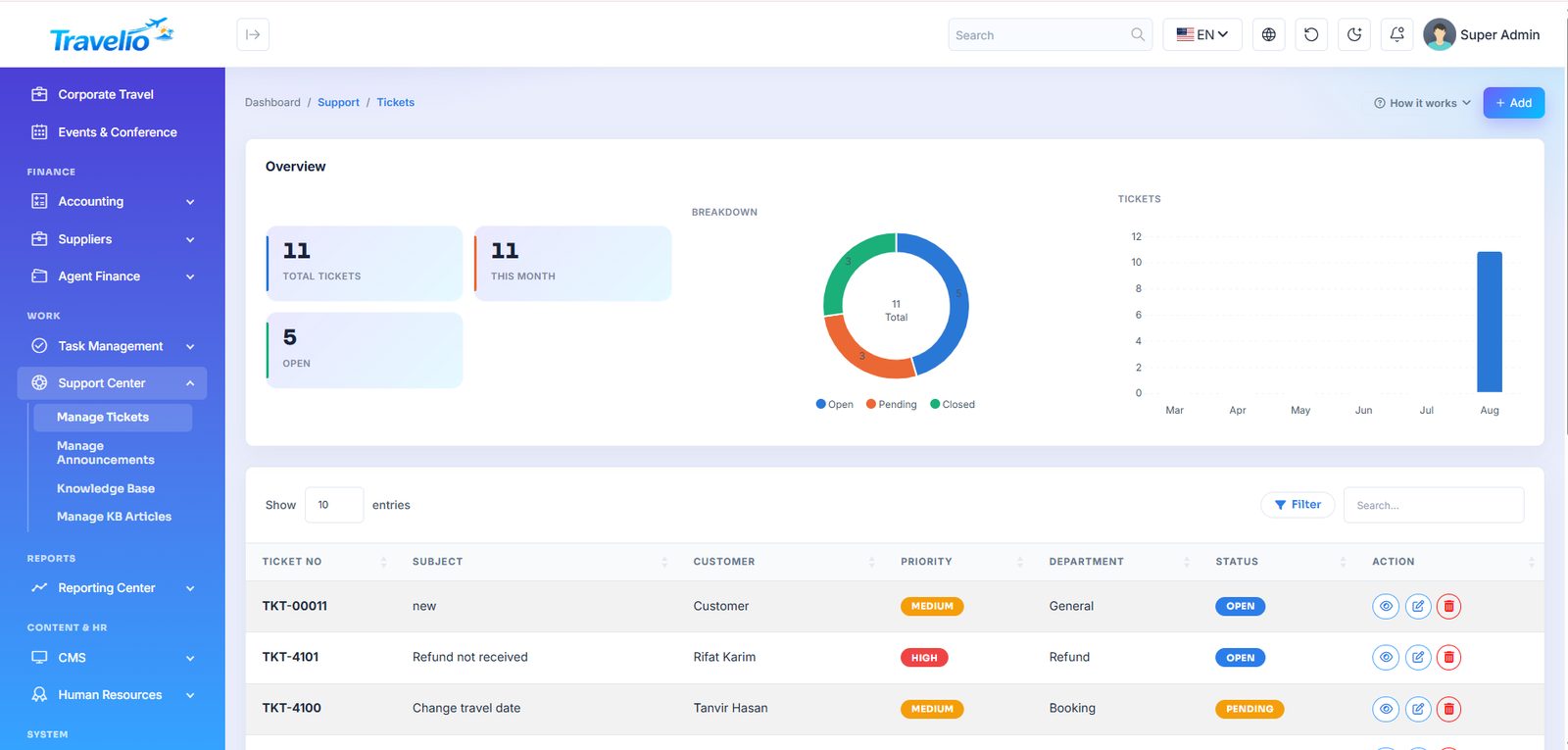
- Manage Tickets — tickets raised by customers and agents from the portal or the app, or entered by staff: Ticket No, Subject, Customer, Assigned To, Priority (Low / Medium / High), Department and Status (Open / Pending / Closed). Assigning a ticket notifies the assignee; changing its status notifies the person who raised it. There is no reply thread on the ticket page — answer through your usual channel.
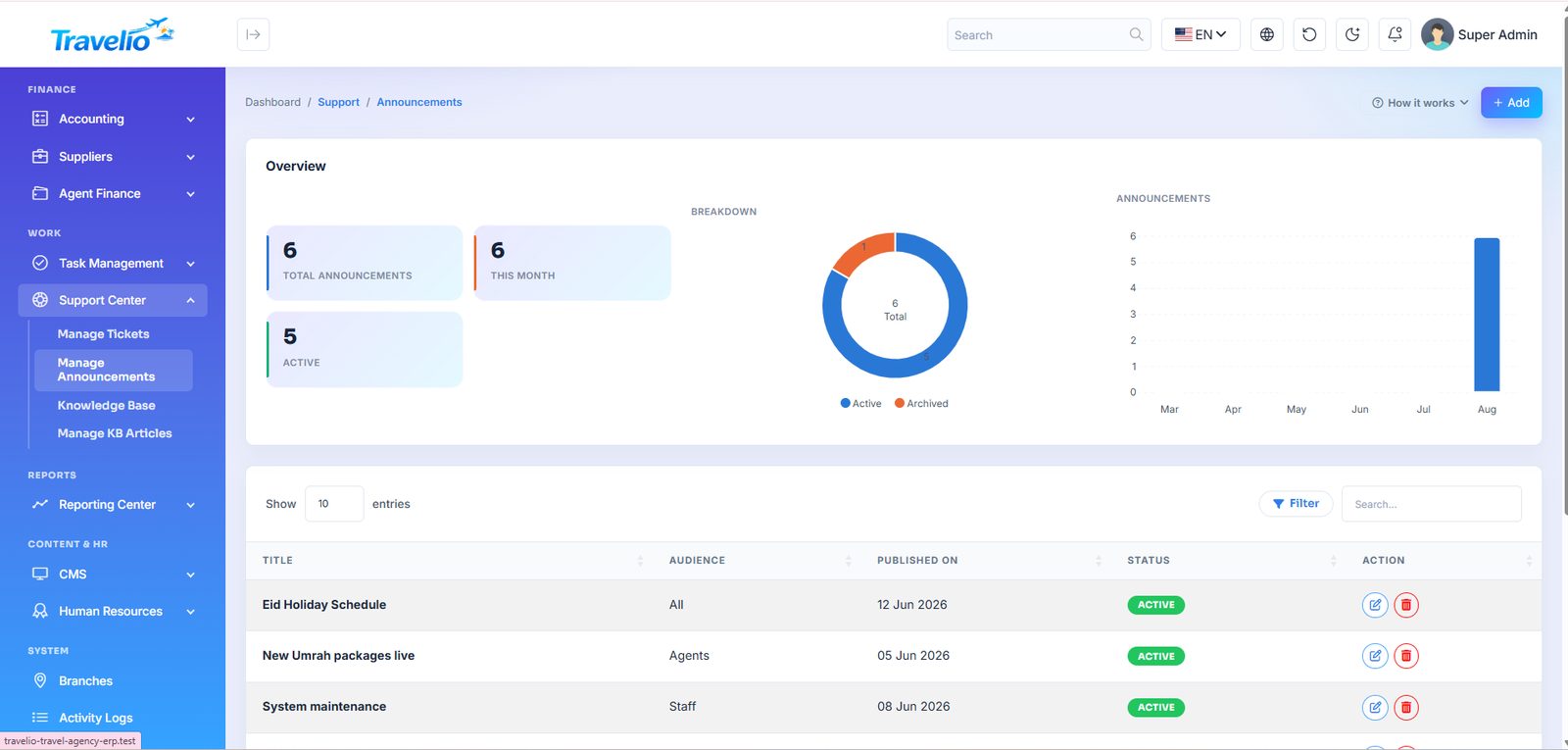
- Manage Announcements — notices with an audience (All, Agents, Staff, Customers) and a status (active / archived). In this version they are stored here only; they are not displayed in the portals.
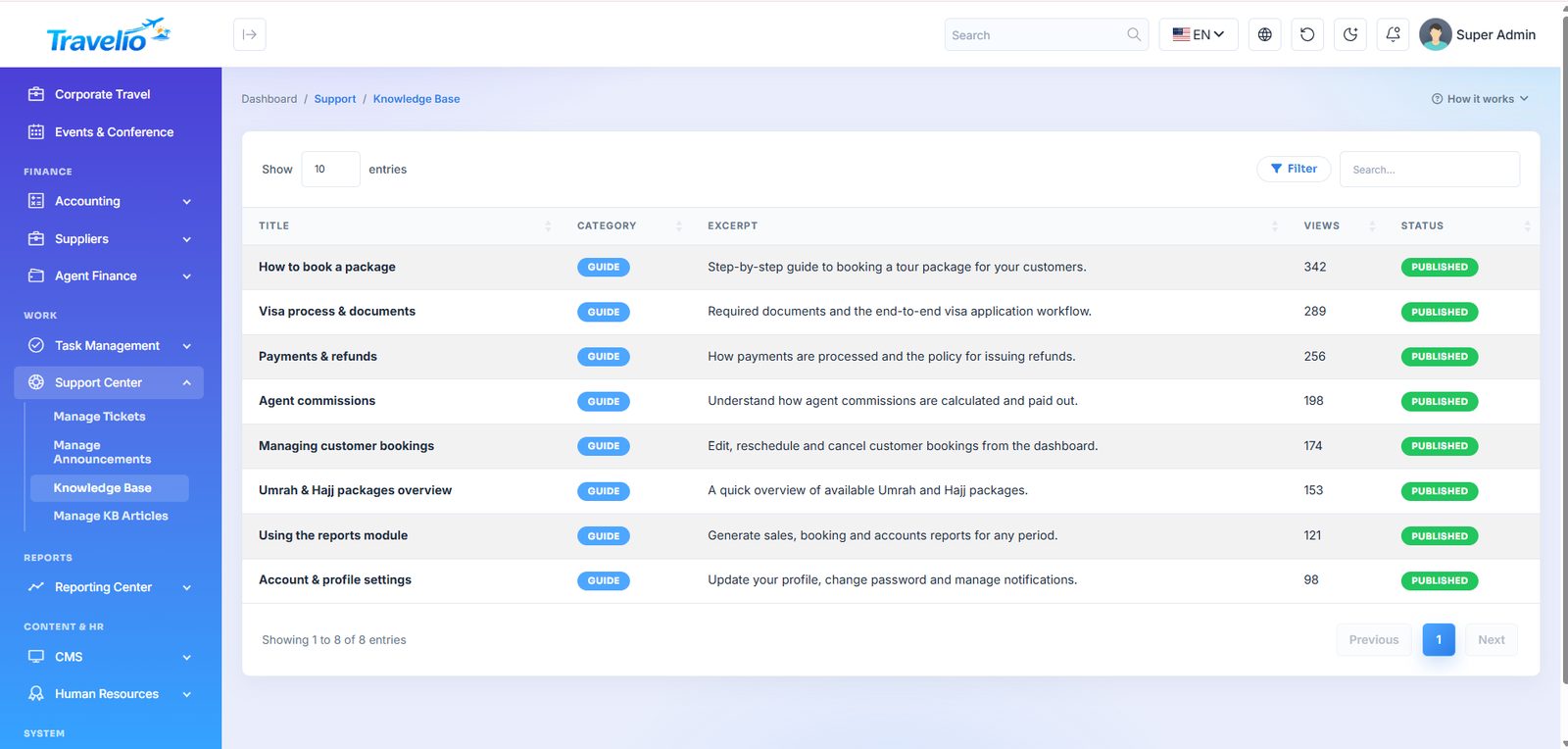
- Knowledge Base — a staff-side help library (not shown on the public website; the website's Support Center page is built from Content Blocks and FAQs).
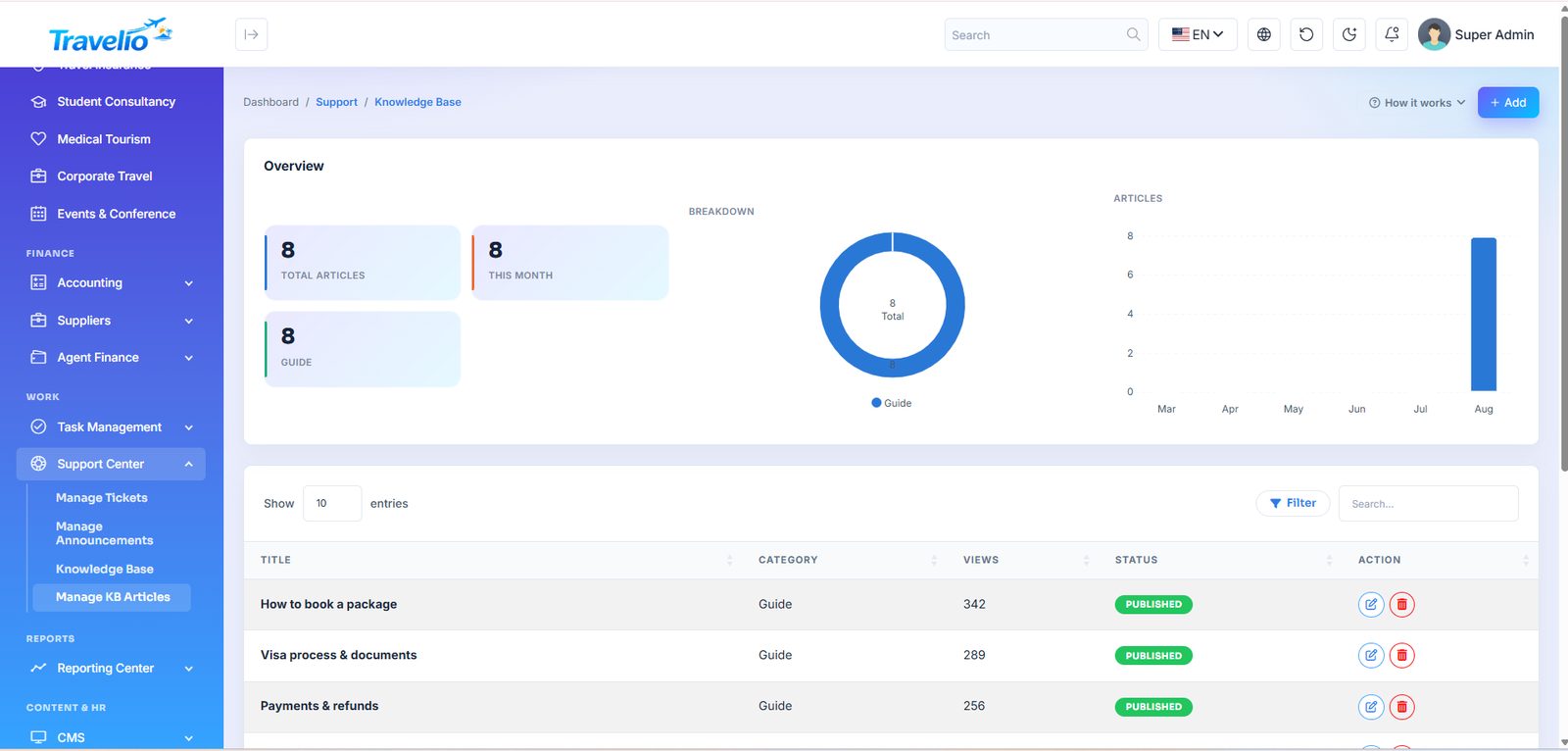
- Manage KB Articles — Title, Category, a short excerpt and status (published / draft).
Live Chat
·
Visitors chat with your team from a chat button on every website page and on the Support page; customers signed in to the app use Support → Live chat. Every conversation lands in one staff inbox.
- Starting a chat — a website guest gives a name and, optionally, an email or phone; a signed-in customer starts straight away.
- The inbox — conversations with an unread count (also shown as a badge in the menu and on the chat icon in the admin header). Reply, assign the conversation to a staff member, mark it open or closed, or delete it. You can see whether the visitor is still on the page.
- Online and away — staff count as online while the inbox is open. When nobody is online the visitor sees your away message. A website guest who left an email gets your reply by email (at most one email every 30 minutes per conversation); an app customer gets a push notice that opens the chat.
- Who can answer — staff with the Support Center permissions (
support_*) under Roles. - Settings — on/off, chat title, welcome message and away message.
Live chat runs over ordinary HTTP requests (the page asks for new messages every few seconds), so it works on any shared host — no chat server, websockets or paid push service to set up.
Upgrading from 1.5.0? Live chat starts off on an upgraded site so nothing appears before you are ready — switch it on in . A new install has it on.
Appearance
Change the look of the website and the admin panel without touching code. Every font is bundled with Travelio (no Google Fonts request), and the browser downloads only the fonts you choose.
Website template
A template changes the whole style of the public website — header, hero, cards, buttons, bands and footer — while every page, section and piece of content stays the same. Pick one on the cards at the top of the page; Preview opens it in a new tab without saving.
| Template | Look | Hero (Auto) |
|---|---|---|
| Skyline | Bright blue gradients and rounded cards — the original Travelio design. | Classic |
| Classic Agency | Navy and gold on warm paper, Playfair Display headings, crisp borders, tracked capitals in the menu. | Photo |
| Haramain | Emerald and gold on sand with a quiet geometric pattern, Cairo headings — for Hajj & Umrah agencies. | Centered |
| Luxe | Black and ivory, hairline rules, square corners, elegant serif headlines — for premium travel. | Split |
| Night | Always dark with violet and cyan glow and a faint grid; the visitor's light/dark button is hidden. | Centered |
- Also use the template's colours, fonts and corners — ticked automatically when you pick a different template. On save it fills the Frontend Appearance fields below with the template's recommended values; untick it to keep your own. You can fine-tune any of them afterwards.
- Preview bar — while you preview a template as an admin, the website shows a bar with Apply to site (saves it with its recommended look) and Exit preview. Nobody else sees the preview.
- The hero uses the template's layout while Home Sections → Hero → Layout is Auto.
| Section | Settings |
|---|---|
| Frontend Appearance | Primary and secondary colour; font family; heading font (Same as body text by default); base font size 14–18 px (16 px is the original design); button, card and form radius; form border width and style. |
| Admin Panel Appearance | Font family (default Inter), heading font (default Sora), base font size, and an optional brand colour — tick Use my own color to recolour buttons, links and the sidebar; leave it off to keep the built-in blue theme. Applies to the admin panel and the agent, customer, vendor and staff portals. |
| Default Mode | Light or Dark for new visitors of the website and of the admin panel; everyone can still switch with the moon/sun button. |
Fonts: Inter, Poppins, Roboto, Open Sans, Montserrat, Lato, Nunito, DM Sans, Plus Jakarta Sans, Outfit, Manrope, Rubik, Raleway, Figtree, Sora, Josefin Sans, Playfair Display (serif, for headings), Hind Siliguri (Bangla), Cairo (Arabic) and Heebo (Hebrew). Pick Hind Siliguri, Cairo or Heebo when your site's main language uses that script.
The font size scales all text proportionally. In dark mode the website keeps its own dark palette.
Style switcher on the demo. The live demo shows a gear button that lets visitors try every template, colours, fonts and sizes in their own browser, and on the demo's Appearance page clicking a template card switches to it at once for that visitor's session only (nothing can be saved on the demo). It appears only when APP_DEMO=true, never on a real install — your visitors always see what you set here.
Reporting Center
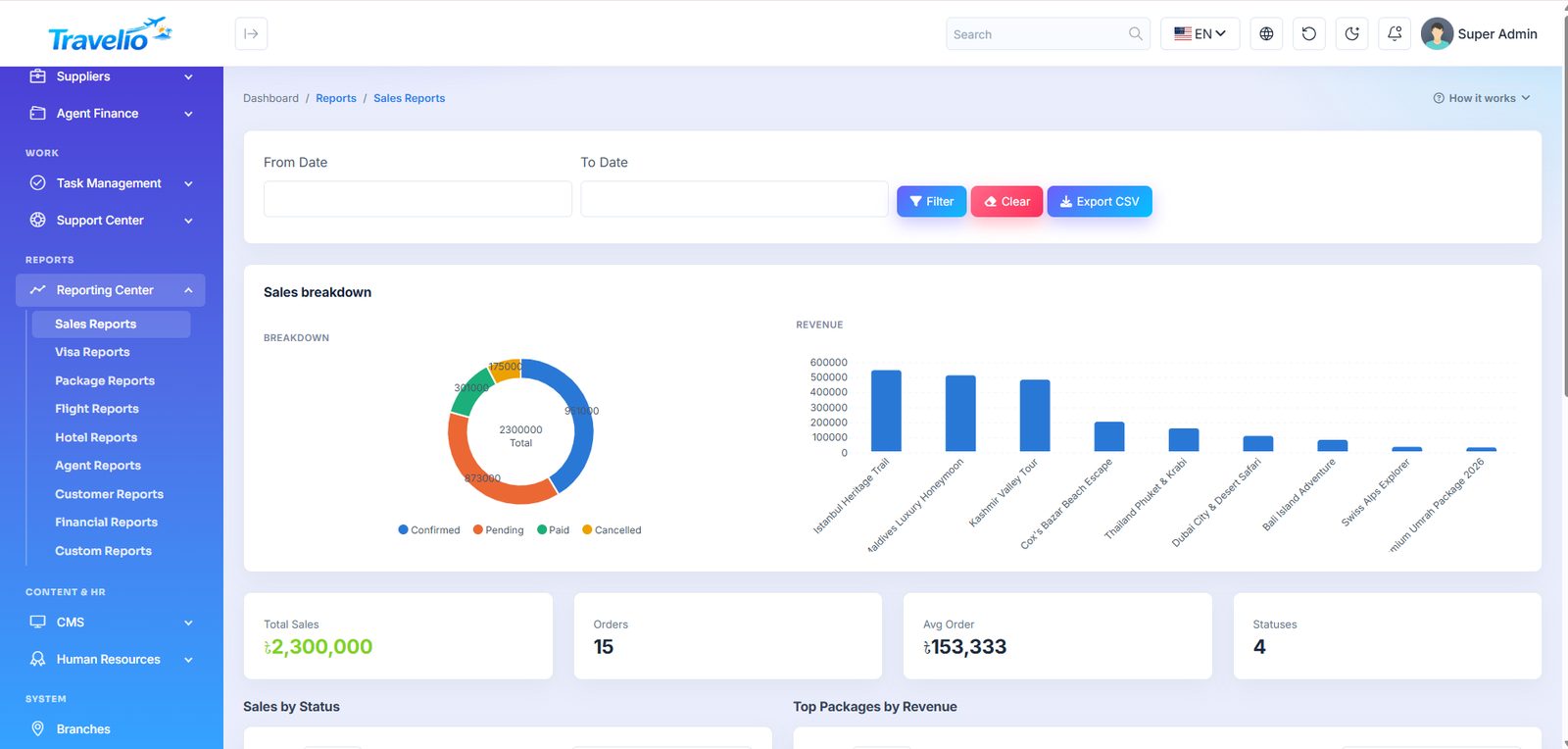
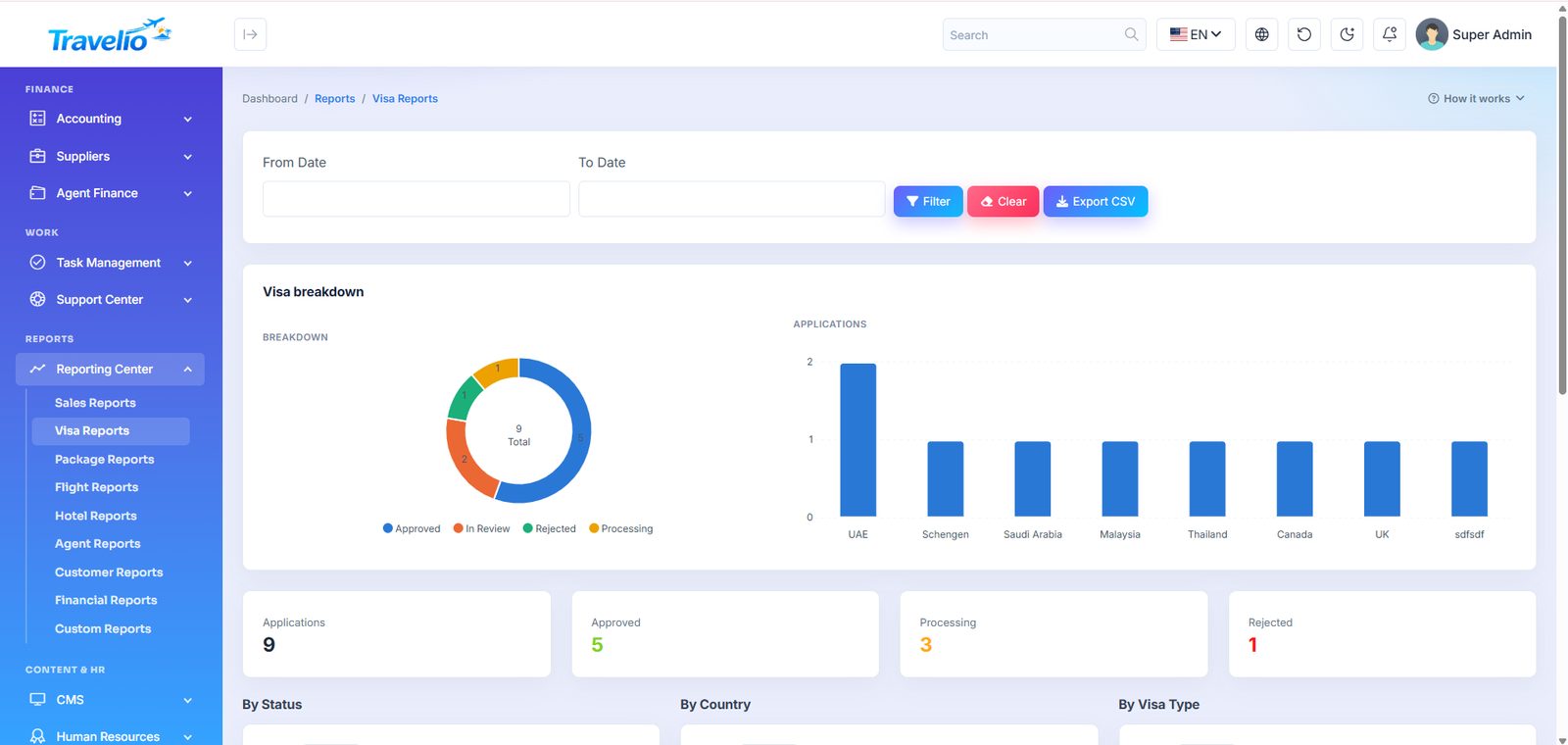
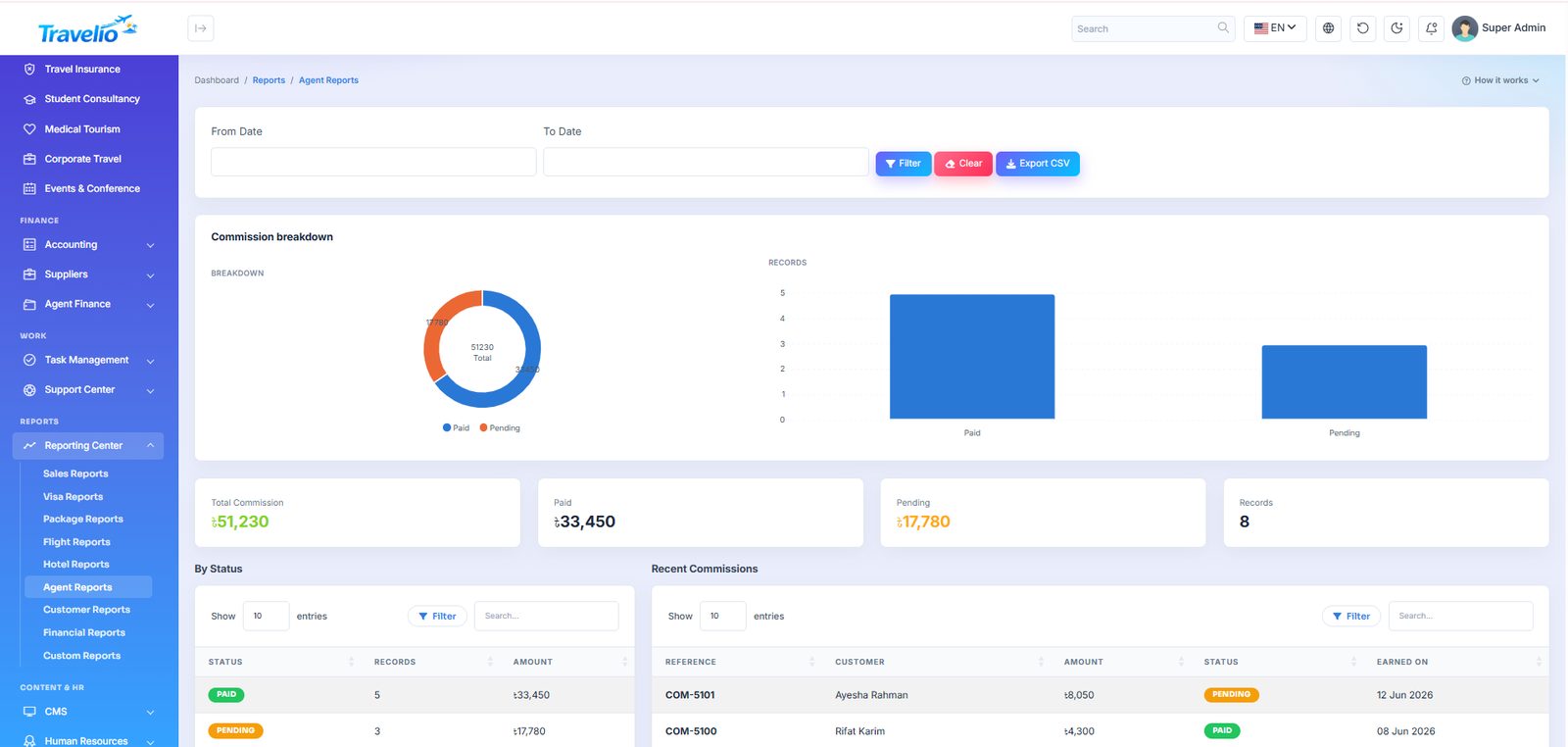
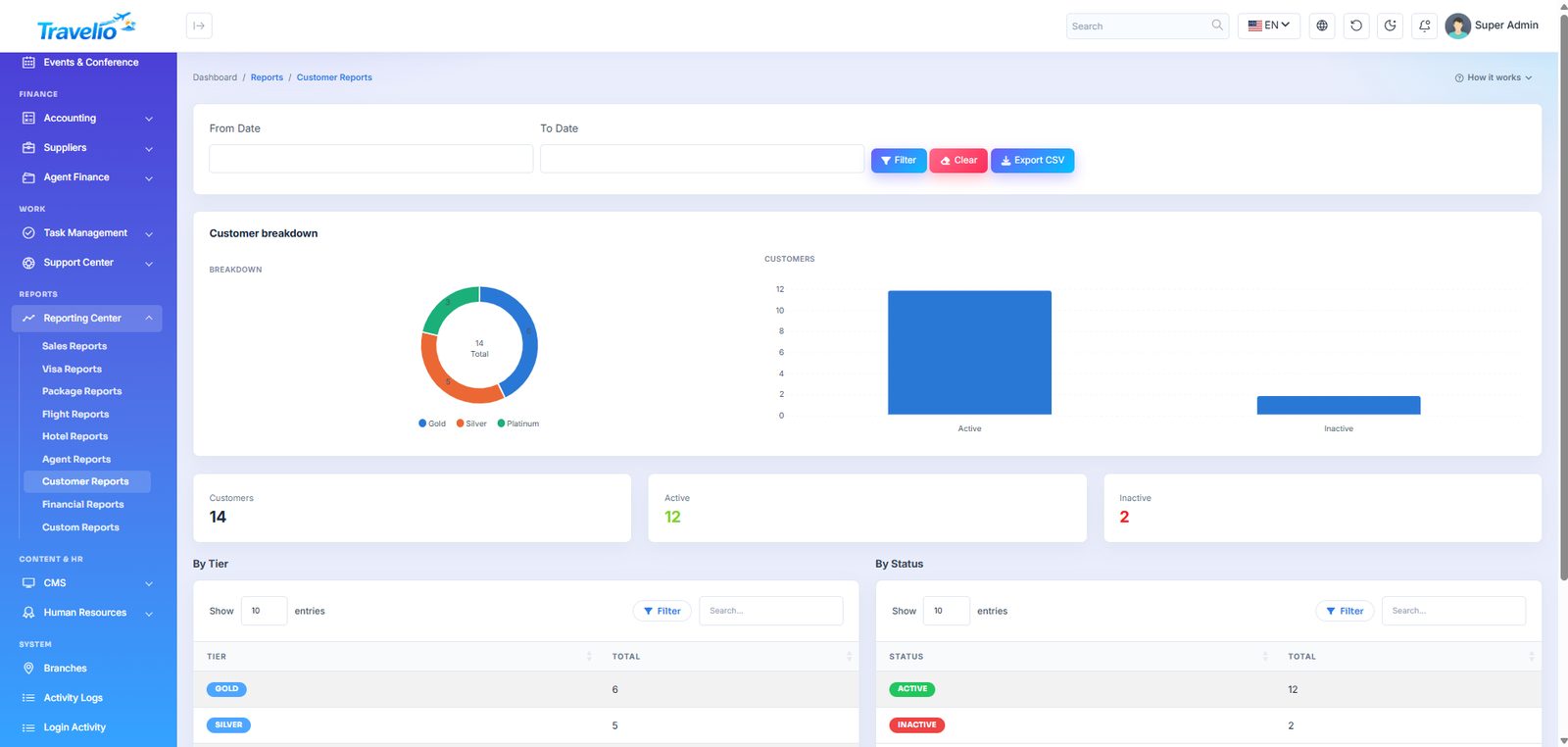
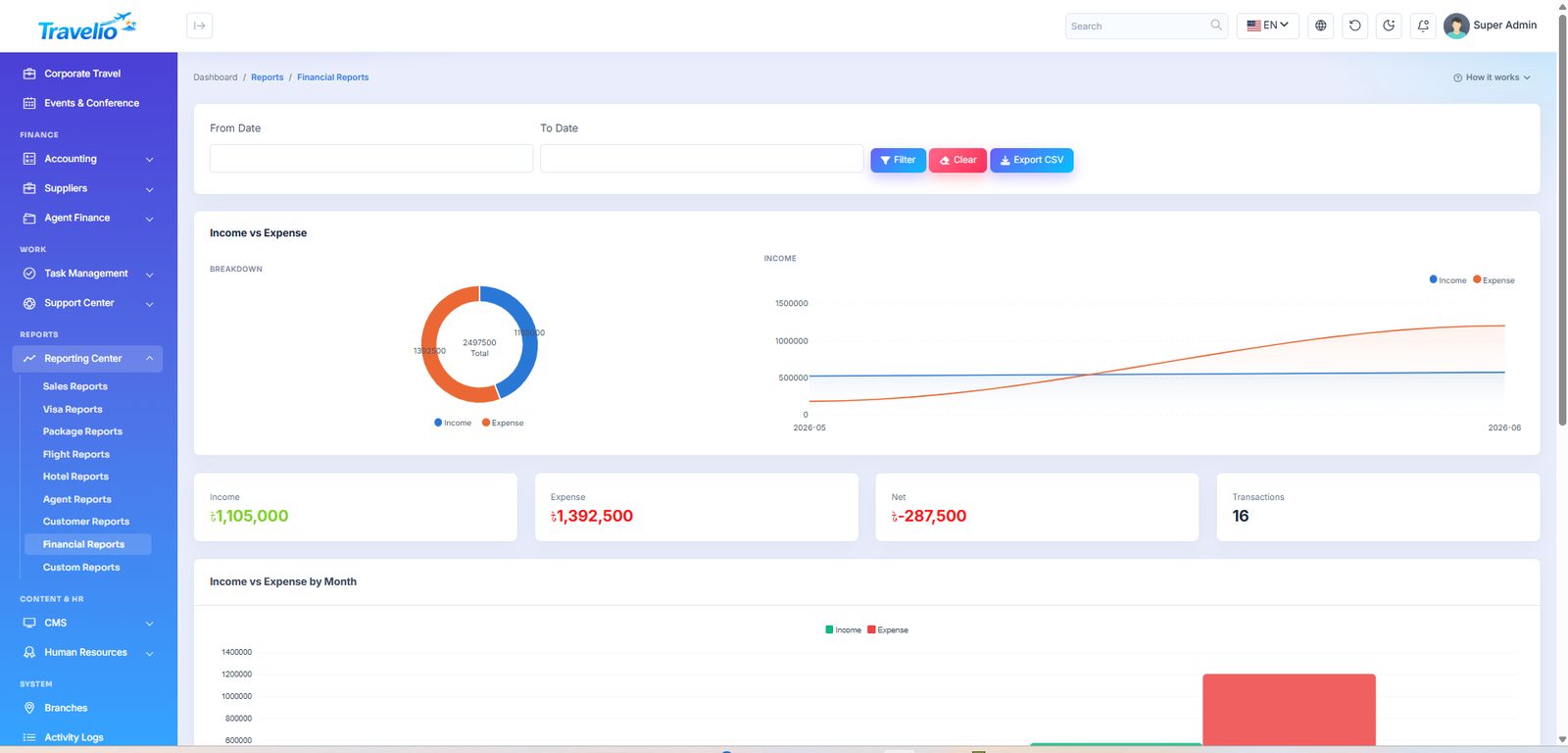
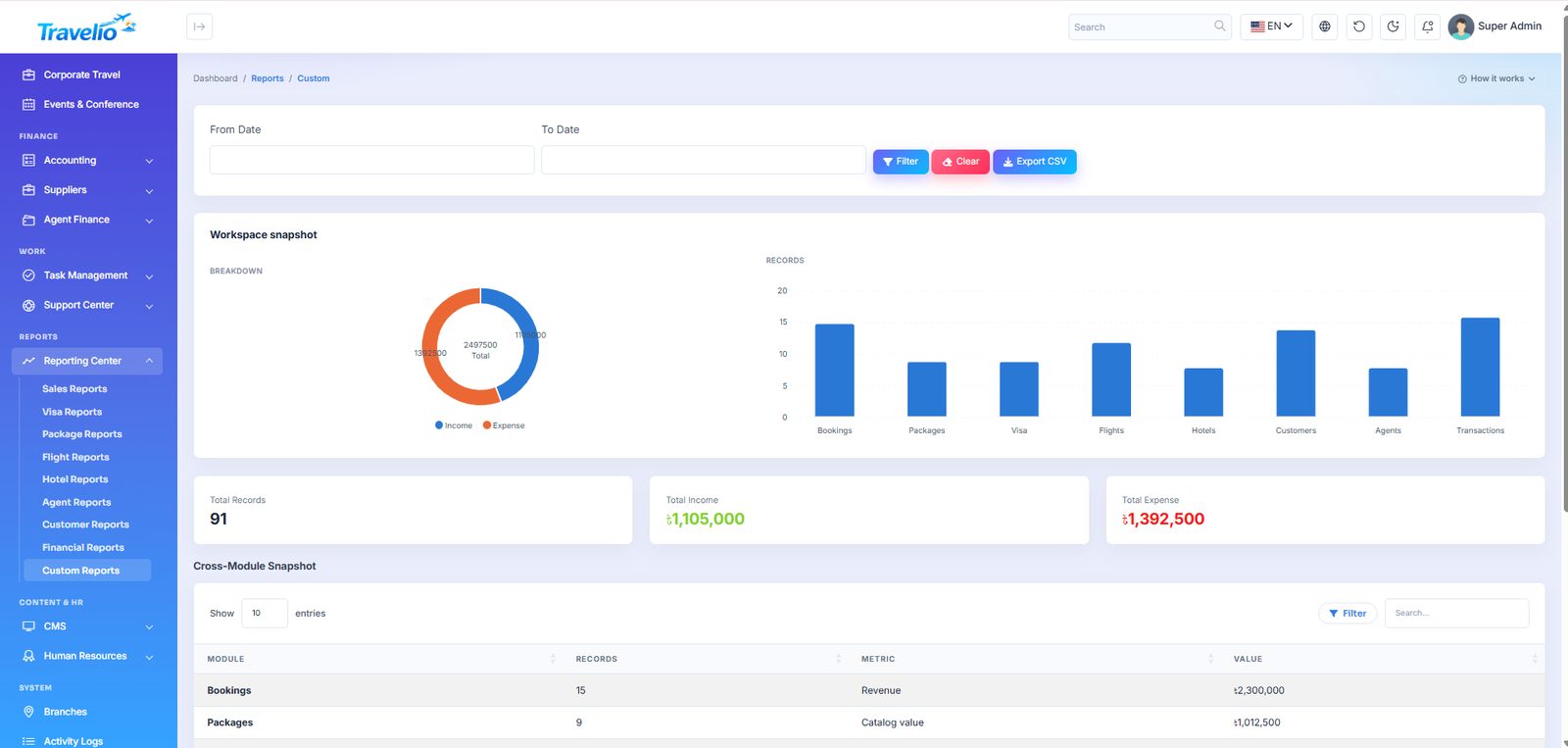
Nine reports, each with a date-range filter and Export to CSV.
| Report | Answers |
|---|---|
| Sales Reports | Package bookings sold, and for how much, in this period |
| Visa Reports | Applications, approval rate and revenue by destination country |
| Package Reports | Which tour packages actually sell |
| Flight Reports | Ticket sales by airline and route |
| Hotel Reports | Your hotel catalogue by city, star rating and room type |
| Agent Reports | Sales and commission per agent |
| Customer Reports | Who buys, how often and how much |
| Financial Reports | Income, expense and profit across the business |
| Custom Reports | A fixed “workspace snapshot” across modules for a date range (not a report builder) |
CMS — Your Website
The public site is fully editable from here — no code, no theme files.
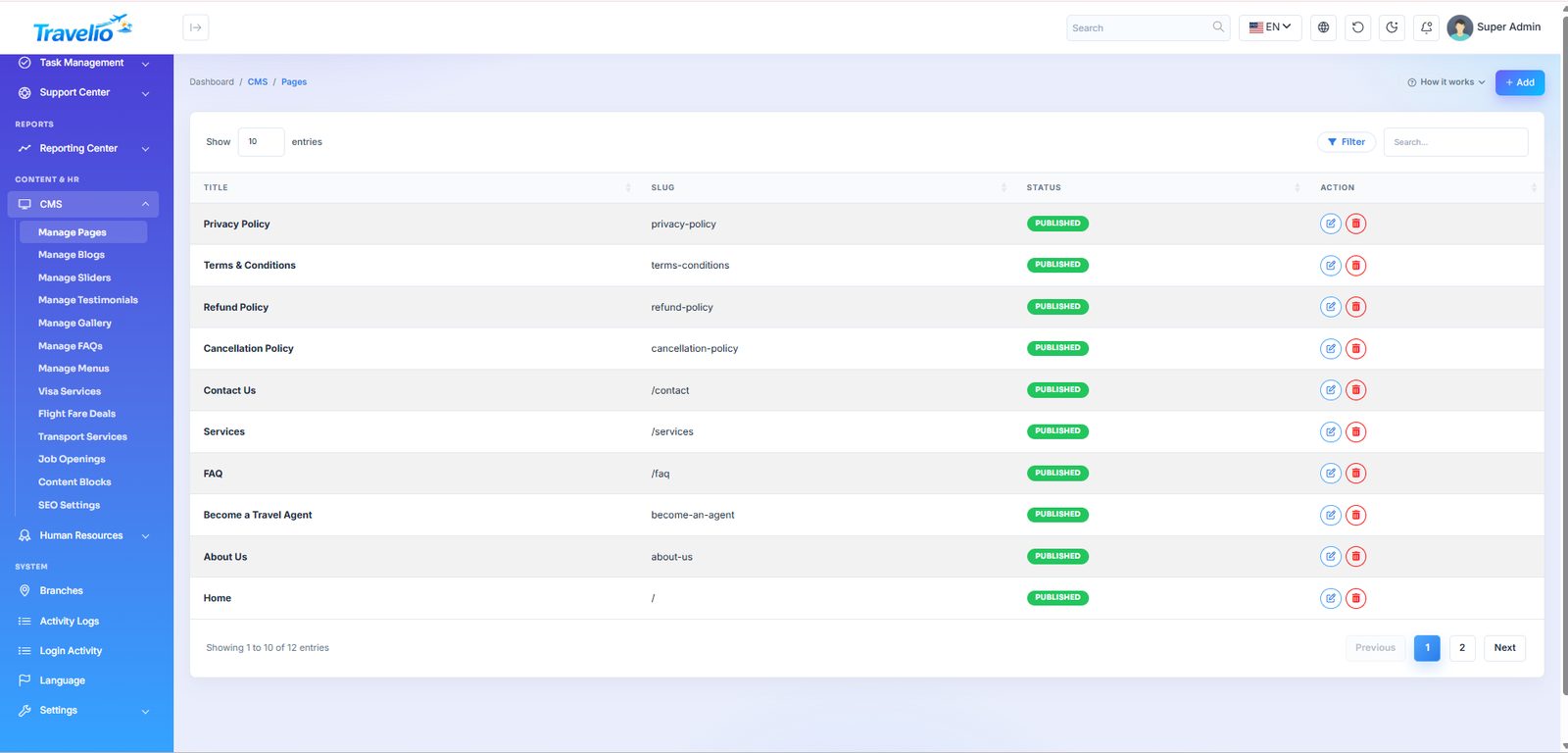
- Manage Pages — static pages (About, Contact, Privacy, Terms, Refund and Cancellation policies…) with a rich-text editor.
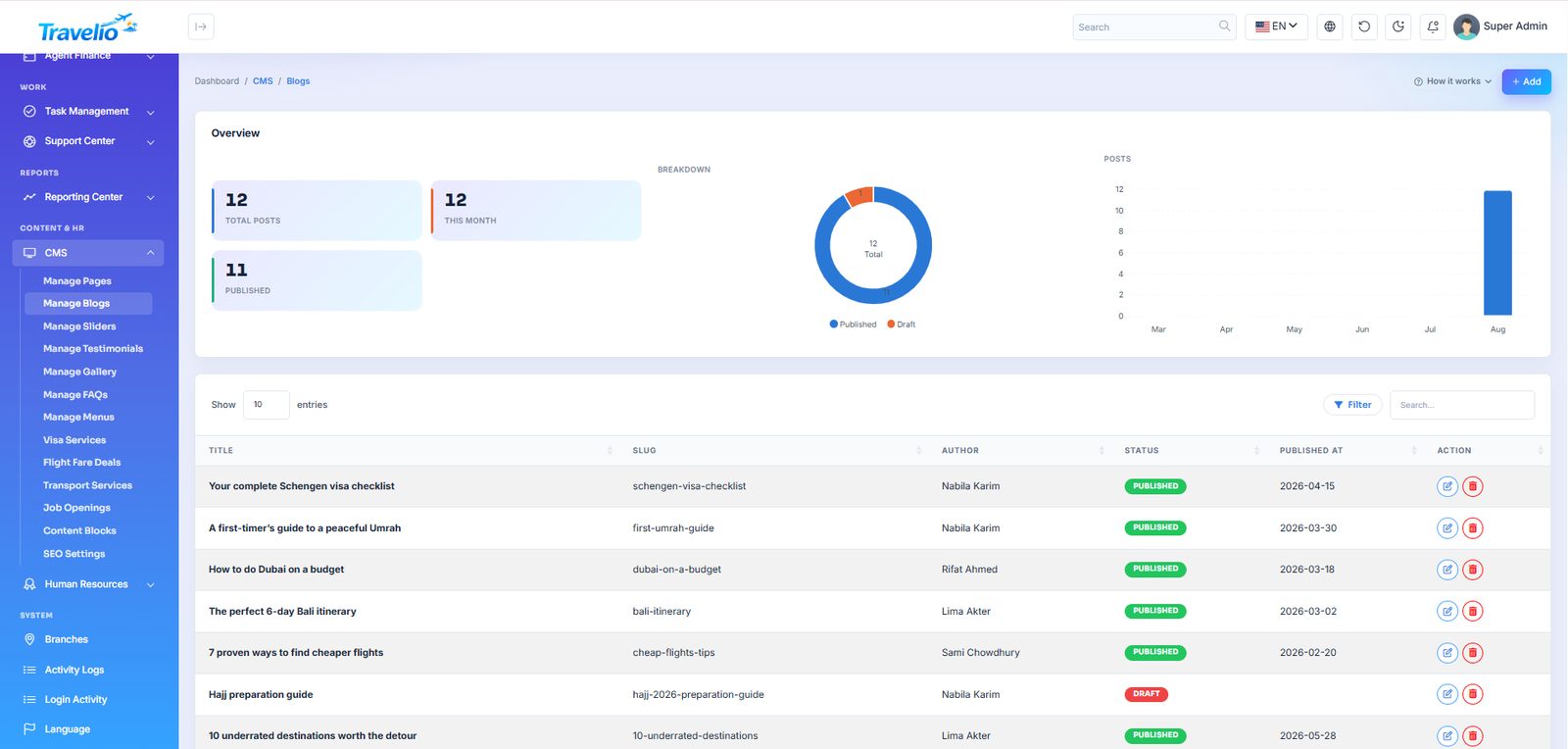
- Manage Blogs — travel blog posts with cover image, category and SEO fields.
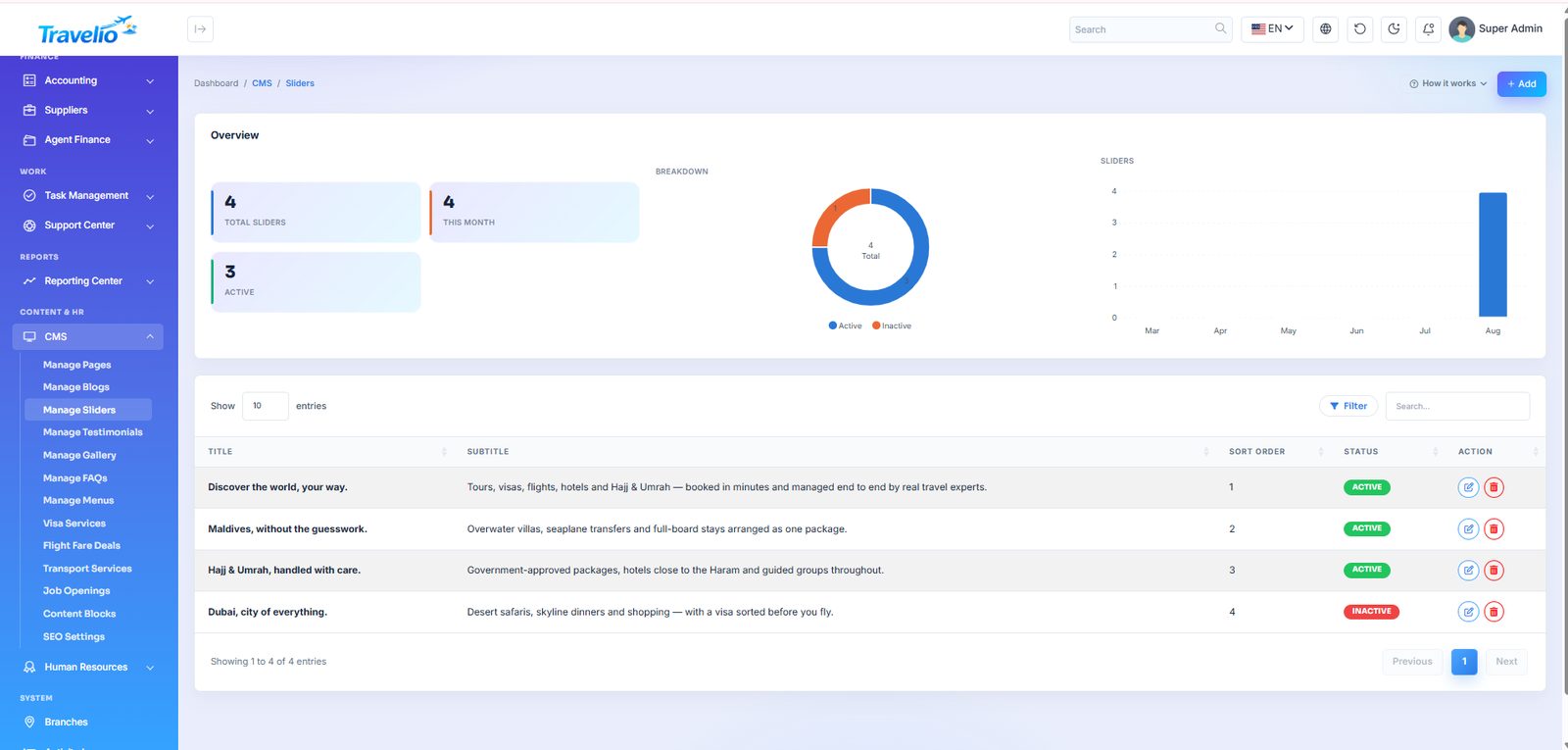
- Manage Sliders — the home-page hero and promo slides.
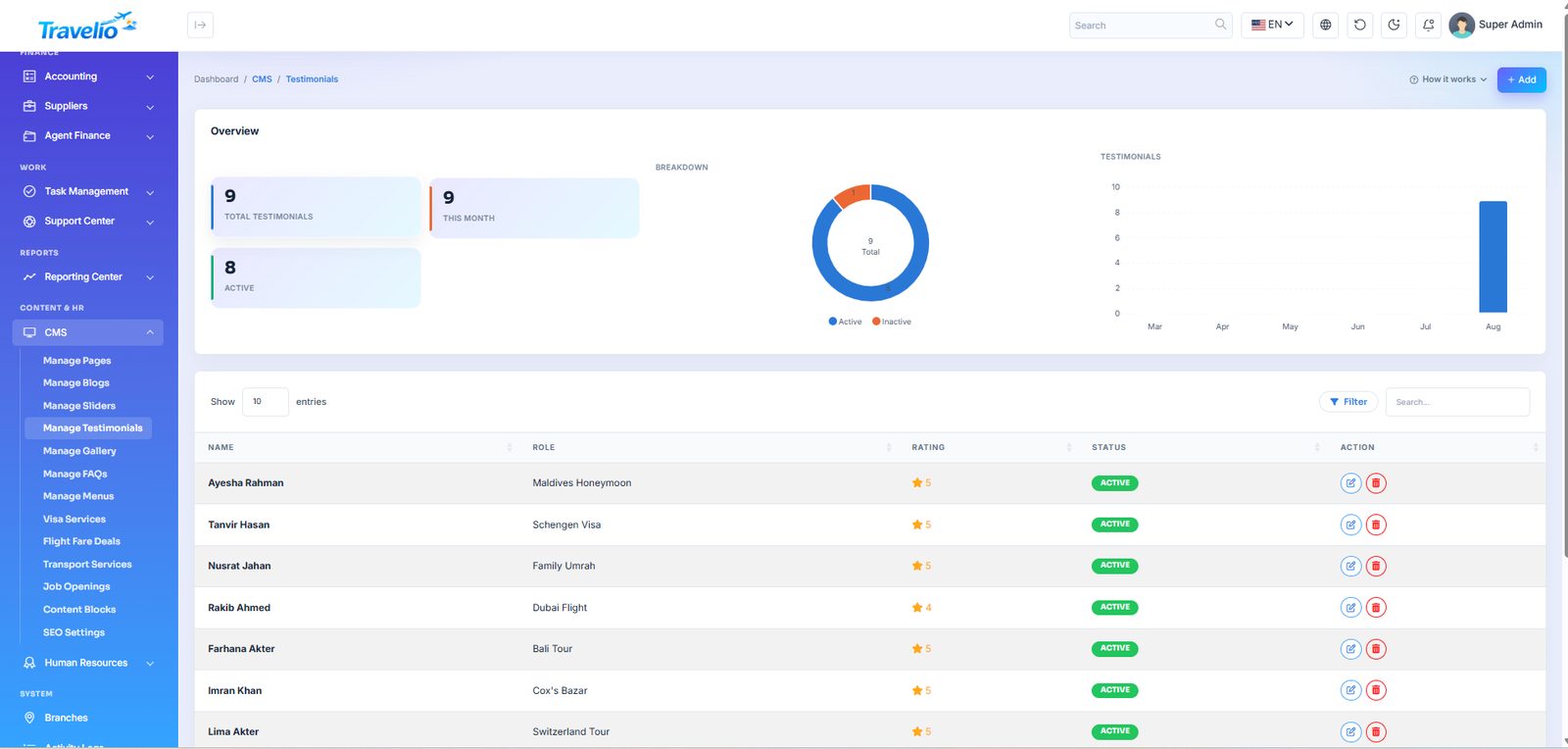
- Manage Testimonials — customer quotes with photo and rating; these feed the home page's reviews band.
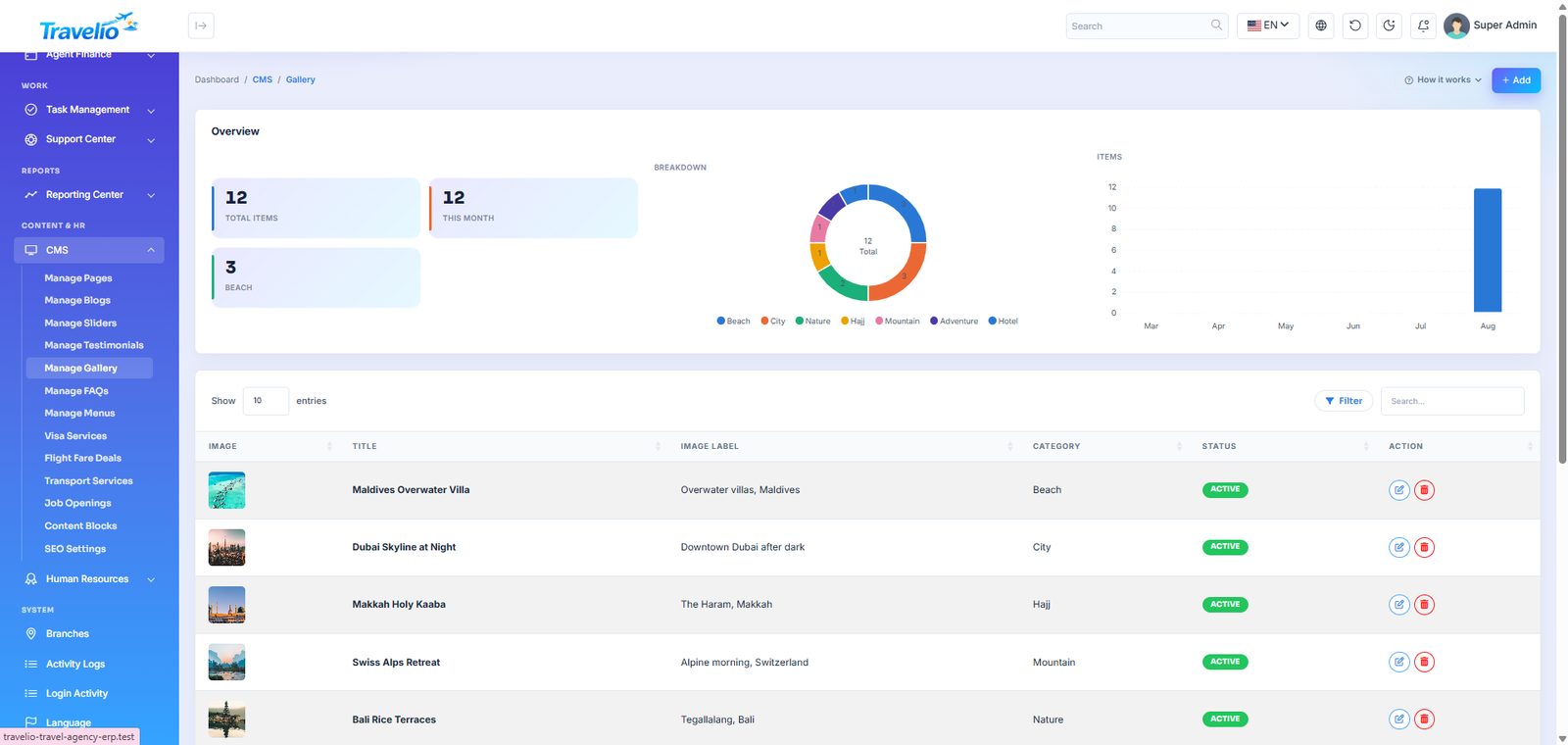
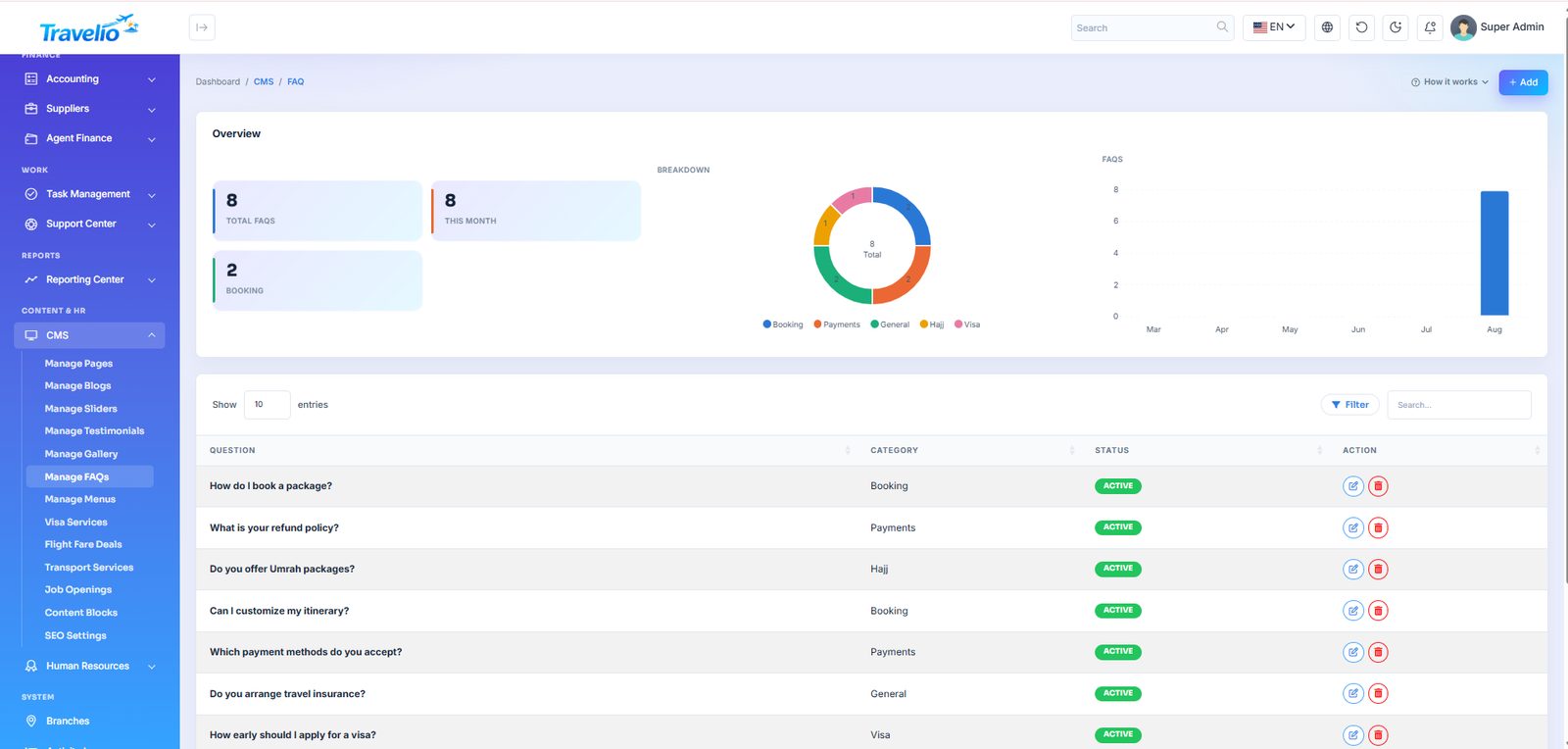
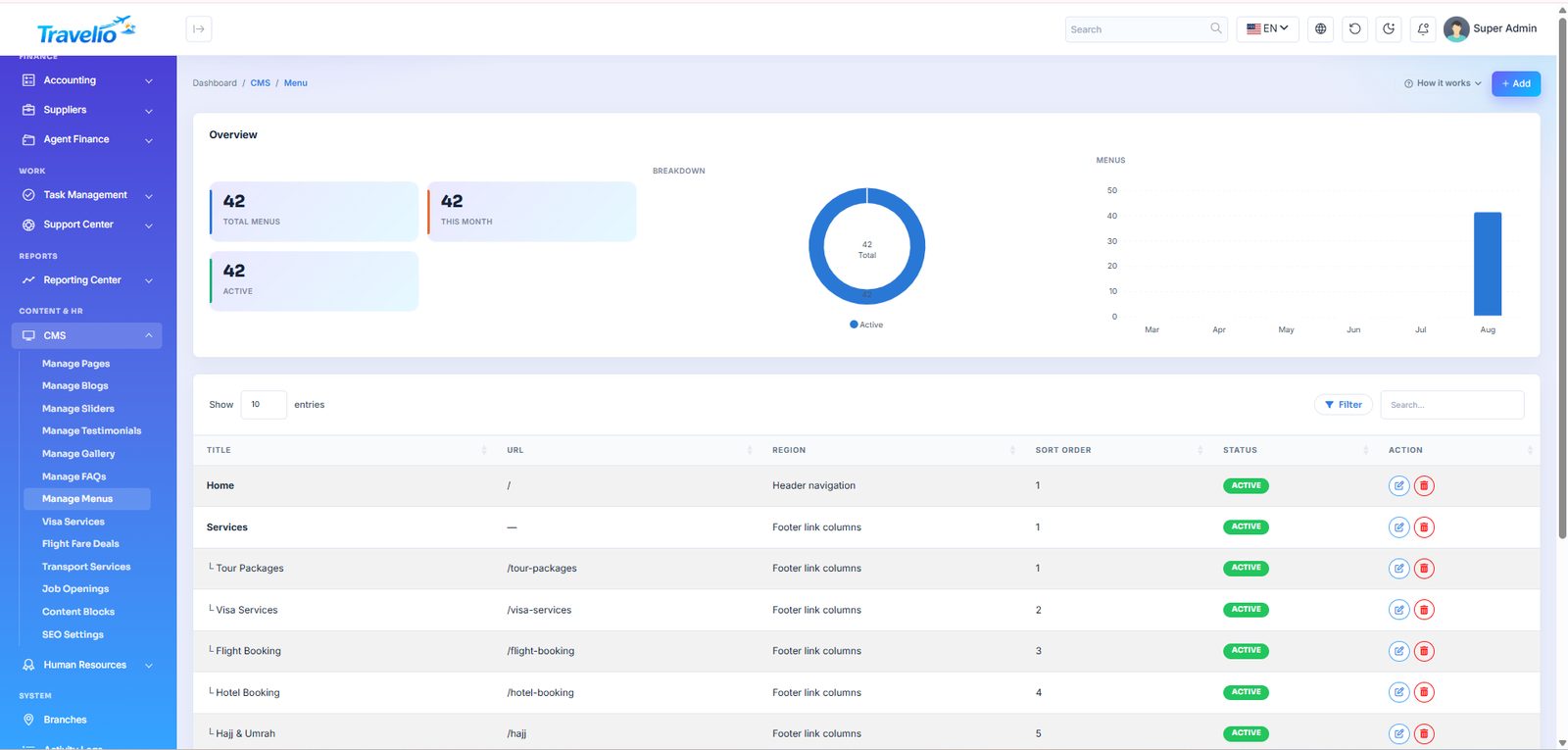
- Manage Gallery, Manage FAQs and Manage Menus — the photo gallery, FAQ page and the header / footer navigation (add links such as
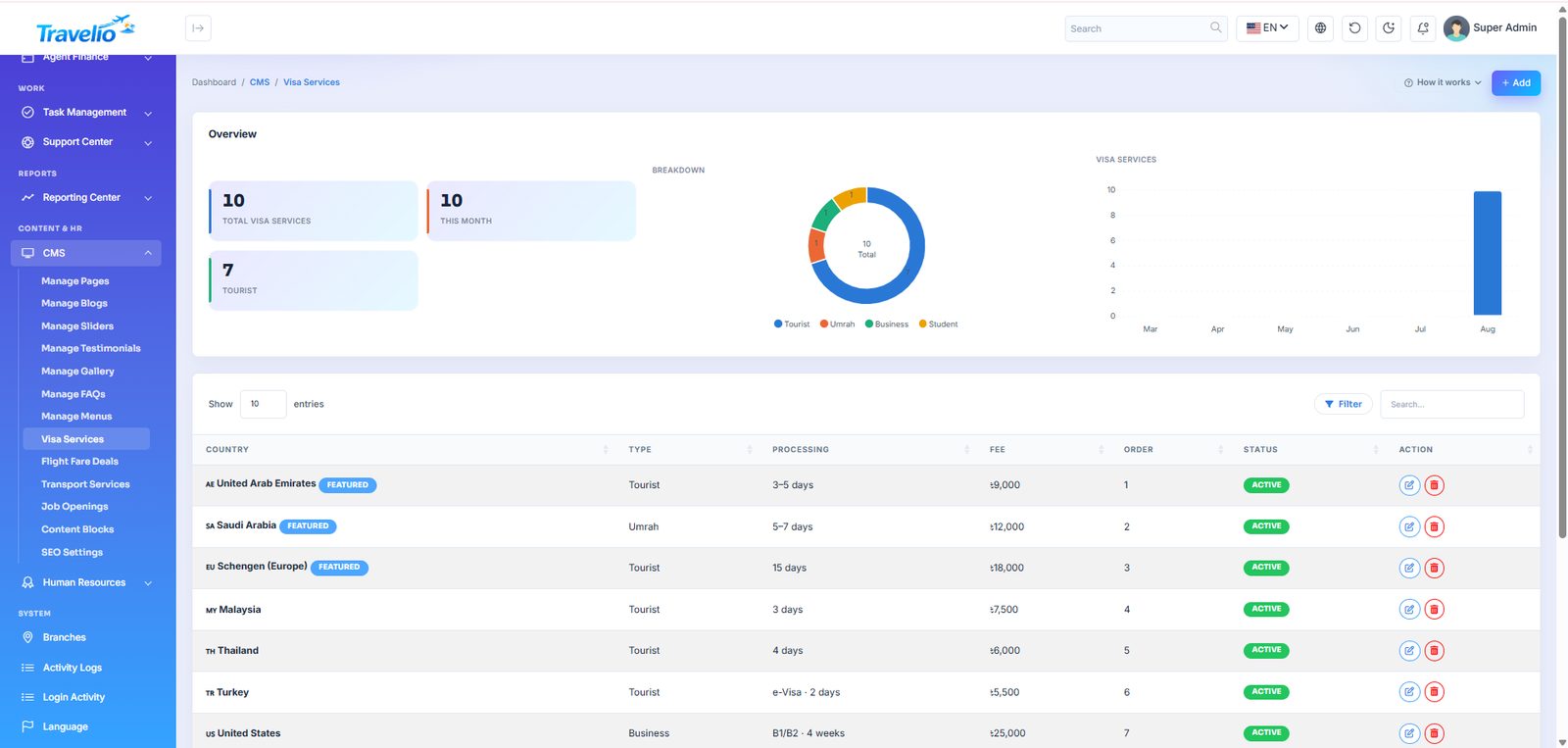
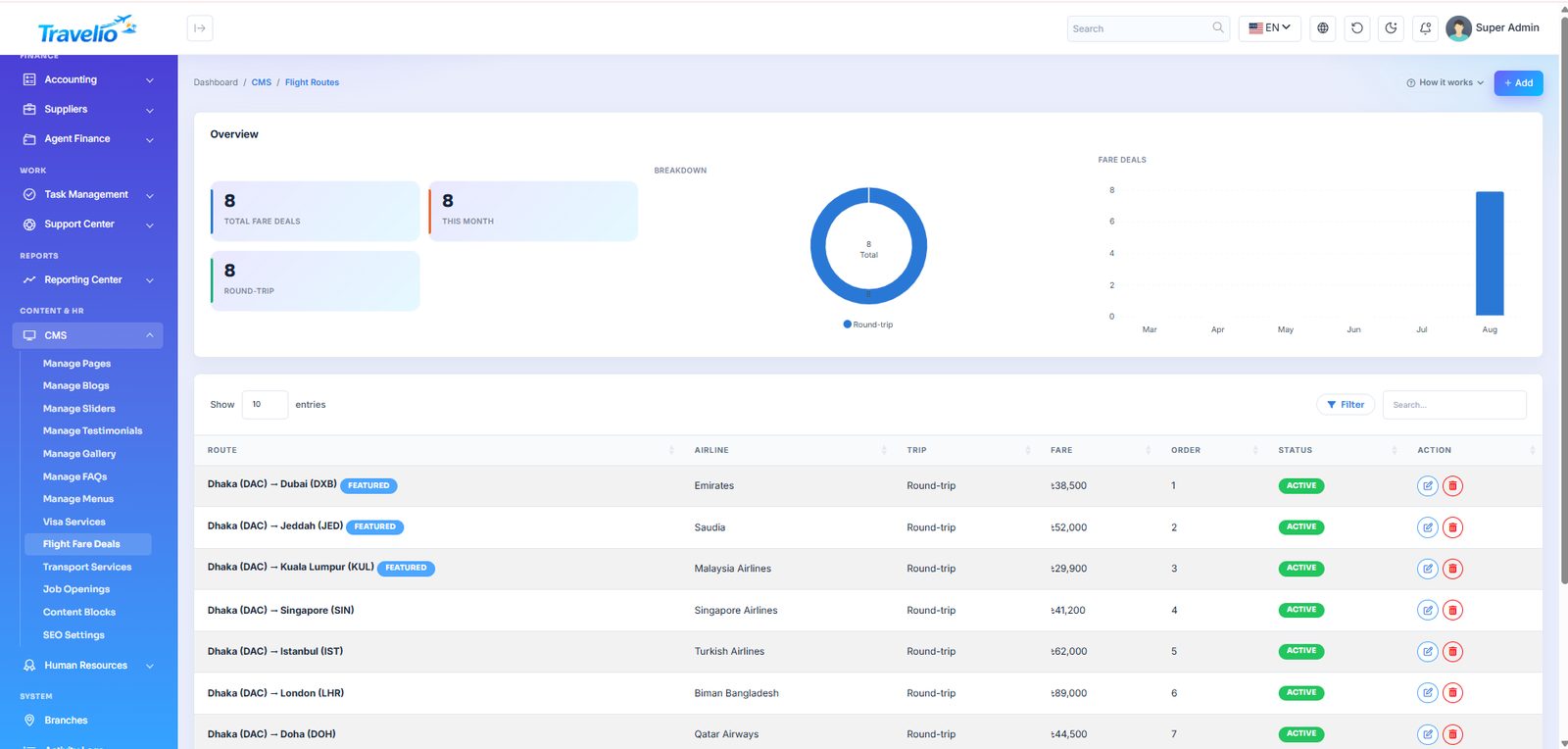
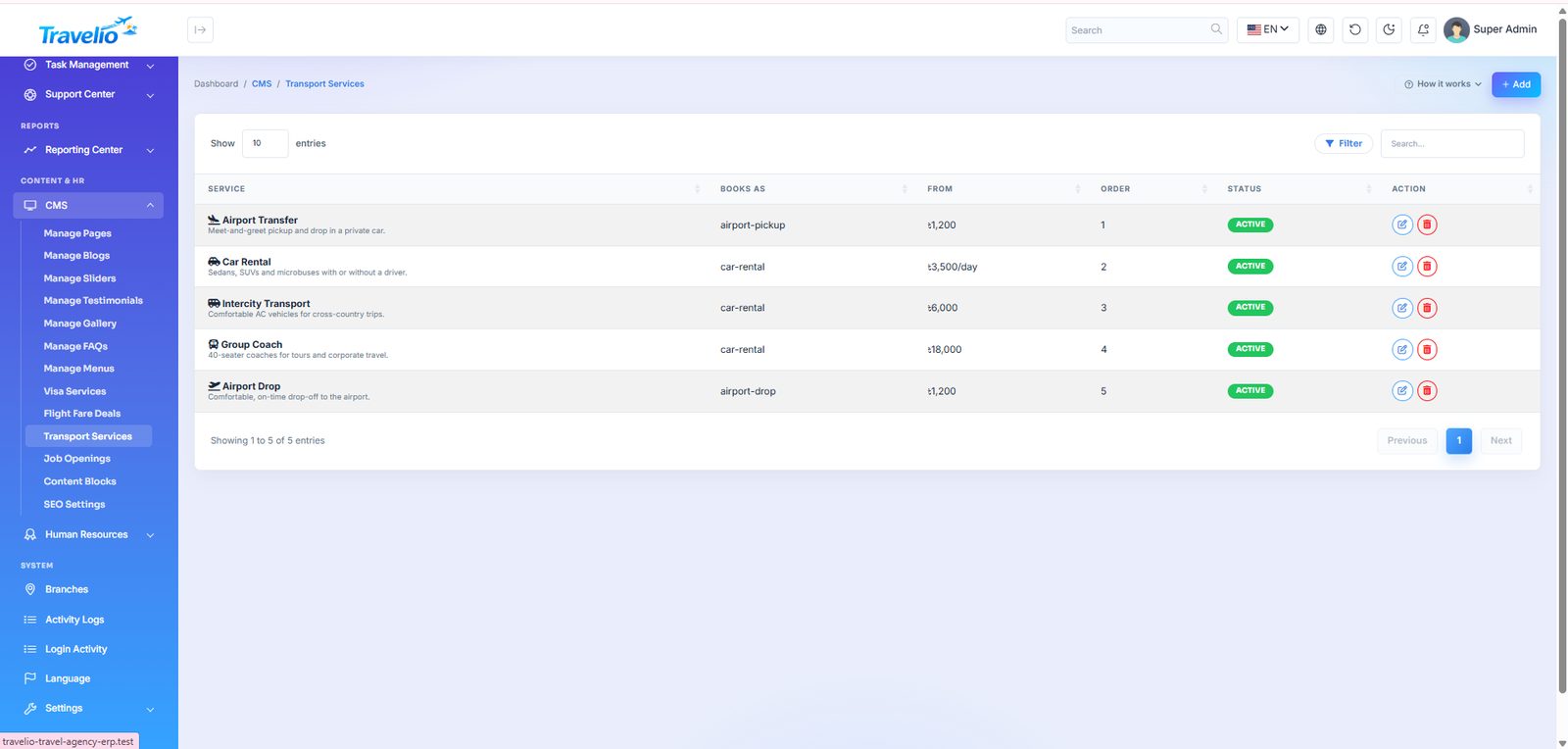
/vendorshere). - Visa Services, Flight Fare Deals, Transport Services — the visa catalogue (with fees), the indicative “fare from” deals (which also fill the flight form's From/To lists), and the transport offers.
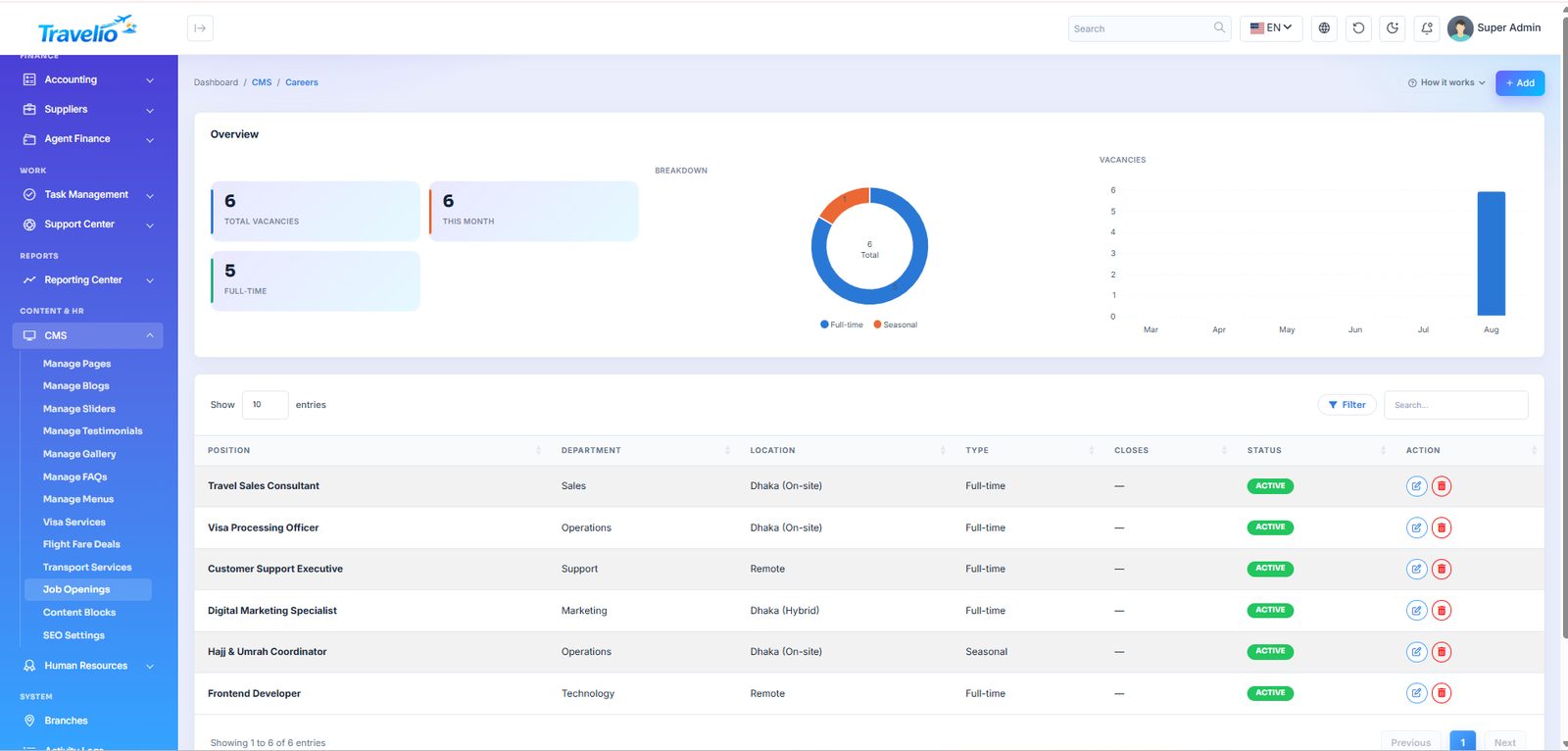
- Job Openings — vacancies on the careers page; applications land in CRM → Job Applications.
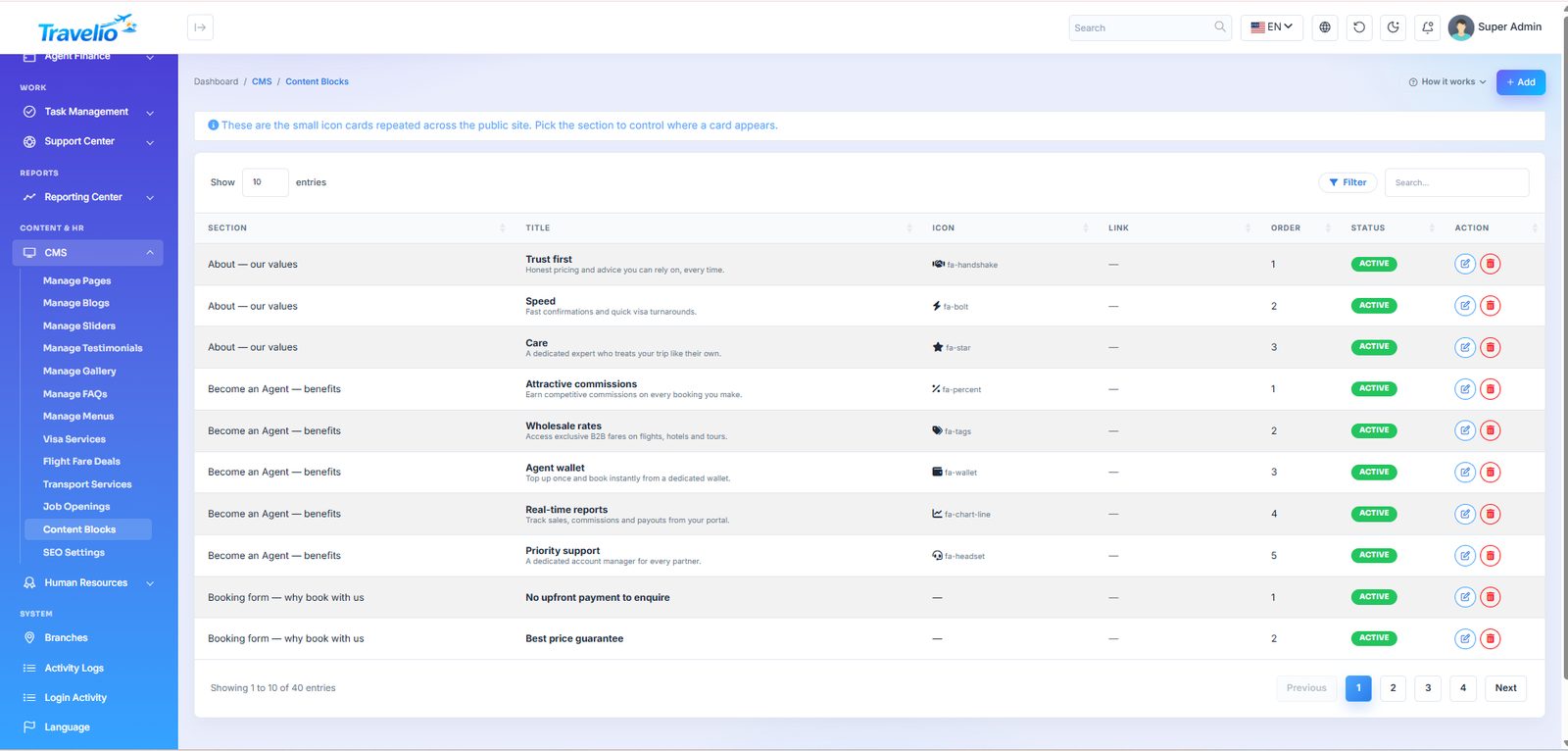
- Content Blocks and Home Sections — reusable content strips and the order of the home page; see Home Page, Search Widget & Content Blocks.
- Appearance — the website template, website colours, fonts, text size and rounding, the admin panel's fonts, text size and brand colour, and the default light / dark mode (Appearance).
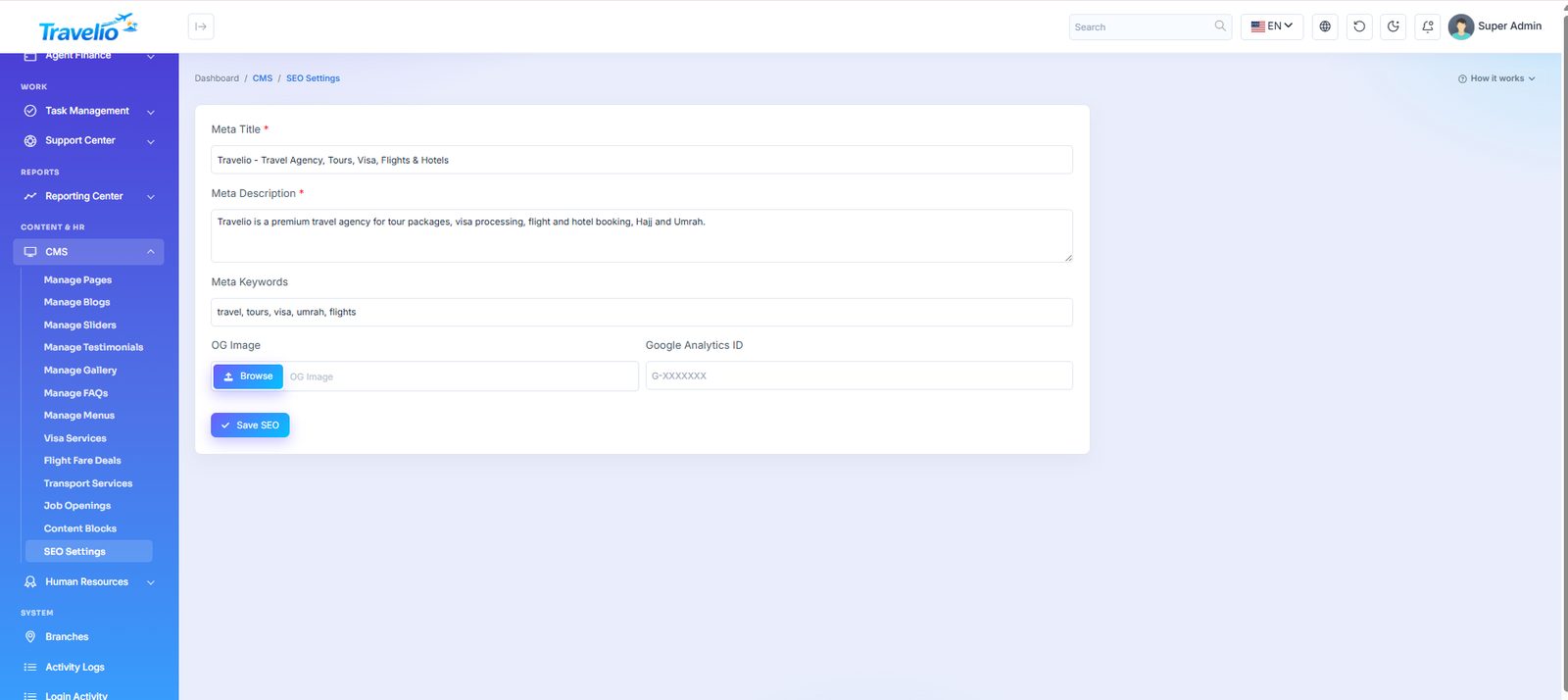
- SEO Settings — meta title, description, keywords, social share image and analytics tags.
Home Page, Search Widget & Content Blocks
and
The home page is a stack of sections that you order and switch on or off — no code.
Home Sections
- Create, edit, drag to reorder, toggle on/off and delete sections. Each can override its small heading, title, subtitle and call-to-action text and link, and choose an auto, plain or tint background.
- A section with nothing to show is dropped, so no gap appears. If the list is empty the shipped default layout is used.
- Default order: hero search, promo slider, promotions, popular destinations, featured package rail, Hajj & Umrah package rail, icon-card grid (services), why-choose-us, statistics band, customer reviews, partner airlines, travel blog, newsletter, call to action. The mobile app's home screen reads the same list.
- Promotions shows your live Promotions. The Hajj & Umrah package rail shows Hajj and/or Umrah packages, featured first (settings: how many, Hajj / Umrah / both, featured first or featured only). The tour package rail now also has Which packages: featured first (default), featured only, or newest only.
- Sections of a switched-off module are skipped (e.g. the package rail and destinations when Tours is off, partner airlines when Flights is off, promotions when Marketing is off).
- The Hero + search widget takes its image and text from the first active Slider; the promo carousel shows the remaining slides. The Customer reviews band shows your CMS Testimonials; verified traveller reviews appear on each package page instead.
Hero layout
Edit Hero + search widget on the same list to choose its Layout: Classic (photo, headline on the left), Centered (photo, centred headline), Photo (a tall full-width photo) or Split (headline beside a framed photo on a light background). Auto, the default, follows the website template — see Appearance.
Hero slider (alternative opening section)
The home page can open with a full-width, fading Hero slider instead of the single-photo Hero + search widget. Each active Slider becomes one slide, with its own photo, badge, title, subtitle and button. Both hero types stay available; use only one at a time.
- — add one slide per photo (a wide landscape image, about 1920 × 800 px, works best). Set the status to Active; the sort order sets the slide order. Button text and link are optional.
- — choose the section type Hero slider and save. Its settings are Show the search widget on the slider (Yes puts the Flights / Hotels / Tours / Visa search box over the slides; No shows the slider alone) and Seconds per slide (default 5; 0 stops it advancing by itself).
- On the same list, click the status of Hero + search widget to make it Inactive. Both heroes contain the search widget, so keeping both active would show it twice.
- Drag the ⋮⋮ handle at the left of the Hero slider row to the top of the list. Changes save as soon as you drop the row.
If no slider is active, the Hero slider section is skipped rather than leaving a gap. Promo slider carousel is a different section — the two-card strip that sits under the hero — and its Slides already used by the hero setting can be set to 0 to show every slide there too. A section type that is already on the page (such as Promo slider carousel) cannot be added a second time.
Content Blocks
Reusable icon / title / text / link / image items grouped by section (e.g. home_services, home_why, about_values, visa_steps, support_topics, agent_benefits, hajj_includes, umrah_includes, booking_why). Editing a block changes the matching strip on the home, about, visa, Hajj/Umrah, support, agent and booking pages.
Search widget
- Flights — From/To (from your published fare deals), date and a travellers dropdown (Traveler Options); opens the flight enquiry form with a fare estimate.
- Hotels — city, dates and stars; opens the hotel list. Tours — search, category and sort; opens Tour Packages. Visa — country and type; opens Visa Services.
- Edit tab labels, icons, order and visibility under Search Widget Tabs. A tab whose module is switched off is hidden; if none is left, the widget is not shown.
Social Links feed the website's top bar, footer and structured data.
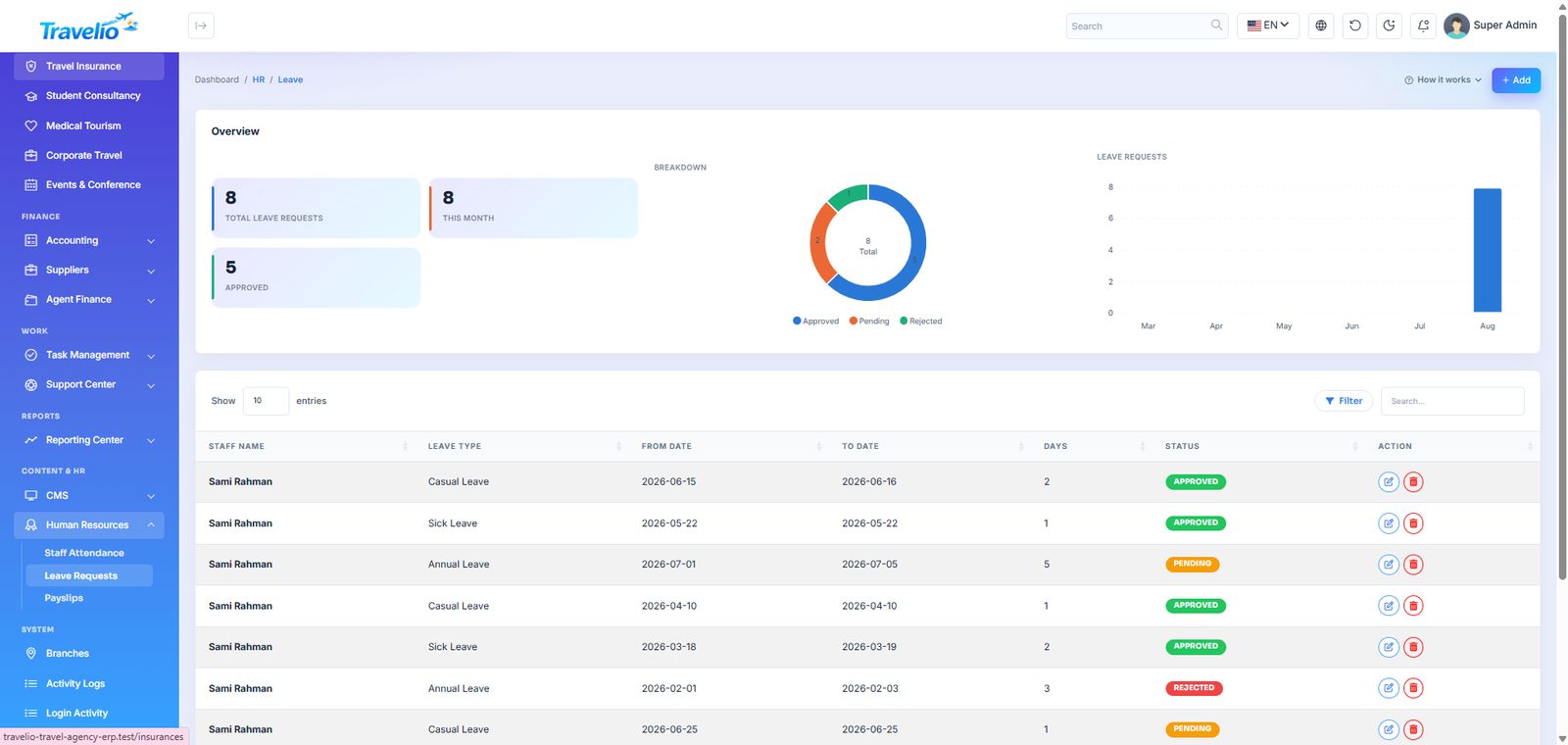
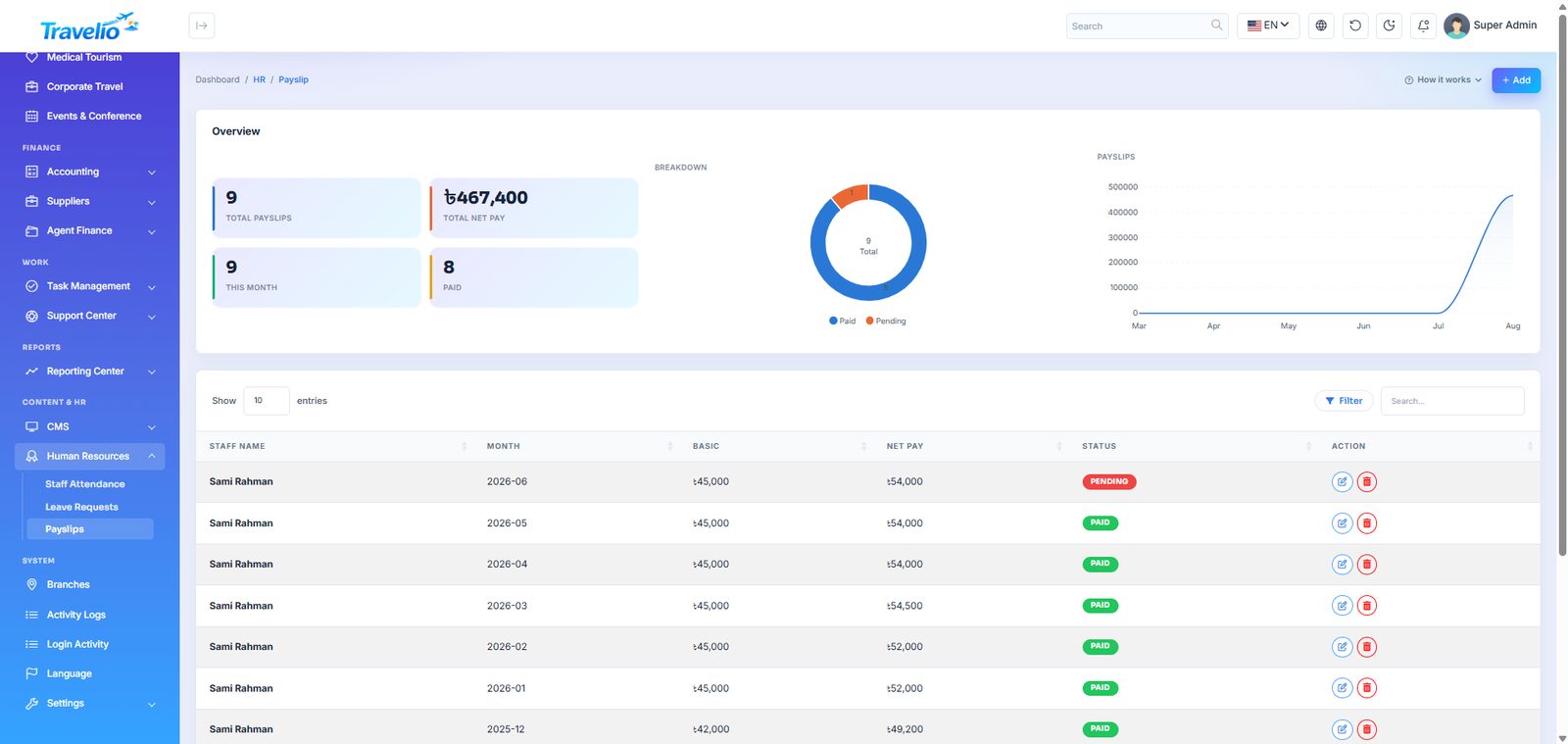
Human Resources
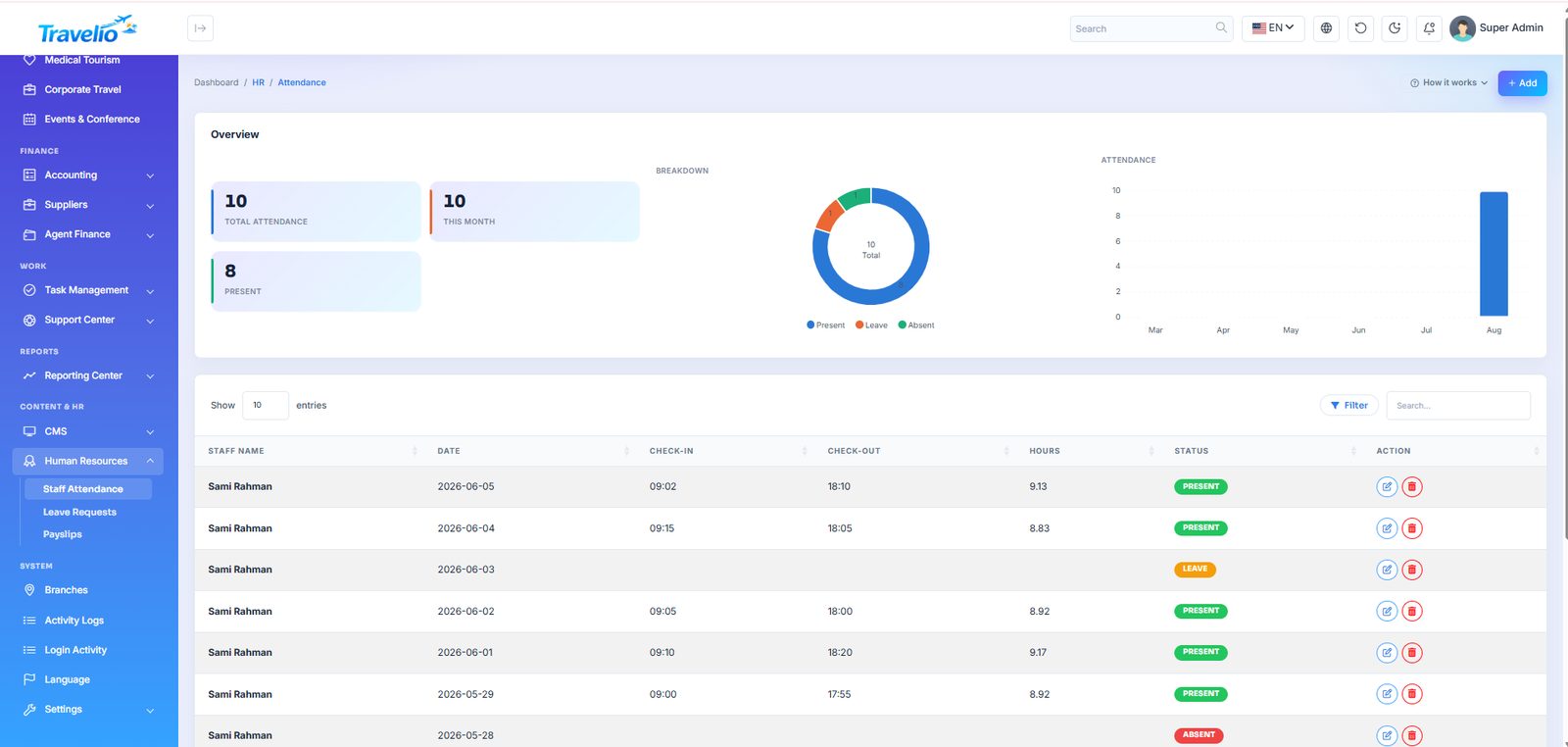
- Staff Attendance — daily attendance per employee.
- Leave Requests — requests submitted by staff, approved or rejected here.
- Payslips — monthly payslips with earnings, deductions and net pay.
Staff members submit leave and view their own attendance and payslips from the Staff Portal.
Attendance — Staff, Date, check-in / out, hours and Status (Present, Leave, Absent), entered by HR. Leave Requests — type (Casual, Sick, Annual), dates, reason and Status (Pending, Approved, Rejected). Payslips — Month, Basic, Allowances, Deductions, Net Pay (typed, not computed) and Status (Pending / Paid); saving as Paid posts the salary expense to the books automatically.
Users, Roles & Permissions
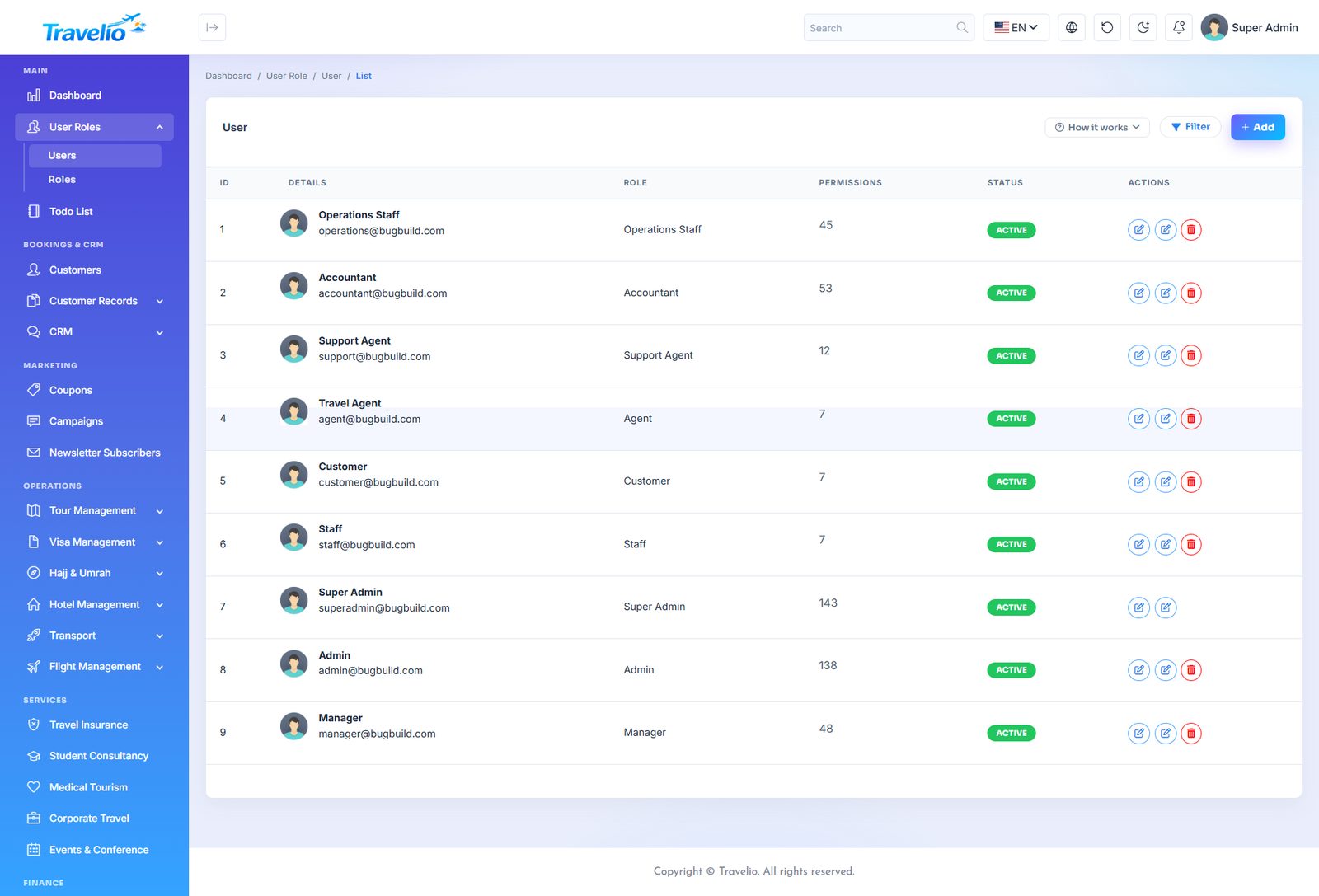
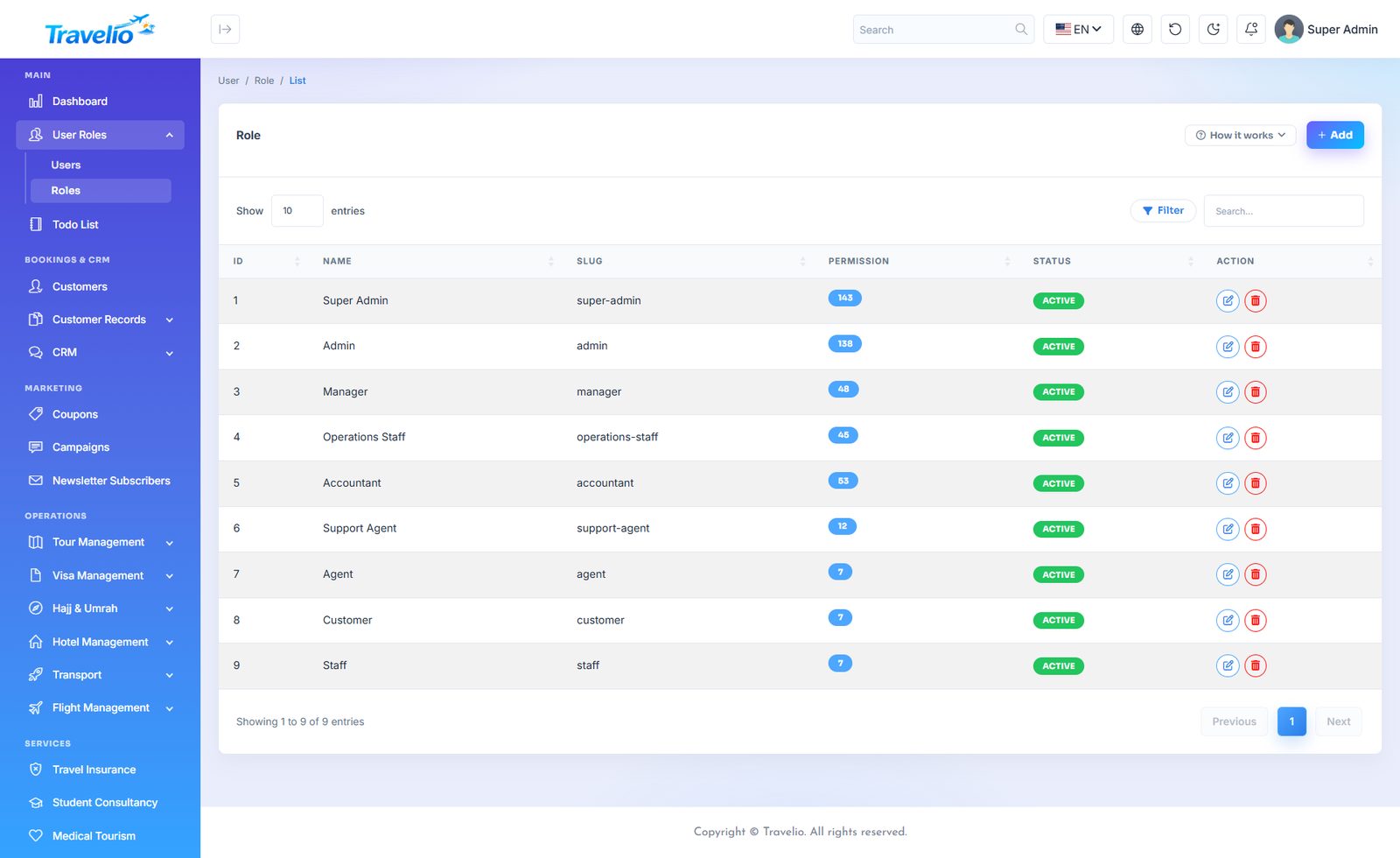
Access control is a checkbox grid — every module can be granted Read, Create, Update and Delete independently.
- Roles → open or create a role, tick exactly what it may do, save.
- Users → add the person, assign the role, set active or suspended.
Roles that ship configured: Super Admin, Admin, Manager, Operations Staff, Accountant, Support Agent, Agent, Customer, Staff, Tour Guide and Vendor. Agent, Customer, Staff and Vendor are portal roles — they land on their own panel instead of the admin dashboard; the Tour Guide uses the app.
- Manager and Operations Staff can read, create and update operational modules but cannot delete; the Accountant has Accounting and Agent Finance and can read bookings (so cannot approve bank payments); Support Agent handles tickets, reviews and lookups.
- A user's permissions are copied from the role when the user is created. Editing a role updates users who still match it; fine-tune one person with the key icon on Users → Permissions. After an upgrade adds new permissions (such as Reviews or Vendors) they are granted to existing roles by the migration.
- Create User fields: Name, Email, Phone, Date of birth, Role, Gender, Password, NID, Status, Image, Address, About. You cannot delete your own account, and a role that still has users cannot be deleted.
Changing a role updates everyone already assigned to it. A user's menu shrinks or grows the next time they load a page.
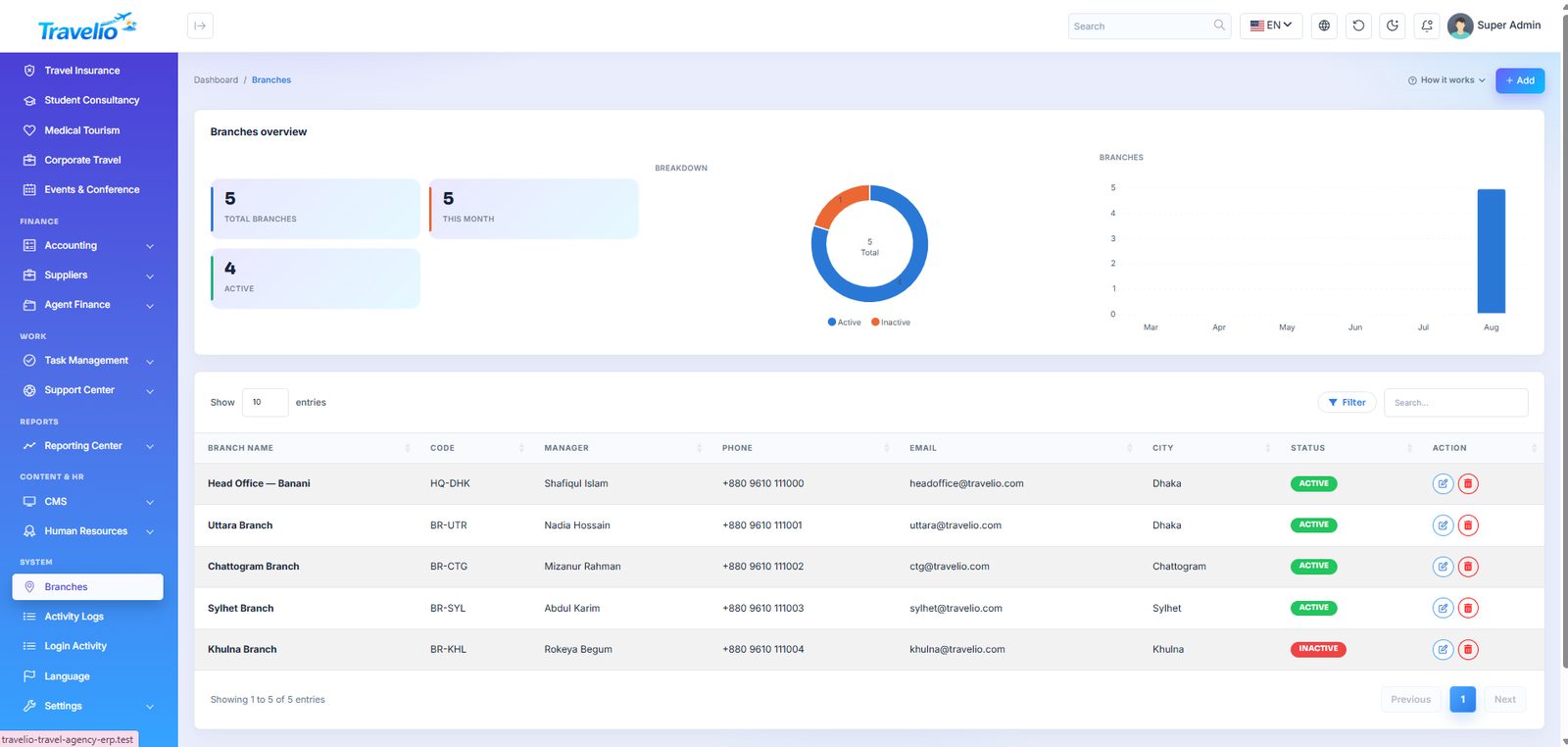
Branches
If your agency has more than one office, register each branch here with its address and contact. Records can then be attributed to the branch that produced them.
Activity & Login Logs
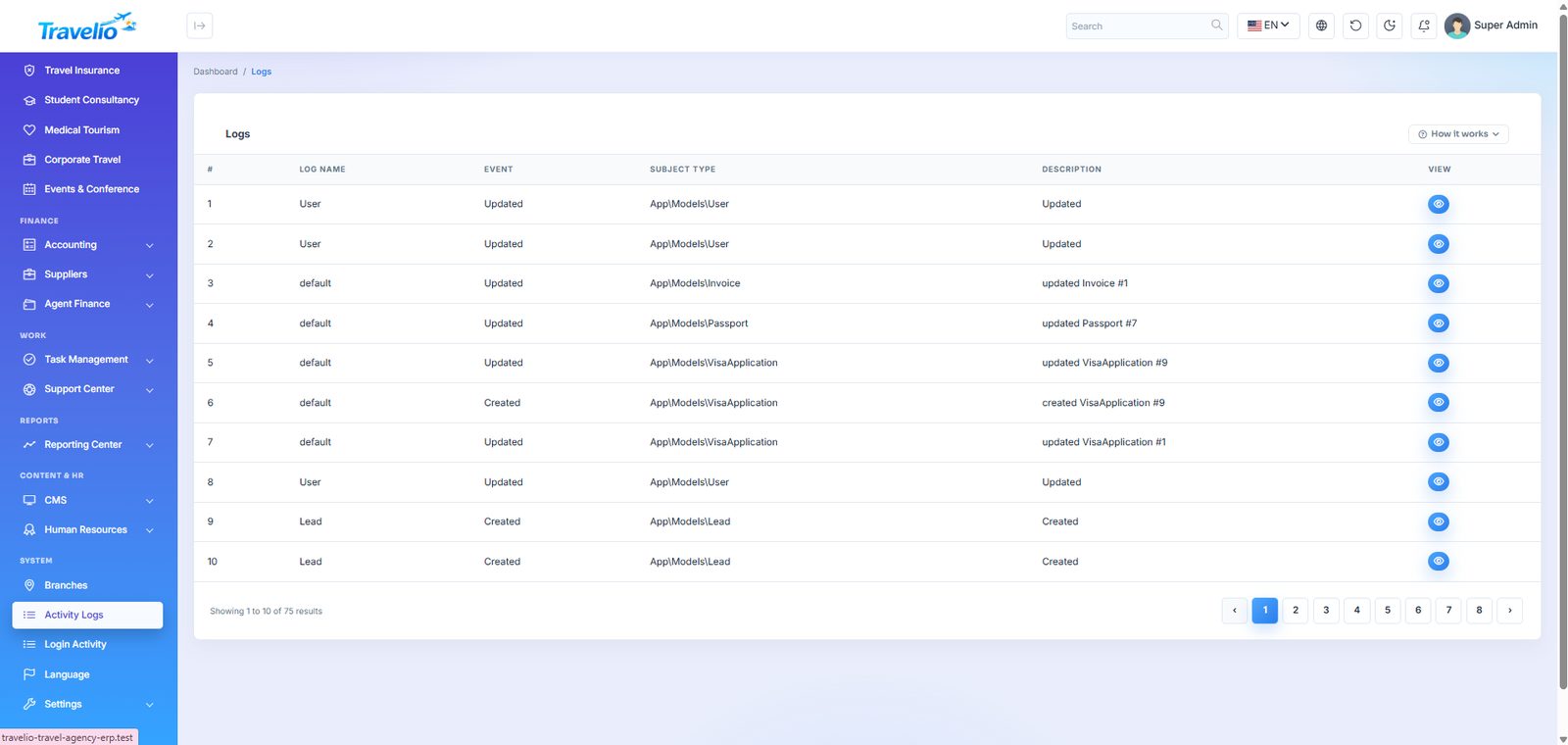
- Activity Logs — every create, update and delete: who did it, to which record, when, and the old and new values on the detail page. Recorded automatically; the list is newest-first with no search or export.
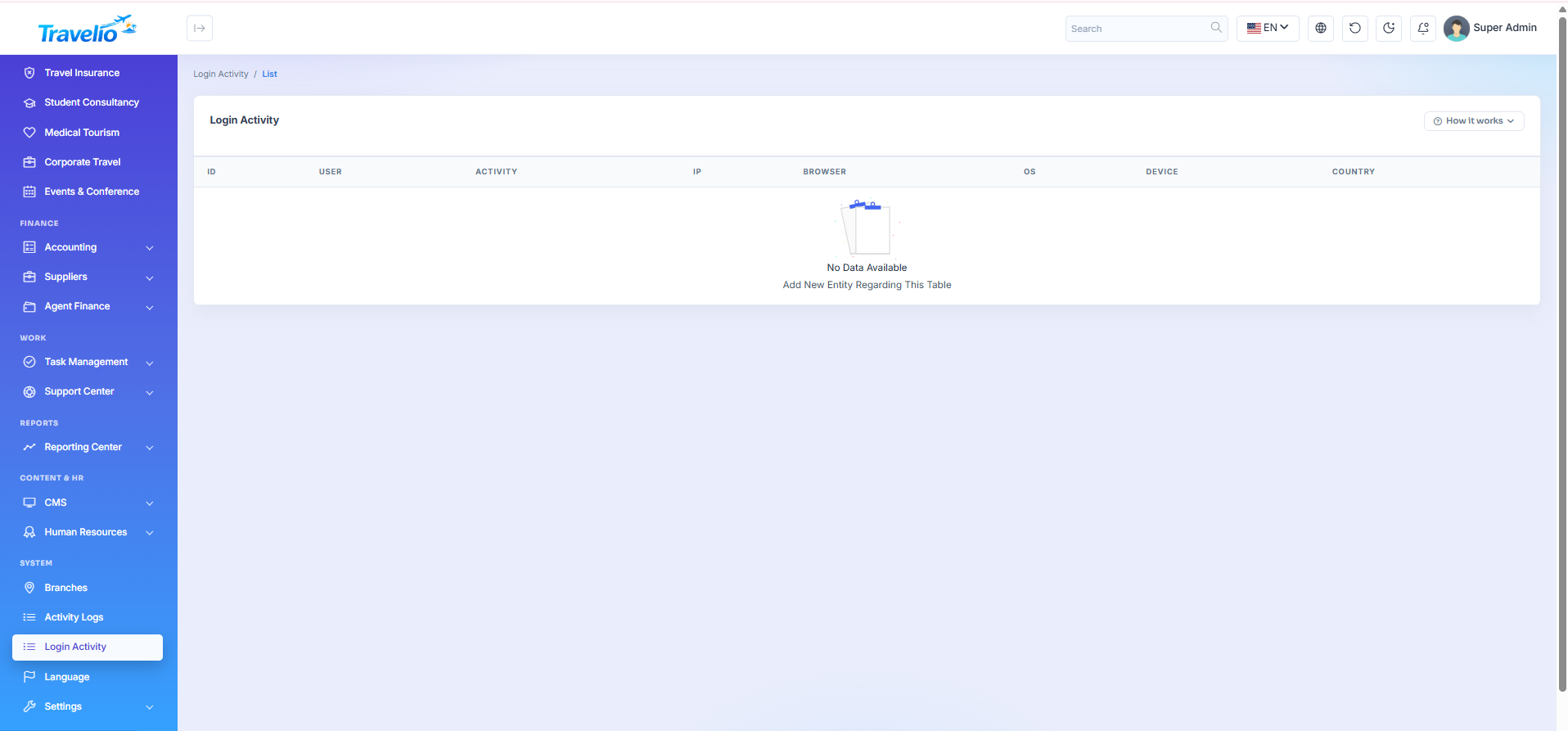
- Login Activity — sign-in history with IP address, device and result.
Logging is automatic and cannot be bypassed from the UI, which makes it usable as an audit trail in a dispute.
Languages
Travelio ships with English, Bangla, Arabic and Hebrew — and every interface phrase is editable from this screen. Add a language, then translate the phrase list; users switch language from the top bar. Each language can be set to LTR or RTL; the selected direction is applied consistently to authentication, frontend and admin layouts. Arabic and Hebrew ship as RTL, while English and Bangla use LTR.
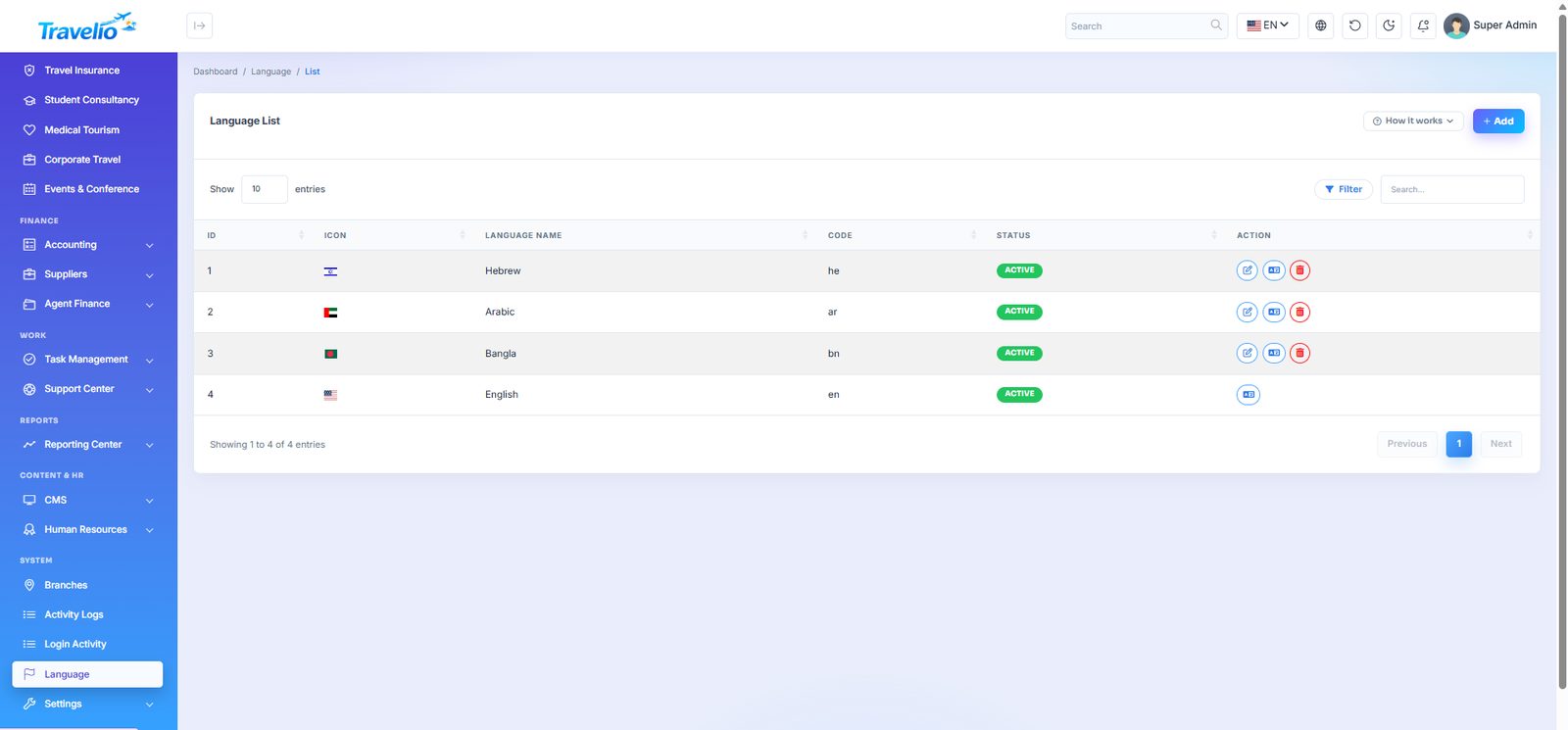
Settings
Each sub-page is shown only if your role has the matching permission. Optional integrations are off until you fill them in. Secrets (API keys, tokens, client secrets) are stored encrypted, and leaving a secret field blank when you save keeps the saved value.
| Page | What it controls |
|---|---|
| General Settings | One page, eight sections, one Save button: Basic Agency (name, phone, email, copyright); Defaults (VAT rate and AIT rate used by Tax Reports, pagination, date and time format, currency, default language); Marketplace (multi-vendor) — see Multi-vendor Marketplace; Booking Policy; Public Contact (second phone, WhatsApp number, short and full address, footer tagline); App links (App Store and Google Play URLs shown in the footer); Logos & Favicon (light and dark logo, favicon — PNG/JPG/WebP, SVG is not accepted); App Branding (mobile-app logos, falling back to the website logos). |
| Booking Policy (in General) | Cancellation window (hours) — how long before travel a customer may still cancel a paid booking online (default 24). Cancellation penalty (%) — the share kept; the rest goes to the customer's wallet (default 10). Staff can always cancel from the back office. |
| AI Settings | OpenAI API key, model (default gpt-4o-mini) and URL. Powers the customer AI Trip Planner. Without a key the planner reports it is not configured. |
| Modules | Switch whole services on or off (website, portals, admin and app together) and open or close agent registration. See Modules. |
| Flight API | One section per provider — Amadeus, Sabre, Travelport, Duffel, TBO Air, Kiwi.com — each with an on switch, credentials and base URL (test environments by default — change for production). Enabled providers are searched together; see Live flight search. Amadeus also powers live hotel search. Nothing enabled = off. |
| WhatsApp Cloud API access token, Phone number ID and API version. Used to message a customer when their booking's status changes. Blank = off. | |
| Loyalty | Earning: points per currency unit (default 0.01) and referral bonus (default 100). Spending: value of one point (default 1; 0 switches redemption off), minimum points per redemption (100), maximum share of a booking (50%). Reviews: publish automatically, or hold for moderation (default). |
| Mail Setting | Driver — Sendmail, SMTP or Gmail API (for hosts that block SMTP ports) — with its host, port, credentials and encryption; from-address and name; email signature; and a send test mail form. The seeded SMTP host is a placeholder, so mail does not work until you set it. |
| Payment Gateways | See Payment Gateways. |
| SMS | One provider, MiM SMS: username, API key, sender ID, status (inactive by default), balance display and a Send test SMS form. |
| Push Notifications | Firebase Cloud Messaging: paste the service-account JSON and switch it on. In-app notifications (bookings, payments, visa updates) are then mirrored to customers' devices. A badge tells you if the JSON is missing or invalid. |
| API Security | The shared X-App-Key the mobile app sends on every request. A fresh install seeds a default key that matches the shipped app. Generate rotates it (rebuild the app with the new value); clearing it switches the check off. It is a defence against casual scraping, not user authentication. |
| Social Links | Add, edit, delete and order the profiles shown in the website top bar and footer (name, Font Awesome icon such as fa-facebook-f, URL, sort order, status). |
| Search Widget Tabs | The four home-page search tabs (Flights, Hotels, Tours, Visa). You can edit but not add or delete: label override, icon, sort order and status. A hidden tab disappears; the first remaining tab opens by default. See Home Page & Search Widget. |
| Traveler Options | The entries in the Flights tab's travellers dropdown (e.g. “1 Adult”, “2 Adults”, “Family (4)”): label, sort order, status. |
| System Update | See below. |
| reCAPTCHA | Site and secret key and a status switch. In this version the keys are stored but no form enforces them, so enabling it does not yet add a captcha. |
| Social Login Settings | Facebook (App ID, App Secret, Client Token for the app) and Google (Client ID, Client Secret, Android and iOS client IDs for the app), each with its own Active switch. The buttons appear on the login page only when the provider is active. Customers only — admin accounts stay password-only. |
| Appearance (under CMS) | Website and admin-panel colours, fonts, text size, rounding and default mode. See Appearance. |
| Live chat settings | Switch live chat on or off and set the chat title, the welcome message and the message shown when no staff member is online. See Live Chat. |
| Messenger (in General) | Your Facebook page's username or m.me link. When filled in, a Messenger button appears next to WhatsApp on every website page, in the footer, on the Support page and on the app's Contact screen. Blank = hidden. |
System Update
shows the current version and offers two ways to update. The same latest full WebSourceCode used for a new install also updates existing sites.
- Server check — the page first checks what an automatic update needs: PHP version and extensions, file uploads and the temporary folder, maximum upload size (
upload_max_filesize/post_max_size), execution and input time, memory, writable folders and free disk space. Red items block the automatic update and say which setting to change (cPanel → Select PHP Version / MultiPHP INI Editor); yellow items can make a large update fail. The same checks run again before any file is replaced, and an oversized or interrupted upload is explained with nothing was changed. If you cannot fix an item, use Manual update. - Automatic update — upload the ZIP (it must contain
travelio-update.json, at its root or inside aWebSourceCode/folder). The version must be newer than the installed one. The site enters maintenance mode, the replaced code folders are backed up tostorage/app/updates/backups/, the update is copied in and migrations run..env,storage,vendor,public/uploadsandpublic/storageare never overwritten. - Manual update (cPanel) — copy the contents of
WebSourceCodeover the project yourself (Replace all, but not.env,vendor,storage,public/uploads,public/storage), sign in as super-admin and press Finalize manual update. Hosts you reach over SSH get a ready-to-copyrsynccommand on the same screen. - Finalize (the button, the ZIP upload, or
php artisan travelio:upgrade) applies every pending migration, adds the new permissions to existing roles and to the users who hold them, adds new settings, the French language and home sections without overwriting anything you changed, moves old visa documents to private storage, clears caches and records the version. The screen shows what was applied.
The updater takes a code backup only. There is no database backup screen in the admin panel — back up the database with your host's tools (cPanel Backup / phpMyAdmin / mysqldump) before every update. Likewise there is no admin maintenance-mode toggle and no payout-setup page: agent and vendor payouts are handled under their own menus.
Points are spent as a discount, never as wallet credit.
The customer wallet is a real liability account that the double-entry ledger reconciles against
money you actually took; paying points into it would invent cash you never received. Redeeming
points lowers the sale instead, so the invoice, the receipt and your accounts all agree.
Setting value of one point to 0 switches redemption off without touching
anybody's balance — the points are still there when you turn it back on.
Third-party costs — hosting, domain, SMTP, SMS, payment gateways, Apple/Google developer accounts — are not included in the item price. You supply your own credentials in these screens.
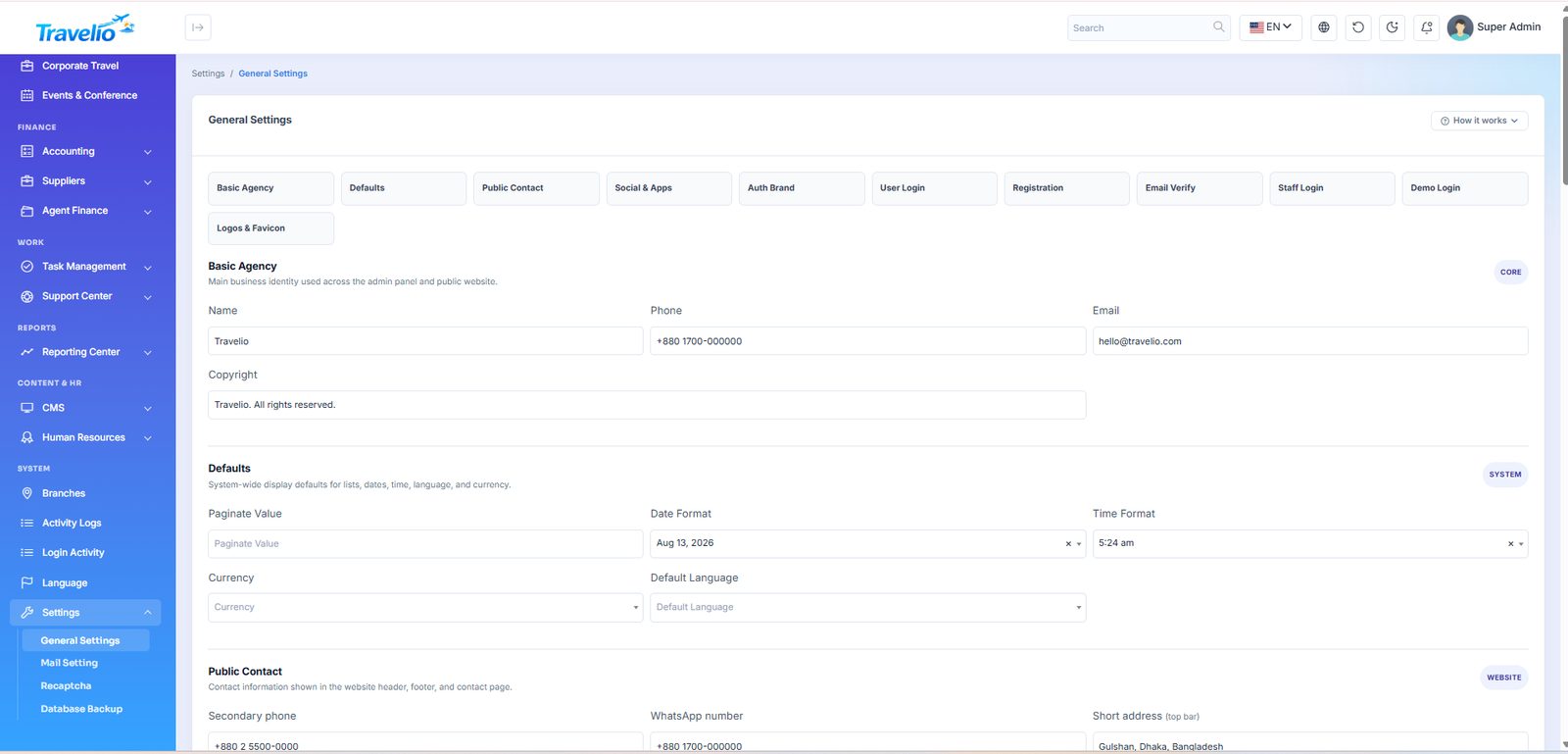
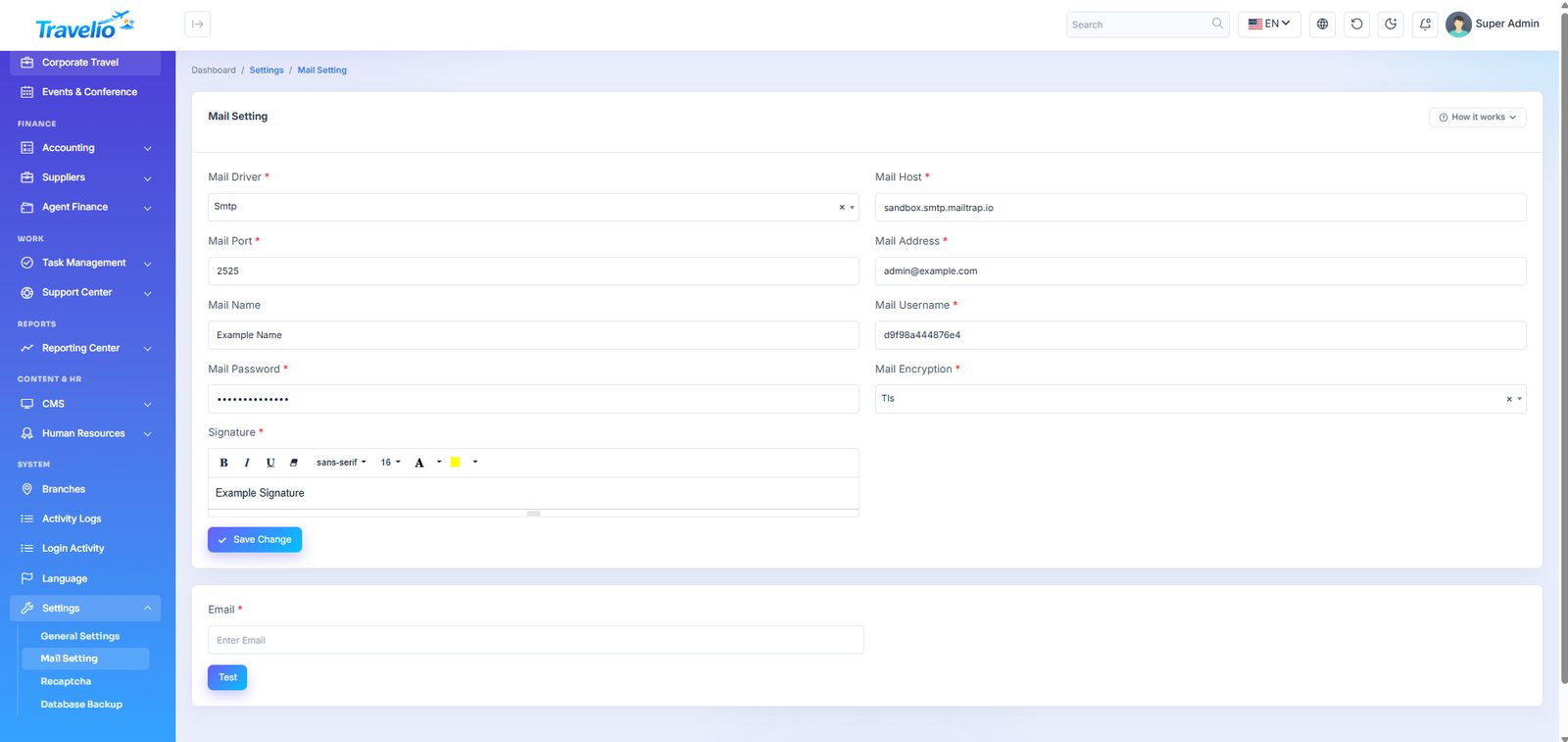
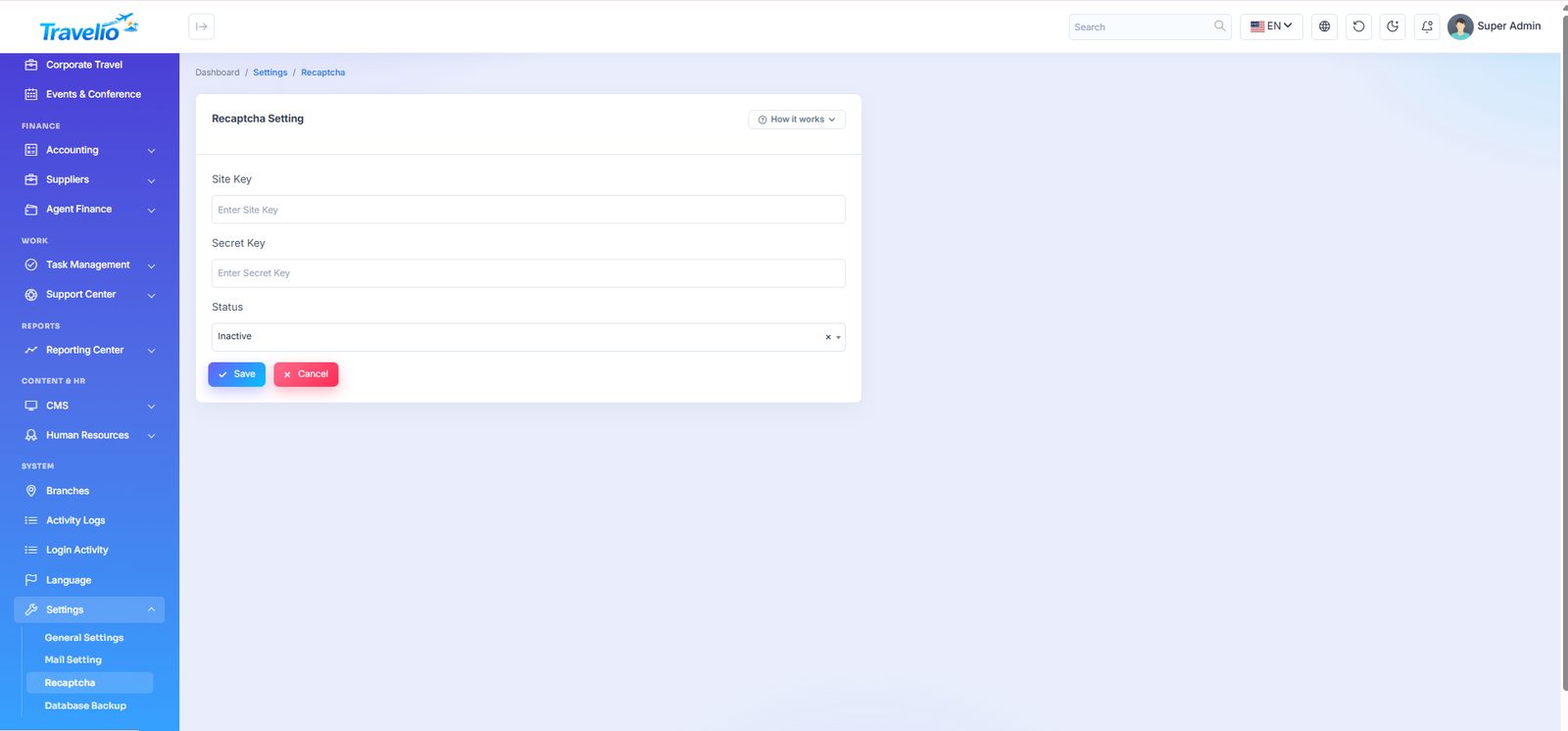
Modules — switch services on or off
Travelio is modular. Switch off every service your agency does not sell, and it disappears from all of these together: the public website, the customer, agent and staff portals, the admin menu and the mobile app. Nothing is deleted — switch a module back on and every record, page and menu item is exactly where you left it. There is no code to edit and no app release to publish.
| Module | What it covers |
|---|---|
| Tour packages | Package pages, online booking, schedules, guides, wishlist, the app's Explore tab. |
| Hajj & Umrah | Hajj and Umrah packages, pilgrim registration, groups, hotel/flight allocation, pilgrim payments. |
| Visa services | Visa catalogue, online applications, embassy appointments, documents, visa tracking. |
| Flights | Flight requests and tickets, live flight search, reissue, cancellation and refunds. |
| Hotels | Hotels, rooms, availability, hotel bookings and vouchers. |
| Transport | Bus, train, launch, car rental and airport transfers, drivers and vehicles. |
| Additional services | Travel insurance, student consultancy, medical tourism, corporate travel and events. |
| Agents (B2B) | Agent portal and agent app, net-fare bookings, commissions, agent wallet and invoices. |
| Marketing | Coupons, campaigns, Promotions and traveller reviews. |
| CRM & leads, Accounting & suppliers, Human resources, Task management, Support center, Reports | The back-office modules of the same names (HR and Tasks also hide their pages in the staff portal). |
Always on: dashboard, customers, bookings & payments (including Payment Verification and Bank Accounts), users & roles, settings and the website CMS.
What happens when a module is off
- Website — its pages and request forms answer 404. Links to it in the header, mega menu and footer (CMS menus), home-page cards, search-widget tabs and home sections are hidden automatically, and a heading left with no links is hidden too. Buttons that used to say “Browse packages” send visitors to the first service you still offer.
- Admin panel — its menu disappears; opening one of its pages shows “This module is switched off” with a link back to this screen. Dashboard tiles of the module are hidden.
- Portals — the customer, agent and staff menus lose the module's entries and its pages answer 404.
- Mobile app — the app reads the switches from
GET /api/v1/settings(modules) every time it opens and hides the module's tab, home shortcuts, rails and menu entries. Its API endpoints answer 403 withdata.module, so even an old app build cannot use a switched-off service.
Example — a pilgrimage agency. Keep only Hajj & Umrah and Visa services on. The website then shows Hajj, Umrah and Visa (with pilgrim registration and visa applications), the home page leads with the Hajj & Umrah package rail, and the app's home opens on Hajj packages — no tours, flights, hotels or transport anywhere.
Public sign-up
- Agent registration — its own switch on this page. When it is off, the “Become an agent” page and form (
/become-an-agent,POST /api/v1/become-an-agent) and every menu link to it disappear, while existing agents keep working. It needs the Agents module. - Agents module off — goes further: agents can no longer sign in (website or app; they are told the agency has disabled agent accounts), and the agent portal and agent API are closed. Their bookings, commissions and wallets are kept.
- Vendor registration — follows the marketplace switch in : with the marketplace off,
/become-a-vendor, the vendor directory and every vendor link are gone; with it on, vendors can apply.
The app receives the same answers as agent_registration_enabled and vendor_registration_enabled in /api/v1/settings.
Webhooks & SMS 1.7.0
Webhooks
Tell your own systems — an ERP such as Odoo, a CRM, Zapier or Make, a spreadsheet — when bookings and payments change. Add an endpoint URL and pick events: booking.created, booking.updated, booking.paid, booking.cancelled, payment.succeeded (or all). Tour, hotel, transport, flight and activity bookings are covered.
- Each request is a JSON
POSTwith the headersX-Travelio-Event,X-Travelio-Delivery(stable across retries — use it to ignore duplicates),X-Travelio-TimestampandX-Travelio-Signature=sha256=HMAC-SHA256 of{timestamp}.{raw body}with the endpoint's secret. - The secret is shown once when the endpoint is created; New secret rotates it.
- Deliveries go out within a minute through the scheduler (cron, see Queue & Scheduler), or at once with a queue worker. Failures are retried after 1, 5, 30, 120 and 720 minutes; the log shows status and errors, with Retry and Send test. After 50 failures in a row the endpoint is switched off.
- Local and private network addresses (localhost, 10.x, 192.168.x, cloud metadata) are refused.
{"id":"5f0c…","event":"booking.paid","created_at":"2026-11-02T10:15:00+06:00",
 "data":{"type":"tour","id":42,"reference":"BKG-00042","status":"confirmed","paid":true,
         "amount":25000,"currency":"BDT","travel_date":"2026-12-01",
         "customer":{"id":7,"name":"…","email":"…","phone":"…"}}}
Twilio SMS
For international numbers. Enter the Account SID, Auth token, a Twilio number or Messaging Service SID (MG…) and a default country code (added to numbers without +), then set it Active. While active it is used for every SMS ahead of MiM SMS. Twilio charges per message.
The Public Website
Everything a visitor sees lives on the same install and is driven by the data you enter in the admin panel — packages, visa services, fare deals, blogs, testimonials and pages.
- Home — the section-based layout described in Home Page, Search Widget & Content Blocks.
- Header & footer come from CMS → Manage Menus. The top bar shows phone, email, a Track Booking link and your social links; there is a language switcher, a light/dark toggle and a floating WhatsApp button when a number is set. There is no public currency switcher — currency is a global setting.
- Tour Packages
/tour-packages— filter by search, category and price order, then open a package for its itinerary, star rating, verified reviews with your replies, the guide of the next departure and a booking form (travel date, travellers, optional visa, promo code). A heart icon saves a package to the customer's wishlist (login required). - Visa Services and Track Your Visa — the published visa catalogue with fee (government + service) and an Apply link; track an application by its reference number.
- Hajj and Umrah — the packages from the Hajj & Umrah module.
- Flight, Hotel and Transport pages — your published fare deals, hotels and transport services. The flight page also has a live search across every provider you enabled under Flight API, with the provider shown on each offer.
- Enquiry / request forms
/book/…— flight, hotel, visa, tour, Hajj, Umrah, custom tour, airport pickup, airport drop and car rental. Hajj/Umrah register a pilgrim; visa opens a visa application; transport forms create a pending transport booking; tour creates a pending booking; flight and hotel create a CRM lead for your team to follow up. - Track Booking — lists the bookings that match a phone number, with status and amount. Anyone who knows the number can see them, so keep that in mind.
- Become a Travel Agent — creates a CRM lead (Agent Partnership); your team then creates the agent's login. It exists only while Agent registration is open. Become a Vendor and the Vendors directory exist only when the marketplace is switched on.
- Blog, Gallery, Testimonials, FAQ, Support Center — content from the CMS. The Support Center page shows topic cards and recent FAQs; it is not a ticket form (tickets are raised from the portal or app).
- About, Contact, Careers, Privacy, Terms, Refund and Cancellation policies — editable pages. Contact messages land in CRM → Contact Messages and also create a lead; job applications go to Job Applications.
- Newsletter — the footer sign-up fills Marketing → Newsletter Subscribers.
- Sign Up / Login — customers register with name, email, phone, gender, date of birth and password (optionally a referral code), confirm a 6-digit code emailed to them, then land in the Customer Portal. Google and Facebook sign-in are optional. Password reset is a three-step code flow.
There is no checkout on the public pages. Visitors send a request or create a pending booking; payment happens after login in the Customer Portal (or at your desk). A guest's booking appears in their portal once they register with the same email or phone.
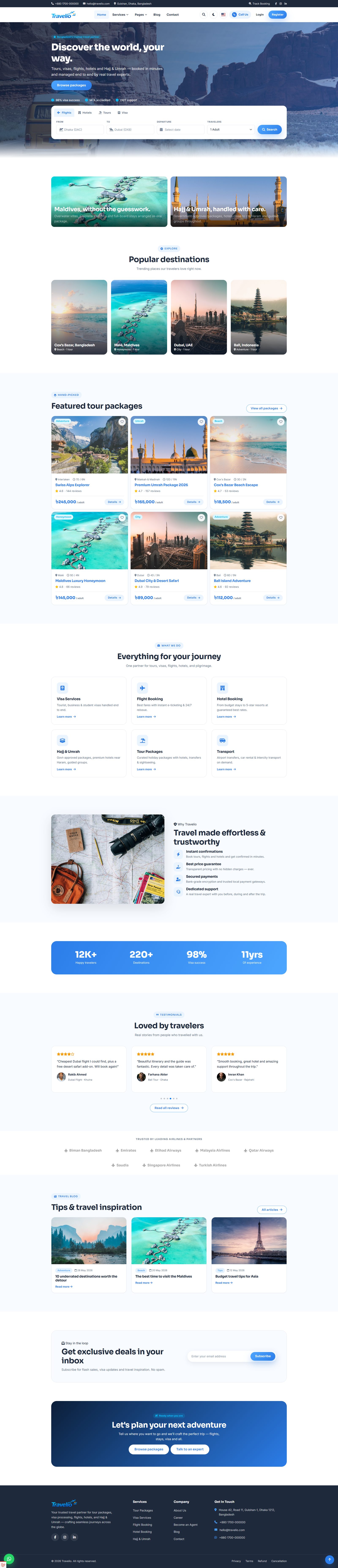
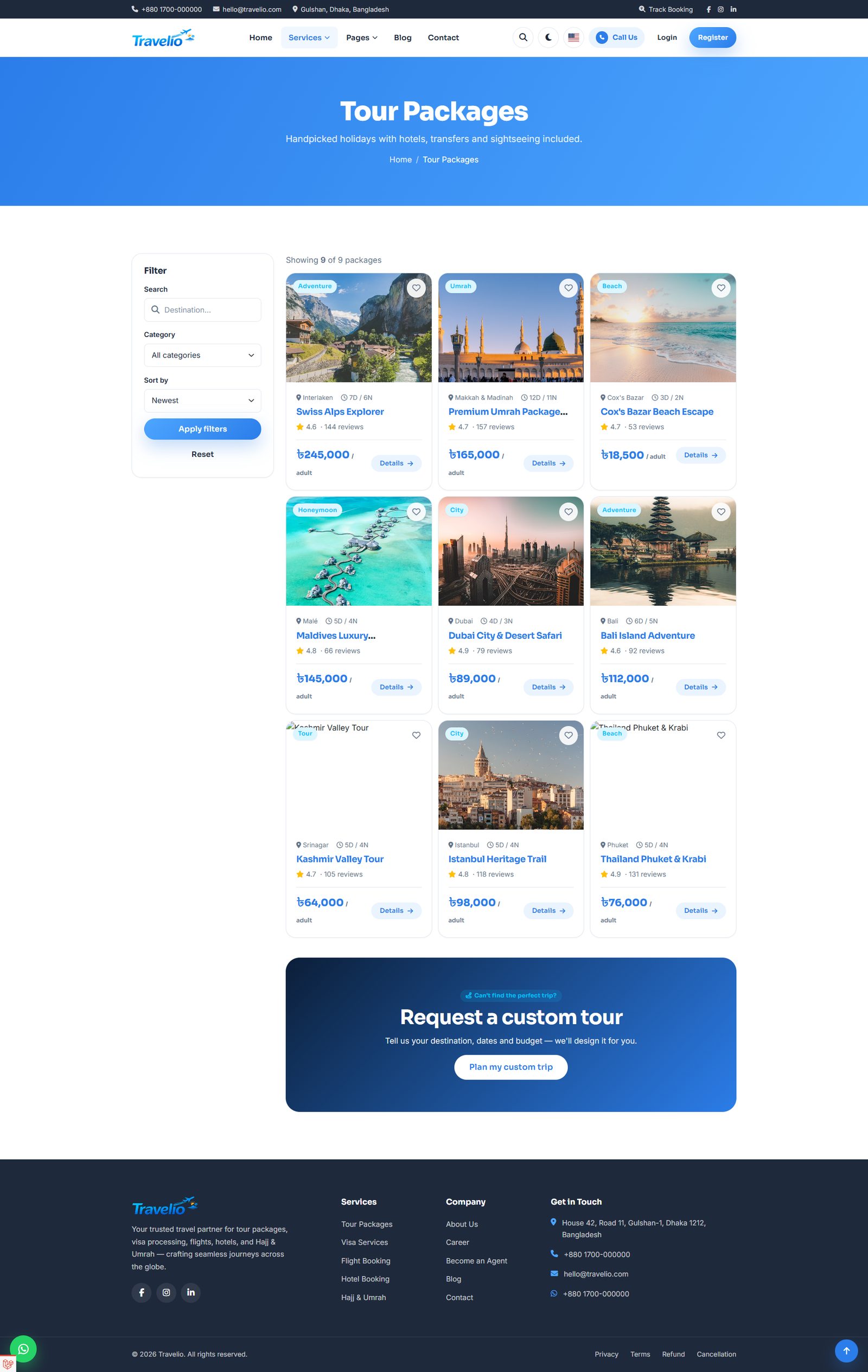
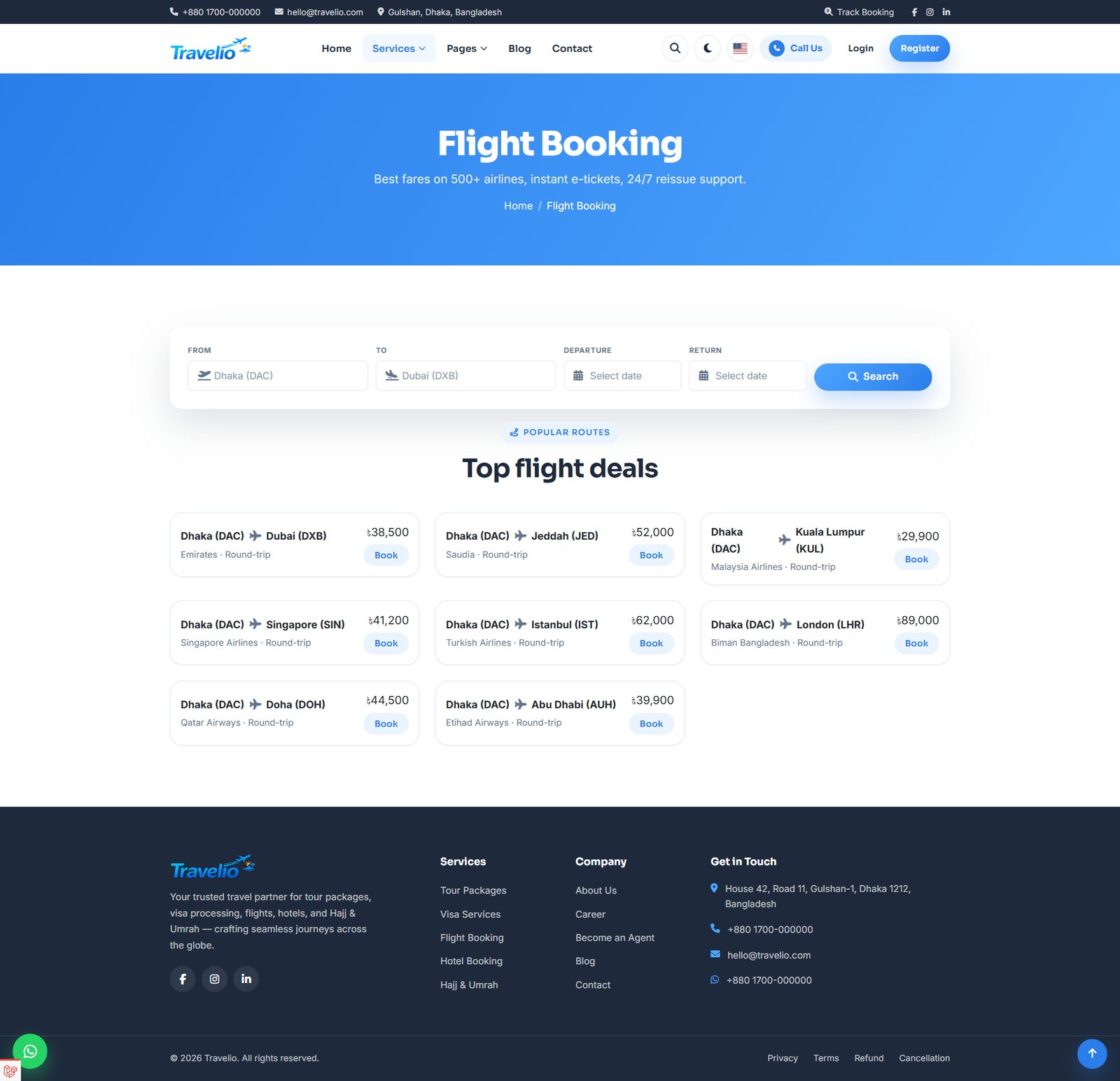
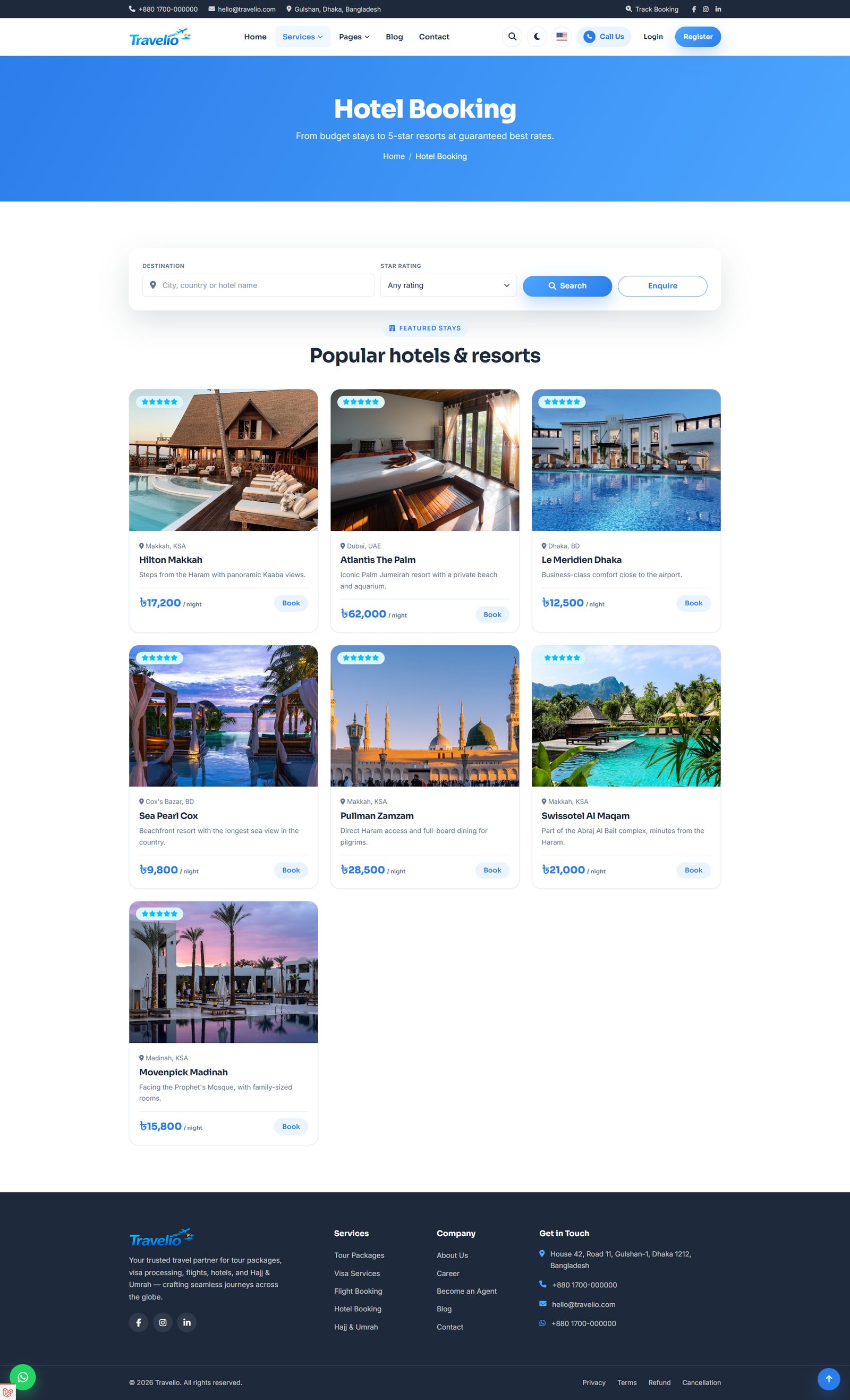
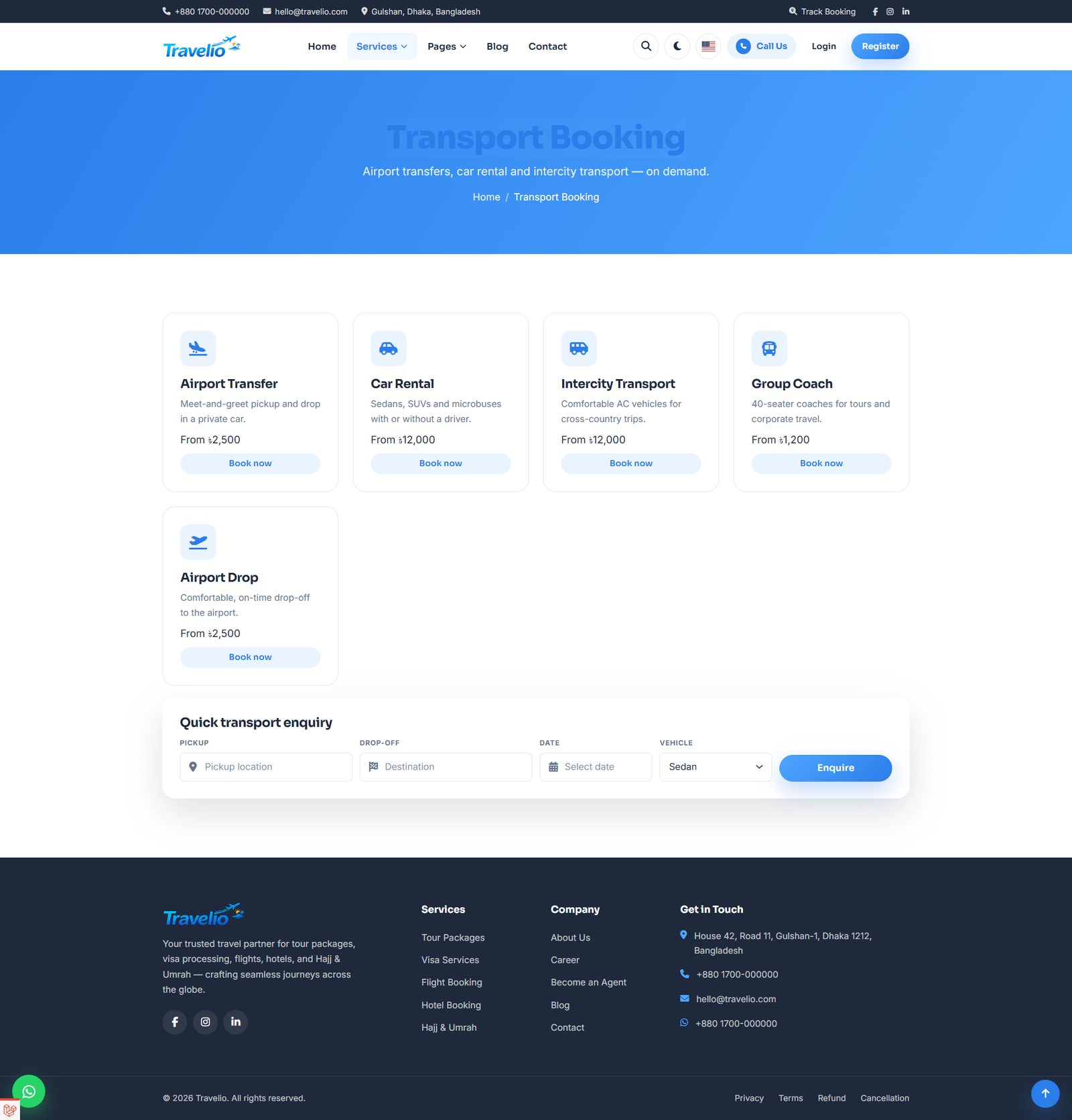
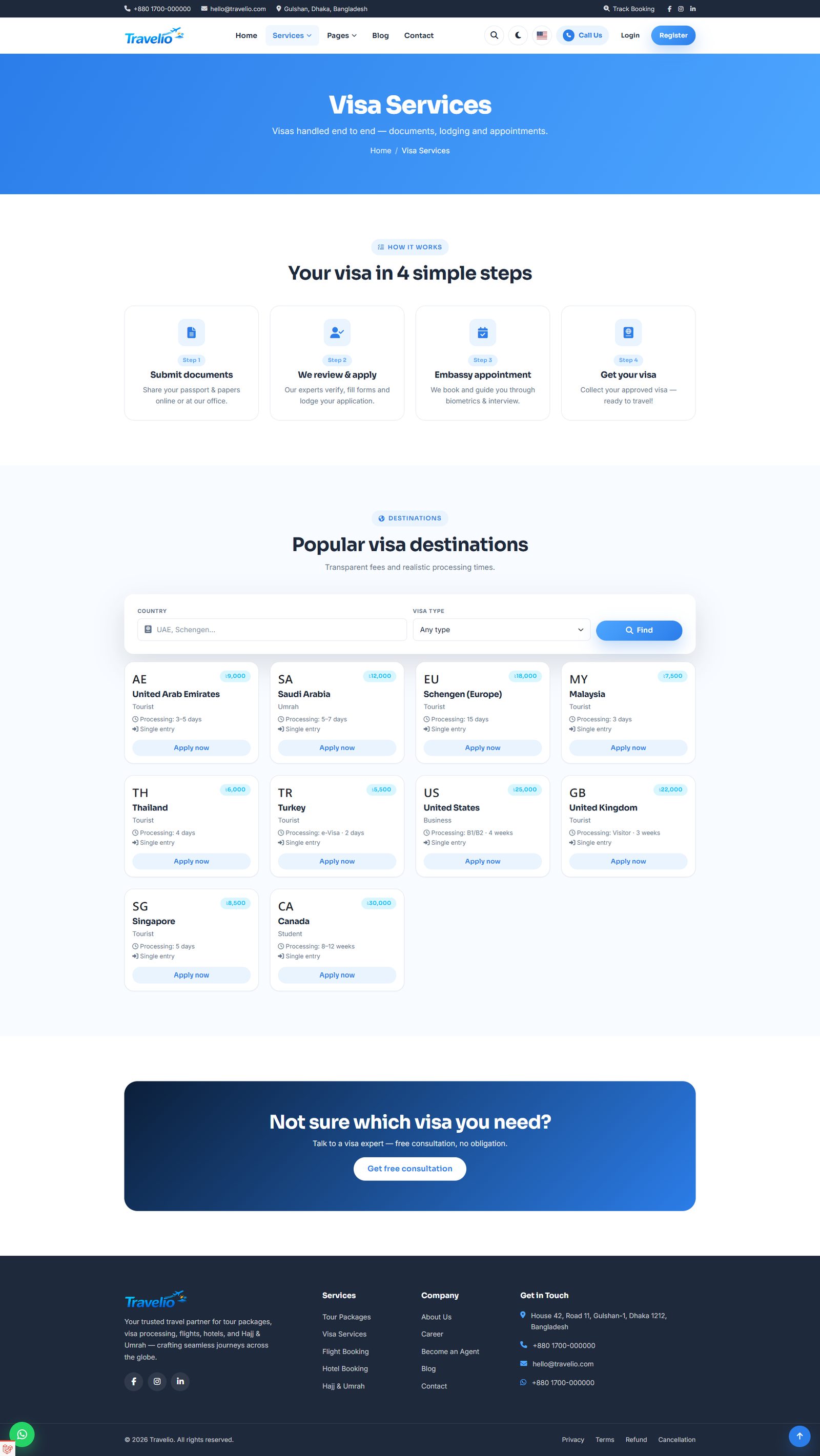
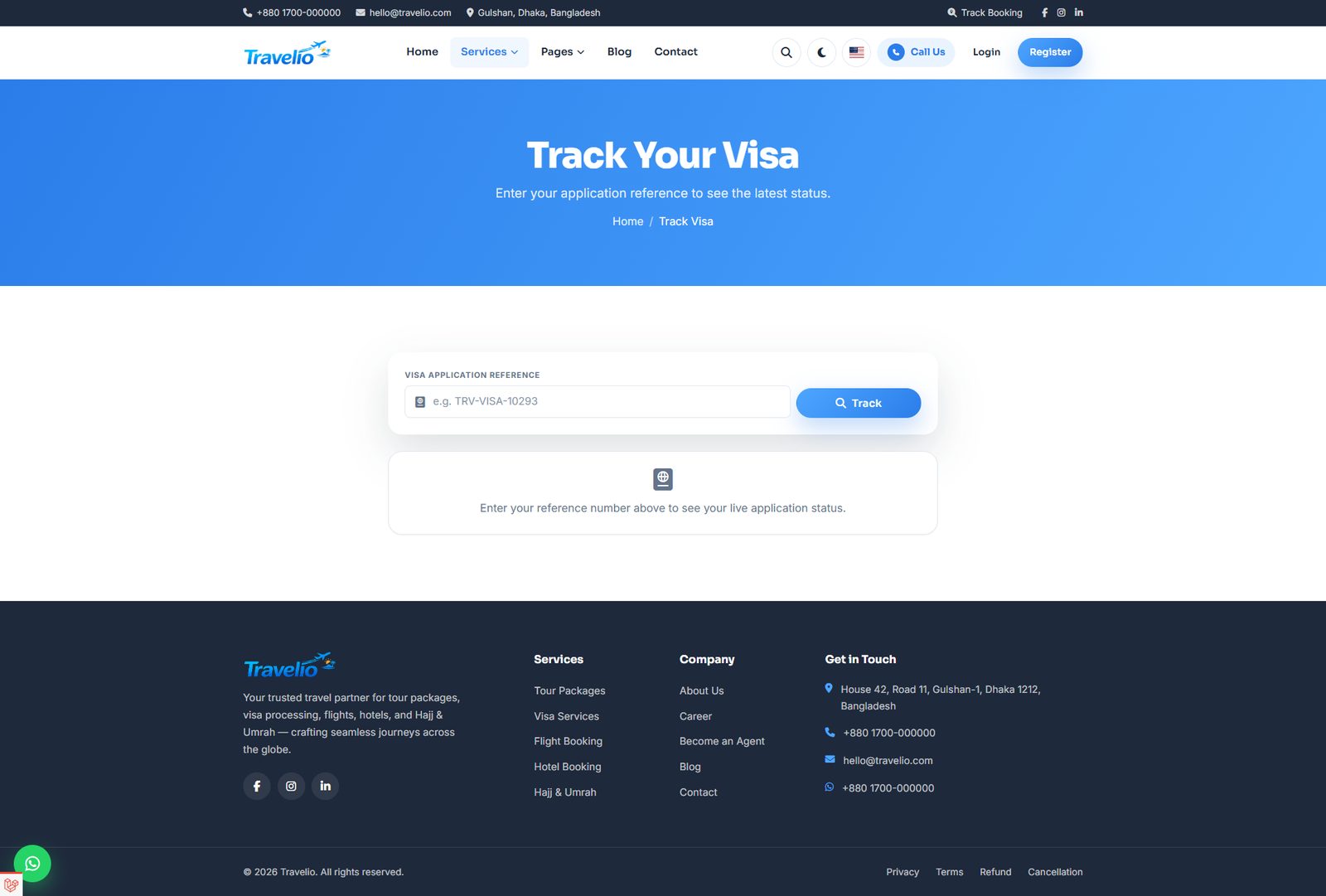
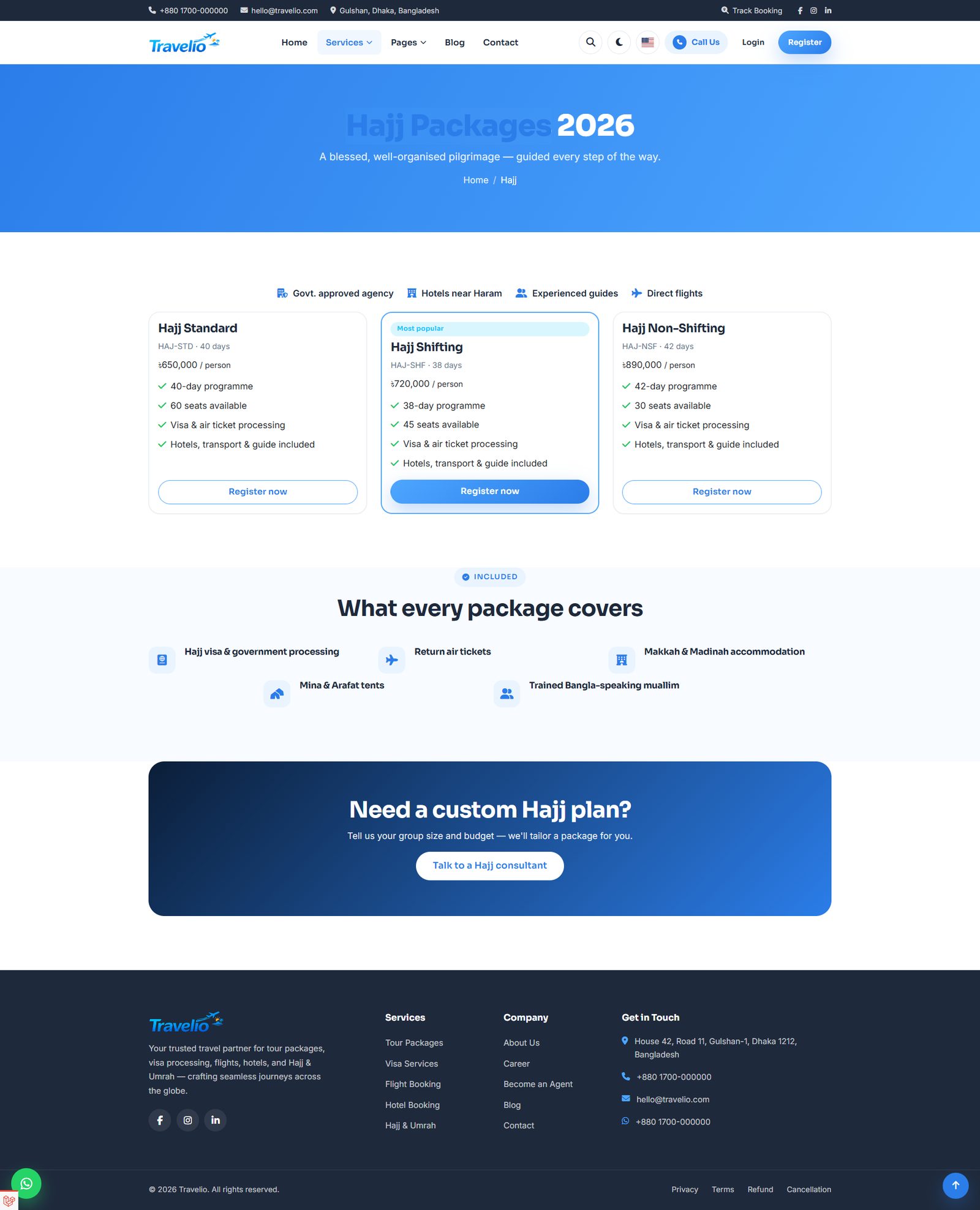
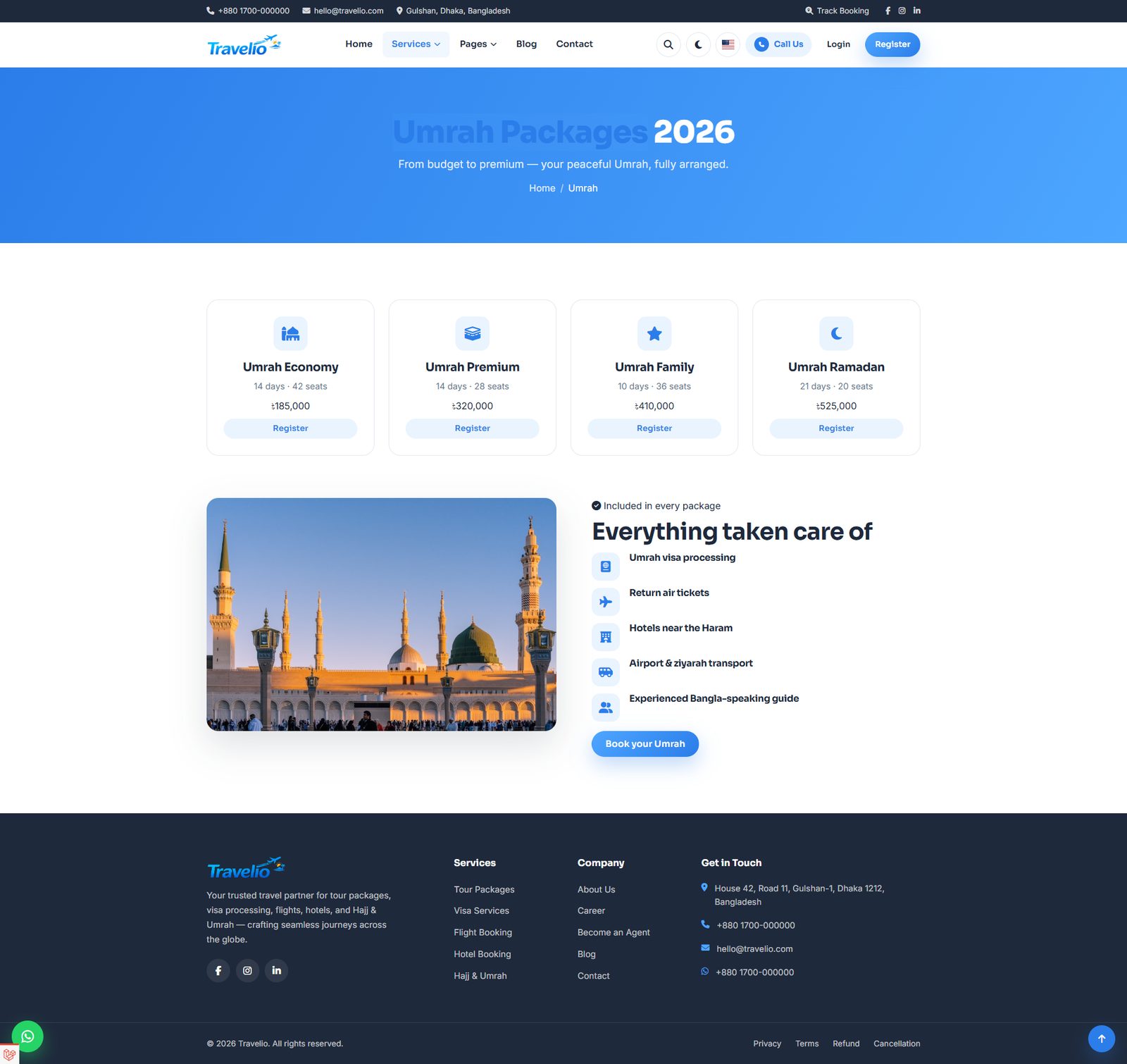
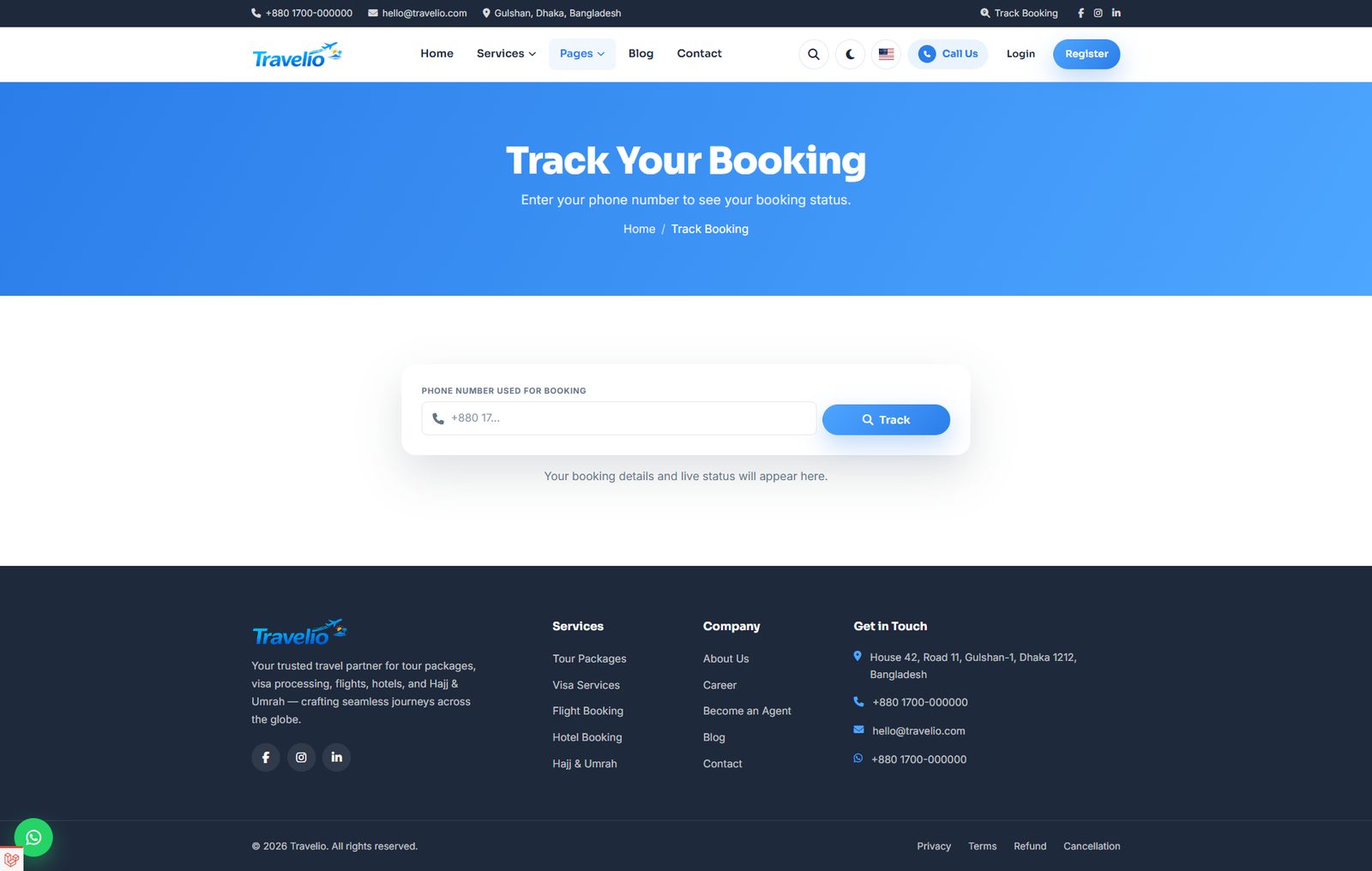
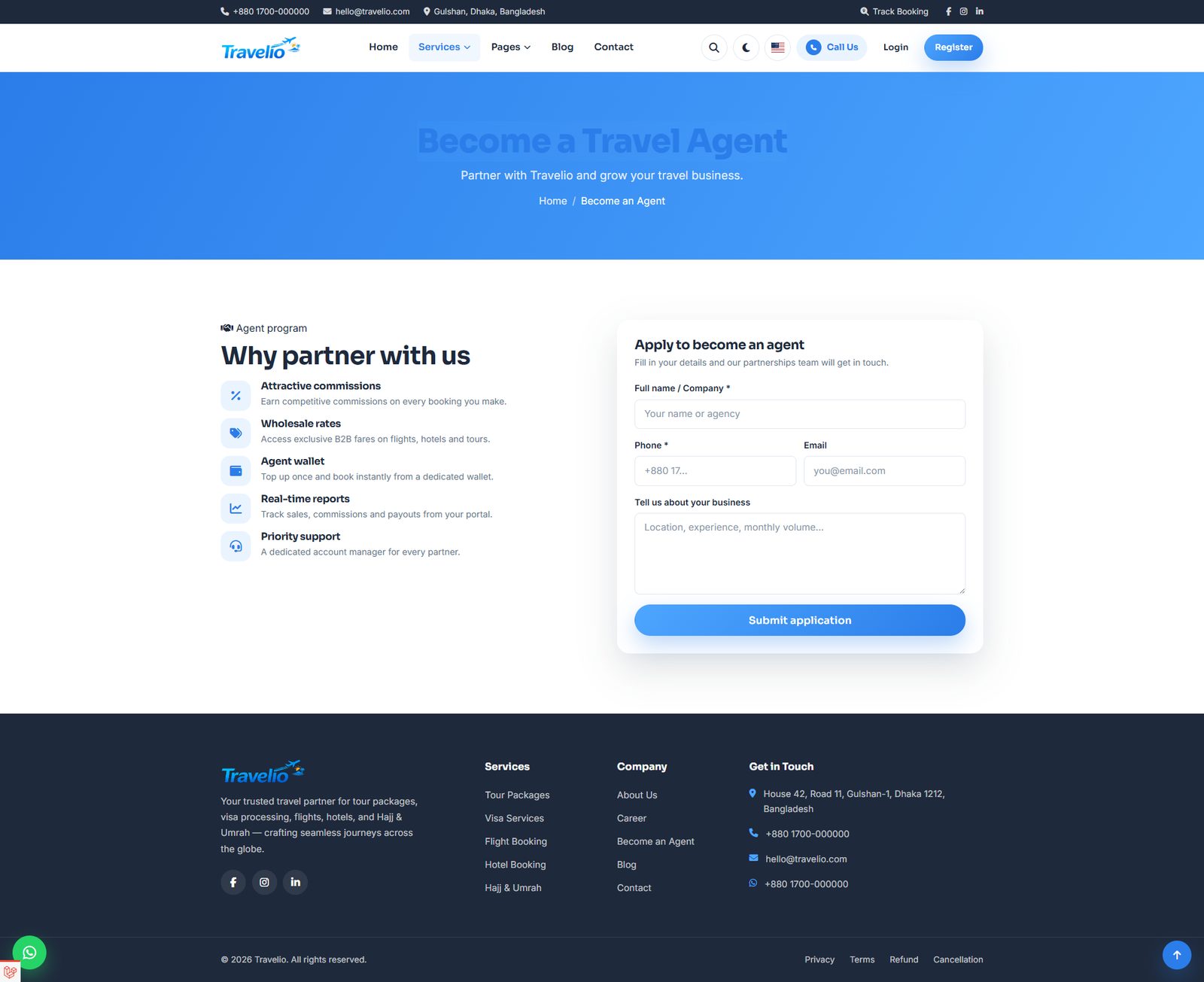
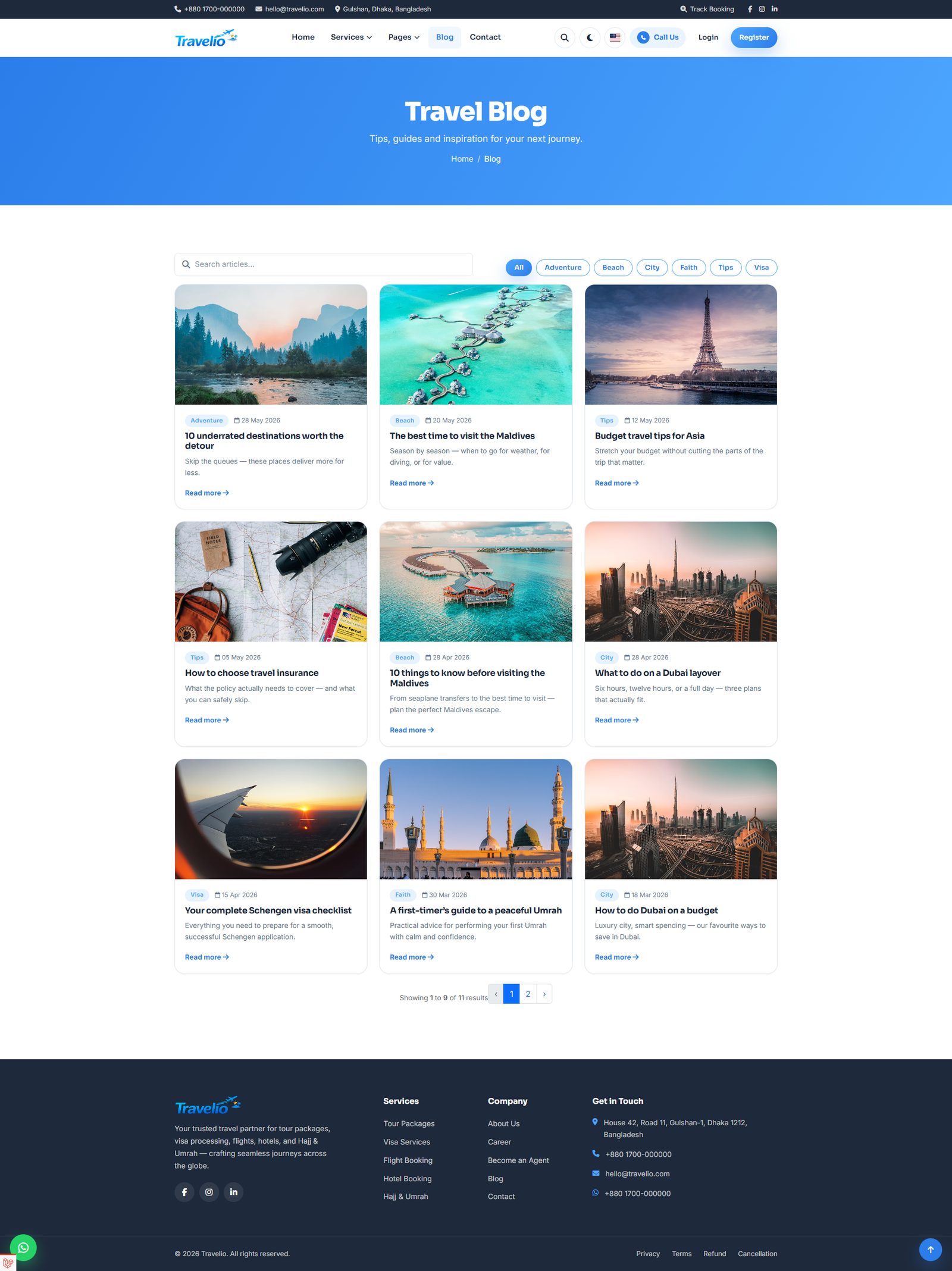
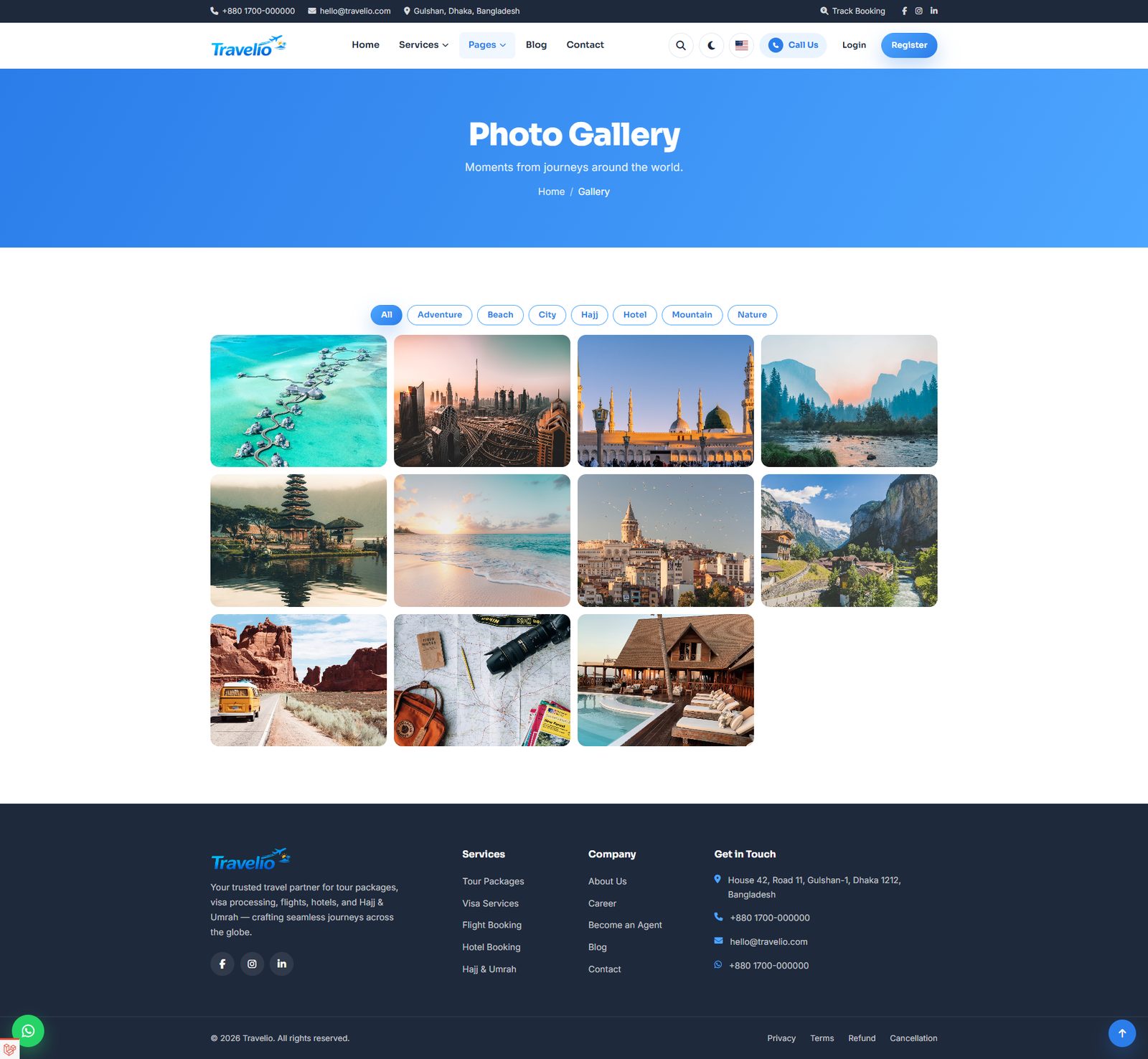
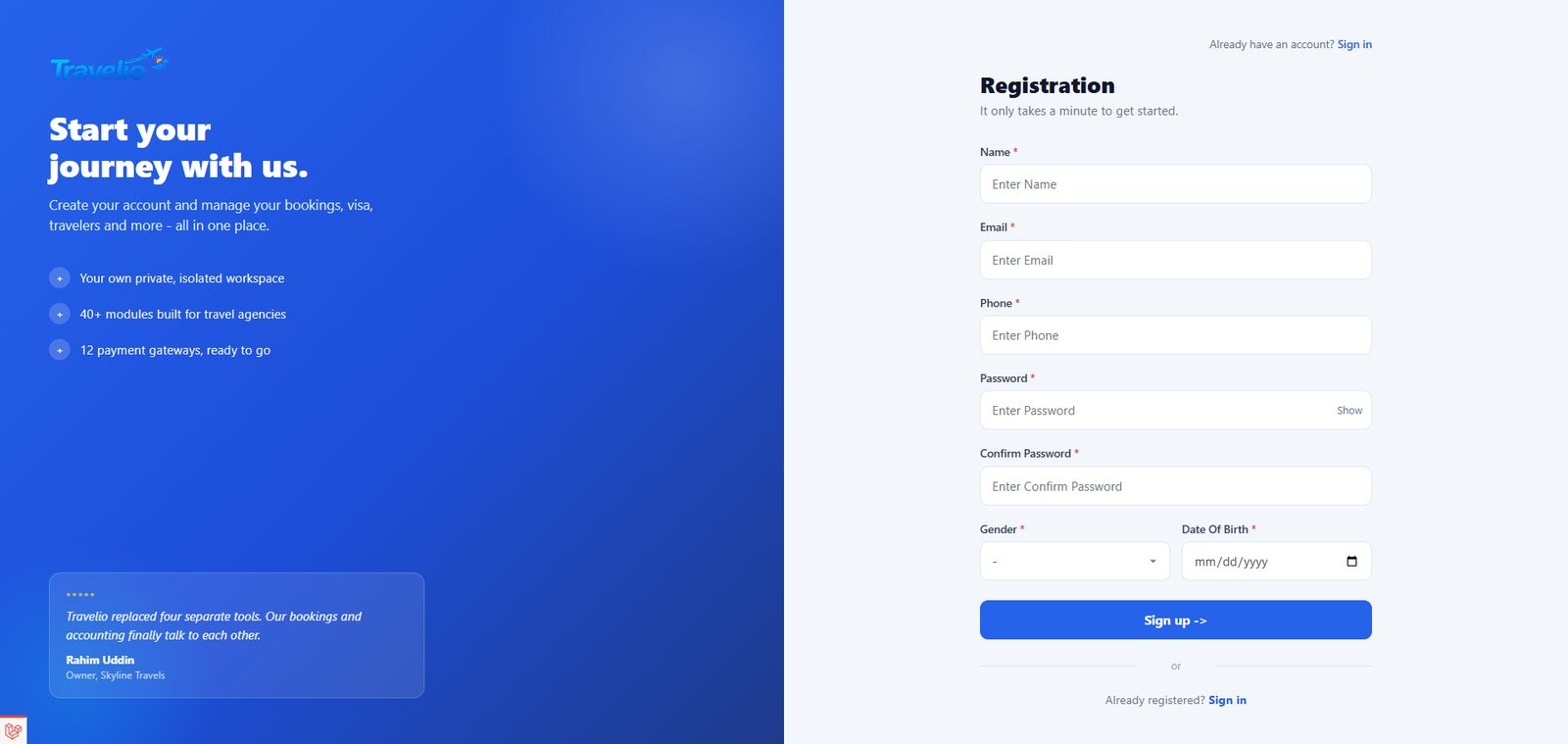
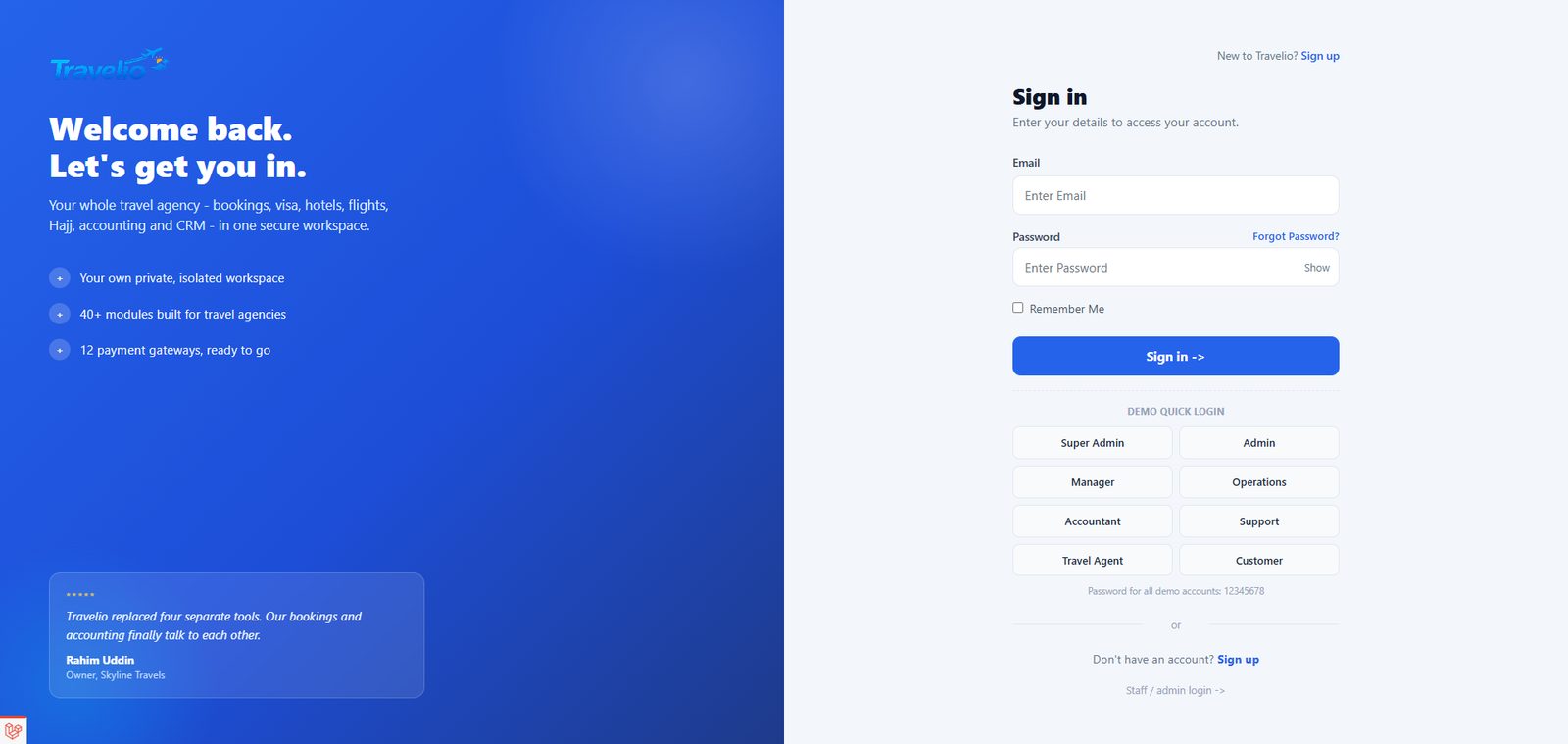
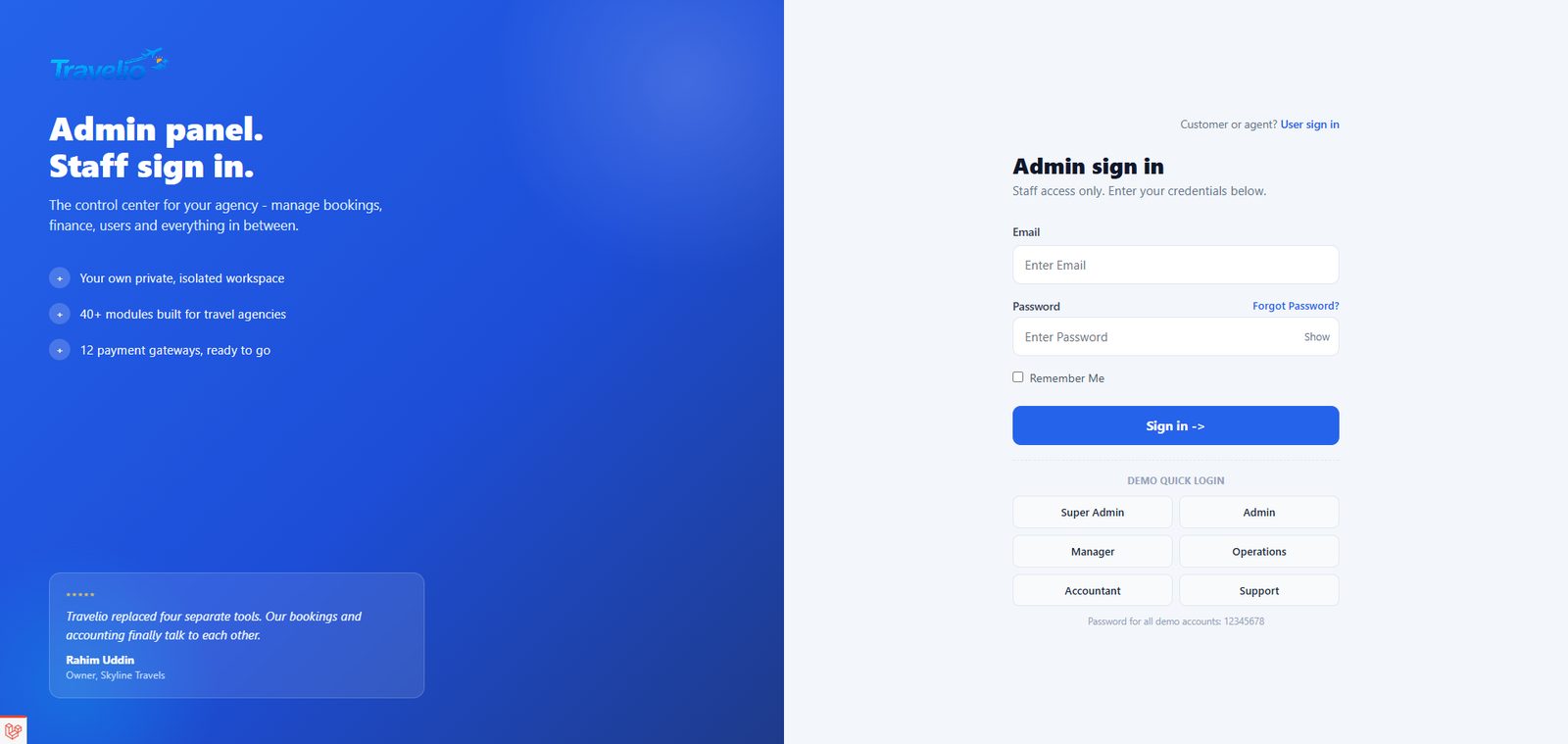
Customer Portal
Customers sign in on the website and get their own panel showing only their own records — enforced in the backend, not just hidden in the interface.
- Dashboard — bookings, upcoming trips, wallet balance, visa applications and recent bookings.
- Bookings — tour bookings with status, payment and supplier badges and a Pay button. Methods: Wallet, bKash, Nagad, JazzCash, Easypaisa, Card, Cash, Bank. Enabled gateways redirect to the provider; Bank asks for the account paid into, reference, date and a receipt, then waits for your Payment Verification; other methods are declared and marked paid by your desk.
- Tours — the bookable catalogue. The Book box prices the trip live as a promo code is typed or points are entered, so the customer sees the saving before committing.
- Hotel Bookings — book a hotel and room for dates, pay, and download the hotel voucher. Transport Bookings — request a transfer; the fare is priced by your desk, then it can be paid.
- Flight Tickets — issued tickets (read-only; flights are requested through the website form or the app). Visa Applications — status, documents and a Pay button once priced.
- Travelers and Passport Info — records they add and edit themselves. Documents — files you have shared with them.
- Invoices, Payments (receipts) and Wallet (history only — no self top-up). PDFs download from each.
- Wishlist — packages saved with the heart icon.
- Points & Referrals — balance, its money value, redemption rules, referral link
/register?ref=CODEand history. Points earned on paid bookings are spent as a discount. - My Reviews — finished, paid, unreviewed trips are prompted at the top (rating 1–5, title, comment); below, every review with its moderation status and your reply.
- AI Trip Planner — destination, dates, days, budget and interests produce a day-by-day itinerary, saved to their history. Needs the OpenAI key in AI Settings.
- Support Tickets — raise a ticket (subject, priority, department). Notifications, Preferences (language, currency preference, email/SMS alerts) and Profile.
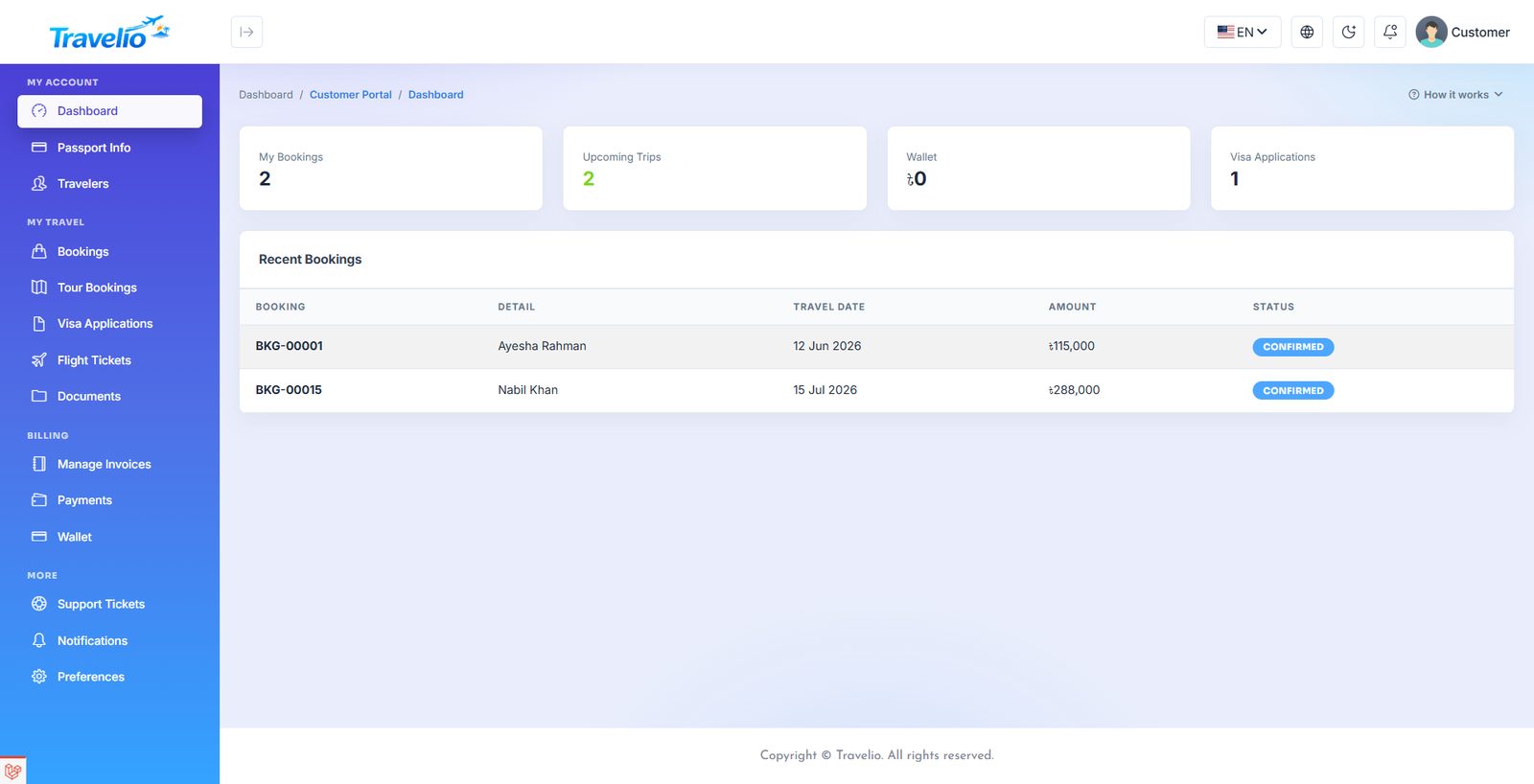
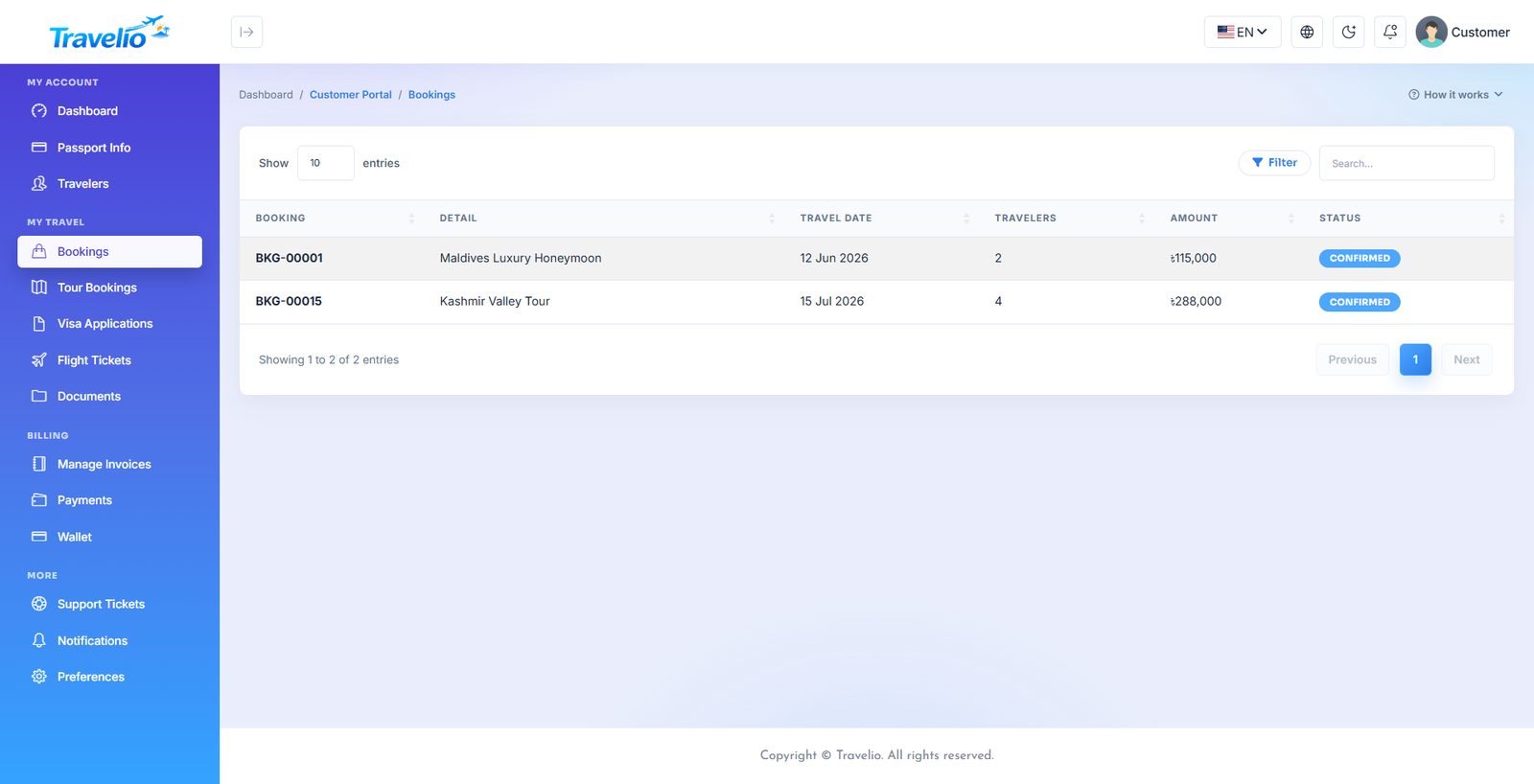
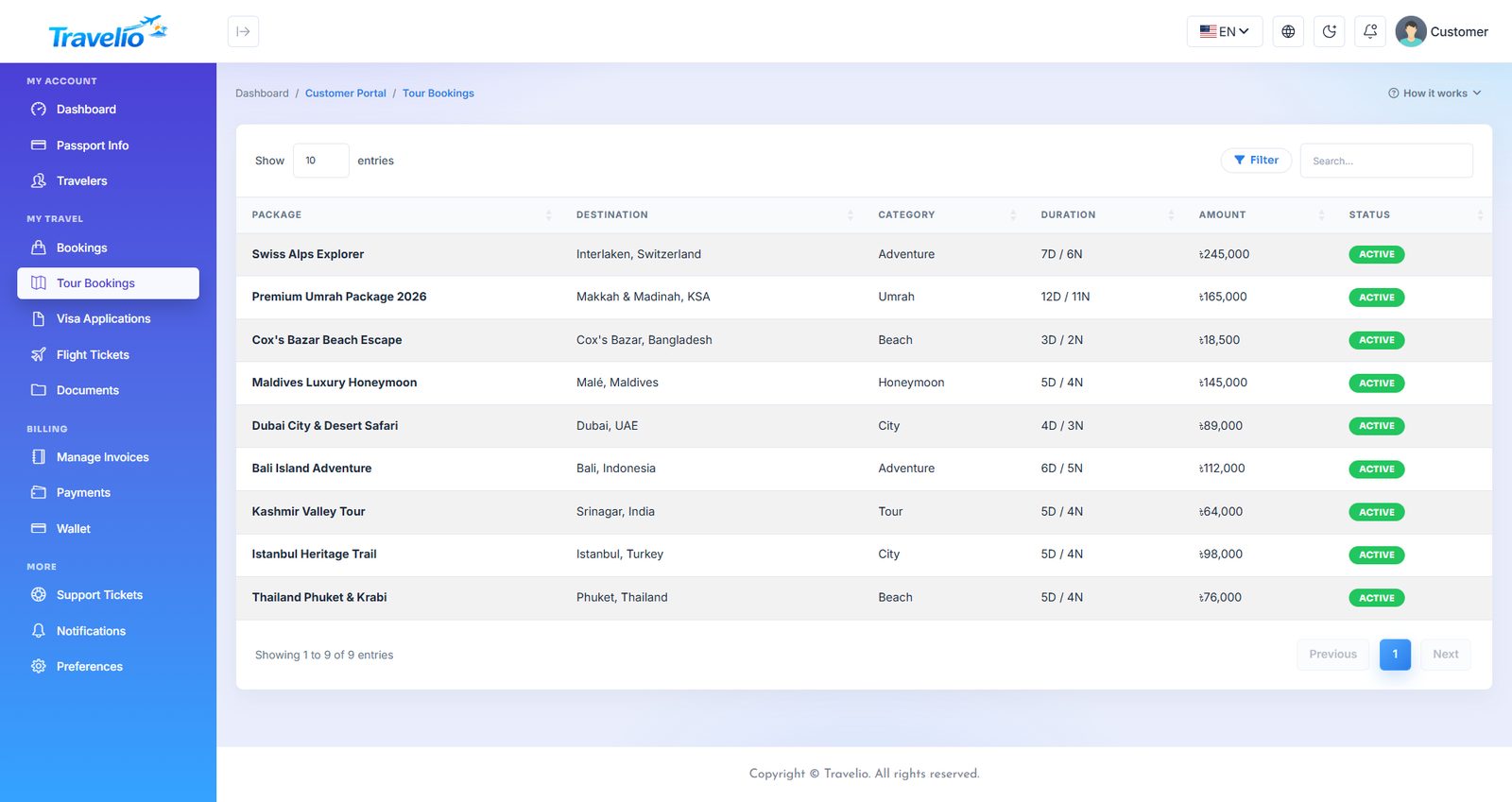
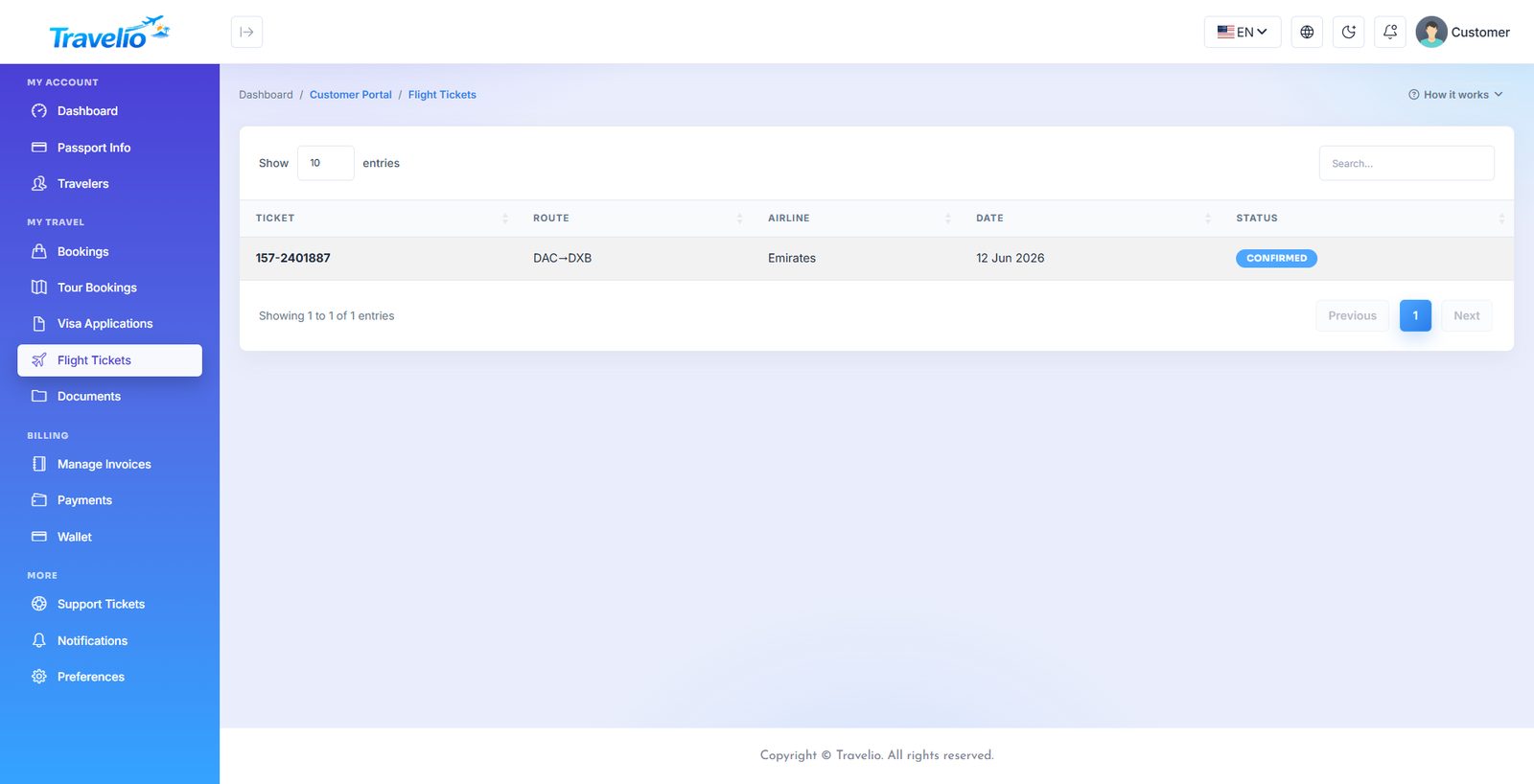
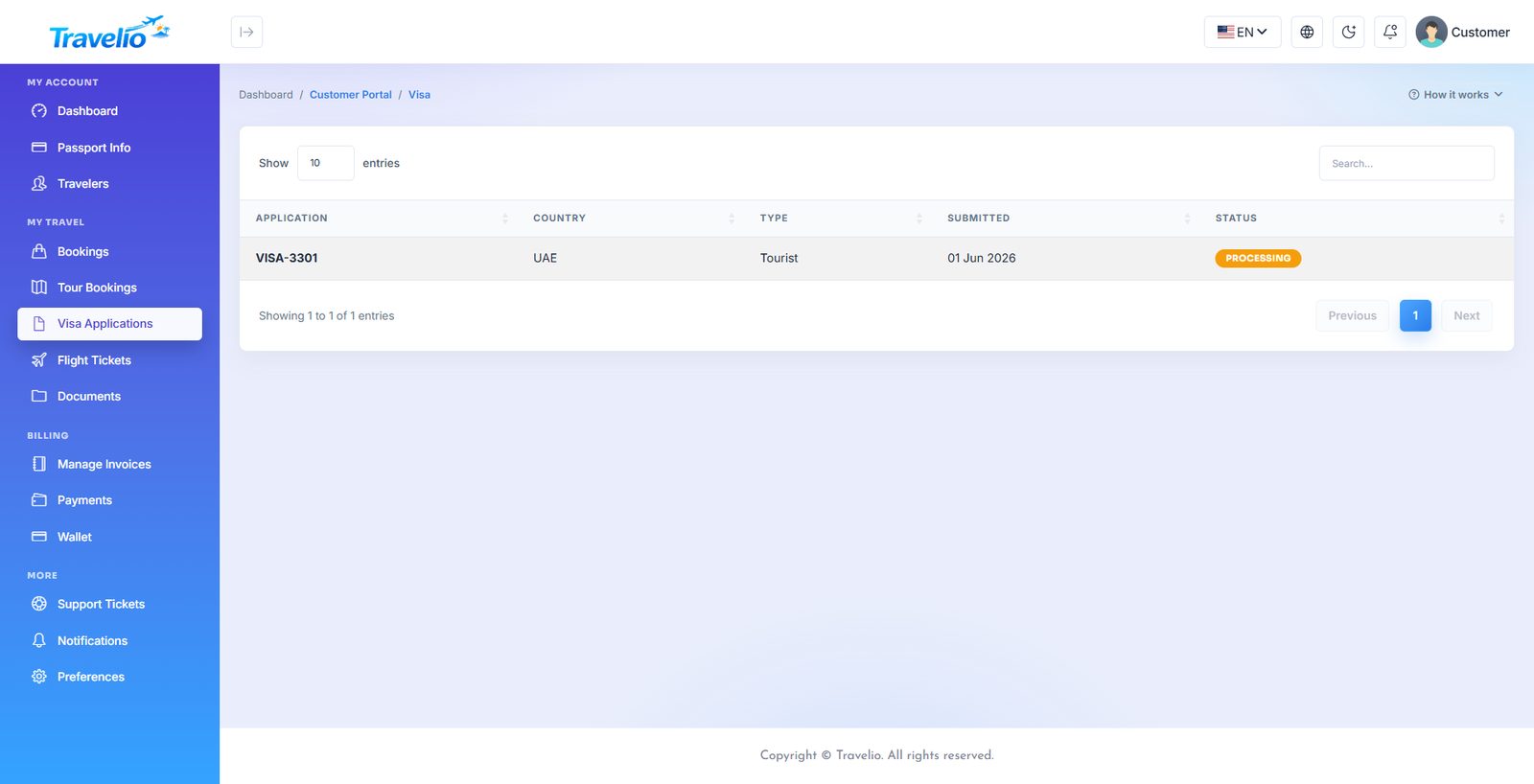
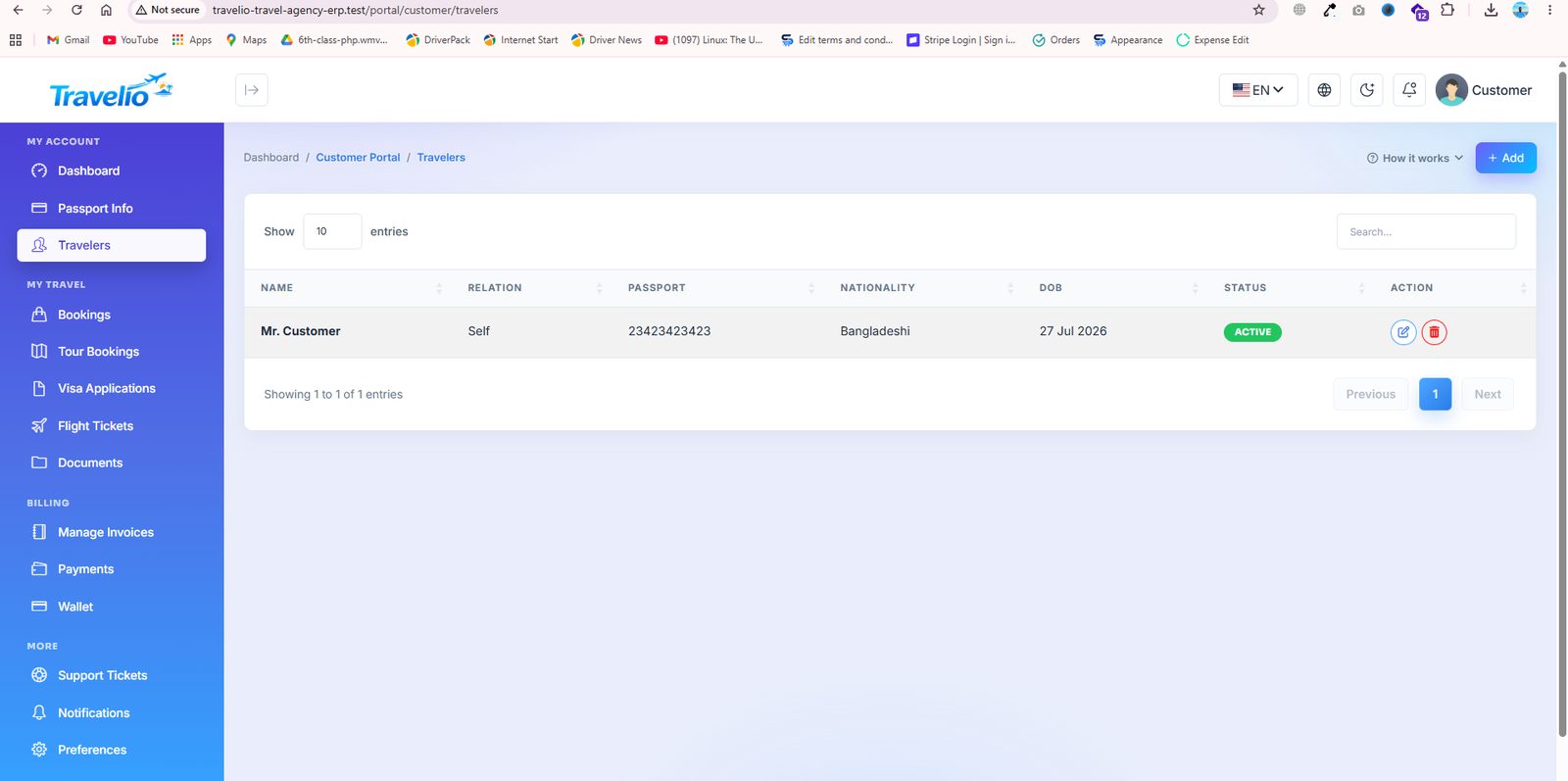
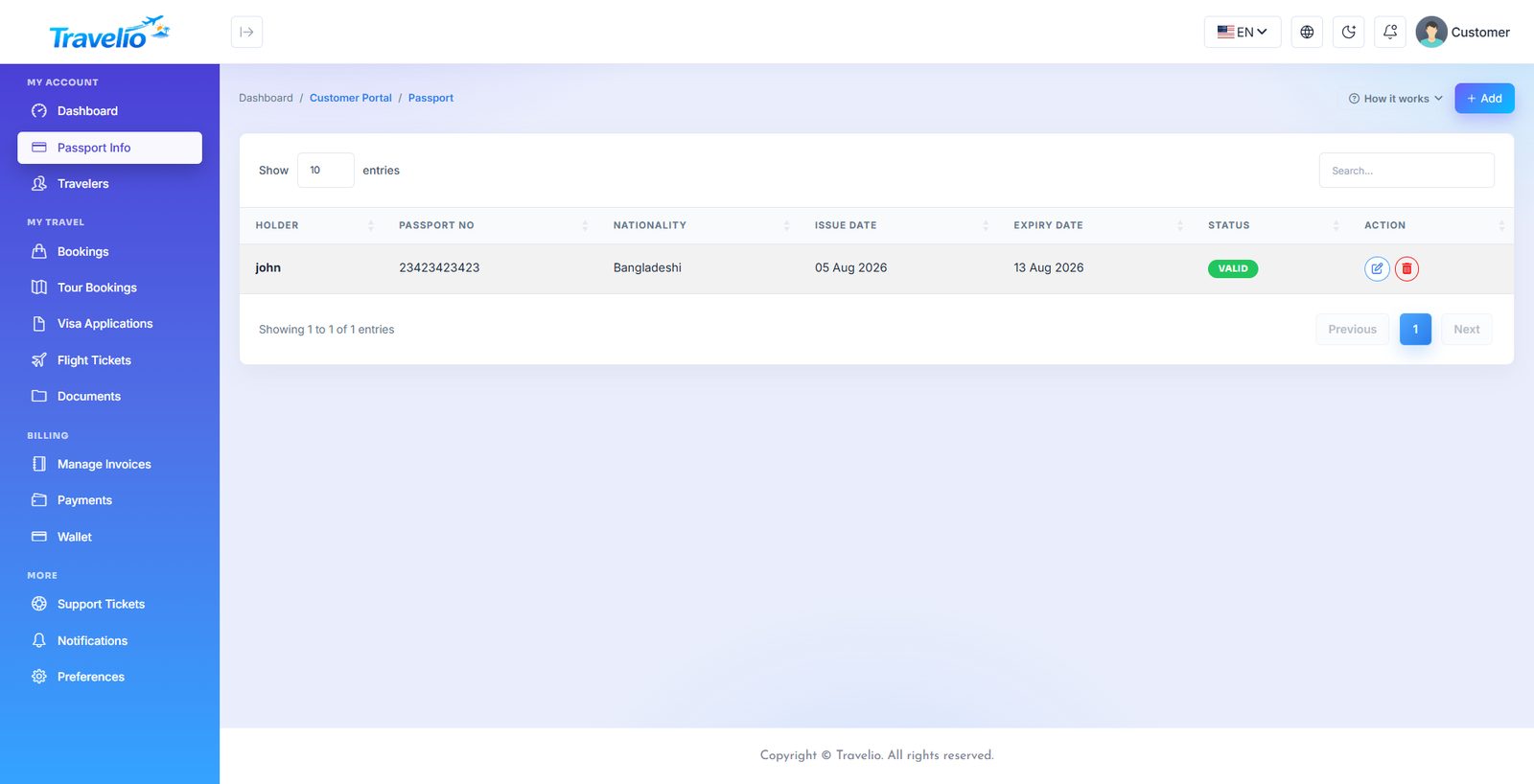
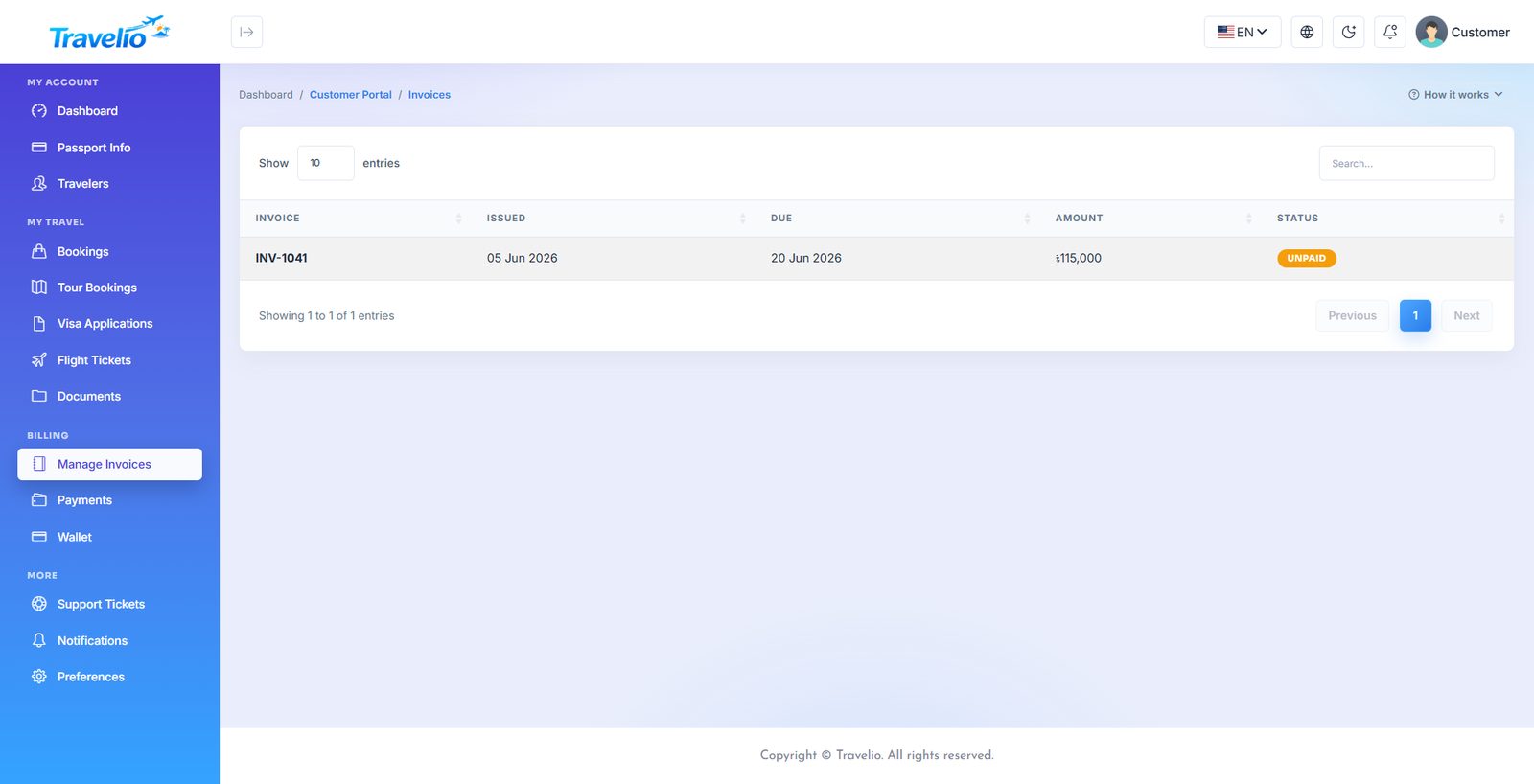
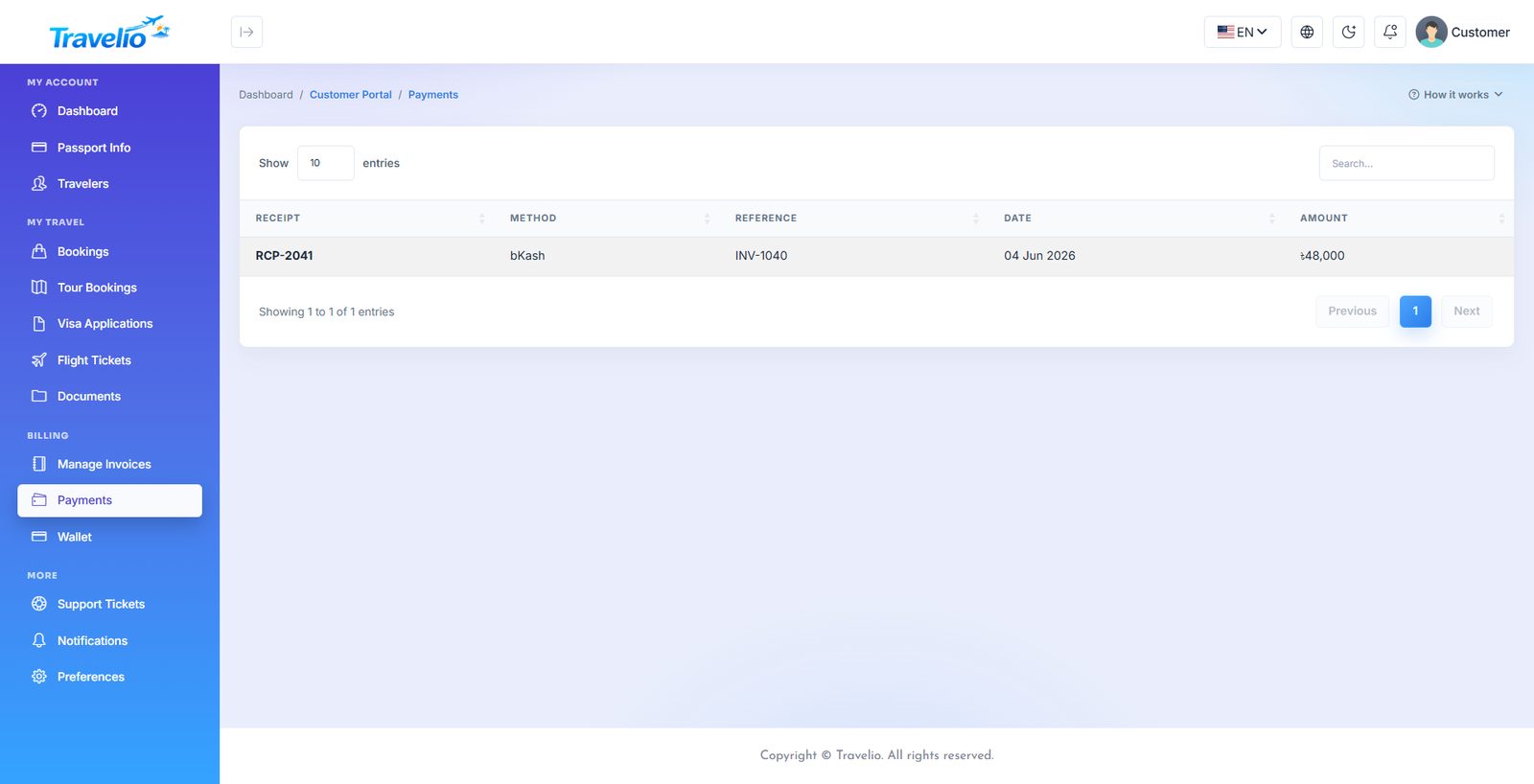
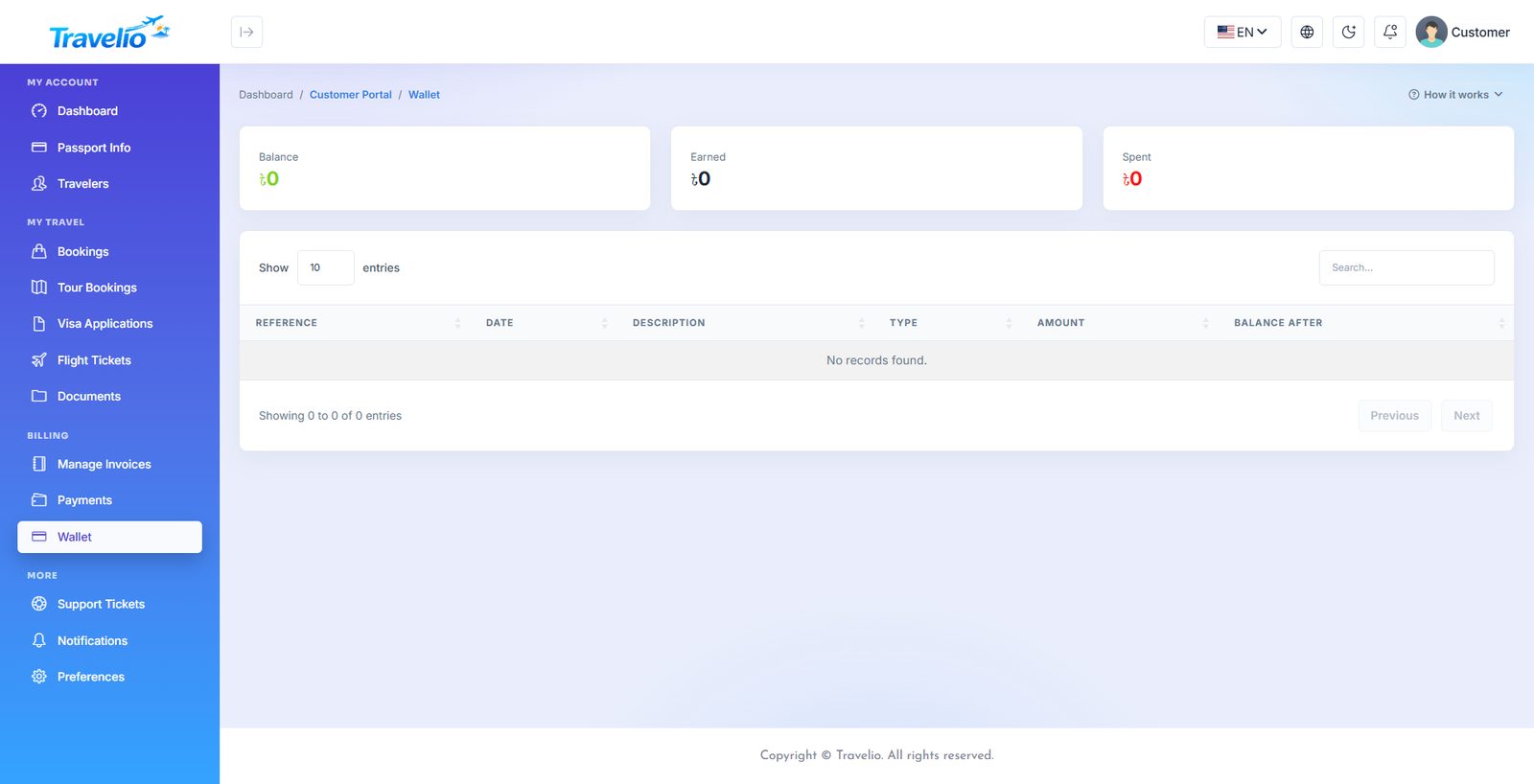
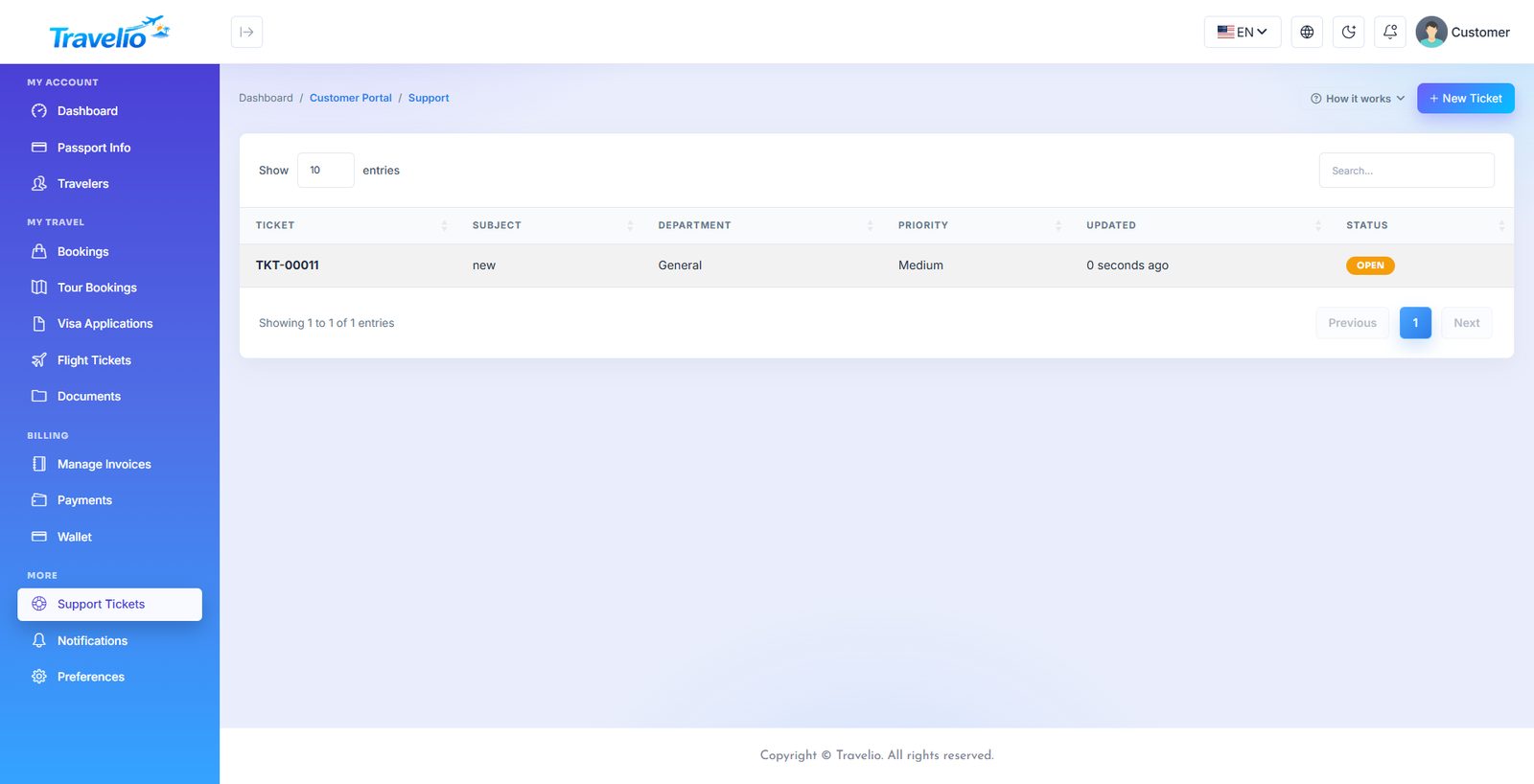
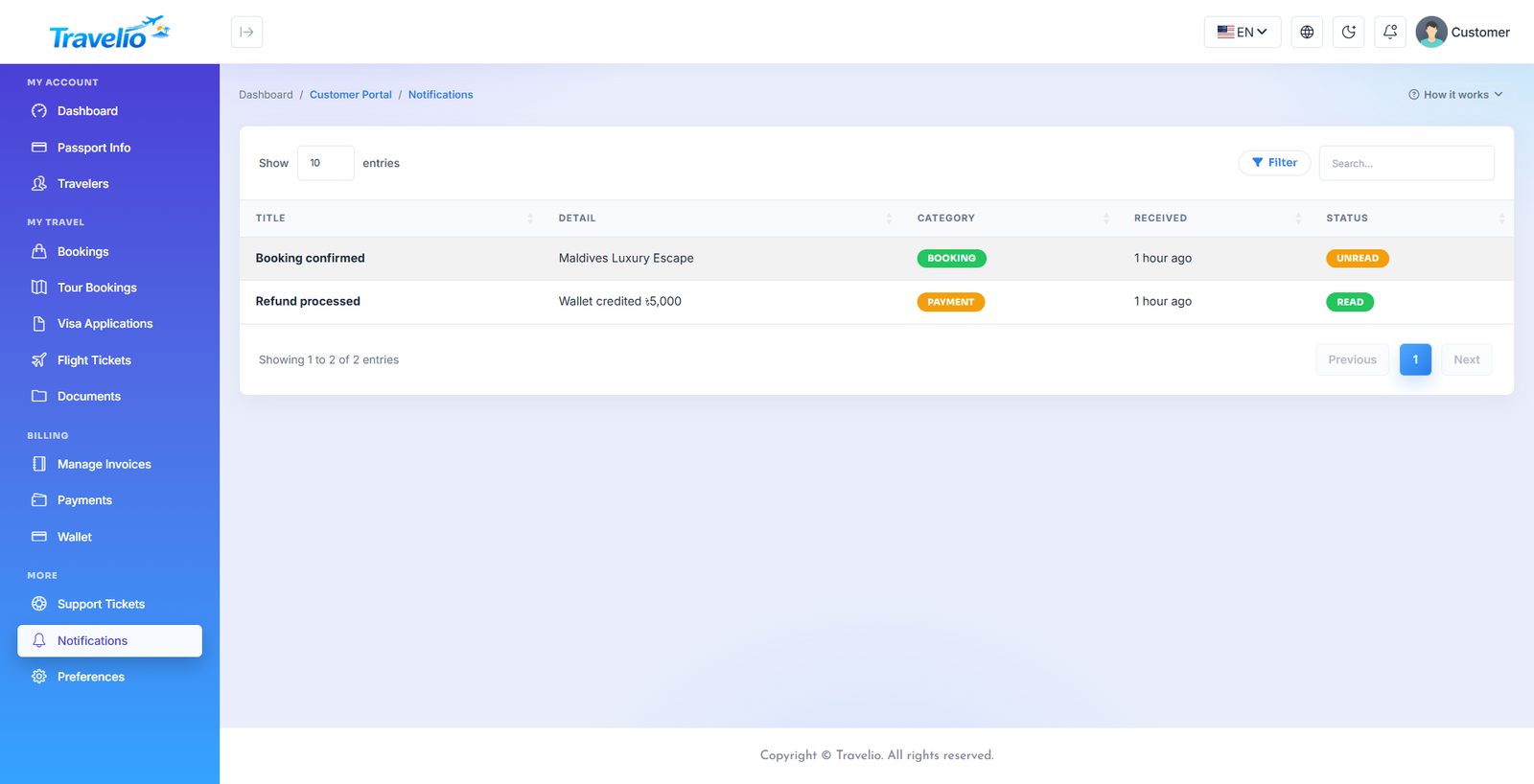
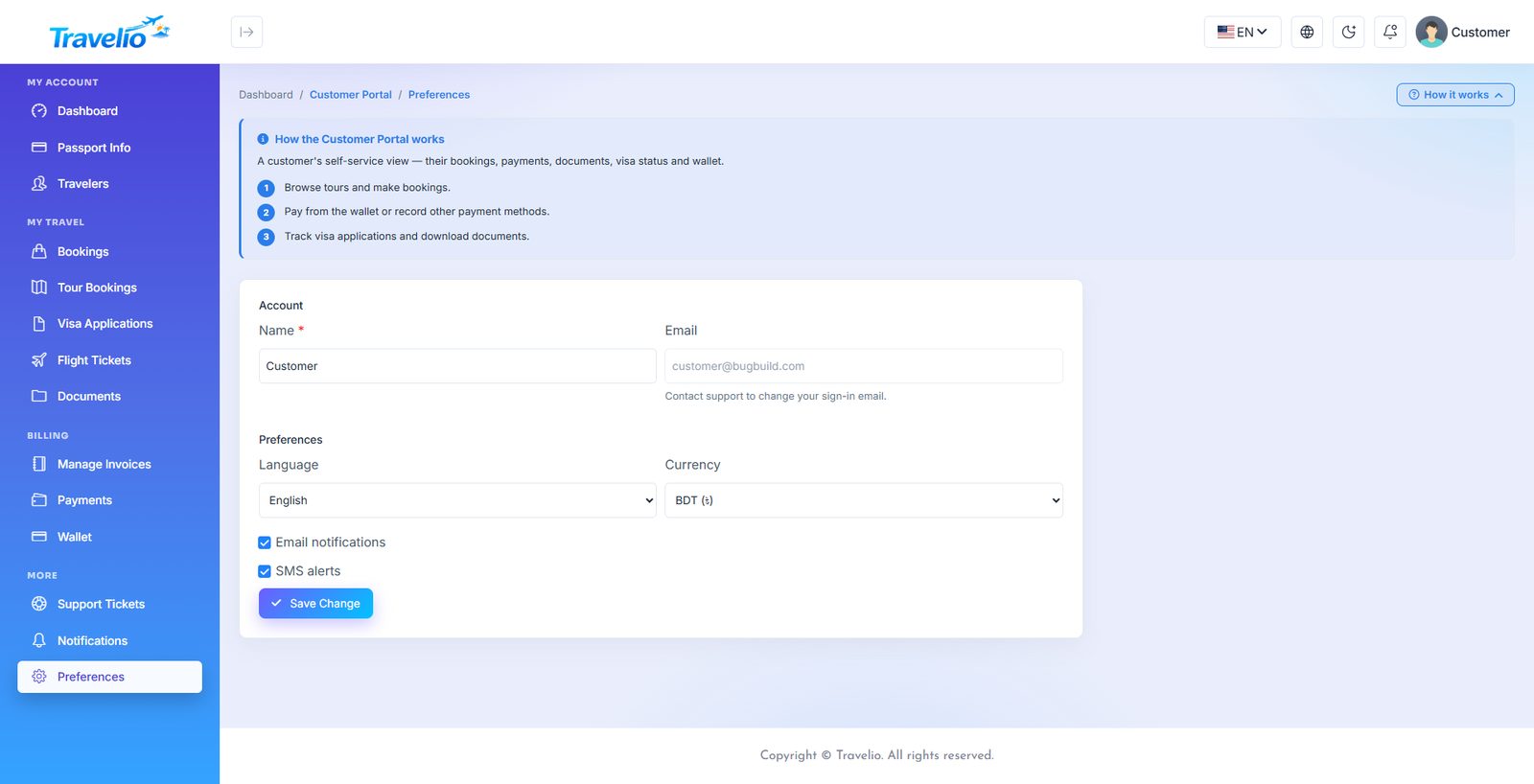
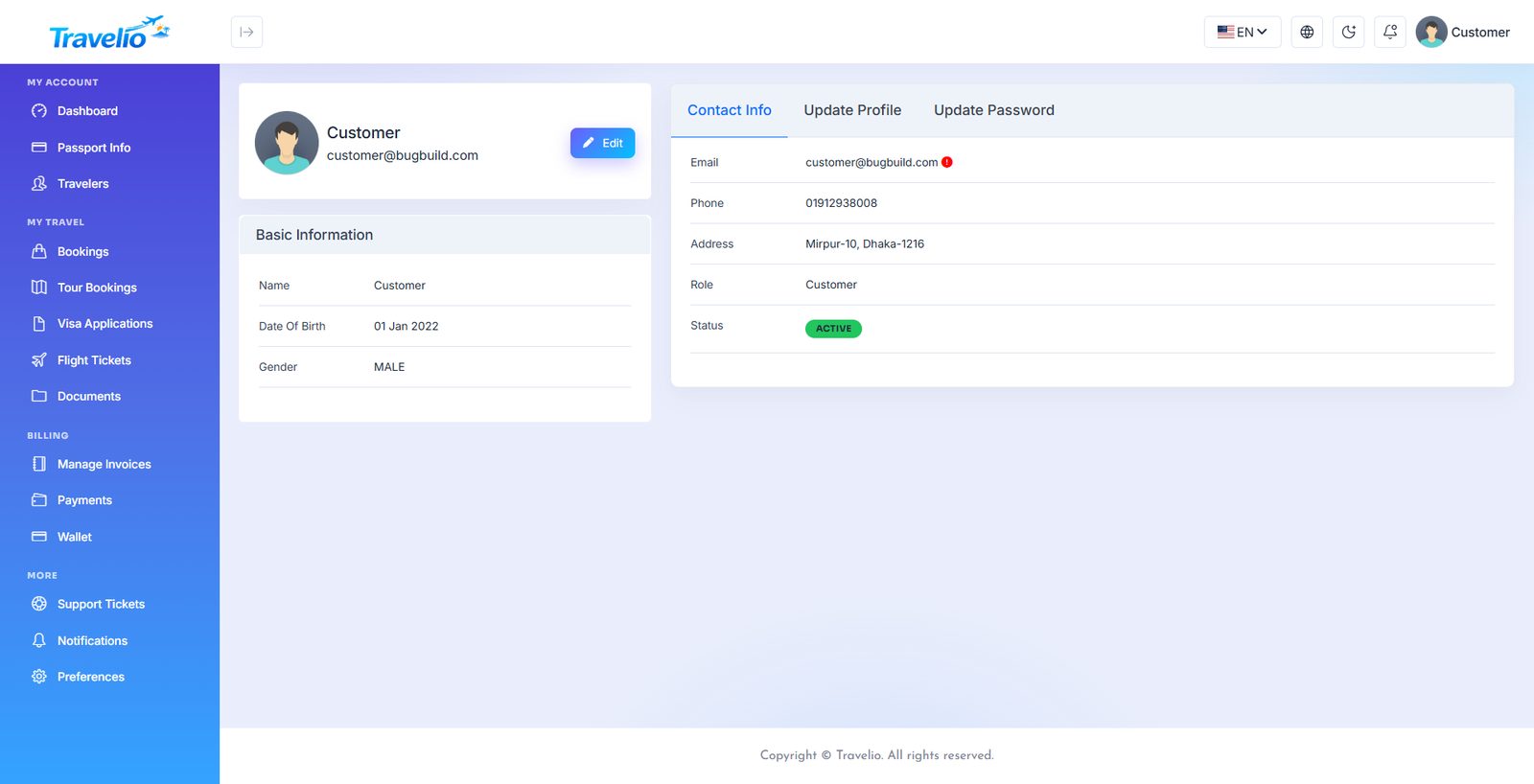
Agent Portal
Travel agents get a panel scoped to their own production — the bookings they made, the customers they brought and the commission they earned.
- Dashboard — sales, commission and wallet balance at a glance.
- New Booking — agents can raise Tour Package, Hotel, Transport and Flight bookings for a client (each only while its module is on). Tour prices come from the catalogue, never from the agent; transport and flight open as pending for your desk to quote.
- My Bookings — every booking they created. While a booking is still pending the agent may amend the travel date and travellers (the price is re-quoted) or cancel it; once confirmed or paid only your office can cancel.
- Customers — the clients they have booked for.
- Commissions — earned, pending and paid. Commission is created when a booking becomes paid and credited to the wallet when you approve it.
- Wallet — balance, available amount and a withdrawal request (amount, method Bank / Cash / bKash / Nagad, account details). It cannot exceed the available balance and is processed by you under Agent Finance → Payouts.
- Invoices and Transactions — billing and wallet ledger. Reports — totals and bookings by status. Support — tickets they or their clients raised. Profile — company and contact details.
The same data is available on the move in the Travelio App (agent role). Agents cannot set prices or cancel paid bookings — those stay with your office.
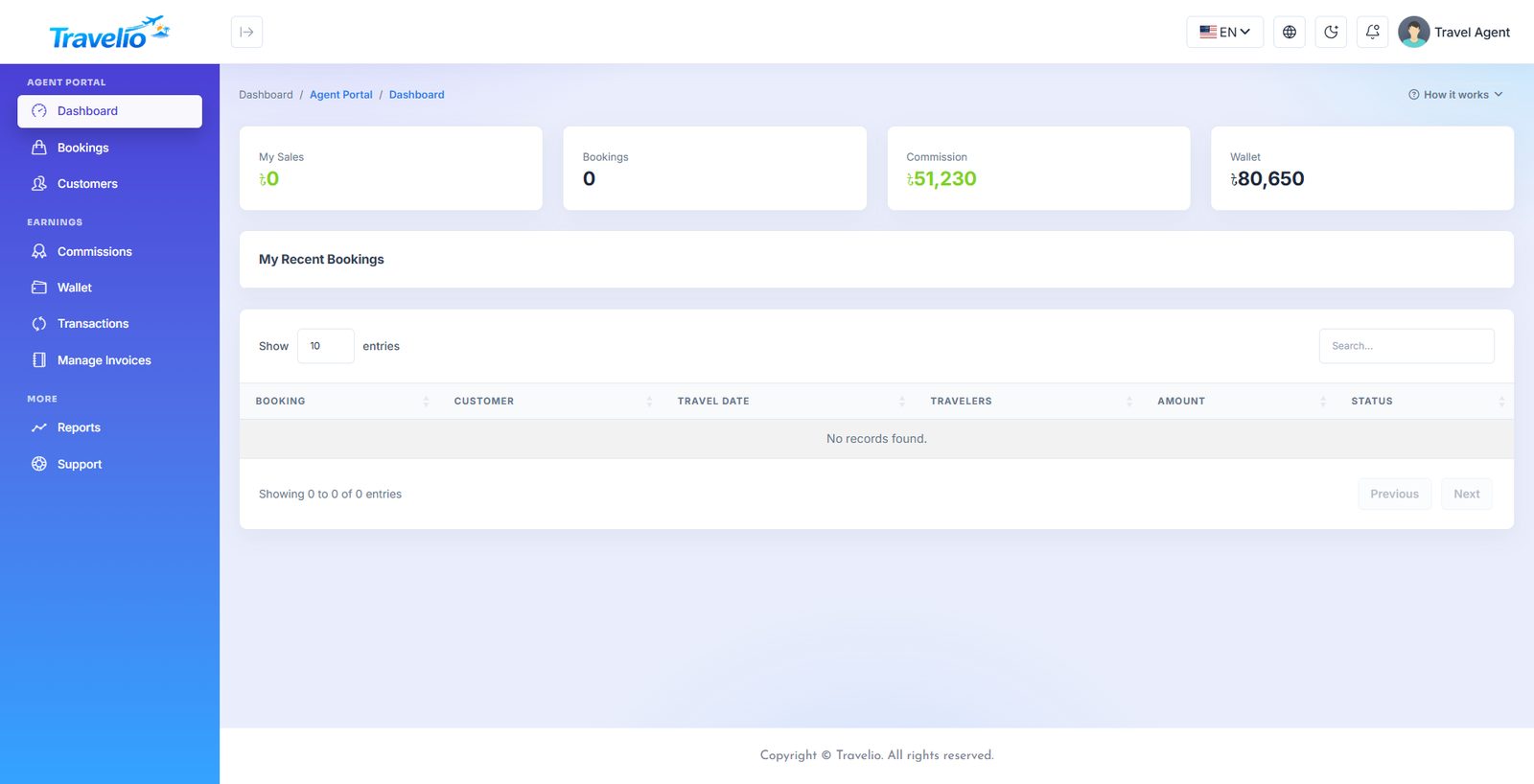
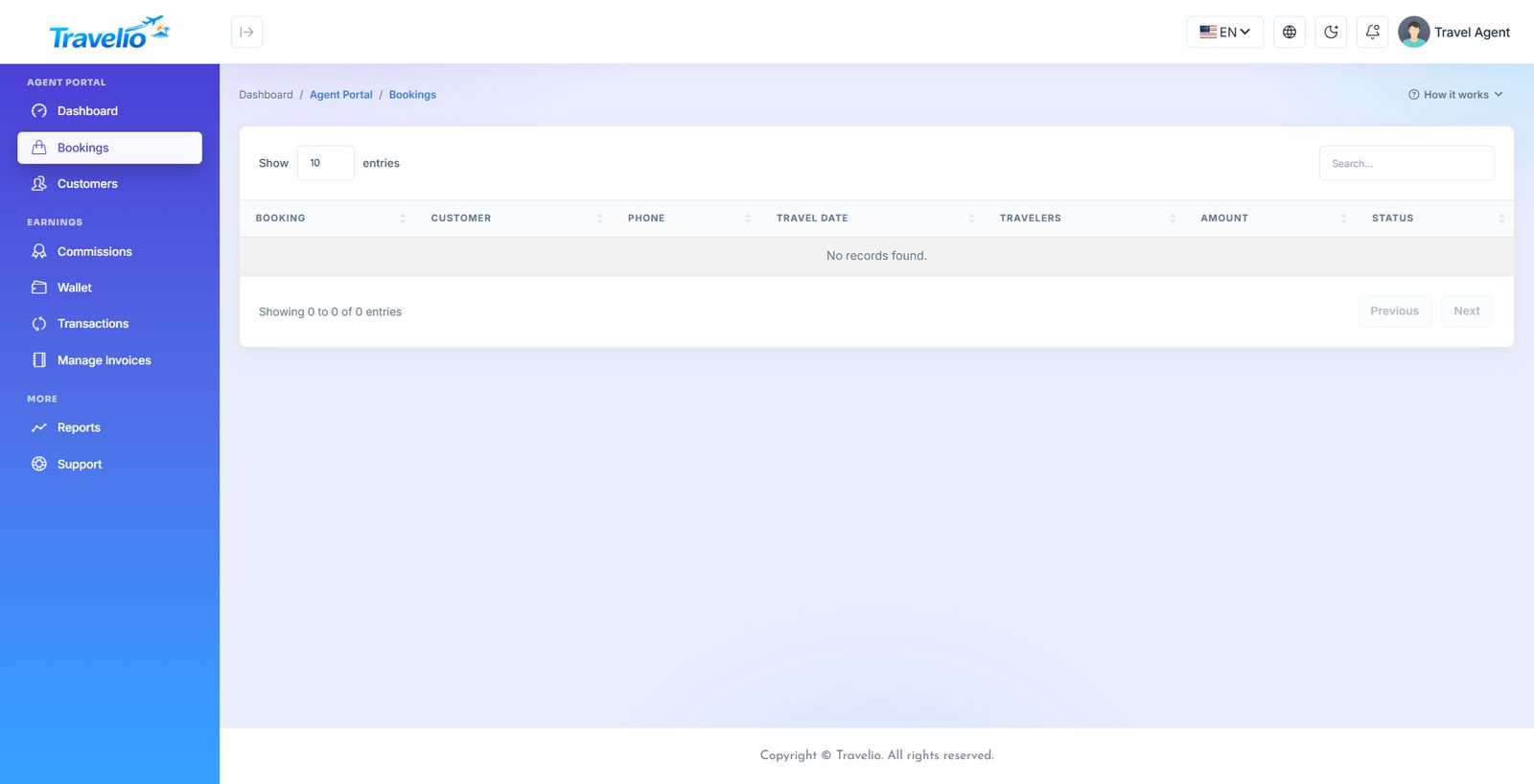
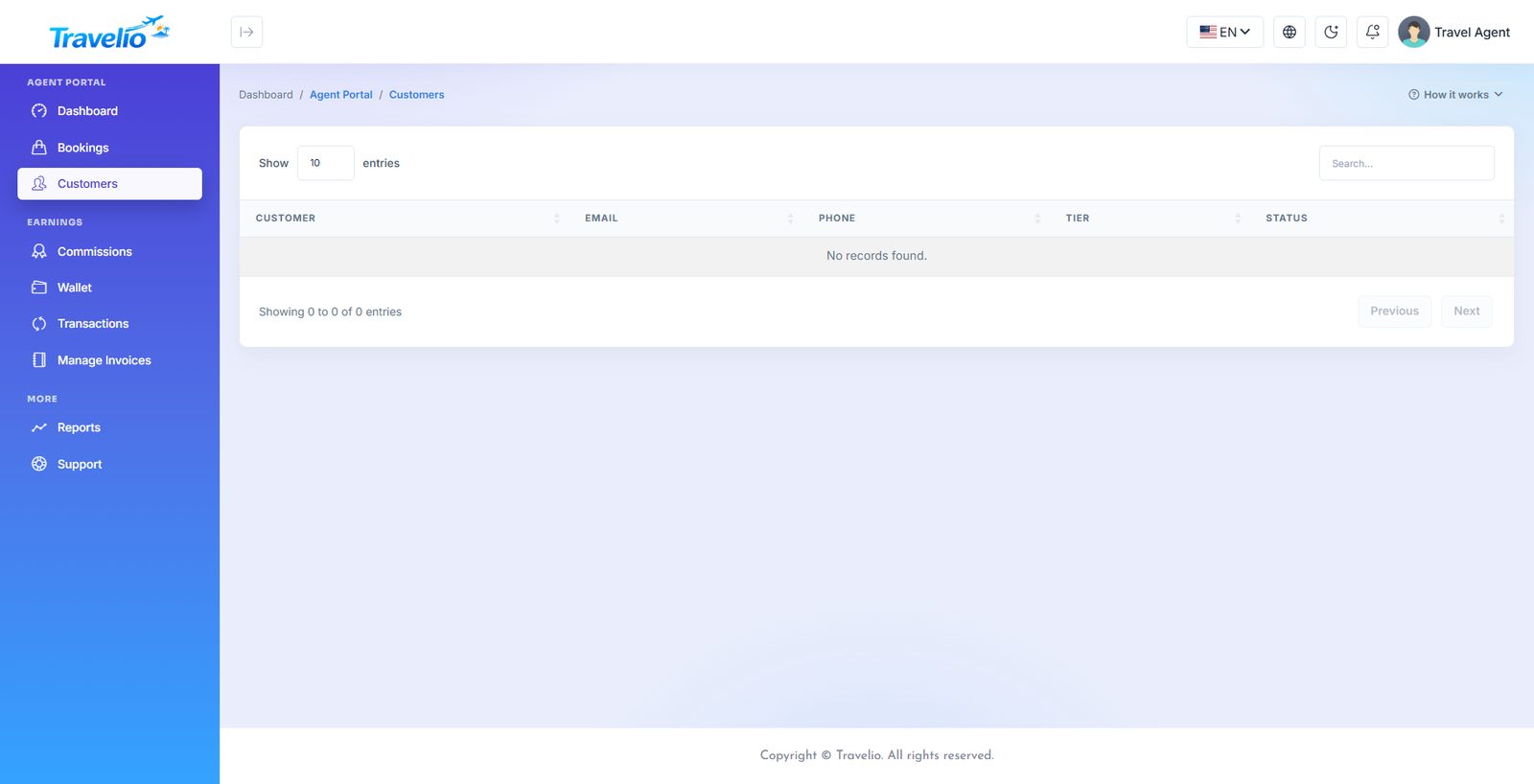
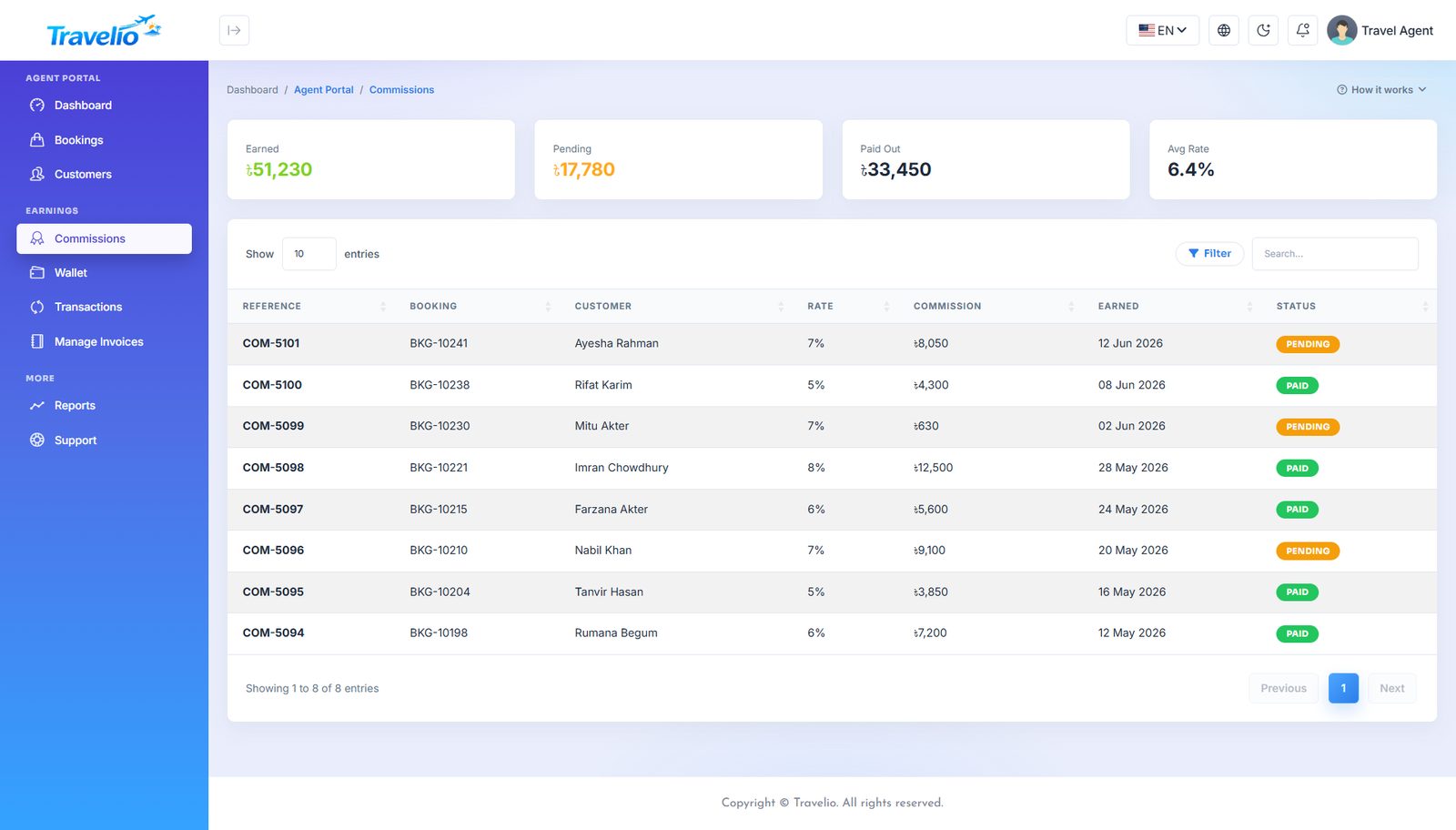
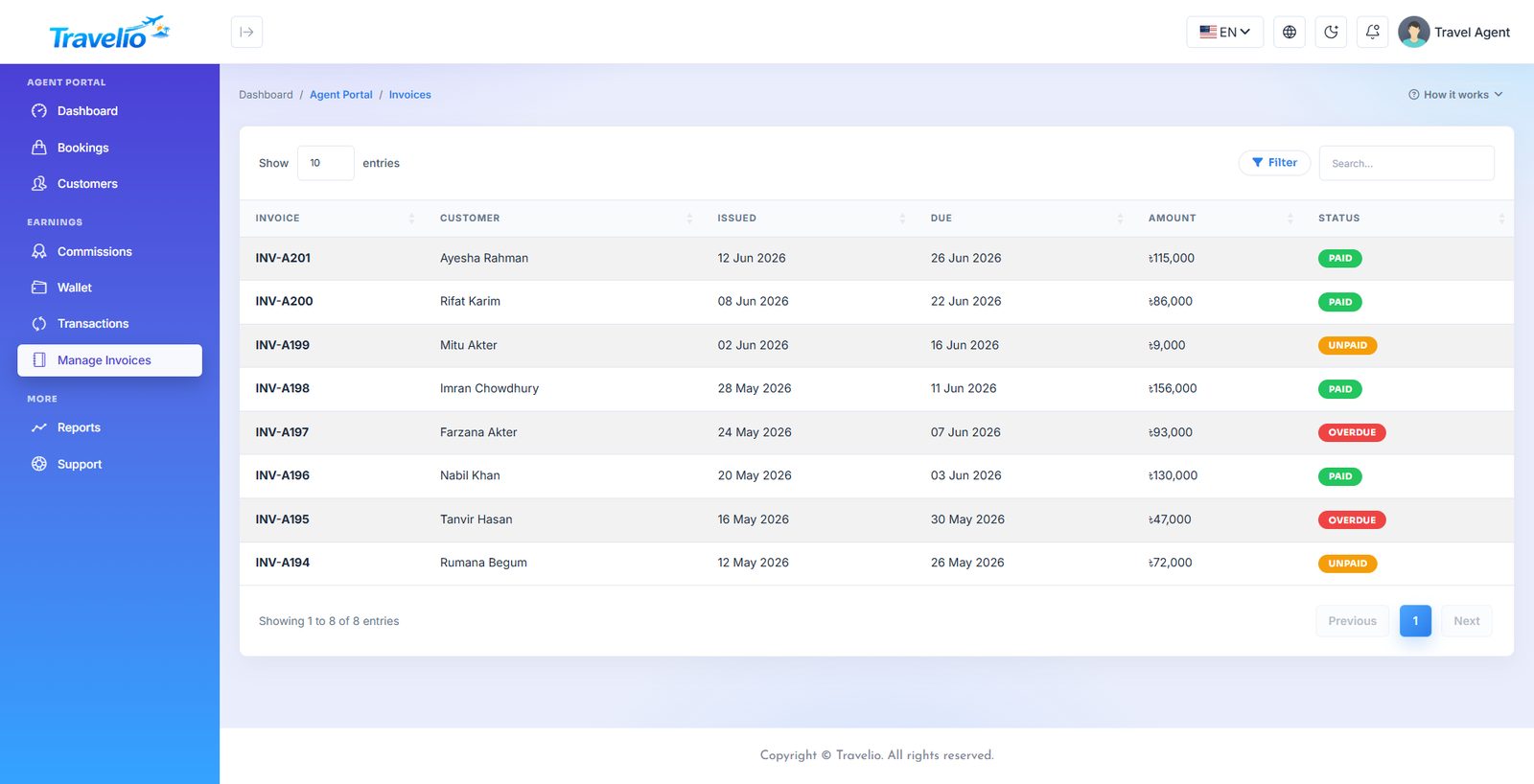
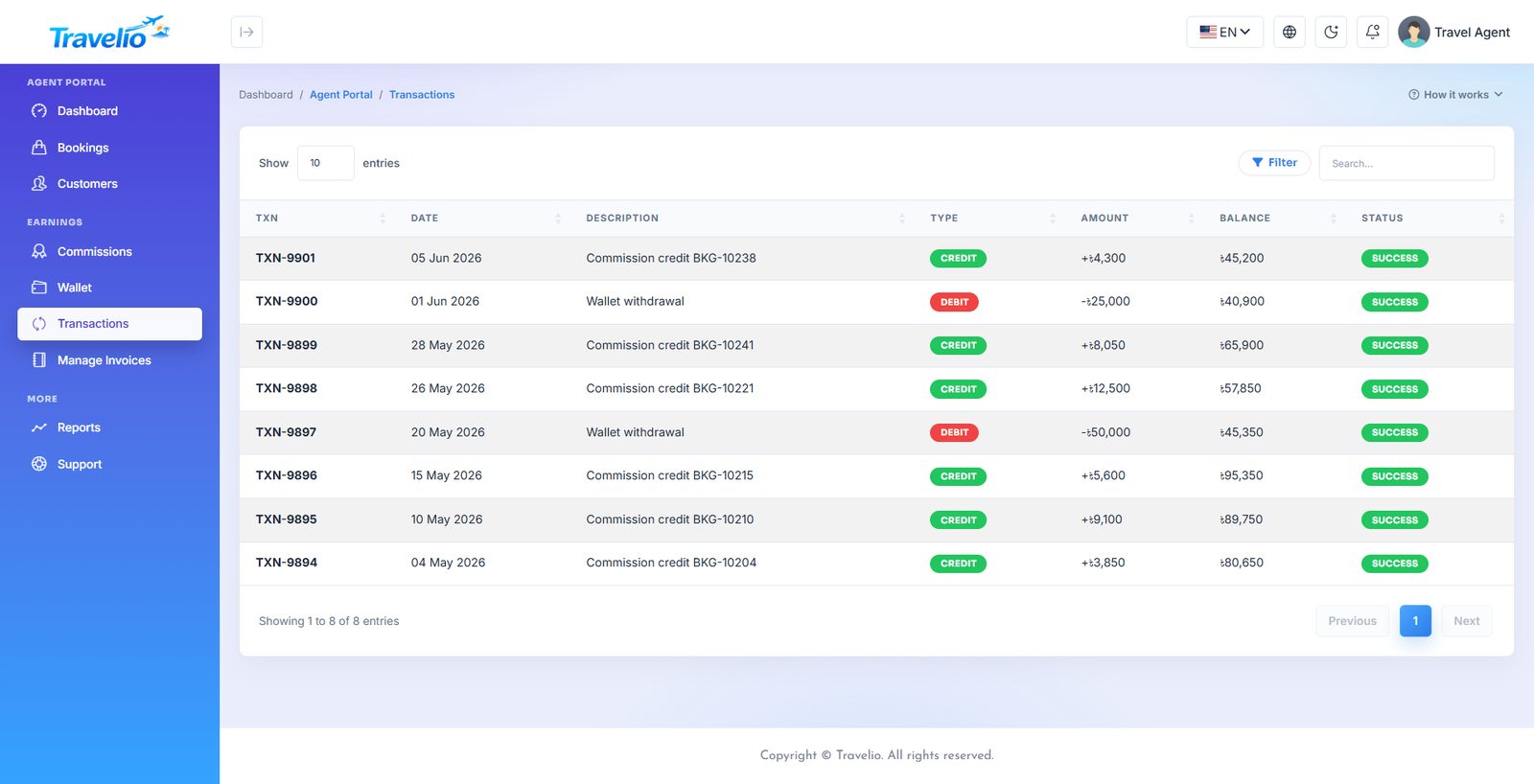
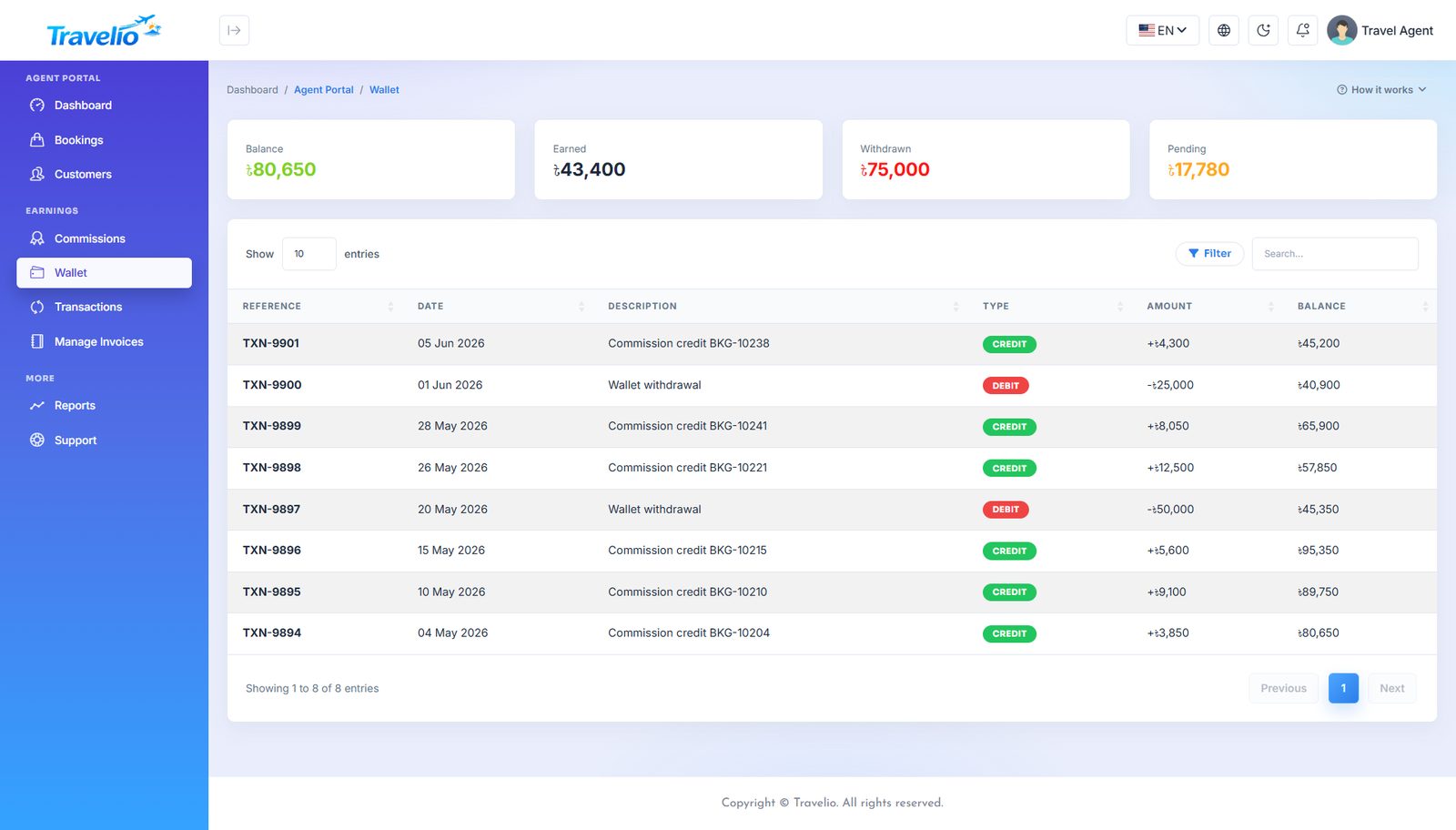
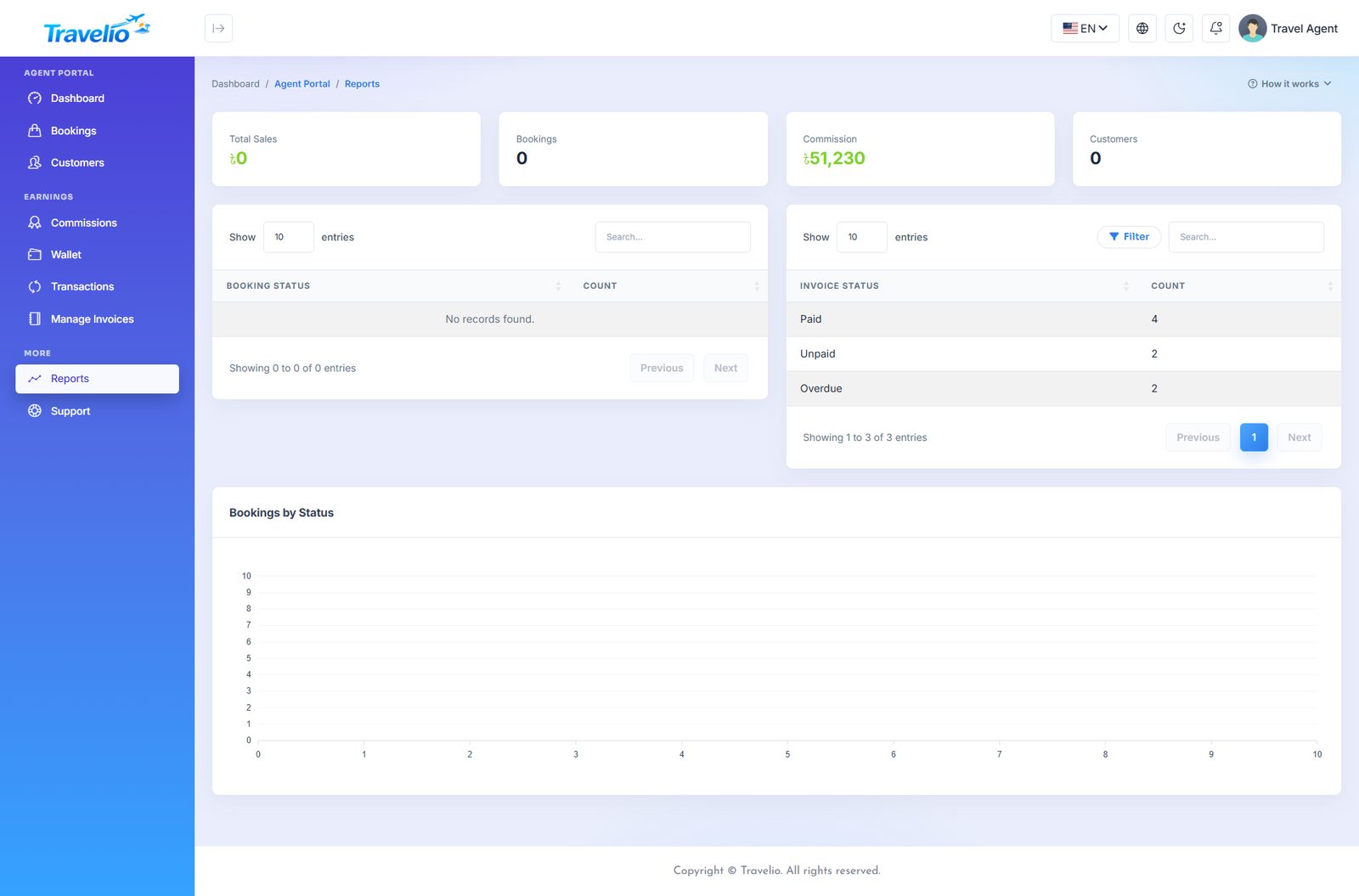
Vendor Portal
Only when the marketplace is on Vendors sign in at the normal login page and land on /portal/vendor/dashboard. The portal shows only their own records. Set-up and approval are covered in Multi-vendor Marketplace.
| Menu | What the vendor does |
|---|---|
| Dashboard | Total earned (net), Available to withdraw, Paid out, Listings awaiting approval, counts per listing type and the latest earnings. |
| Business profile | Business name, contact person, phone, city, country, logo (up to 2 MB), address and description. Email and services offered cannot be changed here. Edits need no approval. A View public page link appears once approved. |
| Documents | On the Business profile page: upload a trade licence, tax certificate or similar (PDF or image, up to 5 MB, 20 files). They are stored privately; only the vendor and the office can open them. Change password is in the portal menu. |
| Tour packages | Title, destination, price per adult / child, days, nights, description, inclusions and exclusions (one per line), image. |
| Hotels | Hotel name, city, country, star rating (1–5), price per night, rooms, description, image. |
| Transport | Service name, booking type, vehicle type, price from, price unit (e.g. per day), description, image. |
| Hajj & Umrah | Package title, type, days, price per pilgrim, seats. |
| Visa services | Country, visa type, entry, processing time, stay duration, government fee, your service fee, requirements. The published fee is the two added together. |
| Bookings | Read-only lists (latest 100 each) of tour bookings, hotel stays, transport trips assigned to them, visa cases and Hajj/Umrah pilgrims on their listings. Vendors cannot confirm or cancel bookings — your office does. |
| Earnings & payouts | The Earnings ledger (sale, gross, commission and rate, net, status), My payouts, and Request a payout (amount, method Bank / Cash / bKash / Nagad, account or wallet number). |
Rules vendors see
- A pending or suspended vendor can log in and edit the profile but cannot add listings or request payouts; a banner explains, including any note from the office.
- A new listing is submitted for approval (“goes live once the office approves it”). Every edit sends it back for re-approval. Each listing has an Approval badge and a Visible / Hidden switch on edit.
- Available balance = net earnings (excluding reversed) minus payouts that are requested, approved or paid. A payout cannot exceed it, and there is no other minimum.
The public side shows an approved vendor's page at /vendors/<slug> with its live tours, hotels, transport, Hajj & Umrah and visa services, and package and hotel cards carry a Sold by link.
Staff Portal & Tour Guides
Users with the Staff role sign in at /login and land on /portal/staff/dashboard. They have no admin-panel access.
- Dashboard — tasks assigned, due today, completed, days present and the latest tasks.
- My Tasks — read-only list of tasks assigned to them (status is updated by managers in Task Management).
- Attendance — read-only; there is no clock-in, HR enters attendance in the admin panel.
- Leave Requests — apply (Casual, Sick or Annual; dates; reason). Requests start Pending and HR approves them under Human Resources → Leave Requests.
- Payslips — read-only list. My Profile — edit name, phone, address, date of birth and about; the password has its own page.
Tour Guides
The Tour Guide role has no web portal. A guide uses the mobile app: they see their tour assignments and mark each one started and completed. Create the guide under Tour Management → Tour Guides, link their login on the guide form, and give them departures under Guide Assignments. The guide of the next departure is shown on the public package page.
Statuses & Workflows
A reference for every status in the system: what it means, what sets it, and what happens next. Many records are driven by observers, so the same side effects (invoice, receipt, ledger entry, commission, points) fire whether the change was made on an admin form, in a portal, by the mobile app or by a payment gateway.
The main booking lifecycle
Package booking: Pending → Confirmed → Paid → (trip happens) → review allowed
Money (payment status): Unpaid → Pending verification → Paid or → Rejected → (customer resubmits) → Pending verification
Supplier (set by hand): Pending → Confirmed or Failed (Not required for self-fulfilled services)
Exit: any unfinished booking → Cancelled → coupon use and points returned → paid amount refunded (invoice refund, or wallet for a customer self-cancel after the penalty).
Package booking Tour Management → Package Booking
| Status | Meaning | Set by | Side effects |
|---|---|---|---|
| Pending | Requested, not yet accepted. Website and agent bookings start here. | Creation; staff | No invoice yet. |
| Confirmed | You have accepted it. | Staff | Invoice (INV-B…) raised, due on the travel date; receivable posted. Customer gets a WhatsApp message if WhatsApp is set up. |
| Paid | Payment received. | Staff, or payment status becoming Paid | Forces Payment status to Paid; receipt issued for the outstanding balance; agent commission created as pending; loyalty points awarded on the amount actually paid; vendor earning credited for a vendor's package. |
| Cancelled | Called off. | Staff; customer or agent within the allowed window | Coupon use and redeemed points returned; unpaid invoice withdrawn; commission withdrawn; points reward reversed; vendor earning reversed. Customer self-cancel keeps the penalty (Settings → Booking Policy) and credits the rest to the wallet. |
| Payment status | Meaning / trigger |
|---|---|
| Unpaid | Default. Also set when Status moves off Paid. |
| Pending verification | Customer submitted bank-transfer proof. Cleared by approve or reject. |
| Paid | Proof approved, online gateway confirmed, or staff set it. Status is not changed by a gateway or proof approval. |
| Rejected | Proof rejected; the customer is notified with your reason and may submit again. |
| Supplier status | Meaning |
|---|---|
| Not required | Nothing to buy in (older bookings were set to this on upgrade). |
| Pending | Default for new bookings: the supplier has not confirmed yet. |
| Confirmed | The hotel / airline / operator confirmed; record the reference number beside it. |
| Failed | The supplier could not deliver — time to rebook or refund. |
Supplier status is changed only by hand; no automation sets it.
Payment proof (bank transfer)
| Status | Meaning | What happens |
|---|---|---|
| Pending | Awaiting review (one at a time per booking). | Booking shows Pending verification. |
| Approved | You verified the money. | Invoice settled, receipt issued with the bank reference, booking Paid, commission created, customer notified. |
| Rejected | Not verified. | Booking payment status Rejected, customer told why, may resubmit. |
Invoices, receipts and refunds
| Item | Statuses | How it works |
|---|---|---|
| Invoice | unpaid, partial, paid, overdue, refunded | Derived from receipts and refunds — never typed. Raised automatically when a booking is confirmed or paid (tour, hotel, transport, event, Hajj pilgrim, flight with ticket and fare, visa). Cancelling withdraws it if nothing was paid. An invoice with receipts cannot be deleted. |
| Receipt | — (a record) | Issued when money is recorded: automatically for Paid bookings, by Payment Verification approval, or manually under Accounting → Receipts. It cannot exceed what is owed. |
| Refund | — (a record) | Made from the invoice list Refund action: amount up to received minus already refunded, to Cash, Bank or Wallet, with a reason. Posts to Refunds (5300) and re-derives the invoice status. |
Visa
| Item | Statuses | How it works |
|---|---|---|
| Application status | Processing → In Review → Approved / Rejected | From Status Tracking. Processing can go to In Review, Approved or Rejected; In Review to Approved, Rejected or back to Processing; Approved and Rejected are final. The first move to In Review stamps the applied date. The customer gets a notification each time. |
| Documents status | Pending, Submitted, Verified | Recomputed from uploaded documents: any Verified → Verified; otherwise any document → Submitted. |
| Embassy appointment | Pending, Confirmed, Rescheduled, Completed, Cancelled | One appointment per application. |
| Payment | Unpaid, Paid | Invoice raised when Paid or In Review/Approved; receipt on Paid. Rejected and unpaid withdraws the invoice. |
| Expiry | 15 / 30 / 90-day bands, expired | Approved cases with an expiry date. Notify sends the customer an in-app “visa expiring soon” notice. |
Hajj & Umrah
| Item | Statuses | How it works |
|---|---|---|
| Pilgrim status | Registered, Confirmed, Cancelled | Registered or Confirmed raises invoice INV-P…; Cancelled withdraws it if nothing was paid. |
| Payment | Pending, Partial, Paid | Derived from amount paid vs due. Each payment entered creates a receipt for the difference. |
| Documents | Pending, Submitted, Verified | One status per pilgrim from Document Verification. |
| Package | active / inactive | A package with pilgrims cannot be deleted. |
Hotel, transport and flight
| Record | Statuses | Side effects |
|---|---|---|
| Hotel booking | Booked, Confirmed, Paid, Cancelled | Confirmed/Paid raise invoice INV-H…; Paid issues the receipt, creates agent commission (if an agent) and vendor earning (if a vendor hotel); Cancelled withdraws an unpaid invoice. Vouchers list Confirmed bookings. |
| Transport booking | Pending, Booked, Confirmed, Paid, Completed, Cancelled | Pending is an app/website request waiting for a fare; set the fare, then Confirm. Confirmed/Paid/Completed with a fare raise INV-T…; Paid issues the receipt and commission/vendor earning. |
| Flight booking | Pending, Confirmed, Reissued, Cancelled, Refunded | Allowed moves: Pending → Confirmed / Cancelled; Confirmed → Reissued / Cancelled; Reissued → Cancelled; Cancelled → Refunded; Refunded is final. Invoice INV-F… once a ticket number and fare exist. Reissue needs a new date and reason; Cancellation a reason; Refund an amount up to the fare (the difference is the retained penalty), method and reason. The customer is notified on Reissued, Cancelled and Refunded; commission is withdrawn on cancel or refund. |
Issuing a ticket means entering the Ticket No and fare on the booking — there is no live ticketing call to an airline or GDS.
Services
| Service | Statuses |
|---|---|
| Travel Insurance | active, inactive |
| Student Consultancy | Pending, Processing, Completed, Rejected |
| Medical Tourism | Inquiry, Confirmed, Completed, Cancelled |
| Corporate Travel | active, inactive |
| Event (the product) | Open, Full, Closed — Open/Full switch automatically from booked seats; Closed is manual and is never overridden |
| Event booking | Pending, Confirmed, Paid, Cancelled — Confirmed/Paid raise invoice INV-E…, Paid issues a receipt, Cancelled withdraws an unpaid invoice. A booking is refused if it needs more seats than are left. |
Insurance, Student, Medical and Corporate records are registers: they raise no invoice, receipt or ledger entry on their own.
CRM, tasks and support
| Item | Statuses | Notes |
|---|---|---|
| Lead stage | New, Contacted, Proposal, Negotiation, Won, Lost | Website enquiries arrive as New. Converting a lead to a flight or hotel booking marks it Won and logs an activity. |
| Contact message | new, read, replied | read is set when opened. |
| Job application | new, reviewed, shortlisted, rejected, hired | Moves from new to reviewed when opened. |
| Task | Todo, In Progress, Done | Priority Low / Medium / High. Kanban shows the three columns; change status with Edit. |
| Support ticket | Open, Pending, Closed | Priority Low / Medium / High. Assigning notifies the assignee; a status change notifies the requester. Tickets raised in the portal start Open and notify everyone with support access. |
Agents
| Item | Statuses | How it works |
|---|---|---|
| Commission | pending, paid | Created pending automatically when an agent's booking is paid (agent's rate, else the default 7%). Approve sets paid and credits the agent wallet; Unapprove reverses it. Withdrawn if the sale is cancelled or unpaid, unless already approved. |
| Agent invoice | paid, unpaid, overdue | Saving as paid requires a settlement method and settles it (wallet debit, cash or bank); moving off paid reverses it. |
| Withdrawal / payout | requested → approved → paid, or rejected | Requested from the agent portal (cannot exceed available balance). Mark paid checks the wallet, debits it and posts to cash or bank. A paid payout must be set back to approved before deleting. |
Marketplace
| Item | Statuses | How it works |
|---|---|---|
| Vendor | pending, approved, suspended, rejected | New sign-ups are pending. Only approved vendors can list and withdraw. |
| Listing approval | pending, approved, rejected | New and edited vendor listings are pending; live only when approved (and the vendor is approved). |
| Vendor earning | available, reversed | Created when the sale is paid; reversed if it is cancelled or unpaid. |
| Vendor payout | requested → approved → paid, or rejected | Requesting reserves the amount; rejecting releases it; Mark paid is final. |
Marketing, loyalty and reviews
| Item | States | How it works |
|---|---|---|
| Review | pending, approved, rejected | Moderated by default. Only approved reviews are public and counted. Staff may reply and change status, not edit the customer's words. |
| Coupon | active / inactive; Expired; Limit reached | Expired and used-up are derived from the expiry date and Used count. An unusable code never blocks the booking — it is priced without the discount and the reason is shown. |
| Loyalty points | earn, referral, spend, reversal | Earned when a booking is paid, on the amount actually paid; reversed if it stops being paid; returned if a booking that used points is cancelled; the referral bonus goes to the referrer when a referred customer signs up. |
| Campaign | Planned, Running, Paused, Completed | A record only — nothing is sent from it. |
HR, tours and accounts
| Item | Statuses | How it works |
|---|---|---|
| Attendance | Present, Leave, Absent | Entered by HR. |
| Leave request | Pending, Approved, Rejected | Staff submit (Pending); HR changes the status. No other side effect. |
| Payslip | Pending, Paid | Saving as Paid posts salary expense (Dr Salaries / Cr Cash) dated the month end; moving off Paid reverses it. |
| Tour schedule | open, full, closed | Shown as closed once the start date passes and full when booked seats reach capacity, whatever was typed. |
| Guide assignment | scheduled → in_progress → completed, or cancelled | A guide cannot be double-booked for overlapping dates. Guides can start and complete from the app. A guide shows as on_tour automatically while an assignment covers today. |
| Supplier contract | Draft, Active, Expired, Terminated | Manual. |
| Users, customers, hotels, rooms, drivers, banks, packages | active / inactive (rooms: available / sold-out; drivers also On Leave) | Inactive users cannot sign in; a customer who registers on the website stays inactive until the emailed code is confirmed. Inactive bank accounts are hidden from customers. |
Common Tasks
Every module in Travelio behaves the same way, so once you have learned one screen you have learned them all.
| To do this | Do that |
|---|---|
| Add a record | Open the module, click Add at the top right, fill the form, Save. The button only appears if your role has create permission. |
| Edit or delete | In the list, use the ⋮ menu on the row → Edit or Delete. Deletes ask for confirmation. |
| Find a record | Every list has a search box, sortable columns and paging. |
| Filter a report | Pick a date range at the top of the report, then Export CSV. |
| Give a colleague access | Users → Roles, tick the permissions, then assign the role to the user. |
| Change the website content | CMS — pages, blogs, sliders, testimonials, gallery, FAQs and menus. |
| See who changed something | Activity Logs. |
Some records refuse to delete — a Hajj package with pilgrims, an account with transactions, a hotel with bookings. The system tells you which link is blocking it. Remove the dependency first.
Troubleshooting
| Symptom | Fix |
|---|---|
| 500 error after upload | Check storage/ and bootstrap/cache/ are writable, and that APP_KEY is set (the web installer sets it; with a terminal: php artisan key:generate). |
| Blank white page | PHP version below 8.3, or a missing extension. Check your host's PHP selector and error log. |
| Database connection refused | Wrong DB_* values in .env, or the cPanel prefix is missing from the database and user name. |
| Assets or images not loading | Confirm APP_URL matches the real domain, including https, and that public/uploads is writable. On a cPanel Option B install also check travelio-path.php (Install on cPanel). |
| Changes to .env do nothing | Config is cached. Run php artisan optimize:clear. |
| Emails never arrive | Verify the SMTP values under Settings → Mail, and make sure the queue worker or cron is running. |
| 404 on every page except home | Apache mod_rewrite is off, or .htaccess was not uploaded (it is a hidden file). |
| Customers never receive the sign-up code | Registration needs working email. Check Settings → Mail (the seeded SMTP host is a placeholder) and the queue/cron. |
| Bank payments stay Pending verification | Open Payment Verification and approve or reject. Your role needs booking_update and tour_read. |
| /vendors or /become-a-vendor shows 404 | The marketplace is off — turn it on under Settings → General Settings. |
| A gateway is not offered at checkout | It needs every credential filled and status Active (Payment Gateways). |
| A user cannot see a menu | Their role lacks the read permission for it — Users → Roles. |
Support & Updates
Item support covers installation help, bug fixes and answering questions about the included features. It does not cover customisation, third-party service configuration, or hosting problems on your server.
- Email — [email protected]
- WhatsApp — +8801811843300
- Website — bugbuild.com
When reporting a problem, include your PHP version, the exact error message and the steps that produced it — it gets you an answer far faster.
Costs for hosting, domains, payment gateways, SMS, email services and Apple/Google developer accounts are not included in the item price and must be arranged separately.
Changelog
Every release is listed here, newest first. The same history ships inside the package as
WebSourceCode/CHANGELOG.md (web) and AppSourceCode/CHANGELOG.md (app),
so you can diff exactly what changed before upgrading.
Version 1.7.0
Added
- Stripe and PayPal with their own charge currency, converted from your agency currency. See Payment Gateways.
- Currencies & exchange rates, typed in or refreshed daily; the app can show prices in the customer's currency. See Currencies.
- Two-factor sign-in with an authenticator app and recovery codes, on the web, social sign-in and the app. See Two-factor Sign-in.
- Partner agencies: agent groups with commission per service, credit limits, staff logins (Team) and online applications approved by your desk. See Partner Agencies.
- Hotel rate calendar: rate, allotment, minimum stay and stop sell per night. See Hotel Rates.
- Activities & excursions with dated slots, capacity, adult/child/group prices, languages, pickup points and QR vouchers, on the website and in the app. See Activities.
- Webhooks for bookings and payments, signed and retried, and Twilio SMS. See Webhooks & SMS.
- Extra live-hotel suppliers can be plugged in next to Amadeus (
config/suppliers.php,App\Services\Hotels\HotelProvider) and are merged cheapest first. - Mobile app 1.7.0: two-factor code step, display currency, agent credit and commission rates, Team, partner application with password, Activities.
- API:
POST /auth/two-factor,currency_codeandcurrenciesin/settings,/agent/team,creditandcommission_ratesin/agent/dashboard,/activities,/activities/{id}/book,/activity-bookings.
Changed
- An online payment in a currency without a rate is refused before checkout instead of charging the agency-currency amount in the gateway's currency.
- Hotel stays are priced night by night from the rate calendar (nights without an entry use the base rate, as before).
Version 1.6.0
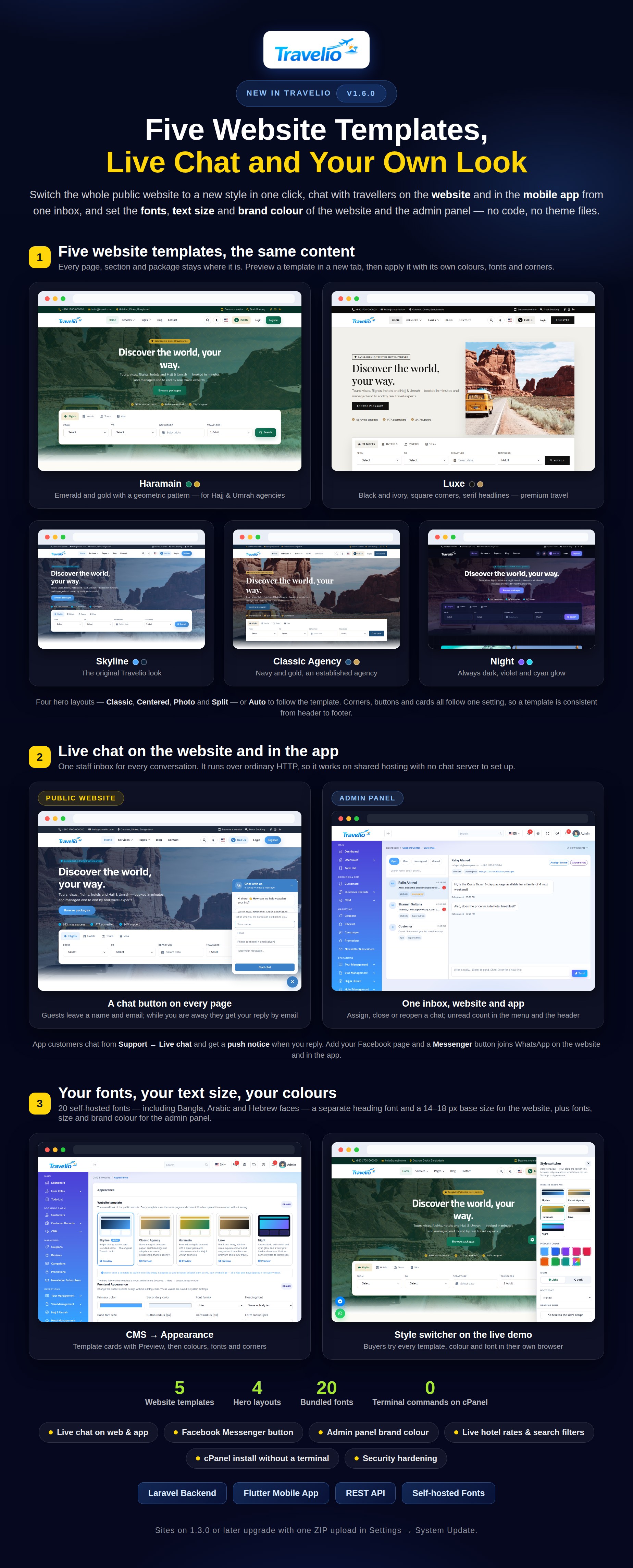
Added
- Website templates: Skyline, Classic Agency, Haramain, Luxe and Night — preview in a new tab, apply with their recommended colours and fonts. See Appearance.
- Hero layouts: Classic, Centered, Photo and Split, or Auto to follow the template (Home Sections → Hero).
- Live chat on the website and in the app, answered from one staff inbox (Support Center → Live chat) with assignment, open/closed status, online/away and email replies to guests. Works on shared hosting. See Live Chat.
- Facebook Messenger button next to WhatsApp, in the footer, on the Support page and on the app's Contact screen (Settings → General).
- Appearance: 20 bundled fonts, a separate heading font and a base text size for the website; a new Admin Panel Appearance section for the admin panel and portals (fonts, text size, brand colour). See Appearance.
- Website search: live hotel rates (with Amadeus), the Flights tab searches live once a flight API is on, budget/length filters for tours and Hajj & Umrah (plus open seats), text/type search for transport, required documents on visa cards.
- System Update server check: PHP, extensions, upload size, time and memory limits, folder permissions and disk space are checked before an update starts, with the exact setting to fix.
- Install on cPanel without a terminal — see Install on cPanel;
public_htmllayouts are supported throughtravelio-path.php. - Mobile app 1.6.0: live chat with push notices, Messenger on Contact, and sign-in with an unverified email opens the code screen.
- API:
POST /auth/logout-all, live chat endpoints (GET/POST /live-chat),live_chat_enabledin/settings,messenger_urlin/contact-info.
Changed
- The web installer creates your administrator, installs only into an empty database, stays locked afterwards and sets
APP_ENV=production. - PHP 8.3 or newer is required.
Security
- Uploads get their file extension from their content; deleting an old upload can never leave
public/uploads. - Deactivated accounts cannot sign in and their app sessions end at once; a password reset signs out every device; unverified customers must confirm their email before the app signs them in.
- Activity-log values are always escaped.
Fixed
- A hand-edited search link no longer causes a server error; admin toggle switches render correctly; the website heading font follows Appearance; dark mode search dropdowns are readable again.
Version 1.5.0
Added
- Modules — switch services on or off. New Settings → Modules: Tour packages, Hajj & Umrah, Visa, Flights, Hotels, Transport, Additional services, Agents, Marketing, CRM, Accounting, HR, Tasks, Support and Reports. A switched-off module disappears from the website (pages, menus, home sections, search tabs), the portals, the admin menu and the mobile app at once; nothing is deleted. See Modules.
- Agent registration switch. Close “Become an agent” on the website and in the app while existing agents keep working. Switching the Agents module off also stops agents signing in. Vendor registration follows the marketplace switch.
- Six flight APIs. Live flight search now runs across Amadeus, Sabre, Travelport, Duffel, TBO Air and Kiwi.com together — merged, de-duplicated and sorted by price, with the provider on each offer. See Live flight search.
- Featured packages for tours and Hajj/Umrah: listed first on the website and in the app, with a badge.
- Promotions (Marketing → Promotions): scheduled promo banners for the website and/or the app that link to a package, Hajj/Umrah package, visa service, hotel or any URL. See Promotions & Featured.
- Two new home sections: Promotions and the Hajj & Umrah package rail; the tour package rail gains a Which packages setting.
- Mobile app 1.5.0: follows the module switches (tabs, shortcuts and menus hide; the Explore tab goes when Tours is off), a Special Offers carousel, a Hajj & Umrah rail, Featured badges and Live fares in the flight search.
- API:
/settingsreturnsmodules,agent_registration_enabled,vendor_registration_enabled;/homereturnspromotions,featured_hajj_packagesandmodules;/toursand/hajj/packagesacceptfeatured=1and returnis_featured;/live-flightsreturns normalised offers plusproviders.
Fixed
- Saving a settings page with a password / secret field left blank no longer erases the saved secret (Flight API, mail, social login and others).
- The “Become a vendor” menu link no longer shows while the marketplace is off.
Upgrading from 1.4.0: use Settings → System Update as usual (ZIP upload, or copy the files and press Finalize). Every module stays on after the update, agent registration stays open, and the two new home sections are added to your existing home page without changing your order. Existing Amadeus credentials keep working; other flight providers are off until you enable them.
Version 1.4.0
The biggest update since launch. You can upgrade directly from 1.0.0 or 1.1.0 — there is no need to install intermediate versions.
Added
- Multi-vendor marketplace (optional; on for a fresh install, an upgraded site keeps its setting). Switch it on under Settings → General Settings → Marketplace. Outside hotels, tour operators, transport providers, Hajj/Umrah operators and visa consultants apply at
/become-a-vendor, and after approval list tours, hotels, transport, Hajj & Umrah packages and visa services from their own Vendor Portal. - New admin Marketplace menu: Vendors (status, per-vendor commission, note, per-listing approve / reject) and Vendor payouts (requested → approved → paid, or rejected). Earnings are credited when a vendor's sale is paid and reversed if it is cancelled; commission defaults to 10% and can be overridden per vendor. Accounting gains Vendor Payable (2400) and Vendor Cost of Sales (5500).
- Public pages
/vendorsand/vendors/<slug>, Sold by labels on package and hotel cards, and matching mobile API endpoints. Transport bookings can be assigned to a vendor; visa applications gain a payment status and billing. See Multi-vendor Marketplace for what vendors are and are not notified about. - Bank transfer with verification. Customers submit the reference, date and a receipt (JPG, PNG or PDF) from the portal or app; the booking shows Pending verification. The new Payment Verification queue lets staff approve (settles the invoice, issues the receipt with the bank reference, creates agent commission) or reject with a reason. An amount below what is due cannot be approved. Receipts are stored privately. New Bank Accounts screen; active accounts are shown to customers who choose Bank, in the portal and at
GET /api/v1/payments/bank-accounts. - Payment status and supplier status are separate from booking status, with a Supplier and Supplier reference on package bookings.
status = paidstill works and mirrorspayment_status = paid; existing bookings are back-filled with supplier status Not required. An online gateway payment sets payment status and leaves the booking status alone. - JazzCash and Easypaisa gateways (Pakistan), configured in Settings → Payment Gateways. Test with your own merchant sandbox before going live.
- Hero slider — a new home-page section: a full-width fading slider built from your active Sliders, with the search widget optionally on top. Add it under Home Page Sections, make Hero + search widget inactive and drag it to the top. The original hero is unchanged
- Search Widget Tabs and Traveler Options under Settings, and Home Sections under CMS: reorder, show / hide and re-word the home page; the mobile app reads the same list.
- Mobile app 1.4.0: bank-transfer sheet, JazzCash and Easypaisa, payment and supplier status badges on bookings, a visa Pay button, and a vendor experience (dashboard, listings with photos, bookings, earnings, payouts).
Vendor notices are emailed only when Settings → Mail is configured, and there is no combined listing-approval queue.
Upgrading to 1.4.0 from 1.0.0 or 1.1.0 — one jump, no intermediate versions.
- Back up the files and the database (the updater keeps a code backup only).
- 1.0.0 and 1.1.0 have no System Update screen, so copy the contents of
WebSourceCodeinto the project root with Replace all, but not.env,vendor,storage,public/uploads,public/storage. With SSH use the anchoredrsynccommand shown on the System Update screen. - Sign in as super-admin — every admin page redirects to Settings → System Update until the update is finalized — and press Finalize manual update (or run
php artisan travelio:upgrade). Do this straight away: until then the site points at database columns that do not exist yet. - Optional:
composer install --no-dev --optimize-autoloader. Novendor/replacement is required. - Afterwards open Settings → Loyalty, Booking Policy and Payment Gateways, add bank accounts, and mark existing approved visa cases as paid where they were paid (1.0.0 stored no visa payment data). From 1.3.0 onwards updates can be a ZIP upload on the same screen.
Version 1.3.0
Added
- Live hotel search & booking via Amadeus, alongside the manually-catalogued hotels, reusing the Settings → Flight API credentials. Booking re-confirms the offer's price and availability, reserves it with the hotel, and payment is collected your own way only afterwards. Live bookings carry a Live badge in Hotel Bookings and cannot be self-cancelled by the customer.
- Default theme. Settings → Appearance → Default Mode sets light or dark as the default for the public website and the admin panel separately; visitors with a saved preference keep it.
- Flight bookings: round-trip fare split per leg, a return route and date, and a customer's own cancellation now shows the refund amount, penalty and status note in the app/API. Hotel bookings: a customer can amend a still-tentative booking; once the desk confirms it, amendments go through the desk.
- System Update's manual (cPanel) panel also shows a ready-to-copy
rsynccommand for hosts you reach over SSH. - Everything from the earlier 1.2.0 builds is included: AI Trip Planner, live Amadeus flight search, loyalty and referrals, WhatsApp Cloud API, Google and Facebook sign-in, Social Links, promo codes at checkout, spendable loyalty points and verified reviews.
- Mobile app 1.3.0: social sign-in, trip planner, points and referrals, reviews, promo code and points in the booking sheet, refund details on cancelled flights, and amending an unconfirmed hotel booking.
Version 1.2.0
Added
- Promo codes apply at checkout. A code can be entered when booking from the mobile app, the customer portal, the public website and the back-office booking form. Minimum spend, usage limit and expiry are enforced, and Marketing → Coupons shows a live redemption counter.
- Loyalty points can be spent. Points are redeemed as a discount on a tour booking, bounded by three new settings under Settings → Loyalty & Rewards: the value of a point, the minimum redemption, and the largest share of a booking points may cover.
- Verified booking reviews. A new Marketing → Reviews module. A customer may only review a tour they paid for and have travelled on; reviews are moderated by default and staff may reply publicly but cannot edit the customer's words. Star ratings from approved reviews appear on the public tour page, the portal catalogue and the app.
- New API endpoints —
POST /bookings/quote(live price with a code and points),GET /packages/{id}/reviews,GET /reviewsandPOST /bookings/{id}/review.
Fixed
- Loyalty points were awarded on payment and kept even after the trip was cancelled and refunded. Points now follow the amount actually paid, and a booking that stops being paid has its reward reversed.
- Cancelling a booking now returns the coupon use and the redeemed points; reinstating it takes them again.
- The Coupons form emitted broken markup for its required-field markers and number inputs.
Upgrading from 1.1.0: replace the source files, run
composer install --no-dev, php artisan migrate --force and
php artisan optimize:clear. The migration backfills every existing booking's list
price and grants the new review permissions to your existing staff, so the Reviews page is
reachable straight away. Then set your rates in Settings → Loyalty & Rewards.
Version 1.2.0 (initial build)
New
- AI Trip Planner in the customer portal and mobile API, powered by the agency's own OpenAI key.
- Live Amadeus flight-offer search on the public website and mobile API.
- Customer loyalty dashboard with automatic points for paid bookings, unique referral codes and configurable referral bonuses.
- WhatsApp Cloud API service for customer messaging.
- Complete Google and Facebook customer sign-in, including provider-account linking and support for multiple providers per user.
- Dedicated Social Links manager with create, edit, delete, status and display-order controls; active links feed the website header, footer and structured data.
- Admin System Update screen accepts the same full
WebSourceCodeused for a fresh install, with versioned manifest validation, automatic backups, protected customer files, maintenance mode, migrations, permission refresh and a cPanel fallback.
Changed
- OpenAI, Amadeus, WhatsApp and loyalty configuration moved from
.envto separate Settings → AI Settings / Flight API / WhatsApp / Loyalty & Referrals pages; sensitive values are encrypted in the database. - Social-login and integration secret fields no longer expose saved values, and leaving one blank preserves the existing encrypted secret.
- Fixed language-direction handling so the configured LTR/RTL value is applied correctly across frontend, authentication and admin layouts.
- System Update has dedicated read/update permissions; Super Admin receives access when the release permission seeders run.
Upgrading to 1.2.0: back up the application and database, download the latest full package, then ZIP WebSourceCode (or its contents) and upload it at Settings → System Update. The ZIP must include travelio-update.json. If your host blocks ZIP extraction, copy the contents of WebSourceCode over the project with cPanel, then click Finalize manual update. Never replace .env, vendor, storage, public/uploads or public/storage. Afterward, enter credentials on the separate AI Settings, Flight API and WhatsApp pages.
Version 1.1.0
Security
- Removed the customer wallet top-up API endpoint that credited a wallet with no payment taken. A wallet is now funded only by a confirmed payment or a staff-recorded adjustment.
- Wallet and agent-withdrawal balance checks run inside a database transaction with a row lock, so two concurrent payments can no longer both pass the check and overdraw.
- Visa applicant documents (passport scans, IDs) moved from the public disk to a private one and are served only through authenticated, permission-checked download routes. Existing installs: run
php artisan travelio:move-private-documentsonce after upgrading. - SVG is no longer accepted for the site logo and favicon (stored-XSS risk from inline rendering).
- The image-upload pipeline checks the file extension against an explicit whitelist instead of building a PHP function name from it.
- Android release builds fail with a clear message when
android/key.propertiesis missing, instead of silently producing a debug-signed bundle the Play Store rejects.
Fixed
- Uploading a logo, favicon or any file through an admin form could fail with "something went wrong" — the request sanitiser was coercing uploaded files to strings.
- Wallet balance is read from the latest ledger row instead of replaying a customer's full history; total held across all wallets is one SQL aggregate.
Changed
- Booking cancellation now respects an admin-configurable window and penalty — Settings → General Settings → Booking Policy.
- Removed the unused Inertia/Vue layer and
laravel/breeze; upgradedintervention/imageto 3.x; one jQuery (3.7.1) and one Select2 (4.1) build in the admin panel. - Android release builds ship with R8 code shrinking enabled;
--obfuscate --split-debug-infodocumented in the app README.
Version 1.0.0 — Initial release
- Tour packages, visa management, Hajj & Umrah, hotel/flight/transport booking, additional services.
- CRM, double-entry accounting, suppliers, agent commission, task management, support center, reports.
- CMS website builder, HR, role-based access; customer, agent and staff portals.
- Flutter app for customers, agents and tour guides with push notifications.
- Guided web installer; four languages with RTL/LTR support.
Upgrading from 1.0.0: replace the source files, run composer install --no-dev, php artisan migrate --force, php artisan travelio:move-private-documents and php artisan optimize:clear. Then review the new Booking Policy settings.